

Accept the internal test invite
Once you have received an invite to test an app, follow these steps to accept the invite:- First, make sure you are logged into the correct email on both the Play Store application and the email application (e.g., Gmail):
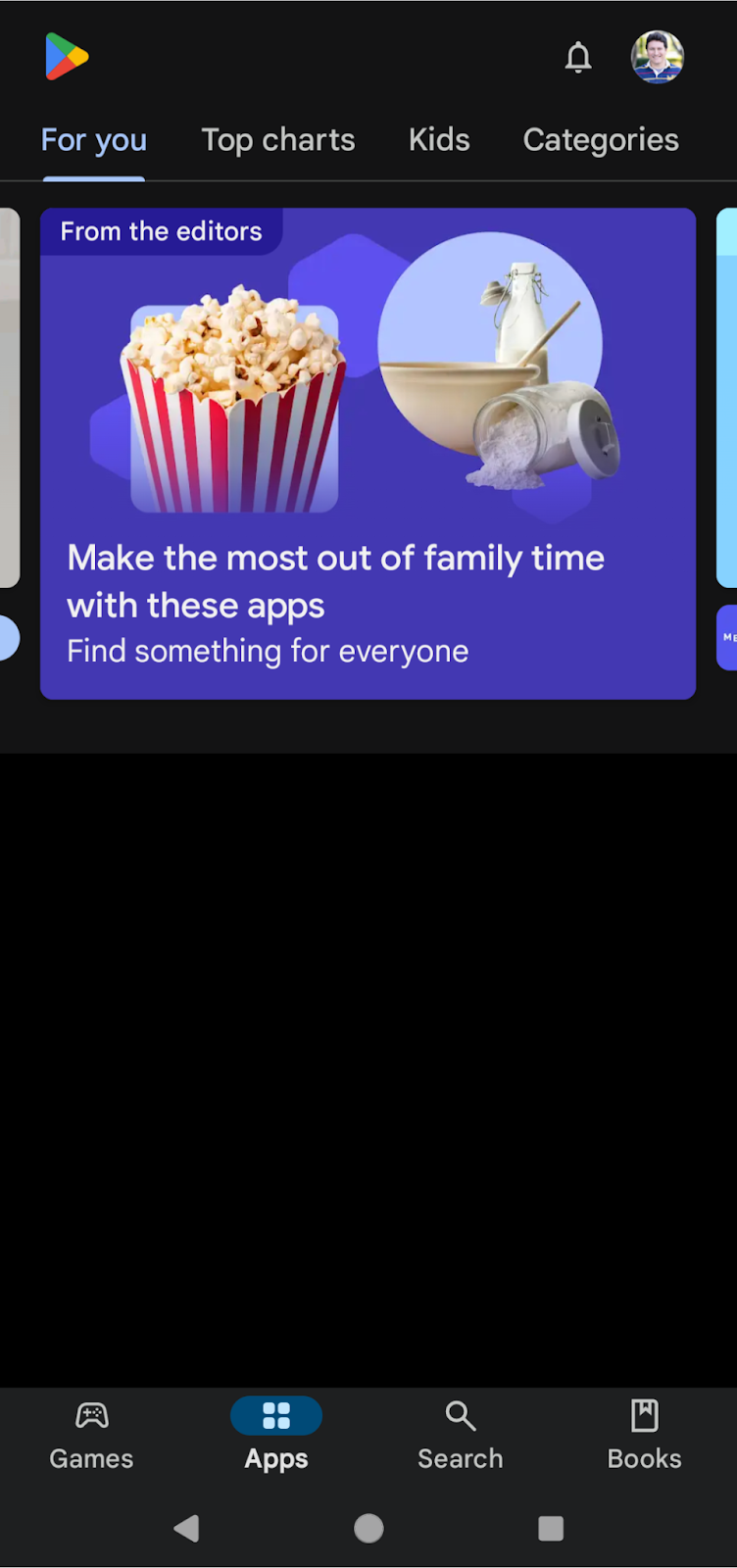
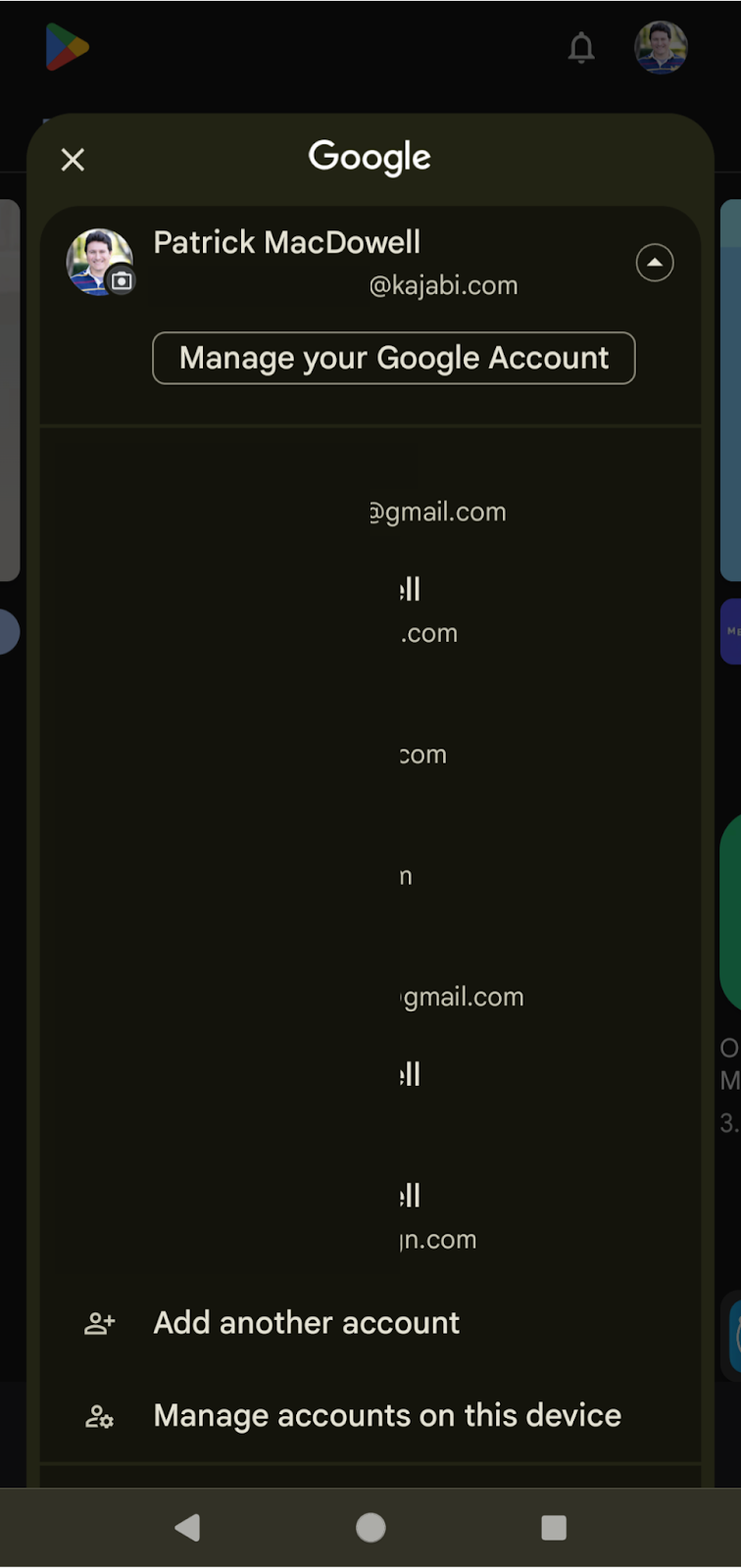
- Click on the image in the top right corner and make sure you are selecting the account you want to accept the invite from:
- Next, click on the invite email you received for the closed testing invite and click on Become a Tester:
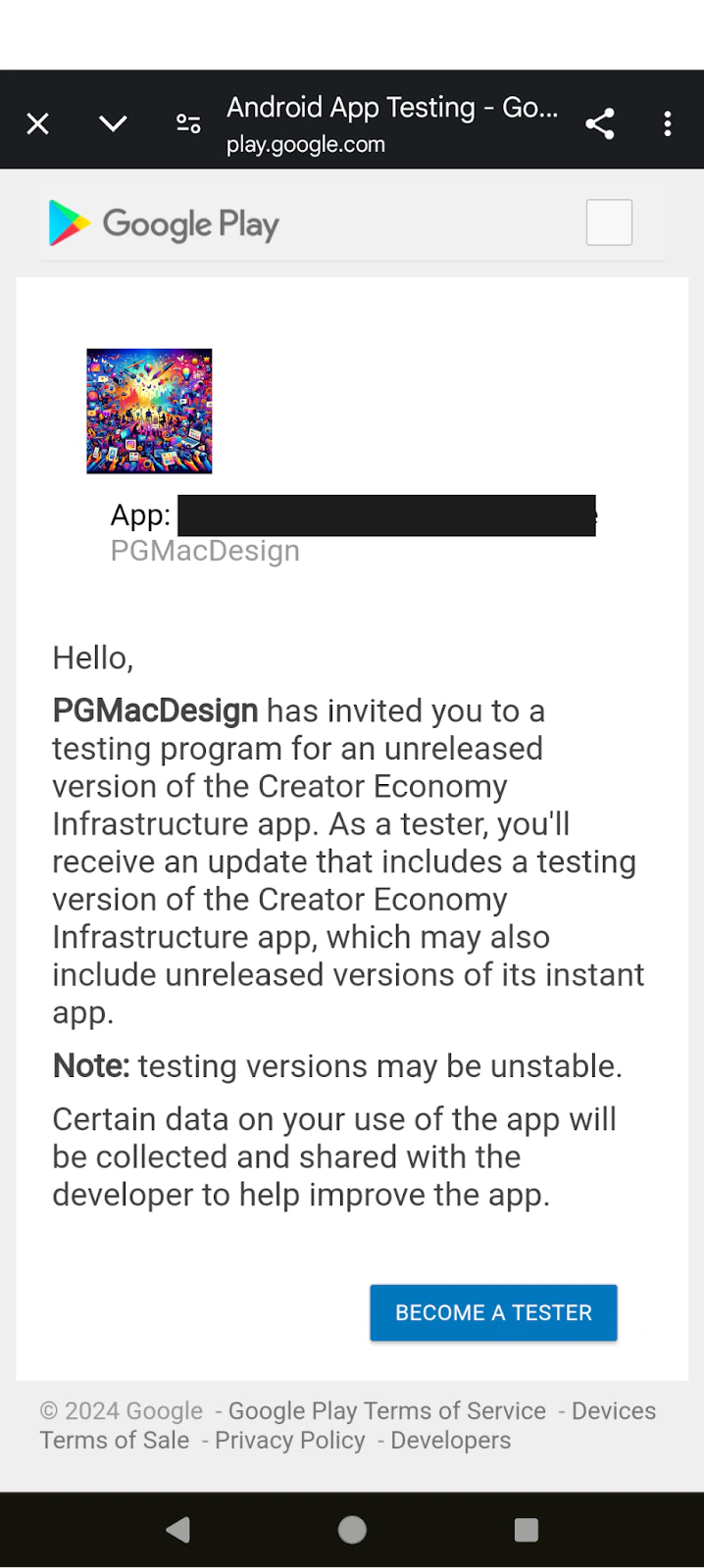
Note:
If you see this screen, you are not logged into the correct Gmail account: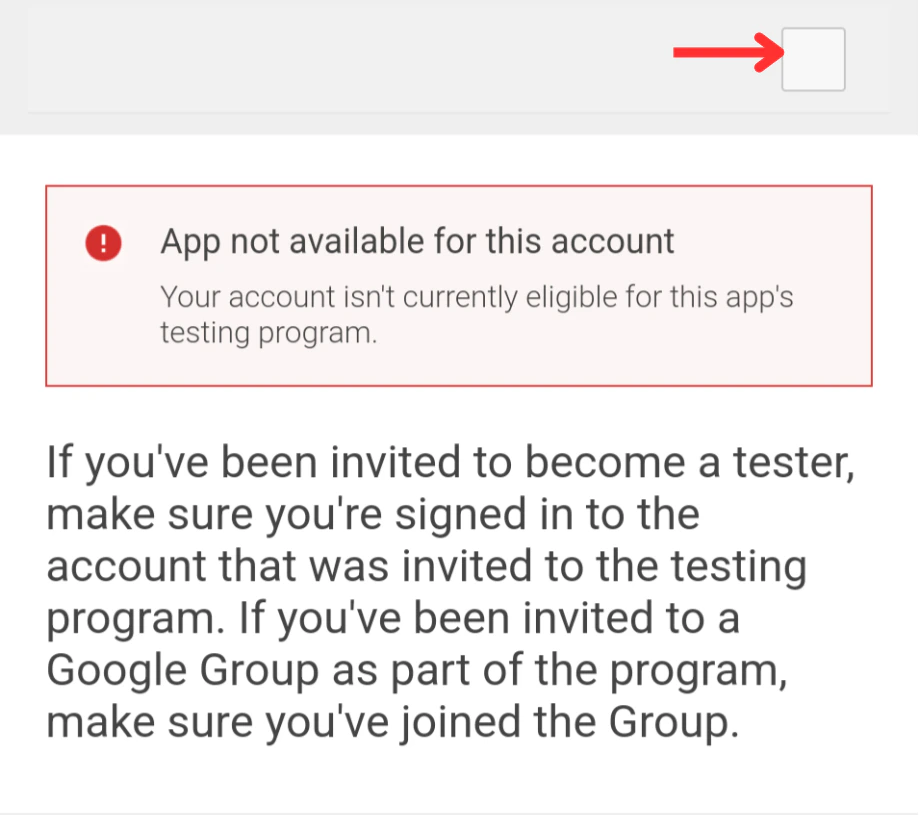
Install the internal test app
- Once you have accepted the invite, click on the Install the public version on Google Play hyperlink text as shown in the screenshot above
Note:
If you load into a completely blank screen that does not do anything:
- If all goes well, you should be directed straight to the app download page. Install it, log in with your credentials, and you can test away.