What is an App Offer?
An App Offer is the mechanism through which Branded App members can make in-app purchases. App Offers are different from Offers created for products on a Kajabi website and must be created separately from website Offers.How will members experience App Offers?
App Offers will be featured on the app home screen. When a member clicks to open an App Offer, they’ll see a custom title, description, and price information. They can then click the Pay button to purchase the course(s) included in the offer: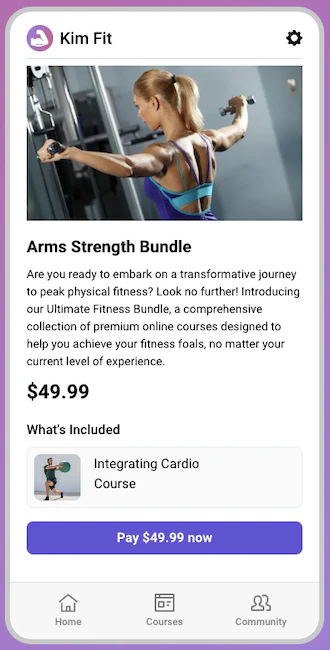
Create an App Offer
To create an App Offer:
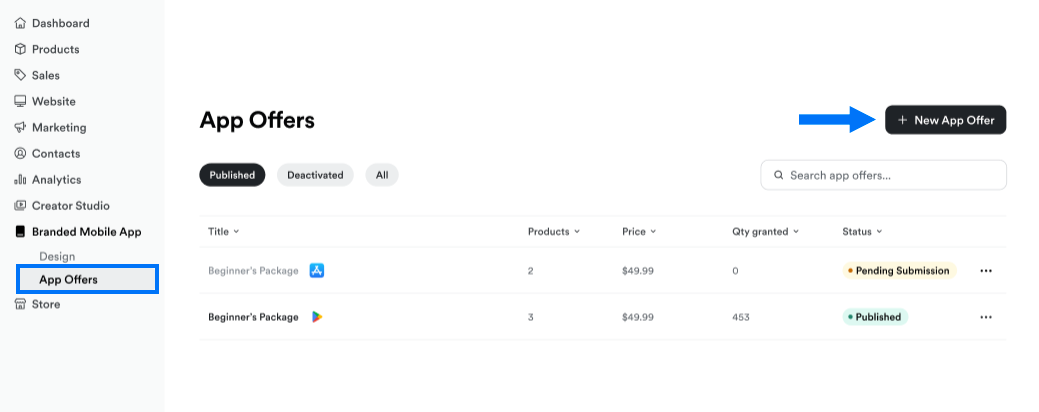
- Select Branded Mobile App from your Kajabi dashboard. If you’ve fully completed your app setup, you should see the App Offers subpage in your app navigation menu.
- Select App Offers.
- If this is your first App Offer, click Get started. If you’ve created an offer before, click + New App Offer at the top right:
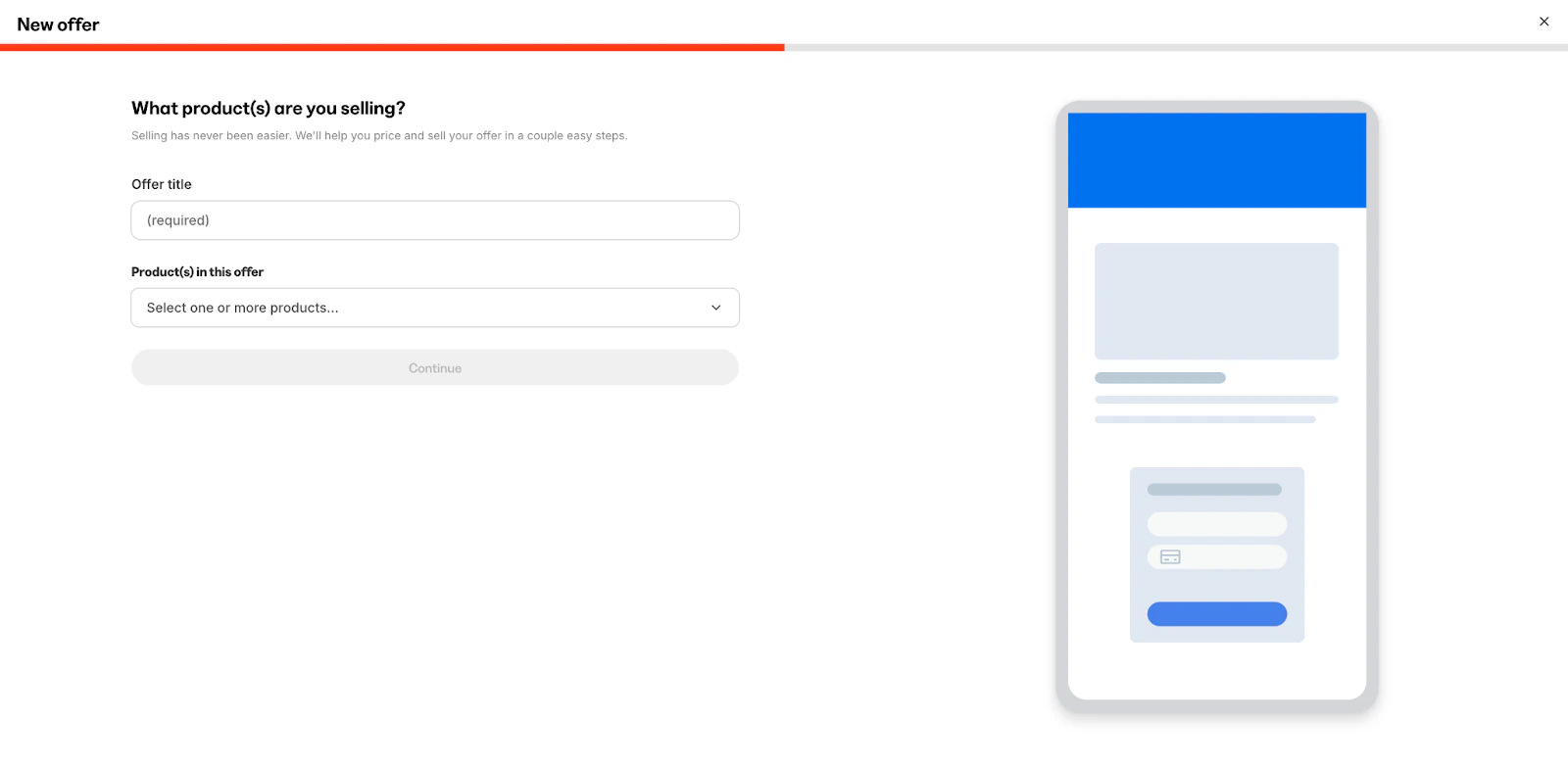
- Next, enter an Offer Title to display on the offer.
- Use the Product(s) in this app offer dropdown menu to select one or more products to include with the App Offer.
- Only course and community products are available to select at this time.
- Click Save and continue:
- Choose to create either a Free or Paid offer.
- Use the toggles to choose your app platform(s).
- If you create a Paid offer, input your Payment frequency and Currency settings. You can select one-time payment or subscription under frequency.
- Enter the Price for the offer.
Note:
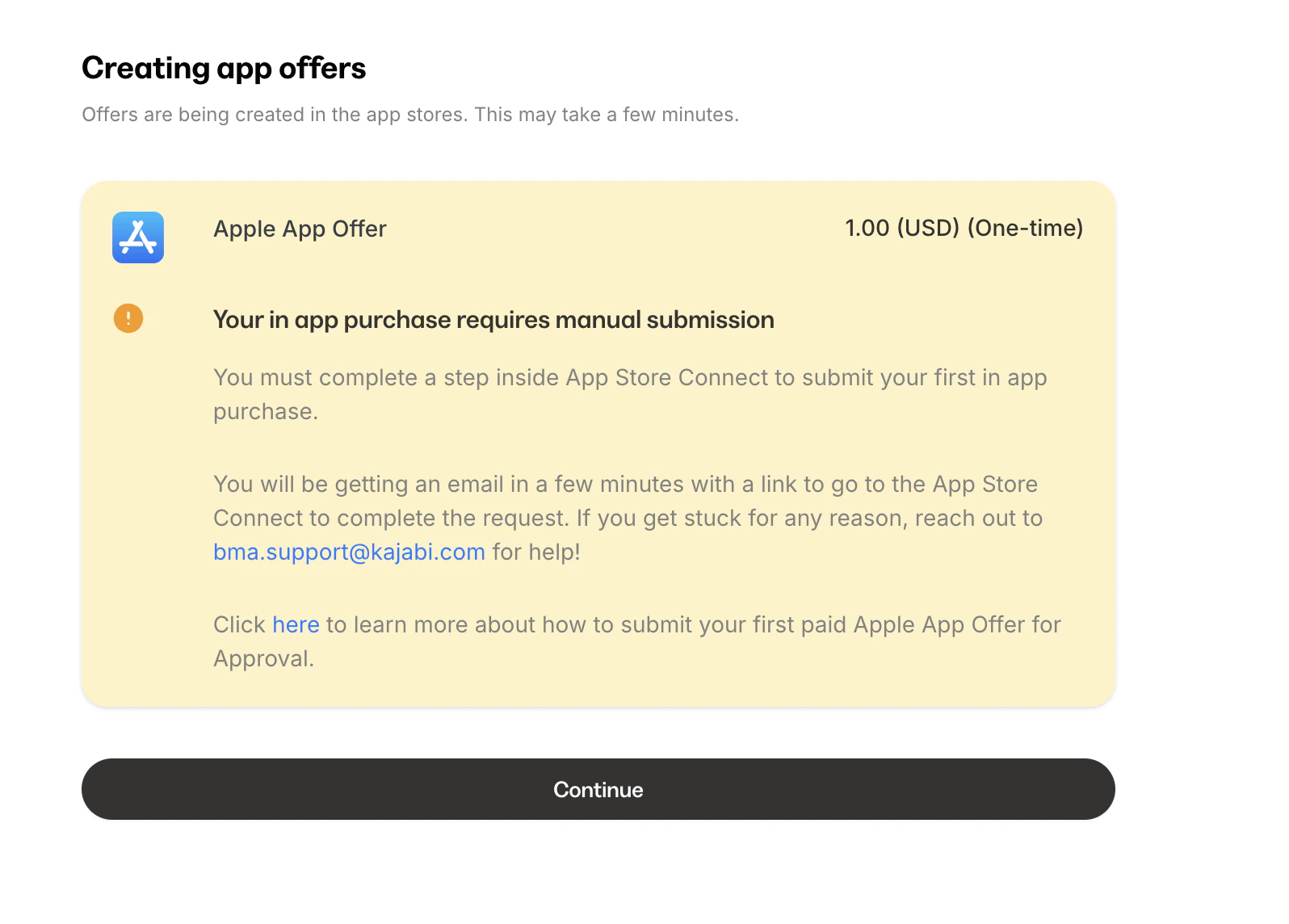
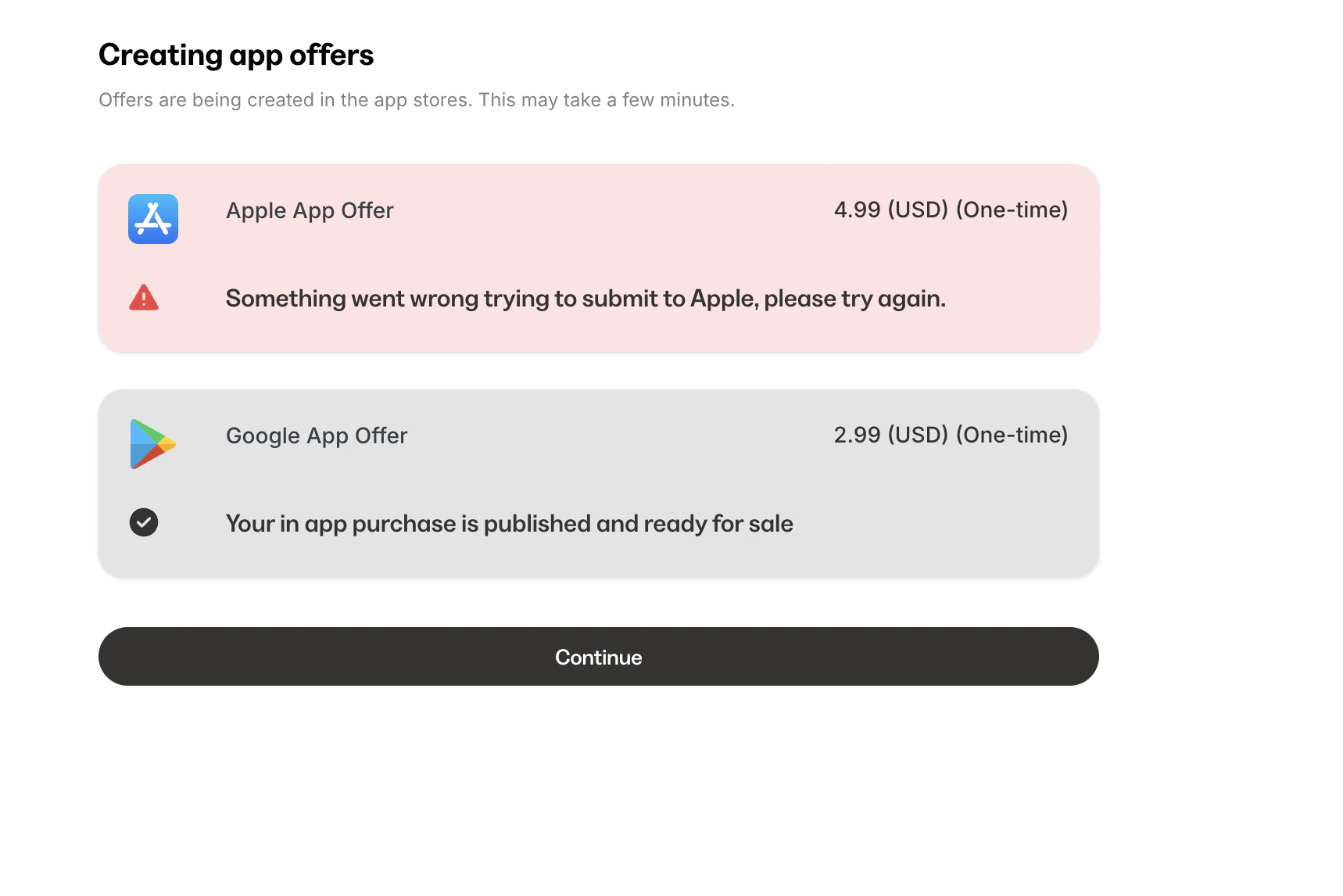
If this is your first subscription iOS App Offer or first iOS App Offer in general, make sure to follow these steps to submit to Apple.
Add courses on the Branded App home screen
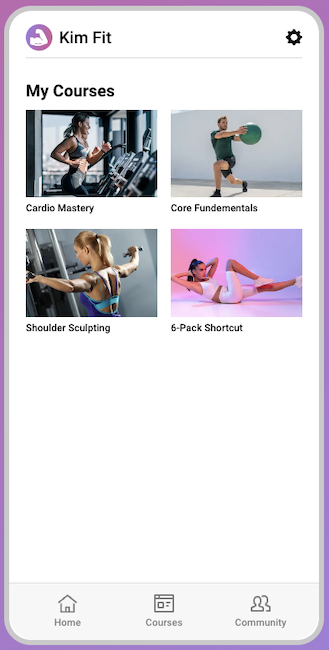
Customize the Branded App home screen to display the courses available with the in-app offer. Wait 10-15 minutes for Kajabi to automatically finish up the app build.What if this is a first paid iOS App Offer?
If this is your first paid App Offer for the iOS platform, you’ll need to complete a one-time extra step in App Store Connect to submit the first paid Apple App Offer for approval.Edit or remove an App Offer
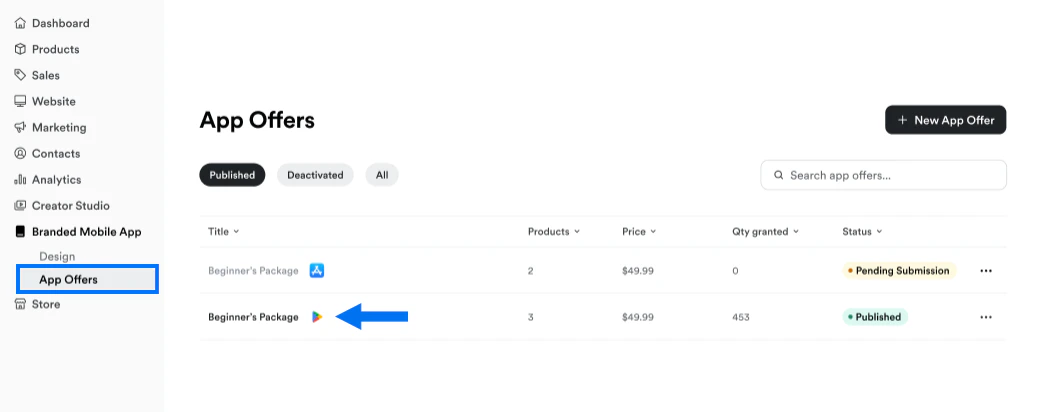
Ready to change the details for an existing offer, or remove it entirely? No problem. To open an existing App Offer:- Select Branded Mobile App from your Kajabi dashboard.
- Select App Offers.
- Then, click the Title of the offer you want to update:
Edit App Offer details
On the Details page, update the offer Title, Description, Products, and/or thumbnail image as desired. Click Save to apply changes: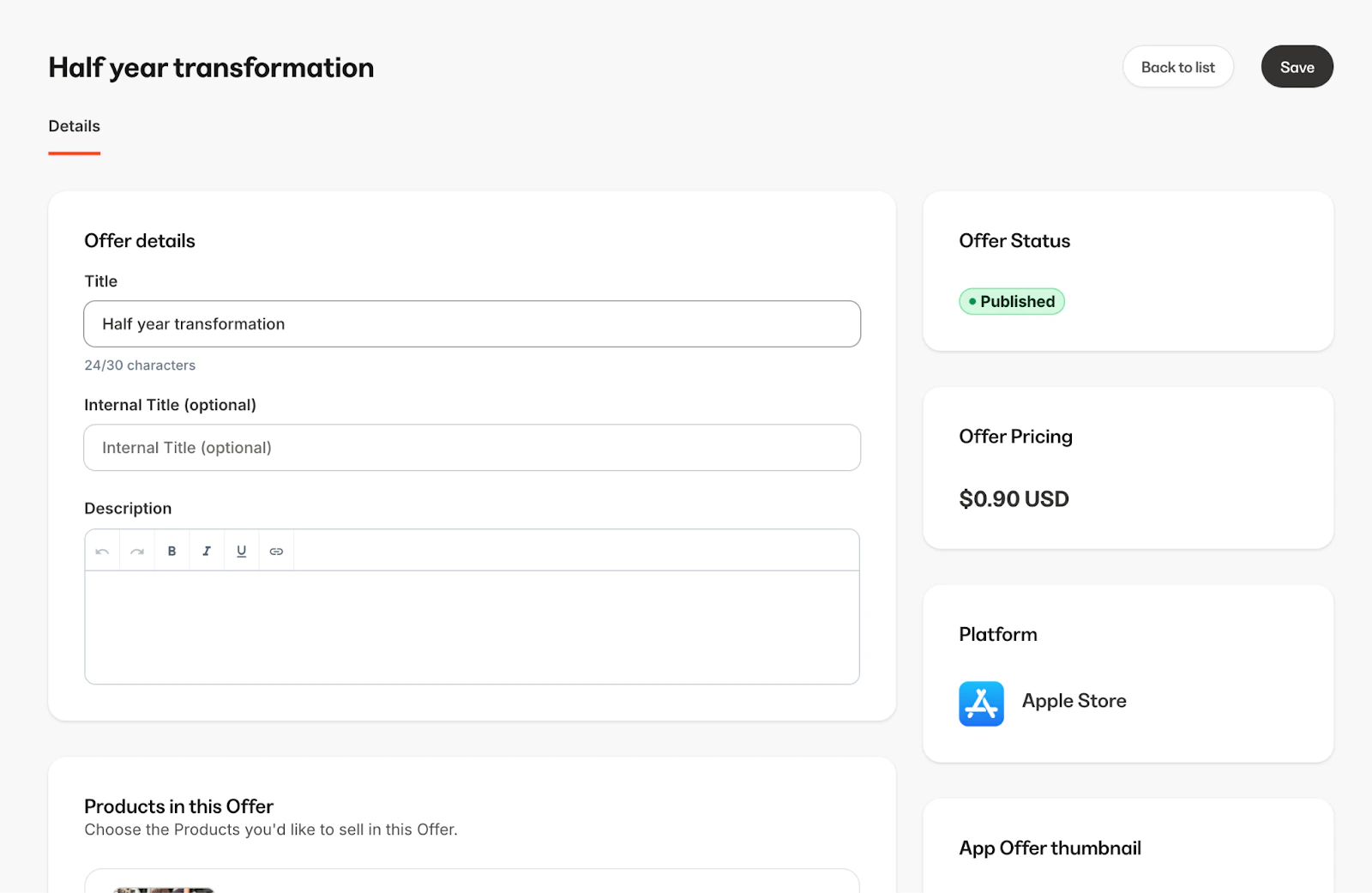
Deactivate an App Offer
Deactivating an App Offer will remove it from the in-app purchase offers listed on the Branded App home screen. Members who’ve already purchased the offer will retain access to the attached course(s), but members who haven’t purchased the offer will no longer see it. In Kajabi Branded Mobile App settings, deactivated offers will appear under the Deactivated tab on the App Offers page: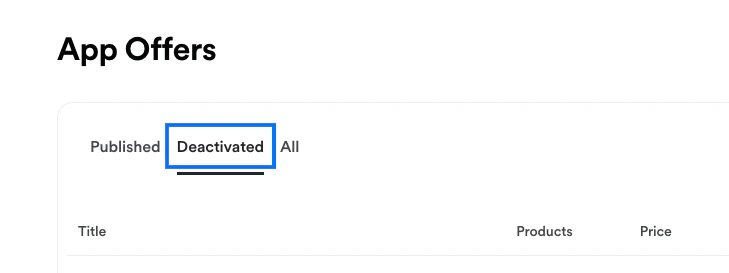

Delete an App Offer
To delete an App Offer from Kajabi Branded Mobile App settings entirely:- Navigate to App Offers.
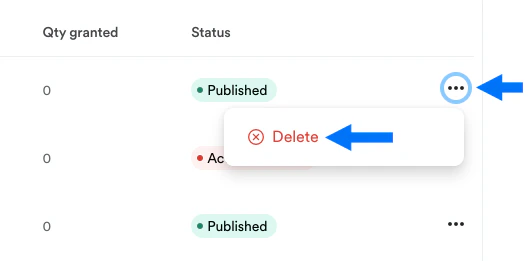
- Click the three dot menu to the right of the offer you wish to delete.
- Select Delete: