What is a screen?
The screens are like pages in a Branded App that members will see after they log into the app via the welcome screen or login screen (after viewing the welcome carousel, if that feature has been added). If a member is already logged in, this will be the first thing they see when they reopen the app. You can learn more about custom screens here. There are a variety of widgets you can use to customize these screens and enhance the experience of your customers.Add a widget to a screen section
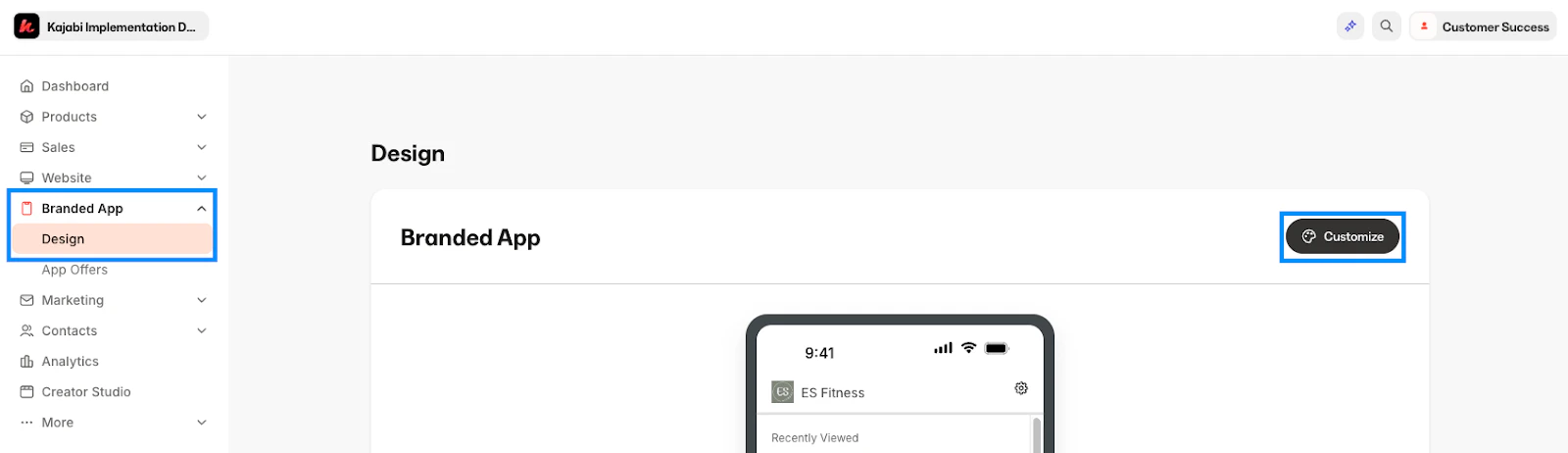
To add a section to an app screen:- Select Branded Mobile App from your Kajabi dashboard. If you’ve fully completed your app setup, you should see your app Design settings.
- Select the Design tab.
- Click Customize:
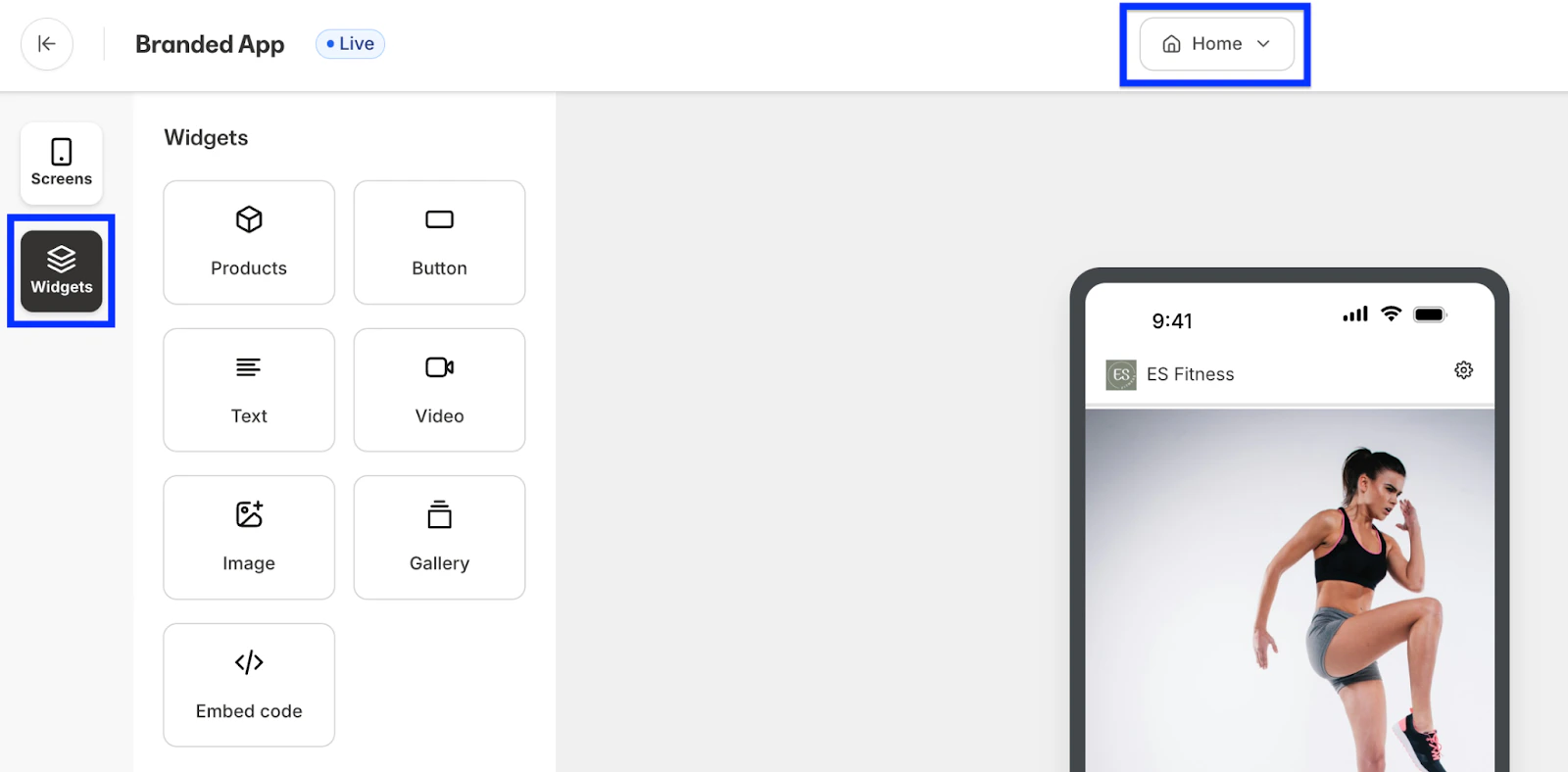
- Make sure that you are open to the Widgets editor and select the appropriate screen from the drop down:
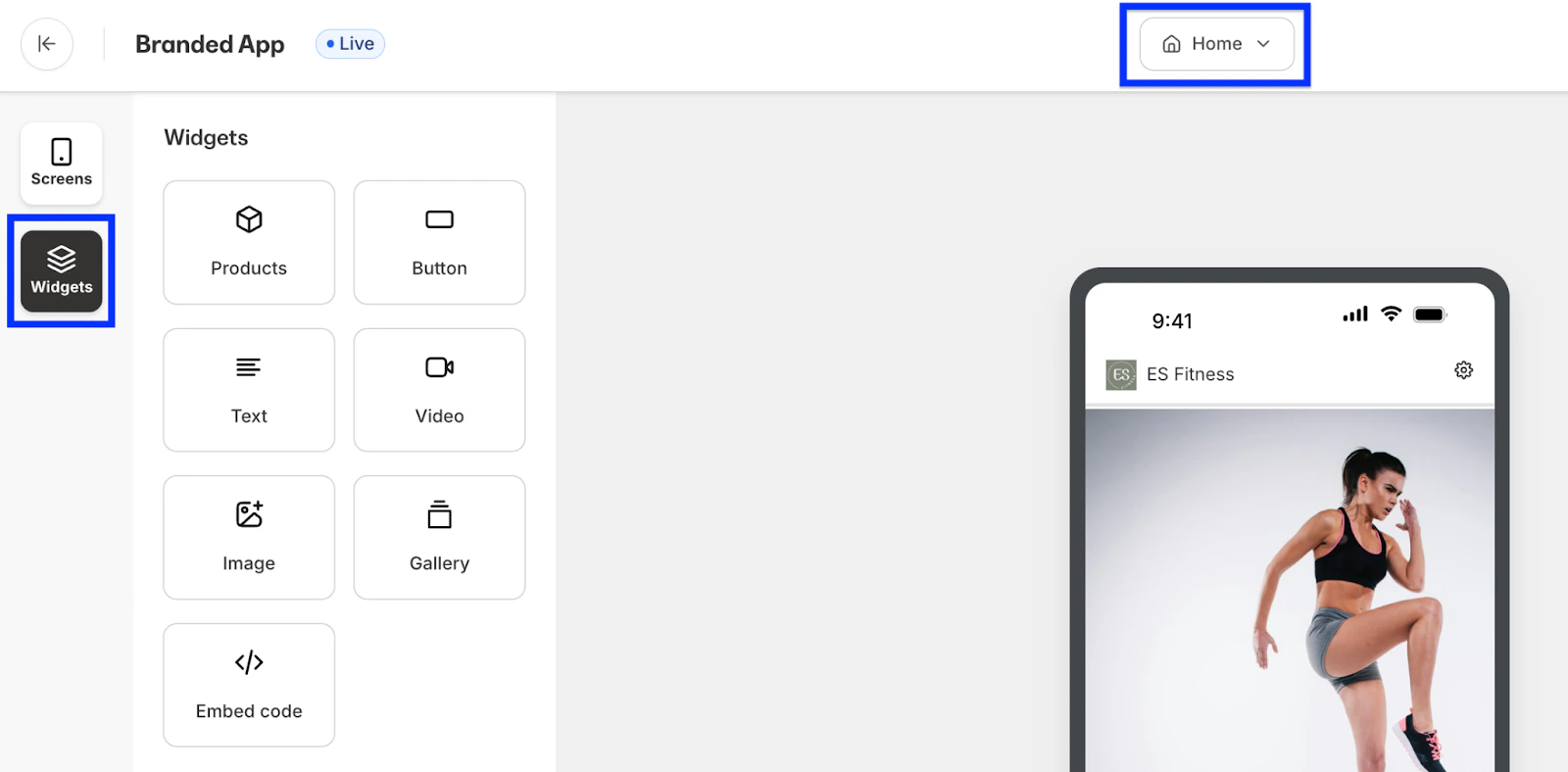
Available widgets
- Product widgets allow you to feature courses, coaching, product and community products members own, even if they are not included in an app offer
- Button can be used to link to pages, blog posts, or URLs
- Image can add further customization while also acting as a button that links to pages, blogs or URLs
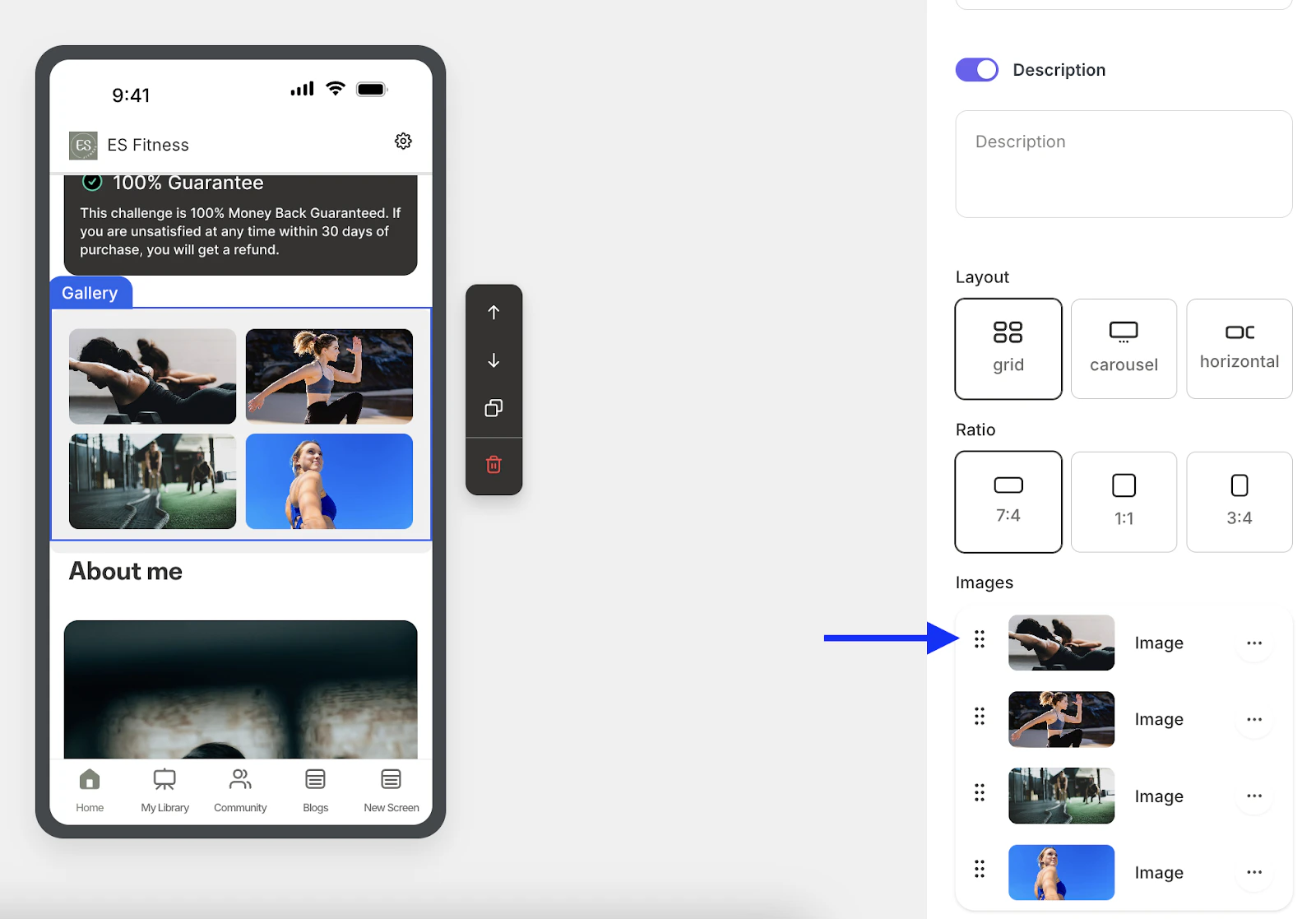
- Gallery enables you to upload and display multiple images as a gallery
- It is recommended that the uploaded image dimension matches the selected ratio. For example -1260x720 for 7:4, 1080x1080 for 1:1, and 720x960 for 3:4
- Text sections can be added throughout the home screen
- Video widgets allow you to add videos directly to the home screen with customizable cover images
- Embed Code widgets give you the opportunity to paste in any HTML code to display additional content
Drag and drop widgets
Note:
The Product Widget can be used to display courses, coaching, podcast and community products. If a displayed product is not part of an app offer or is not owned by the member, then it will not appear on their screen.
Edit a screen section
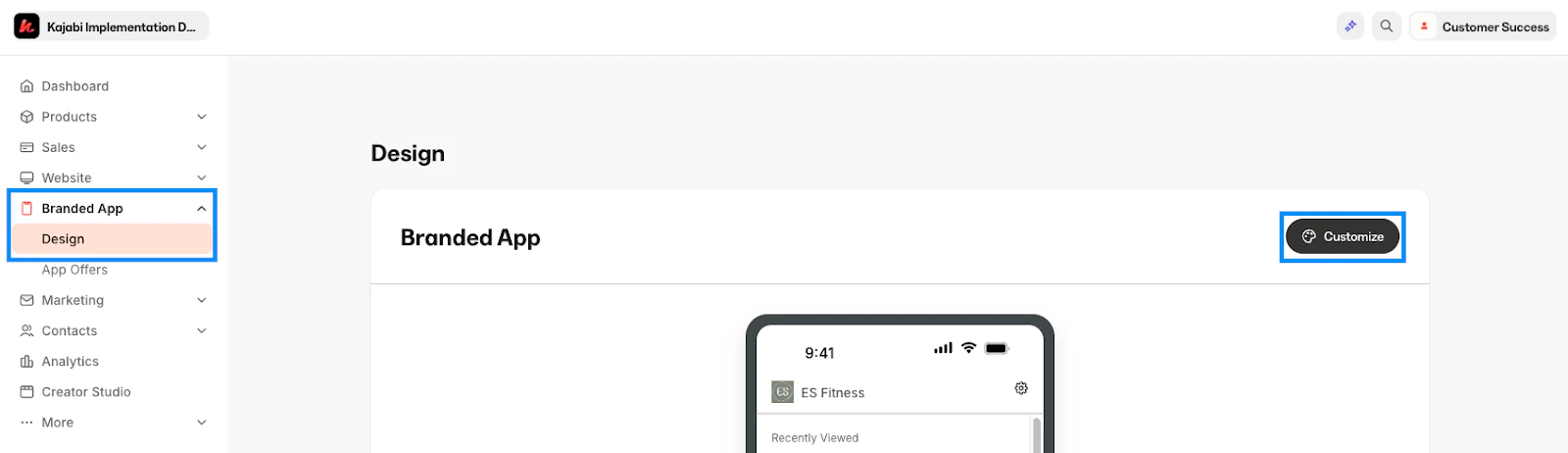
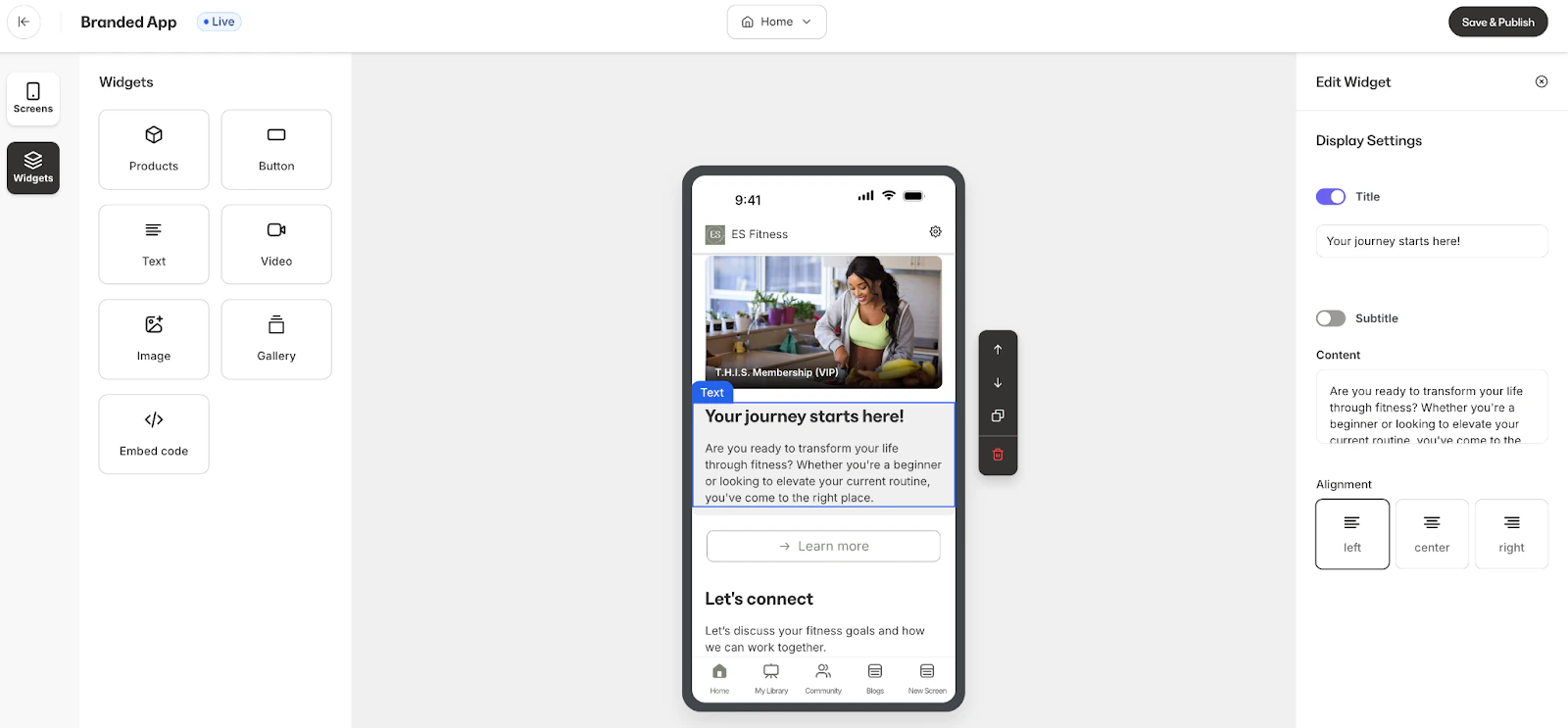
Customize section titles and content for each widget added to a screen. To edit a widget on a screen:- Select Branded Mobile App from your Kajabi dashboard. If you’ve fully completed your app setup, you should see your app Design settings.
- Select the Design tab.
- Click Customize:
- Make sure that you are open to the Widgets editor and select the appropriate screen from the drop down:
- Select the widget section that you wish to edit on the home screen:
Reorder screen sections
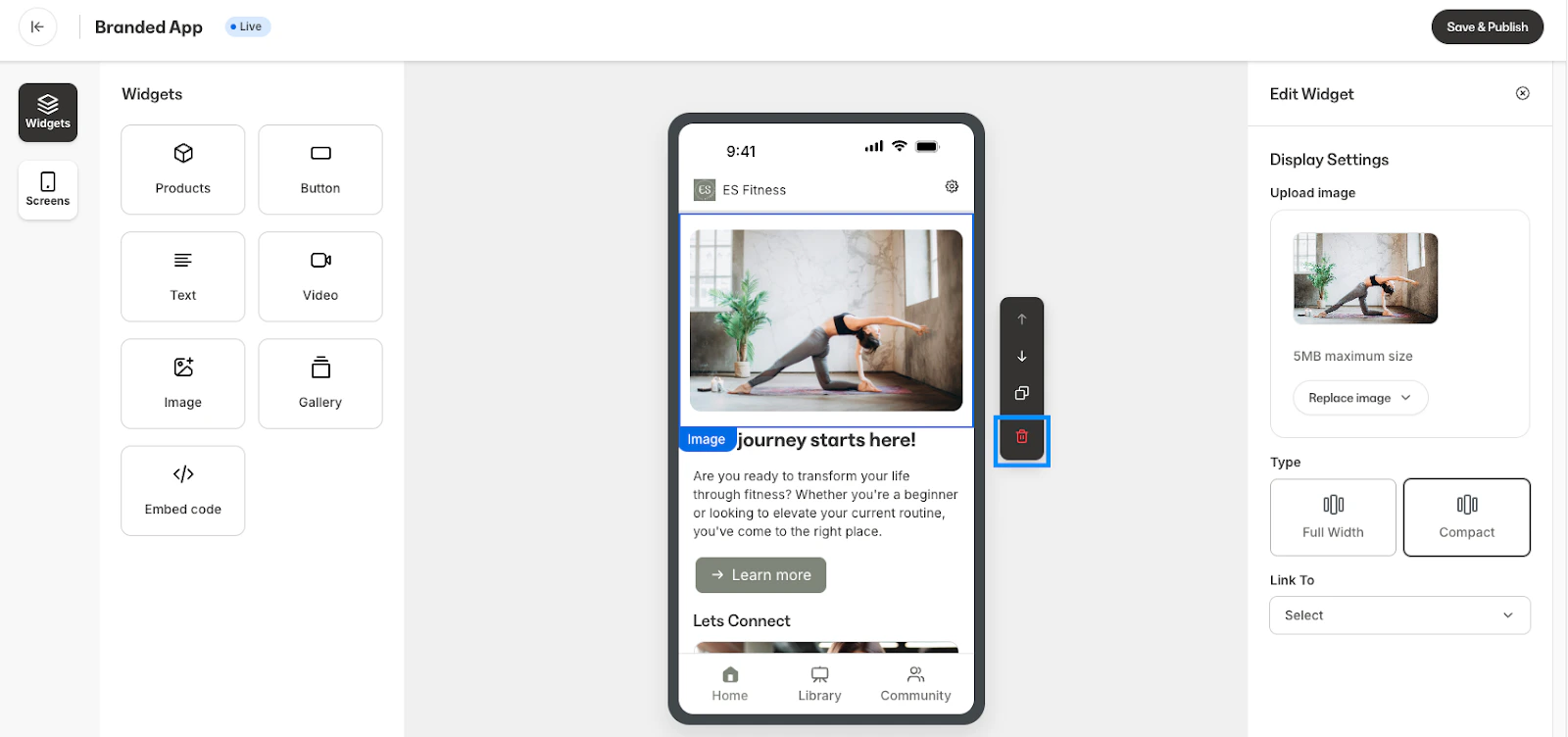
Change the order of screen sections on a Branded App page. To reorder screen sections, select the widget section that you wish to rearrange and click the up or down arrow to move to the desired location:Delete a screen section
To delete a screen section, select the widget section that you wish to delete and click the trash icon: