

Lock modules and submodules
Kajabi gives you the tools to design your Course to release content according to your business needs. Locking content can be accomplished by locking Modules or Submodules in a Course. This lets you ensure that your customers must first complete or pass your specified Lesson, Quiz, or Assessment to unlock the next Module or Submodule to gain access to the next section of content. To unlock a locked Module or Submodule, your customers must either:- Click Complete in a Lesson, or
- Complete or pass a Quiz or Assessment
What happens if a customer attempts to move on to the locked module before completing the required content?
If a customer attempts to move on to the Lesson content inside the locked Module or Submodule before completing or passing your selected Lesson, Quiz, or Assessment, they will encounter a “This Post is Locked” message: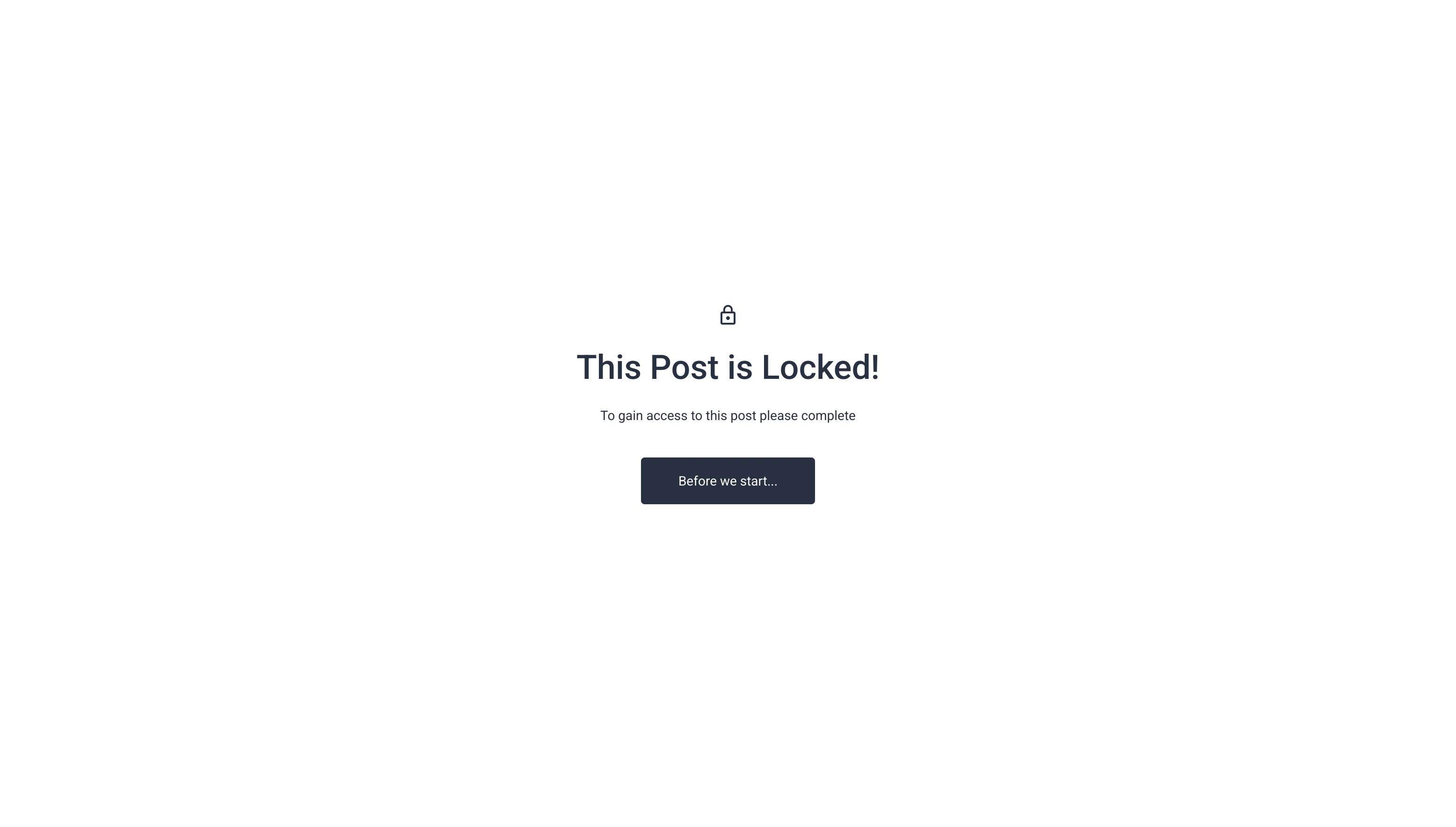
Note: The content of this message is not customizable. However, the language (English, Spanish, etc.) can be changed by updating the Language in your Site Details settings.
Lock contingent on completing or passing a Quiz or Assessment
Note:
The Assessment feature inside of Courses has been sunset, but it may still appear in older accounts. The Quizzes feature is available inside of Courses and offers advanced functionality. Assessments can still be added to Web Pages.
Quizzes
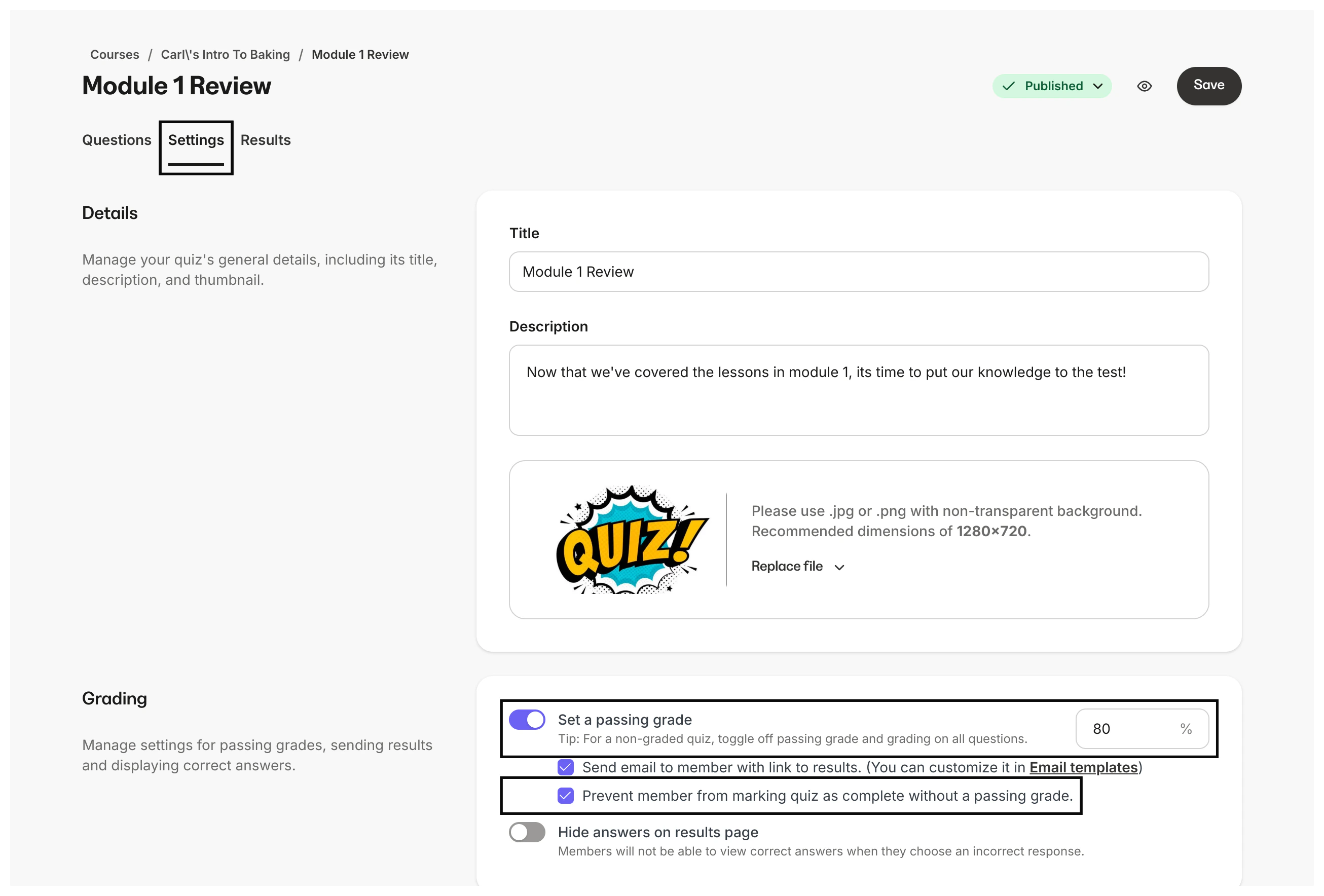
If you want to lock a Module or Submodule contingent on someone completing a Quiz (regardless of whether the Quiz was passed, failed, or non-graded), simply select the title of your Quiz from the Locked by lesson dropdown menu when you set up your locked content. If you want to lock a Module or Submodule contingent on someone passing a Quiz for which you’ve set a passing grade:- Select the title of your Quiz from the Locked by lesson dropdown menu when you set up your locked content.
- Make sure Set a passing grade is toggled on in your Quiz Settings and the Prevent member from moving to next lesson without a passing grade checkbox is marked.
Assessments
If you choose to Lock a Module or Submodule contingent on someone completing a Lesson containing an Assessment, your customers can gain access to the locked Module by:- Clicking Complete in the Lesson (see important “Tip” below), or
- Completing and/or passing the Assessment
Set up locked content
- Open the Products tab from the Dashboard.
- Select an existing Course or create a new one.
- Click the Visibility status dropdown menu (Published, Draft, etc.) next to your Module or Submodule and select Lock.
- Choose the title of the Lesson or Quiz that will unlock the content when passed or marked as complete and click Lock:
Note:
Individual Lessons cannot be locked. Instead, lock and release entire Modules or Submodules. If you wish to unlock a single Lesson when another Lesson is completed, place it in its own separate Module or Submodule.A Lesson’s visibility must be set to Published to be unlockable. If a Lesson is still set to Draft, it will not unlock with the Module.