

Upload an audio file to a Course lesson
Select Audio as the Course lesson media type to replace the video player with a native audio player. With the native audio player, upload an audio file without any workarounds or custom coding. Upload an audio file to a Product lesson to provide audio content for customers:- Open the Products tab from your Dashboard.
- Edit an existing Product or create a new one.
- Then, select the Lesson you wish to edit or create a new lesson.
- Select Audio in the Media Card.
- Upload your selected audio file by clicking Pick File. Learn about the audio file format.
- Click Save to keep and apply your changes:
Add an image for the audio thumbnail
Stylize the audio player with an image to best fit a brand and business:- In the Product lesson editor, click Select Image from the Lesson Thumbnail card.
- Then, upload a new image or select a recent image.
- Edit the image, if needed.
- Select Upload File.
- Click Save to keep and apply your changes:
What customers see
Customers will see an audio player in place of the video player when an audio file has been uploaded as the media type for a Product lesson. Learn to preview a Product.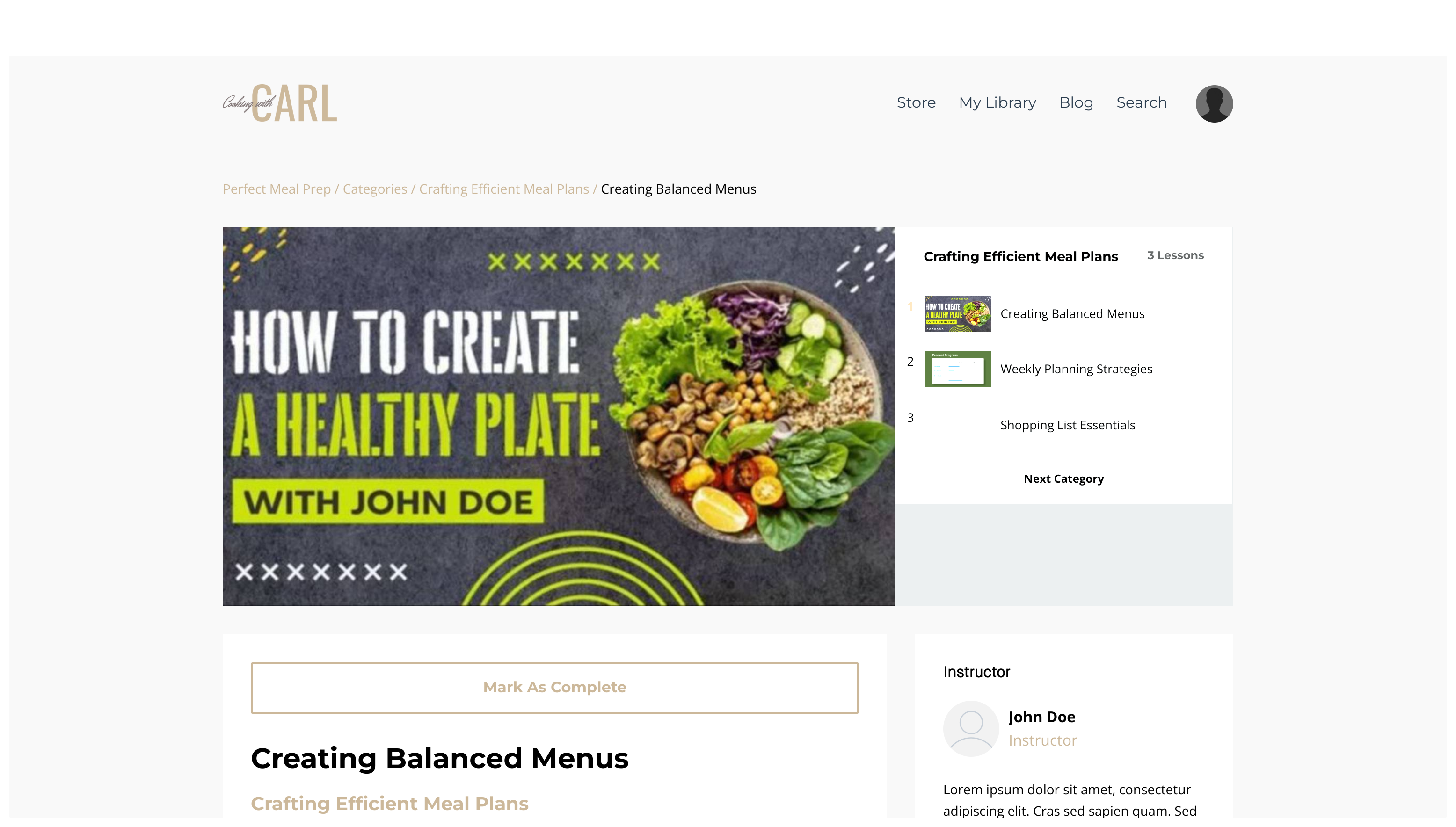
Note:
An image uploaded to the audio file will be cropped to only show the center of the image. This is to better fit with the audio player. If you wish to show the whole image, the image will need to be edited to be a smaller size.