

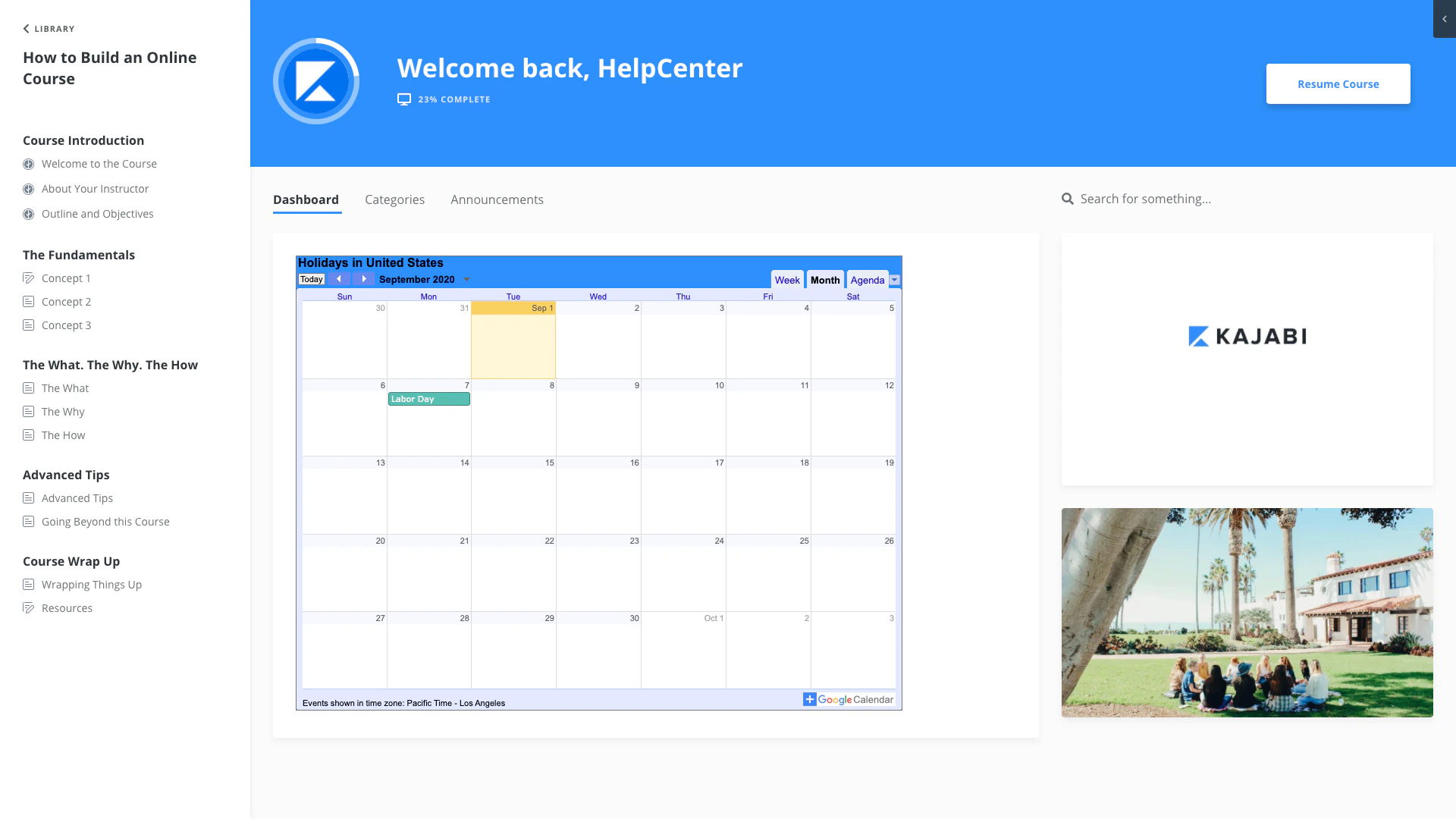
Copy the calendar embed code
Before embedding a calendar in a Course, create the calendar and configure it to display your desired events. After your calendar is ready to embed (with all the events you wish to share with your customers) copy the embed code: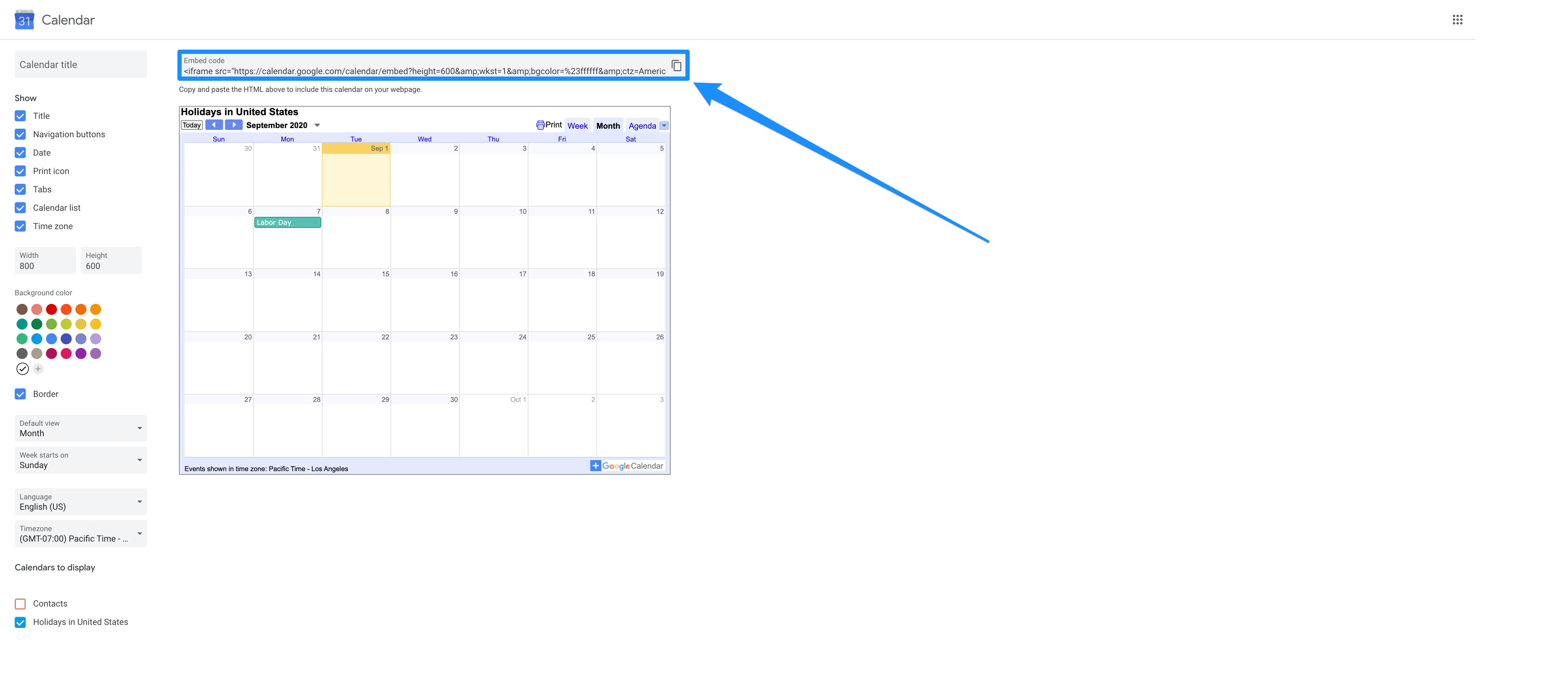
Paste the embed code into a Course
After copying your embed code, navigate to your Kajabi account to paste the code into a Course:- Open the Products tab from the Dashboard.
- Click into an existing Course or create a new one.
- Select the Customize tab.
- Hover over your Product Template and click Customize.
- In the left sidebar, select the section of your Course where you wish to add the calendar.
- Click Add Content.
- Select a Code block as the content type.
- Paste the embed code into the Code block.
- Click Save to embed your calendar: