

Create a quiz
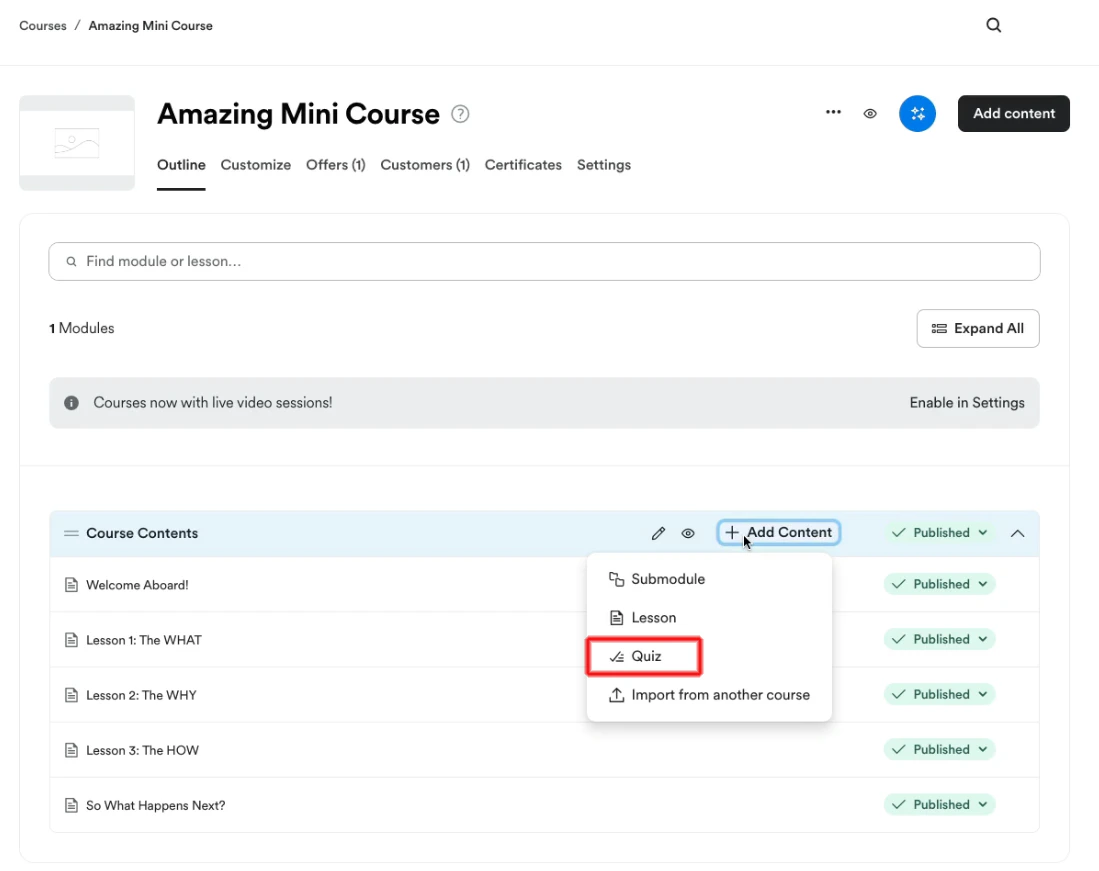
- Go to Products > Courses and click on your course
- Click Add content next to the module or submodule you’d like this to be in
- Choose Quiz
Edit a quiz
- Go to Products > Courses and click on your course
- Open the Quiz you wish to edit
- You can edit the questions and settings
Manage quiz questions
Add a question
- Go to Products > Courses and click on your course
- Open the Quiz you wish to edit
- Click Add question
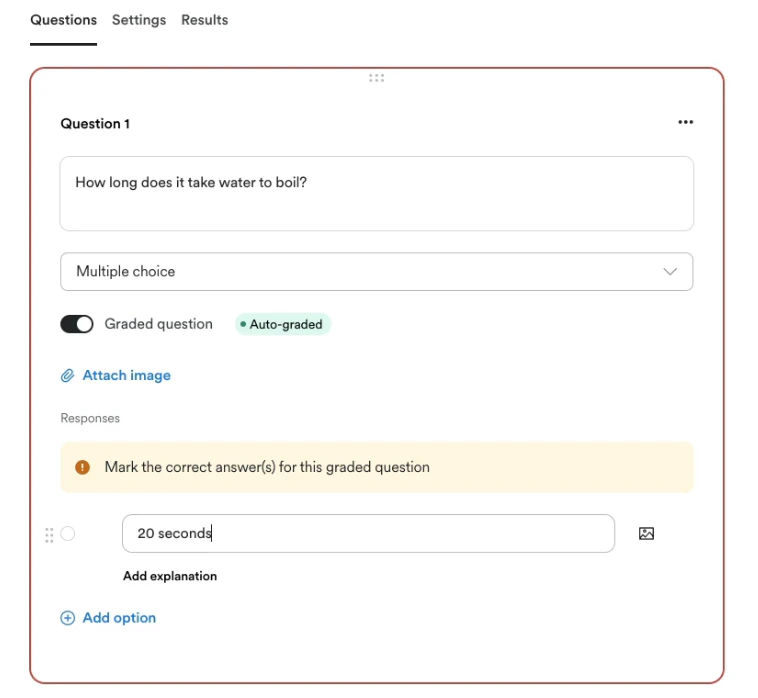
- Enter a question
- Choose a question type:
- Multiple choice - multiple options with one correct answer
- Checkboxes - multiple options with one or more correct answers
- Short answer - text field to enter an answer
- File upload - upload a file as an answer
- Choose if the question will be graded
- Multiple choice and checkboxes can be automatically graded
- Short answer and file upload will need to be manually graded by your team
- Attach an image to your question (optional)
- If you selected multiple choice or checkboxes, click Add option to add the options customers can select
- Mark the correct option(s) by clicking the circle next to the option
- To add an explanation for the answer:
- Click Add explanation and click the save button. You can click the remove button later if you like.
- Attach an image to your option (optional)
- Click Save
Note: Graded questions will count towards the quiz score. Non-graded questions will not count towards the quiz score.
Edit a question
- Go to Products > Courses and click on your course
- Open the Quiz you wish to edit
- Click on the Question you wish to edit
- After editing your question, click Save
Reorder questions
- Go to Products > Courses and click on your course
- Open the Quiz you wish to edit
- Hover your mouse over the top of the Question and drag it to your desired position
- Click Save
Duplicate a question
- Go to Products > Courses and click on your course
- Open the Quiz you wish to edit
- Click the 3 dots menu (…) on the question you want to duplicate
- Click Duplicate question
- After editing the question you duplicated, click Save
Delete a question
- Go to Products > Courses and click on your course
- Open the Quiz you wish to edit
- Click the 3 dots menu (…) on the question you want to delete
- Click Delete question
- Click Delete
Edit an option
- Go to Products > Courses and click on your course
- Open the Quiz you wish to edit
- Click on the Question you wish to edit
- After editing your option, click Save
Reorder options
- Go to Products > Courses and click on your course
- Open the Quiz you wish to edit
- Click on the Question you wish to edit
- Hover your mouse over the top of the Option and drag it to your desired position
- Click Save
Tag options
For questions that have multiple choice or checkboxes, you can Tag options. If the customer selects one of these options in your quiz, a Tag will be added to their contact profile. You can use this Tag for filters and automations. Learn more about how Tags work.- Go to Products > Courses and click on your course
- Open the Quiz you wish to edit
- Click the 3 dots menu (…) on the question you want to tag responses for
- Click Tag responses
- Next to each option, you can choose a Tag you want applied to the customer. You can also create a new tag. Then, click Done
- Only one tag can be applied to each option
- Click Save
- You can remove a tag later. After clicking Tag responses and opening a question, you can click on the X on the tag to remove it. Be sure to click Done and Save to save your changes.
Delete an option
- Go to Products > Courses and click on your course
- Open the Quiz you wish to edit
- Click on the Question you wish to edit
- Next to the option you want to remove, click the Remove option button
- Click Save
Settings
To edit your quiz settings:- Go to Products > Courses and click on your course
- Open the Quiz you wish to edit
- Click Settings
Details
In the Details section, you can edit the Title, Description, and Image for your quiz.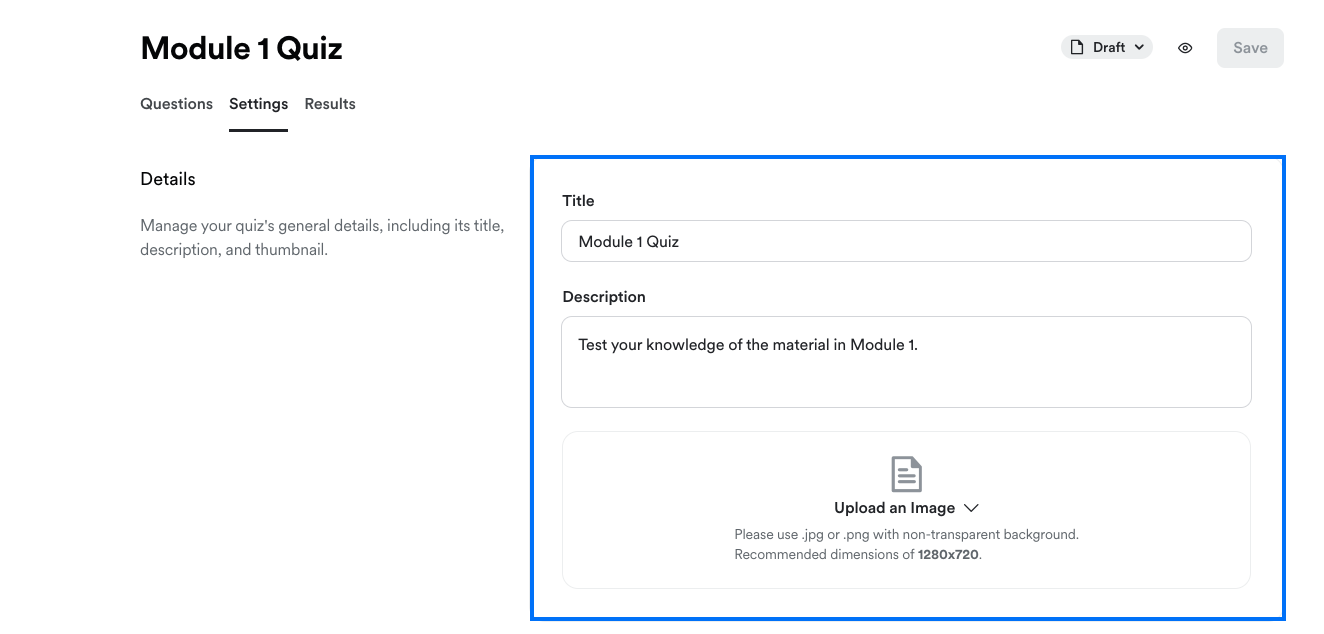
Grading
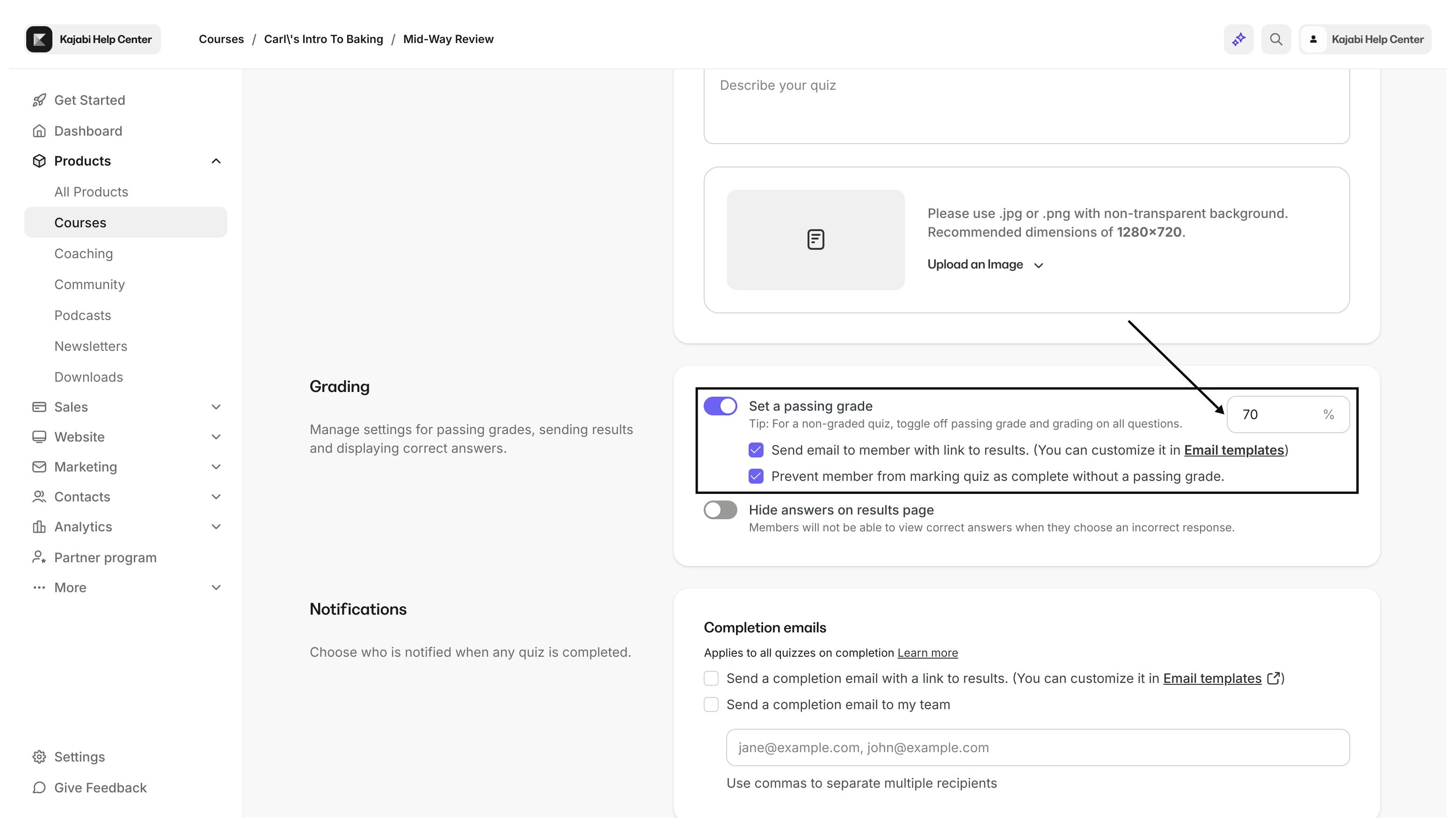
Set a passing grade
If Set a passing grade is enabled, you can set a percentage that will be considered a passing grade on your quiz. This passing grade will be in effect whether the quiz is automatically graded or manually graded. If this setting is disabled, quizzes will only be completed (no pass or fail). There are two optional checkboxes you can select:- Send email to member with link to results
- After a quiz is graded, an automatic email will be sent with the results. You can edit this email by going to Settings > Email templates > Quiz Graded.
- Prevent member from marking quiz as complete without a passing grade
- This will disable the “Mark as Complete” button until the quiz is passed. If you’ve locked a module until this quiz is completed, keep in mind that your customer will not be able to access this content until they’ve passed your quiz.
Hide answers on results page
If Hide answers on results page is enabled, your customers will not be able to view the correct answer if they selected an incorrect answer.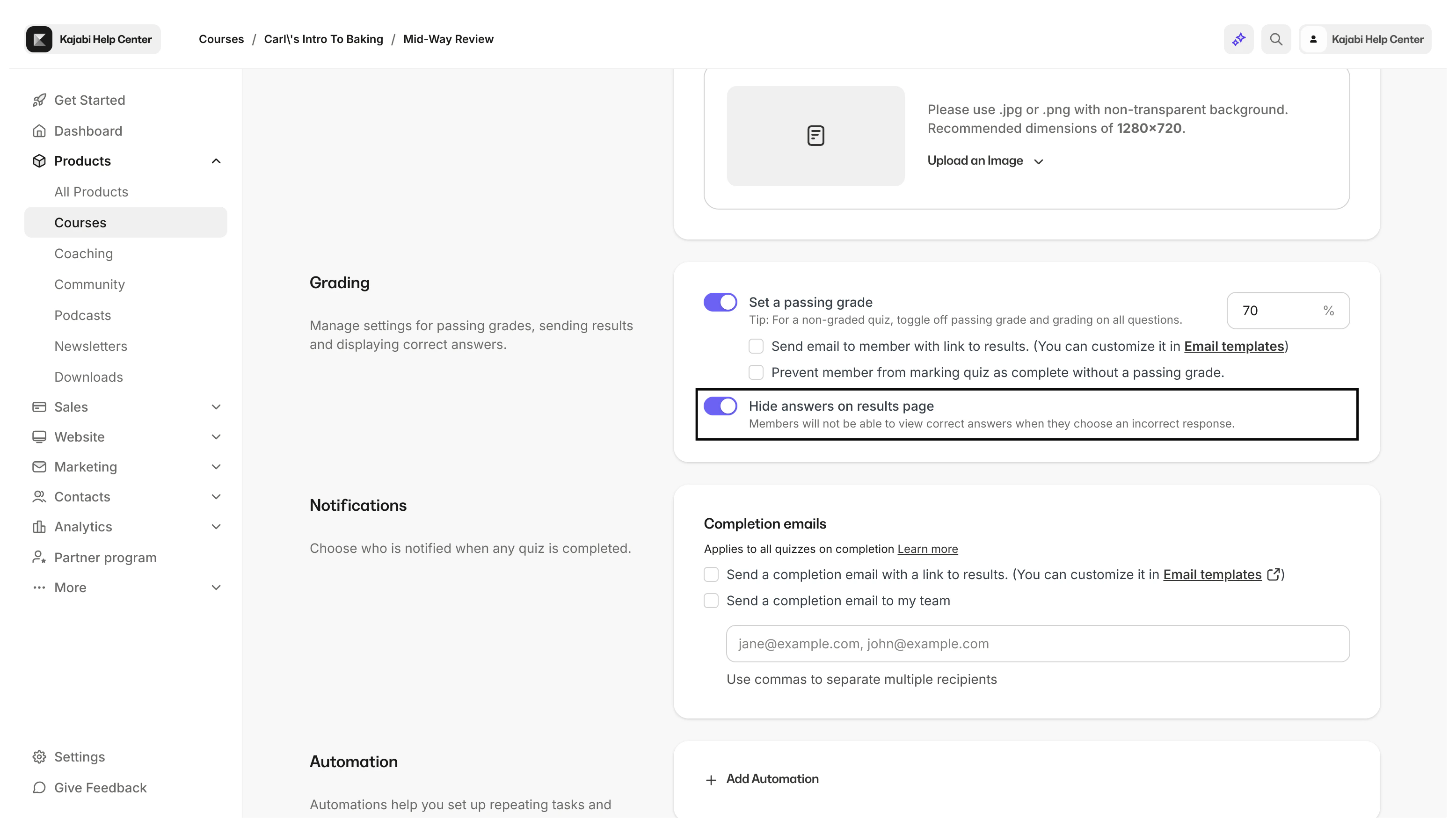
Notifications
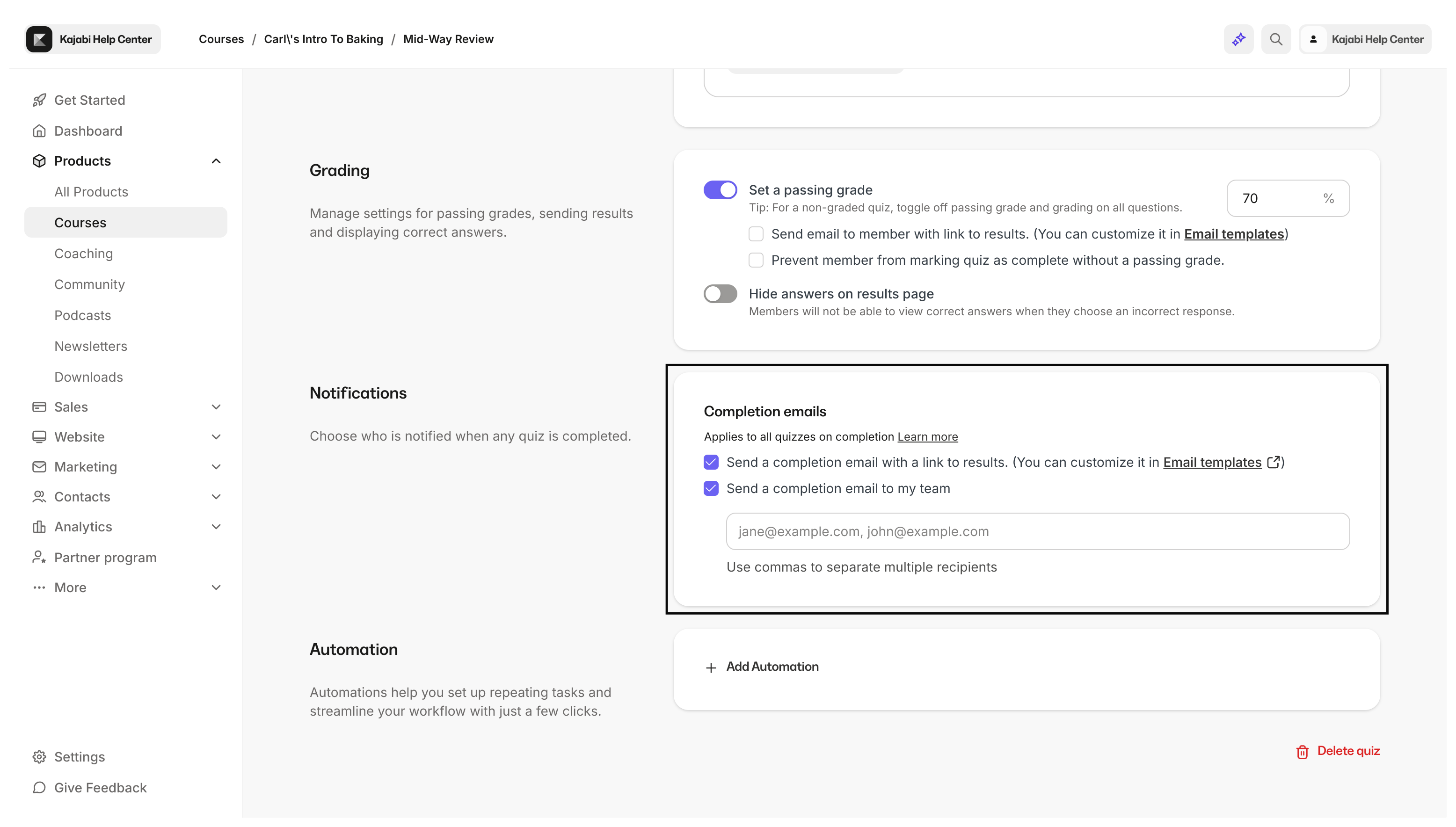
There are two optional email notifications you can send when a quiz is completed:- Send a completion email with a link to results
- After a quiz is completed, an automatic email will be sent to the customer with a link to the results. You can edit this email by going to Settings > Email templates > Quiz Completion.
- Keep in mind if you are manually grading this quiz, they won’t be able to view their results until you’ve completed the grading.
- Send a completion email to my team
- This will send an email notification to any of the email addresses you listed after a quiz has been completed.
Automation
Automations can be a powerful tool to automate processes within your site. Learn how automations work.Results
- Go to Products > Courses and click on your course
- Open the Quiz you wish to view results for
- Click Results
- For detailed results, you can click View grade next to a result
- After clicking View grade next to a result, have the option to leave feedback for each answer and additional comments. Be sure to click Update grade so that this feedback is visible for your customer while viewing their results.
Manually grade a quiz
- On the Results page, click Grade quiz next to a result
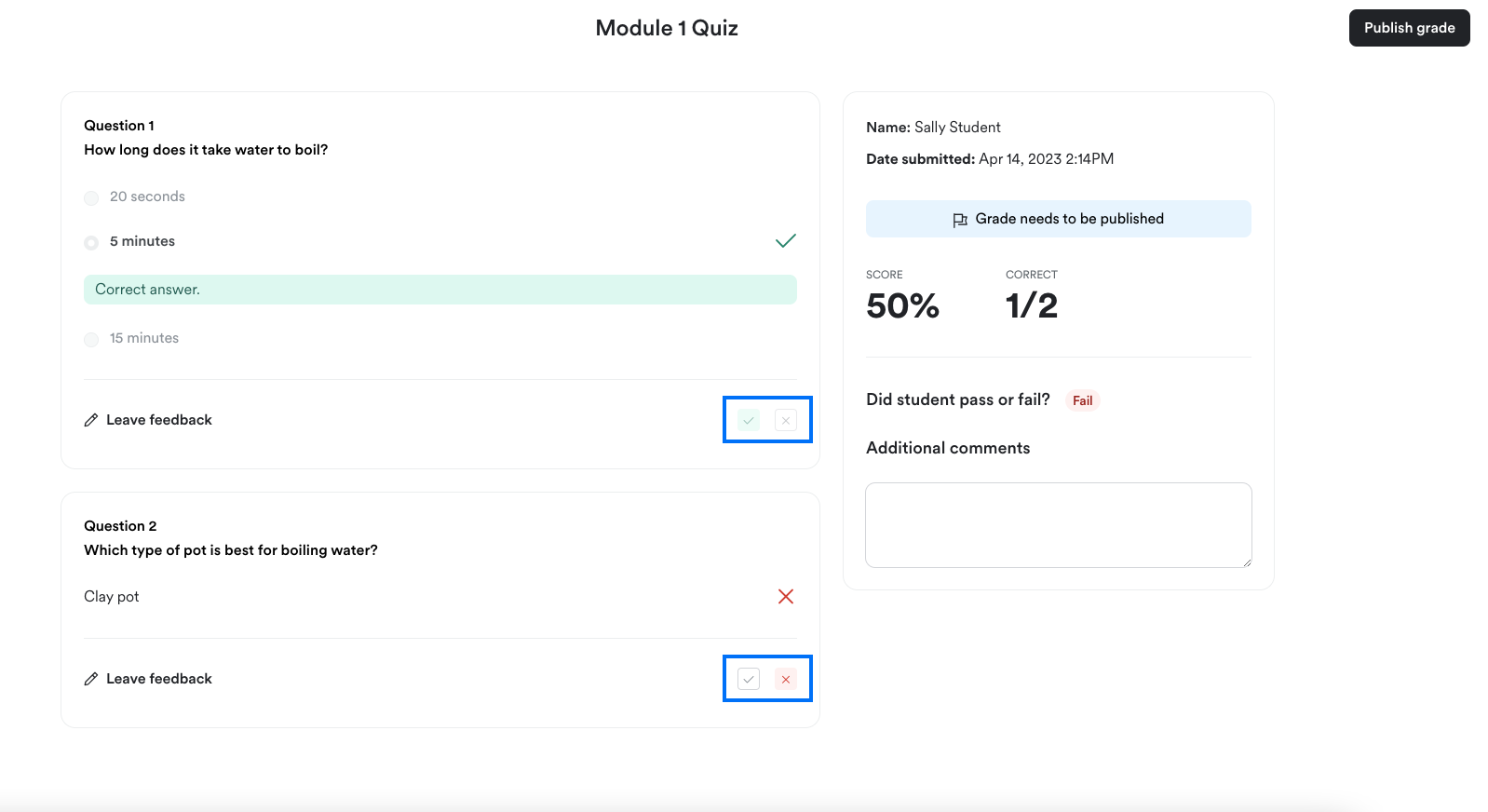
- For each answer, mark the answer as correct or incorrect
- Optionally, you can leave feedback for each answer
- You won’t be able to mark answers for questions that are automatically graded or non-graded
- Non-graded questions will not count towards the quiz score
- Optionally, you can provide additional comments
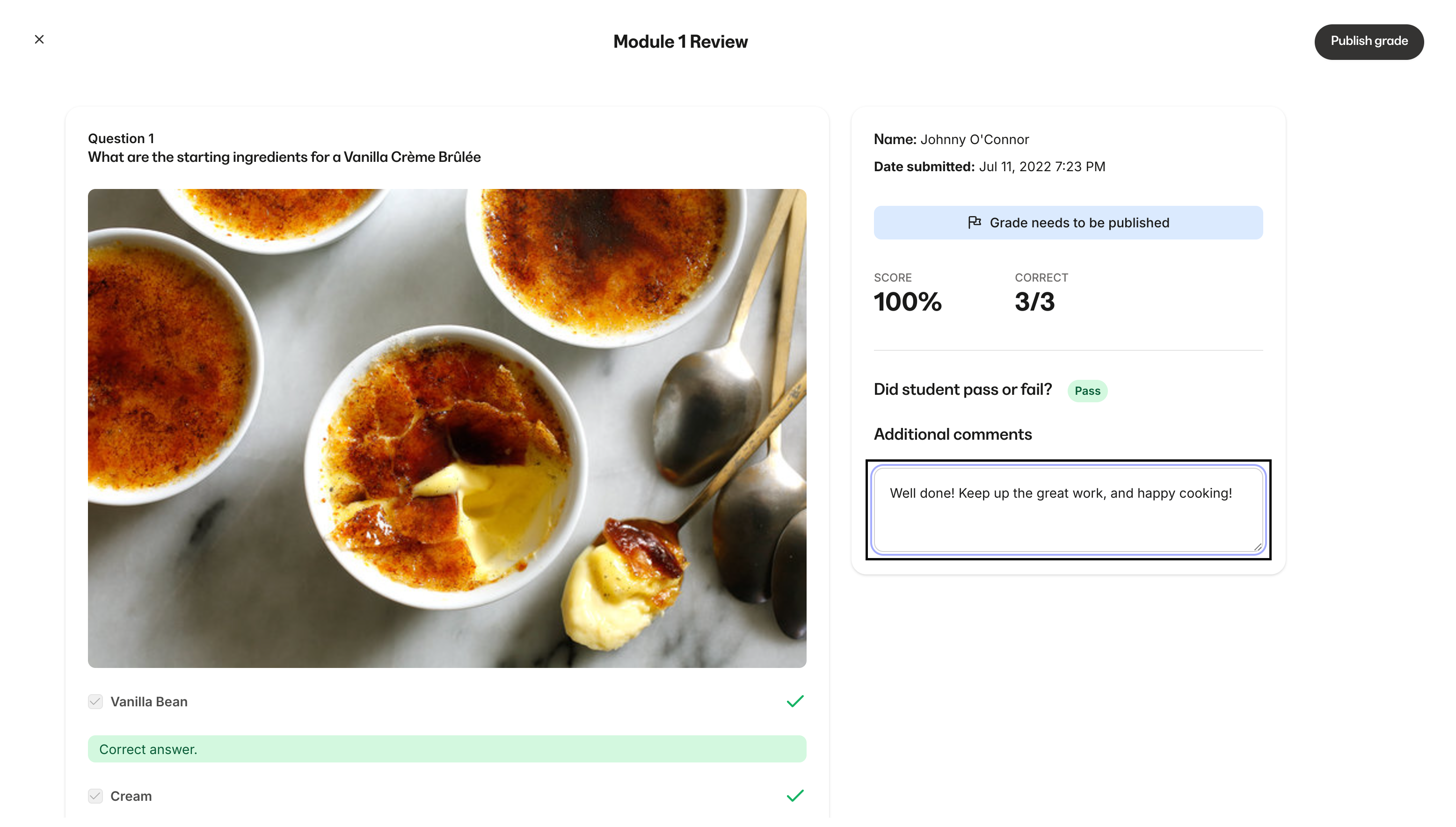
- Click Publish grade to share the results with your customer
Export quiz results to CSV
- Go to Products > Courses and click on your course
- Open the Quiz you wish to view results for
- Click Results
- On the Results page, click Export Results in the upper right corner

- When the export has finished, you will receive the CSV file in your email inbox
How results look for customers
Your customers can view their results by clicking on the quiz in your course. Depending on your email notification settings, they can also receive a link to review their results. While viewing the quiz in your course, customers also have the option to retake their quiz at any time. Customers will only be able to view results for the latest quiz they’ve submitted.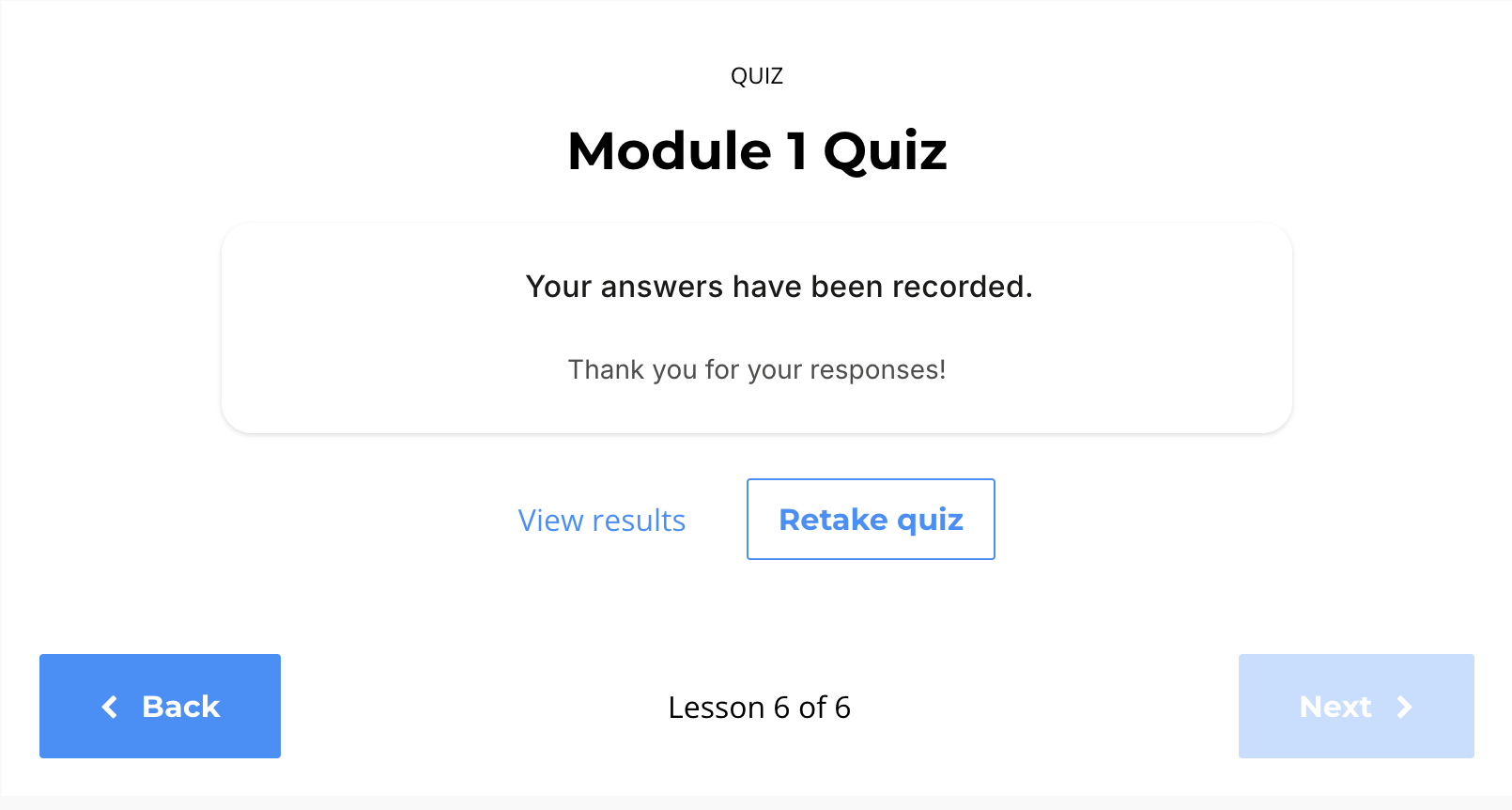
Set a status for a quiz
- Go to Products > Courses and click on your course
- Open a Quiz
- In the Status section, select a status:
- Draft: Hidden from customers
- Published: Visible to customers
Note: You can’t drip or lock quizzes. As a workaround, you could create a module with just one quiz, and set the drip or lock status on the module.
Import a quiz
- Go to Products > Courses and click on your course
- Click Add content next to the module or submodule you’d like this to be in
- Choose Import from another course
- Choose the course, module, and quiz
- You can also import a quiz from the same course
- Click Import
- Click Got it
Preview a quiz
- Go to Products > Courses and click on your course
- Open the Quiz you wish to preview
- Click the Preview button
Note: There will not be results available for quizzes you submit while in preview mode. However, you could create a test contact, grant an offer containing your course, and take the quiz with that test account to receive test results.
Delete a quiz
- Go to Products > Courses and click on your course
- On your course outline, hover your mouse over the Quiz you want to delete
- Click the Delete quiz button
- Click Delete Quiz