Note:
The Cohort-Based Courses Feature is only available with the Growth and Pro Plans. Check out kajabi.com/pricing for more details.
Add a Live Session to a cohort outline
To add a Live Session, first open the cohort for editing:- Select Products from the Dashboard.
- Then, select Courses.
- Click to open your cohort-based Course.
- Then, click the name of the cohort you want to edit:
- Click + Add Content next to the module where you want to add a Live Session.
- Select Live Session as the content type.
- A modal popup will appear. Enter a title for your Live Session and click Create.
Schedule a Live Session
To schedule a Live Session:- Click the name of your Live Session to open it for editing. (Or, click the yellow Not scheduled button and select Edit lesson session.)
- Update your Session title and Description as desired, and optionally upload any downloadable resources you’d like to include.
- (Optional) Add any agenda items to discuss during the live session. These items will be viewable by your students.
- Click Save to apply your changes.
- Next, go to the top right of the page and click Schedule session.
- Select the date, time, and timezone for your session.
- Input the Location for your session (either Kajabi Live Video or a custom location). (Note: If you choose a custom location, your students will see the URL or description you enter for your custom location on the Live Session Page in your Course).
- Finally, choose your Session Duration and click Schedule:
Note:
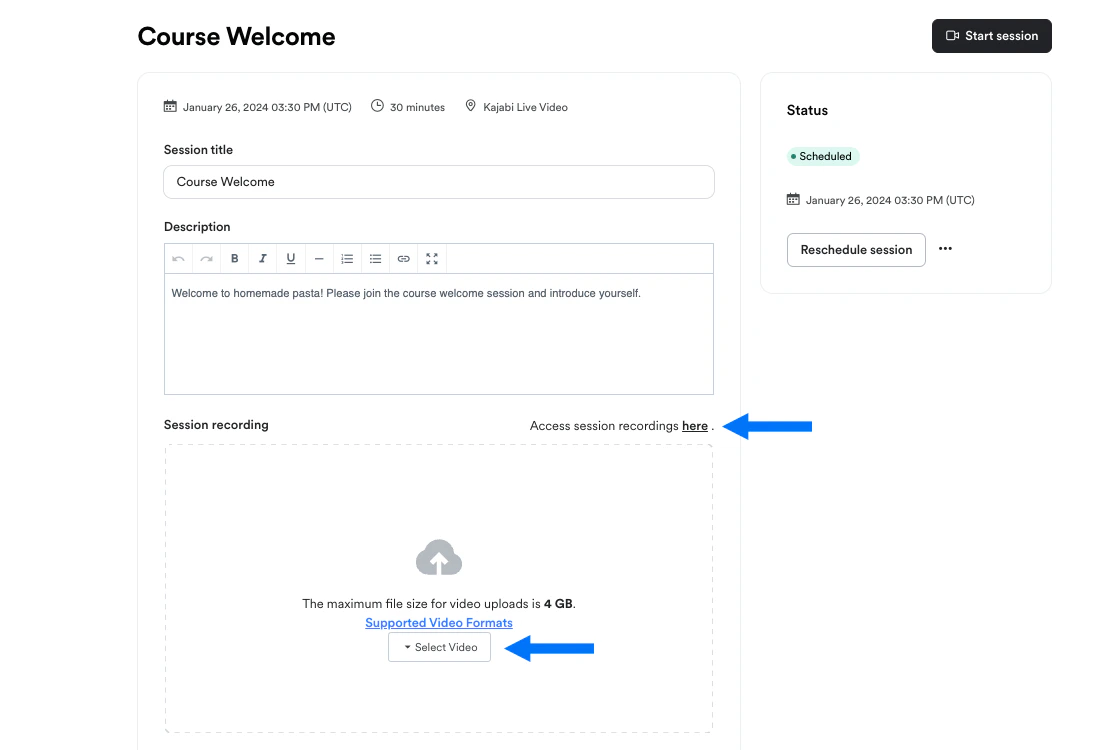
If you wish to add a video recording of the session after it has taken place, you can do so using the video uploader on this page.
Set Live Sessions to automatically record
If you wish for your Cohort Live Sessions to automatically be recorded and uploaded to that session once the session has been completed:- Select Products from the Dashboard.
- Then, select Courses.
- Click to open the cohort-based Course.
- Select Settings.
- Under Live Sessions, toggle ON “Automatically upload recordings to your live session page.”
- Hit Save to apply the changes:
Edit, reschedule, or cancel a Live Session
Edit a Live Session
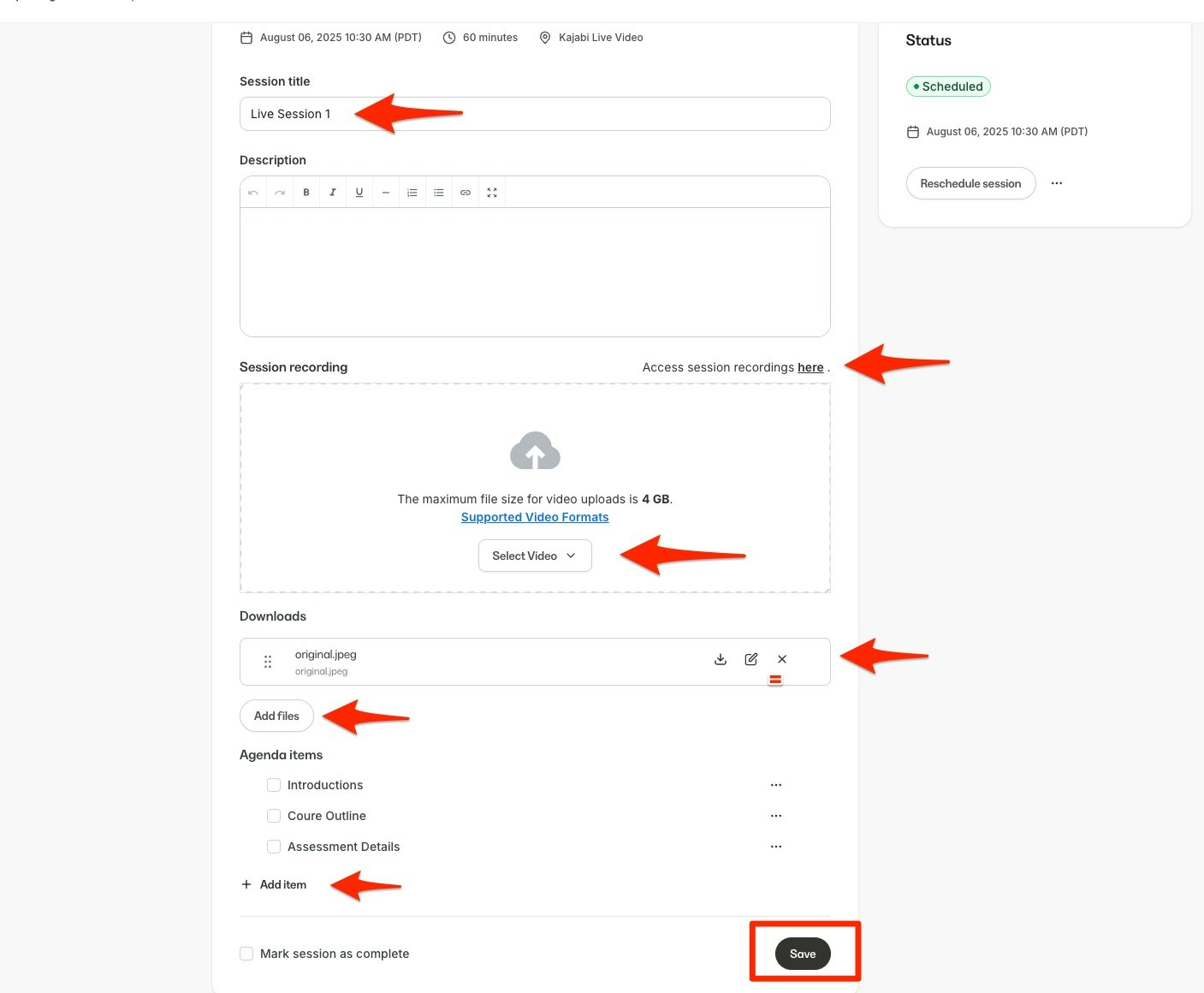
Want to change the session title and description, upload a session recording, add a resource for students to download, or mark the session complete? To edit a Live Session you’ve created:- Click the name of your Live Session to open it for editing. (Or, click the Scheduled/Not scheduled button and select Edit lesson session.)
- Update the session title and description, upload the session recording, update downloadable resources, and/or mark the session complete as desired.
- Click Save:
Reschedule or cancel a Live Session
Need to reschedule or cancel a session you’ve already scheduled? Simply follow the steps below. To reschedule a Live Session:- Click the name of your Live Session to open it for editing. (Or, click the green Scheduled button and select Edit lesson session.)
- Near the top right corner of the page, click Reschedule session.
- Enter a new date, time, and/or time zone for your session.
- Confirm or update your session location and duration, and click Schedule:
- Click the name of your Live Session to open it for editing. (Or, click the green Scheduled button and select Edit lesson session.)
- Click … to the right of the “Reschedule session” button.
- Select Cancel session.
- A popup modal will appear. Click Cancel session to confirm:
Delete a Live Session
To delete a Live Session you’ve created:- Click the status button (Scheduled or Not scheduled) to the right of your session.
- Select Delete live session.
- A popup modal will appear. Click Delete Live Session to confirm:
Start a Live Session
Note:
If you chose a custom session location off Kajabi, you won’t see the button to start a Live Session on the Kajabi Live Session page. You’ll need to go to the custom location to start the session.
- Click the name of your Live Session to open it. (Or, click the green Scheduled button and select Edit lesson session.)
- Near the top right corner of the page, click Start session. The Kajabi Live Video launcher will open in a new browser tab.
- Verify that all camera and microphone settings are correct.
- Click Join to start your session and enter the live video room:
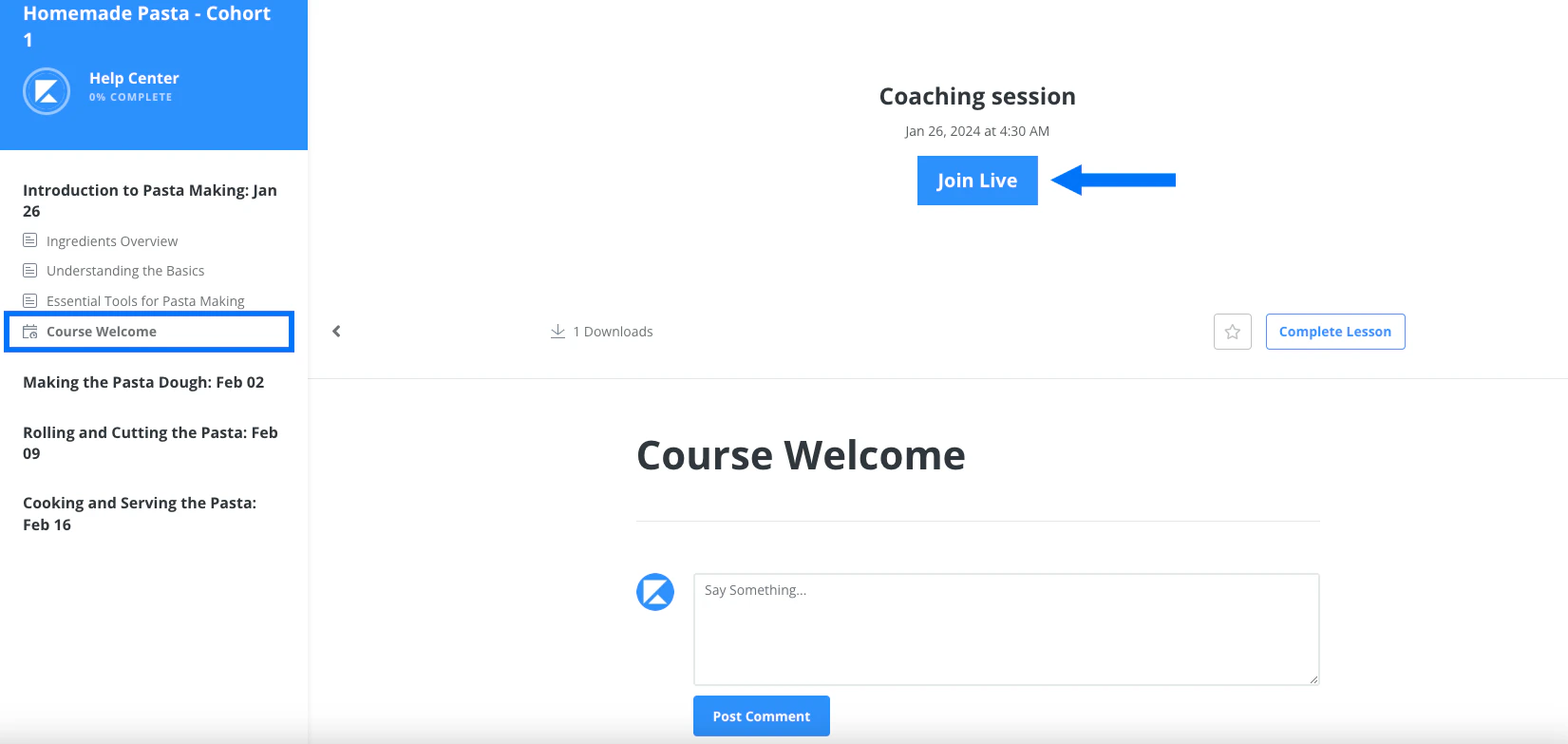
How students join a Live Session
Students will join a Live Session via the Live Session Page inside the Course. They can open this page by clicking on the title of the Live Session in the Course outline. If you’re hosting your session with Kajabi Live Video, your students will simply click the “Join Live” button to join a Live Session you’ve started: