

Create a timestamp
- Play any video on your site and pause at the moment you want to share.
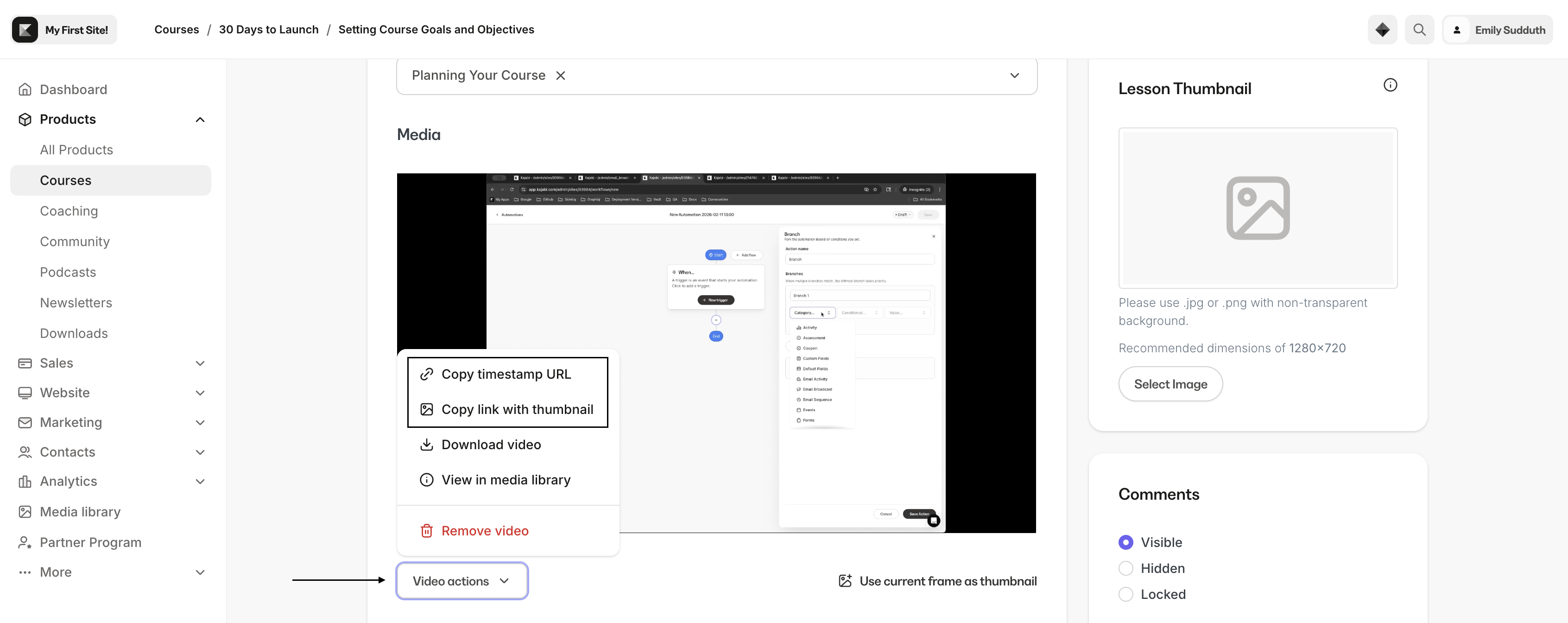
- Open the Video actions menu.
- Choose Copy timestamp URL or Copy link with thumbnail.
- Paste the link anywhere and when someone opens it, the video starts playing from that exact moment.
Note:
If you are creating a timestamp for a video located within a Product, your contacts will need to have purchased or been granted access to the Product to open the link.
Copy timestamp URL
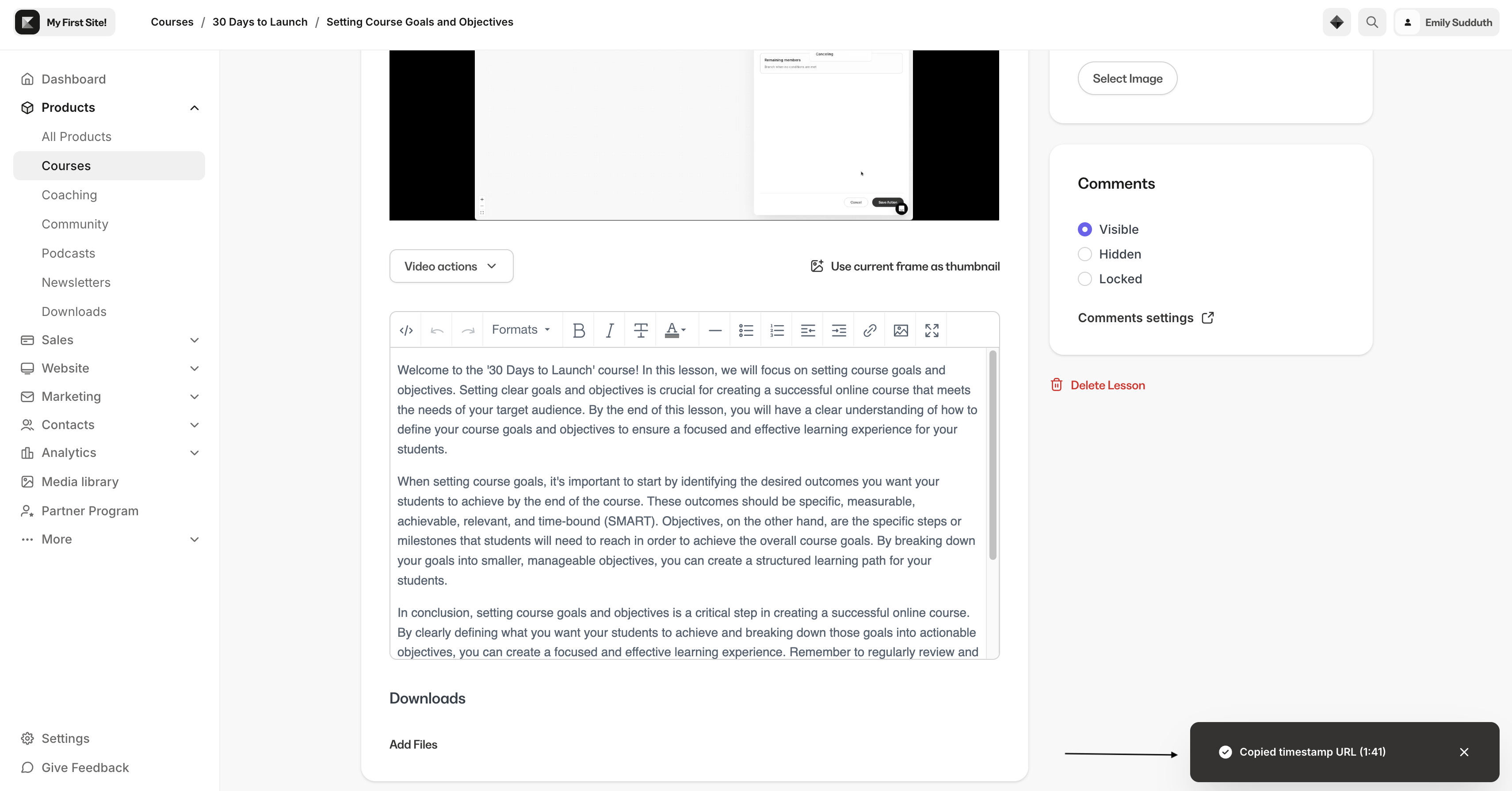
Select Copy timestamp URL to copy a plain text link to your clipboard. The link includes the current playback time so anyone who opens it jumps straight to that moment in the video. The video auto-plays from the timestamp automatically. This is ideal for:- Sharing a link in a Lesson description that points students to a key moment in the video
- Dropping a link in a message or email that takes someone directly to the relevant part
Copy a link with thumbnail
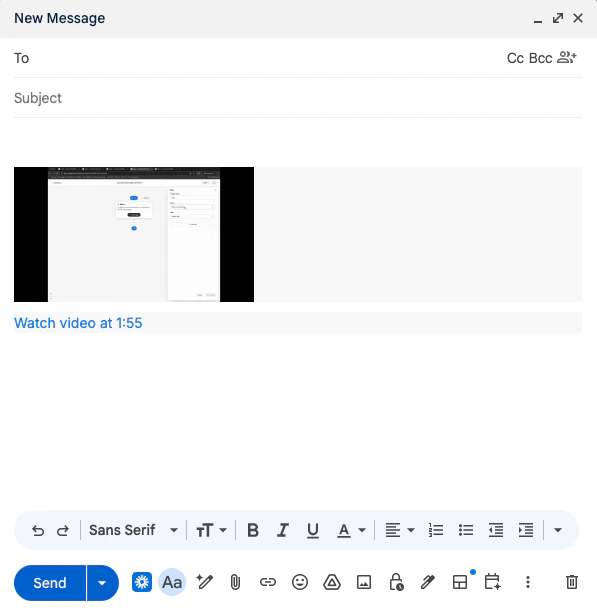
Select Copy link with thumbnail to copy a rich link that includes a thumbnail preview of the video at that moment, along with a clickable “Watch video at X:XX” link. When you paste it into an email, document, or chat, the recipient sees a visual preview of the exact frame you’re referencing. This is useful for:- Sharing a specific moment from a Coaching session recording with a client
- Including a visual callout in an email that links to a key part of a Course lesson
- Pasting into notes, documents, or team chats where a visual preview adds context
Supported locations for timestamps
The Copy timestamp options appear in the video Actions menu, anywhere you manage video content across your site:- Course lessons: Share links to key moments in your Lesson videos
- Blog posts: Point readers to a specific part of an embedded video
- Coaching sessions: Share highlights from group or one-on-one session recordings with clients
- Live session replays: Link directly to important segments of a recorded event
Customer experience
When your customers click a Timestamp link, the video loads and automatically begins playing from the specified moment. This works on both desktop and mobile browsers.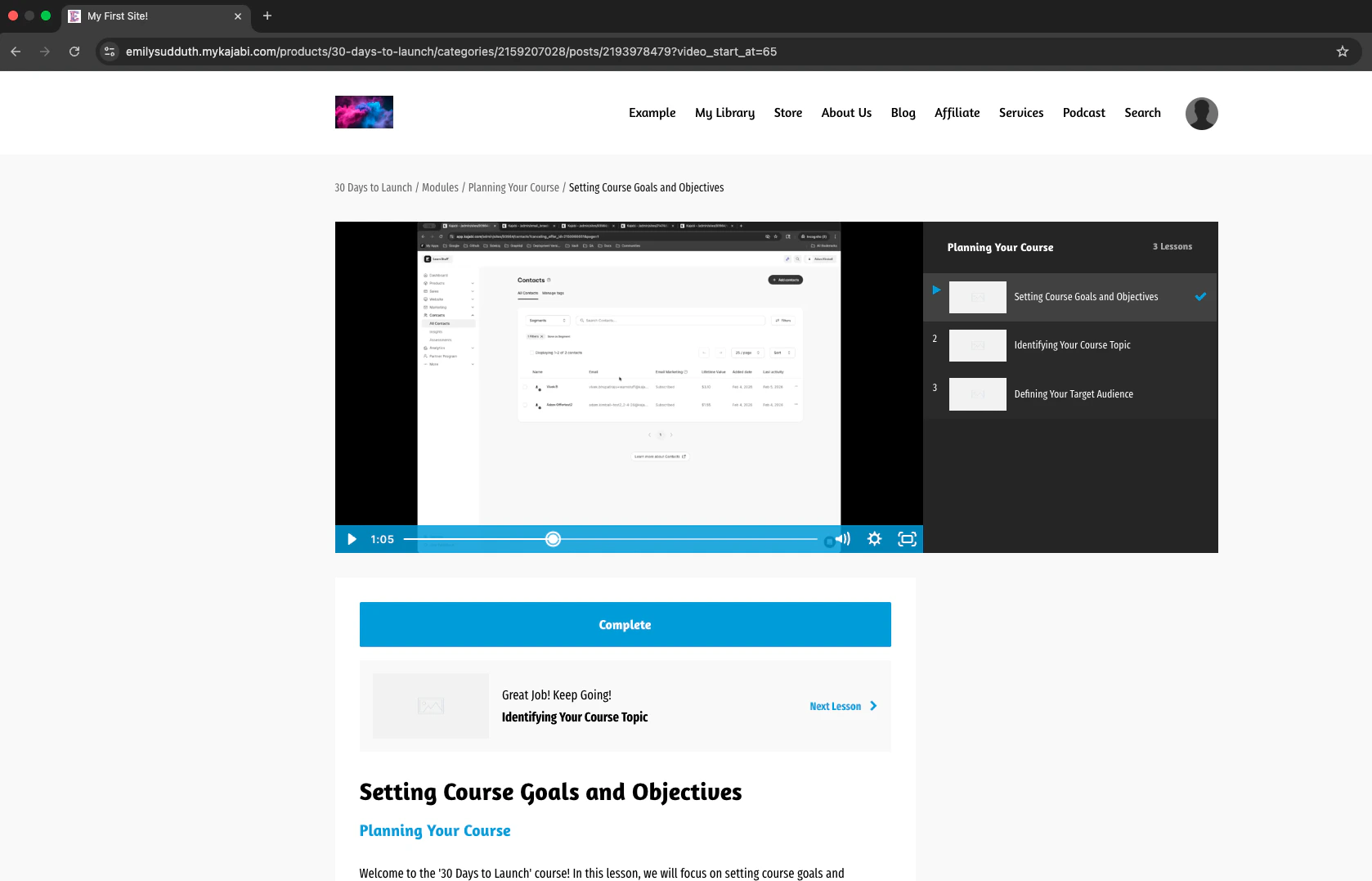
Note:
Looking to create chapters in your video? Learn how to create chapters.
FAQs
Who can copy timestamp links?
Timestamp copying is available to Site Admins (Owners and Assistants) from the video Actions menu. Members cannot copy timestamps, but they can open any timestamp link shared with them.What happens when someone clicks a timestamp link?
The page loads and the video automatically starts playing from the specified time. No extra steps are needed.Note:
If the video is located in a Product, your contacts will need to have purchased or been granted access to the Product to open the link.