What is a submodule?
Submodules in a Course give you the ability to further organize your Modules. Build submodules into your parent Modules to create bite-sized, manageable learning sessions for your customers.Create a submodule
- Open the Product tab from the Dashboard
- Select the Course you wish to edit
- Click the + Add Content button (directly from the parent Module or select from the overall Outline)
- Select Submodule
- Enter the Submodule details (title, location, description, thumbnail image)
- Click Create Submodule
Note: Create up to 30 Submodules within each Parent Module. Want to change a Submodule into a Module? Drag and drop your Submodule outside of the Parent Module to convert your Submodule into a Module.
Why use a submodule?
Submodules are a great way to further organize your Course Outline and group specific lessons together. Another great feature of Submodules is the ability to Drip content within the Submodule. If you want to only Drip-release specific lessons within a Module, you can create a Submodule and set the Submodule status to Drip. This way only those specific lessons within the Submodule will be set to Drip, and not the whole Parent Module. Learn more about the Kajabi Drip feature. Submodules can also be locked, which ensures that your customers must first complete your specified Lesson to unlock the Submodule and gain access to that section of content. Learn how to lock content.What customers see
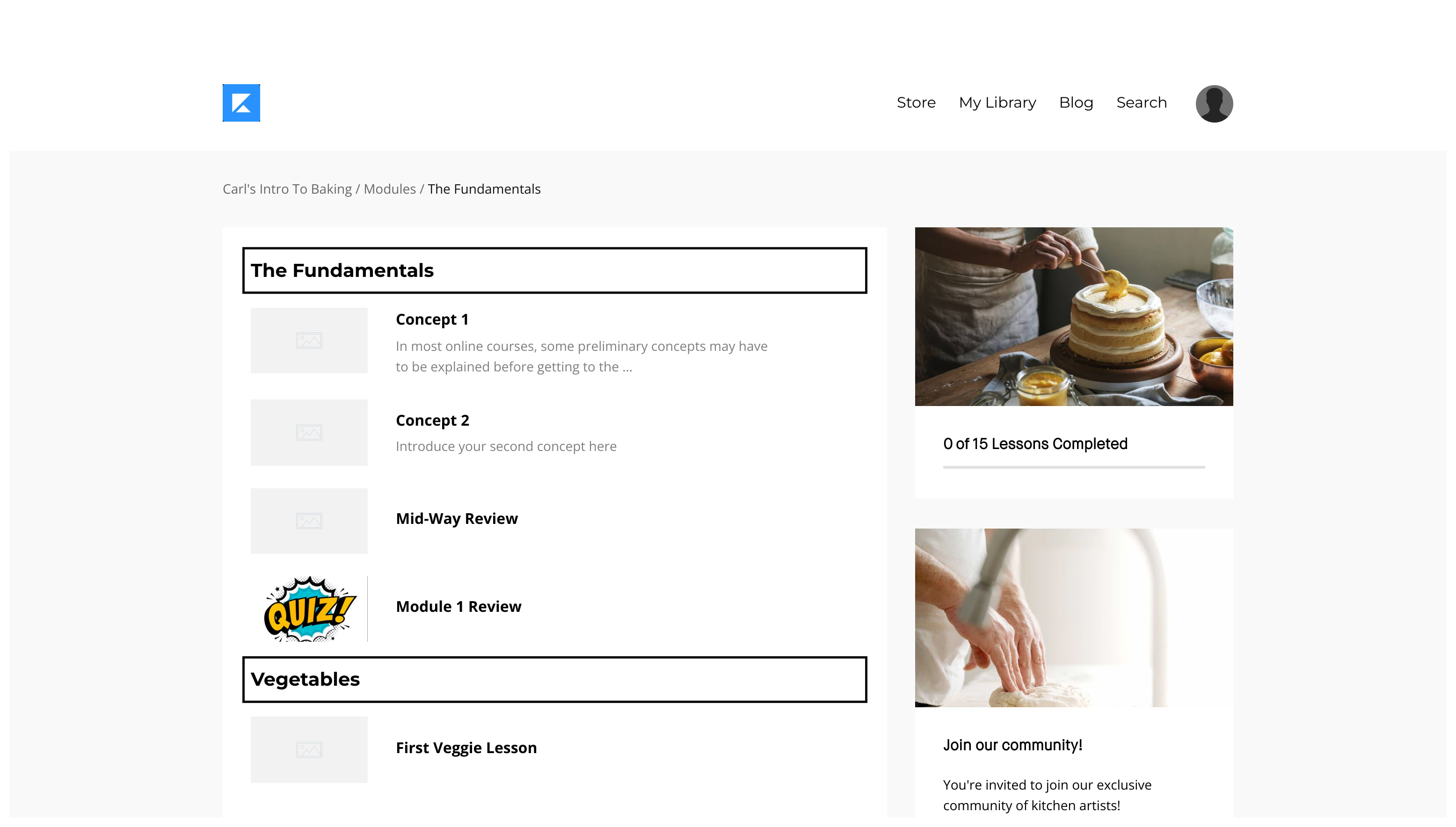
This is how your customers will see a Submodule in the Course Outline. In this example image, the parent Module is titled “The Fundamentals” and the Submodule is “Vegetables”: