The Momentum Template is exclusive to the Course Editor. It is a template built for simplicity and easy content consumption. With Momentum, the focus is placed heavily on content and what is being delivered in the Course, minimizing distractions that could detract from customers’ experience.
Install the Momentum template
Get started with the Momentum Template by first installing it in the Course.
Installing the Template allows you to begin designing Course pages before they are visible to customers. This allows you to design and update the Course behind-the-scenes until you are ready to share it.
- Open the Products tab from your Dashboard.
- Select the Course you wish to redesign.
- Click the Customize tab.
- Click Install Template.
- Select Momentum and click Install Template:
Customize the pages that make up a Course
After installing Momentum, navigate through the various Course Pages using the dropdown menu at the top of the template editor:
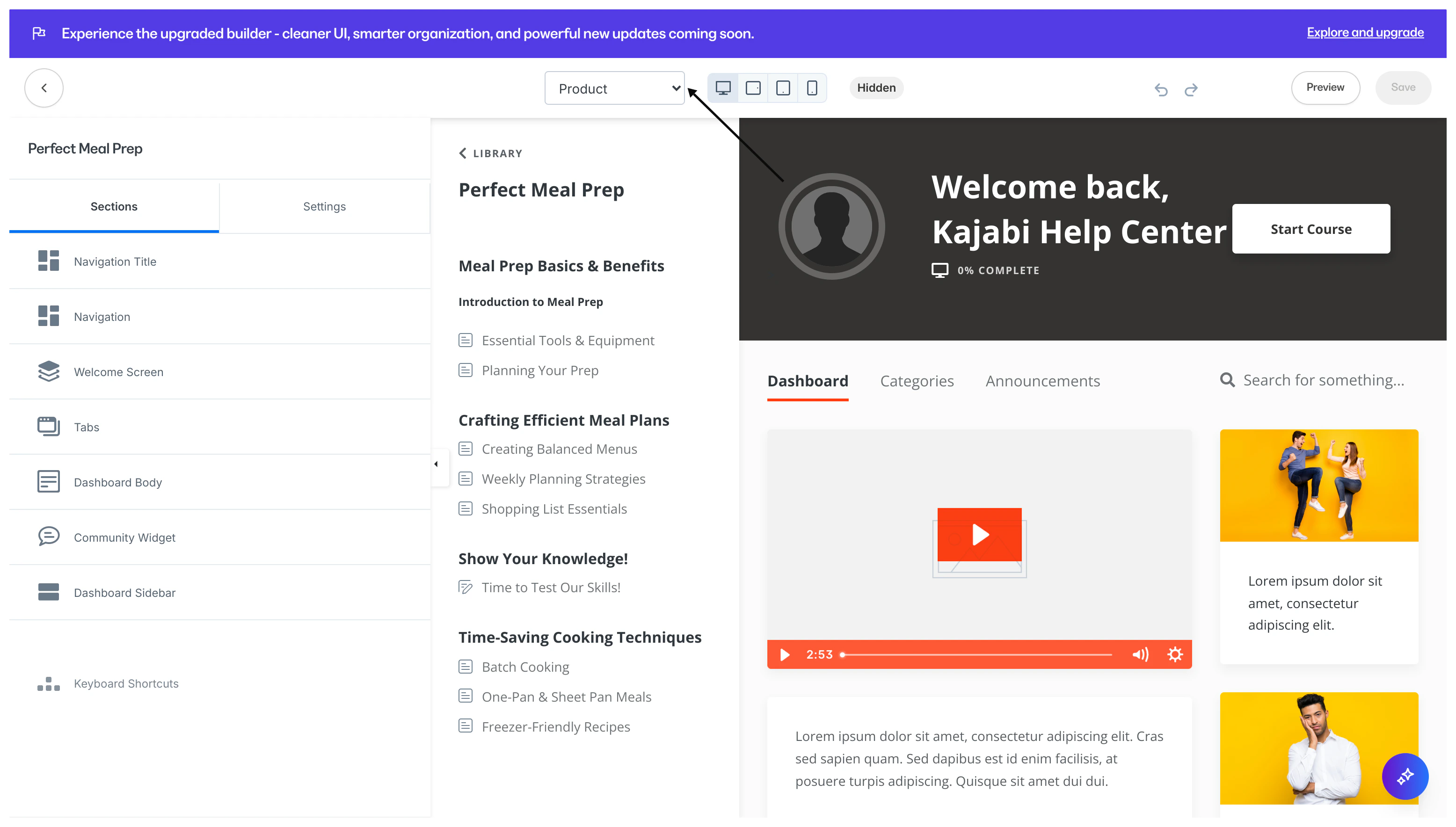 Once you’ve finished customizing and designing the Course, you’re ready to activate it. Learn to activate a template
Customize the Momentum template
Customize the Course template with Kajabi’s click-to-edit system. Simply locate the section you wish to customize and make desired changes in the sidebar control panel.
Or select the different sections from the sidebar control panel to edit the various sections that make up the Course page.
With the Momentum Template, you can customize the various Sections of your page and the Page Settings.
Momentum sections
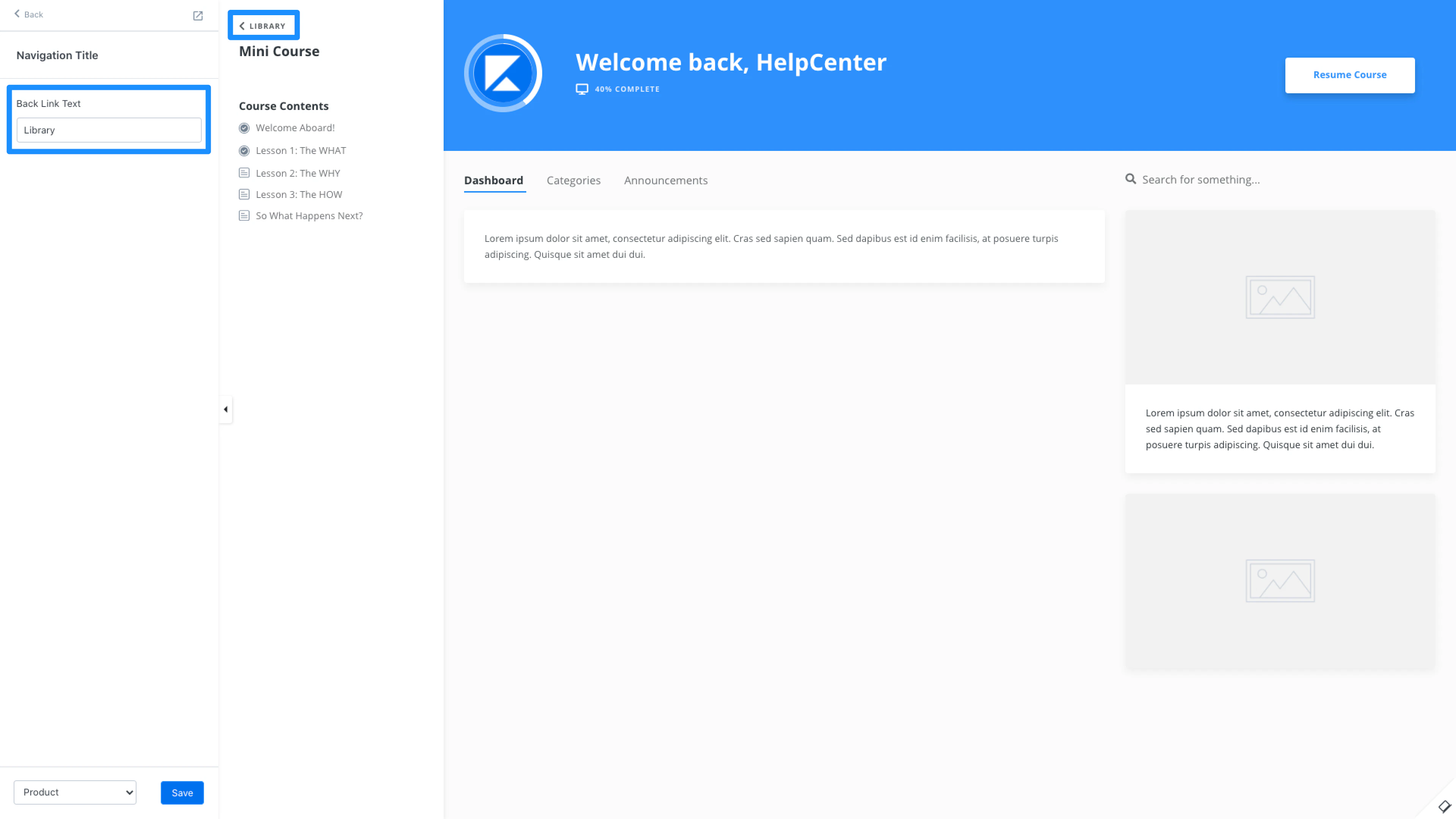
Navigation Title is the back link text displayed in the top left corner of the Course page.
Customize the language used to communicate the back link:
 Navigation is the Momentum sidebar displaying the Modules and Lessons that make up your Course.
Customize the Navigation menu to hide or show your Lessons:
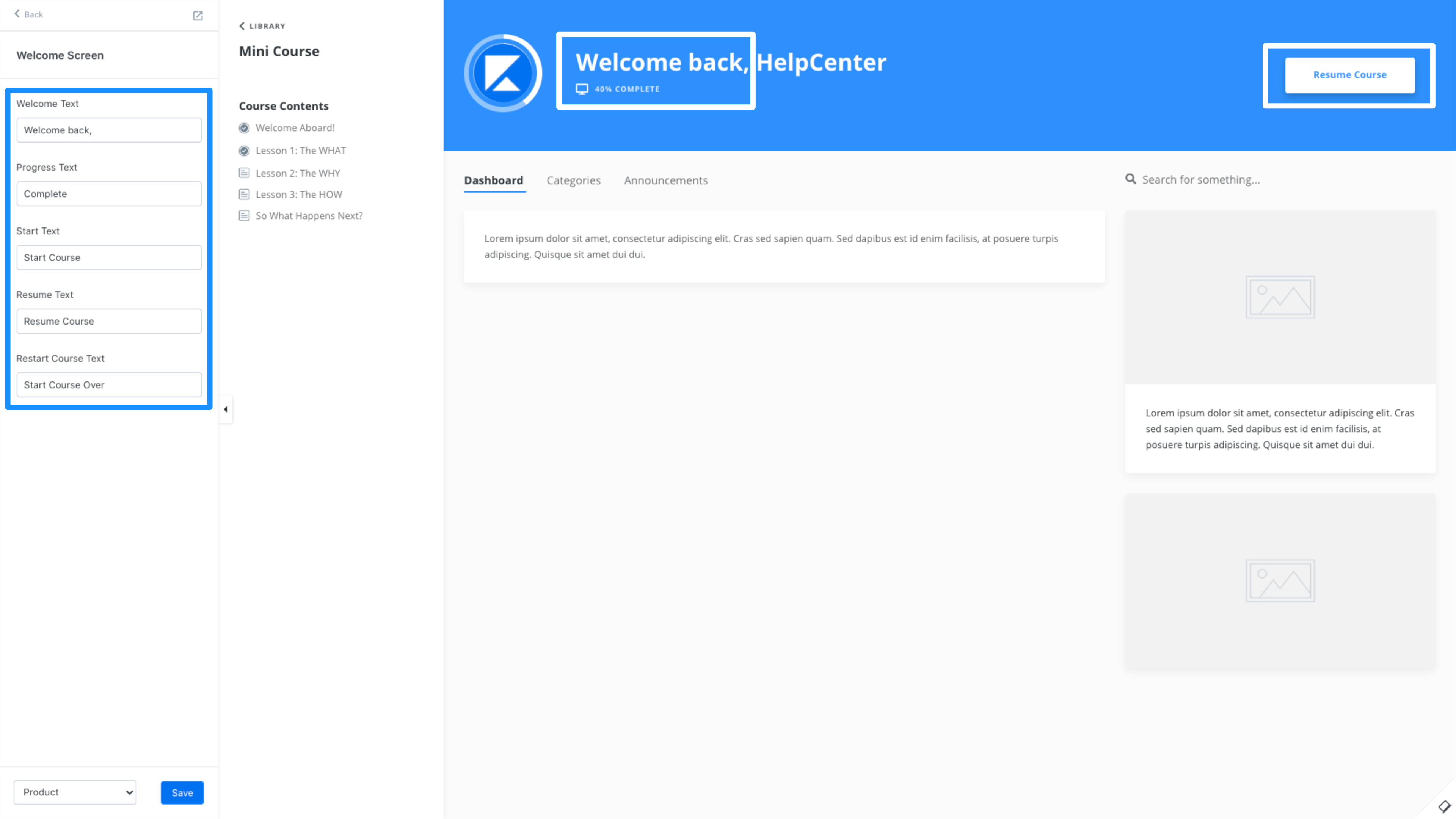
Welcome Screen is the header section of the Momentum template. Customize the language used for the:
Navigation is the Momentum sidebar displaying the Modules and Lessons that make up your Course.
Customize the Navigation menu to hide or show your Lessons:
Welcome Screen is the header section of the Momentum template. Customize the language used for the:
- Welcome back headline
- Progress text directly below the welcome back message
- Start, resume, and restart text located in the top right button of your header:
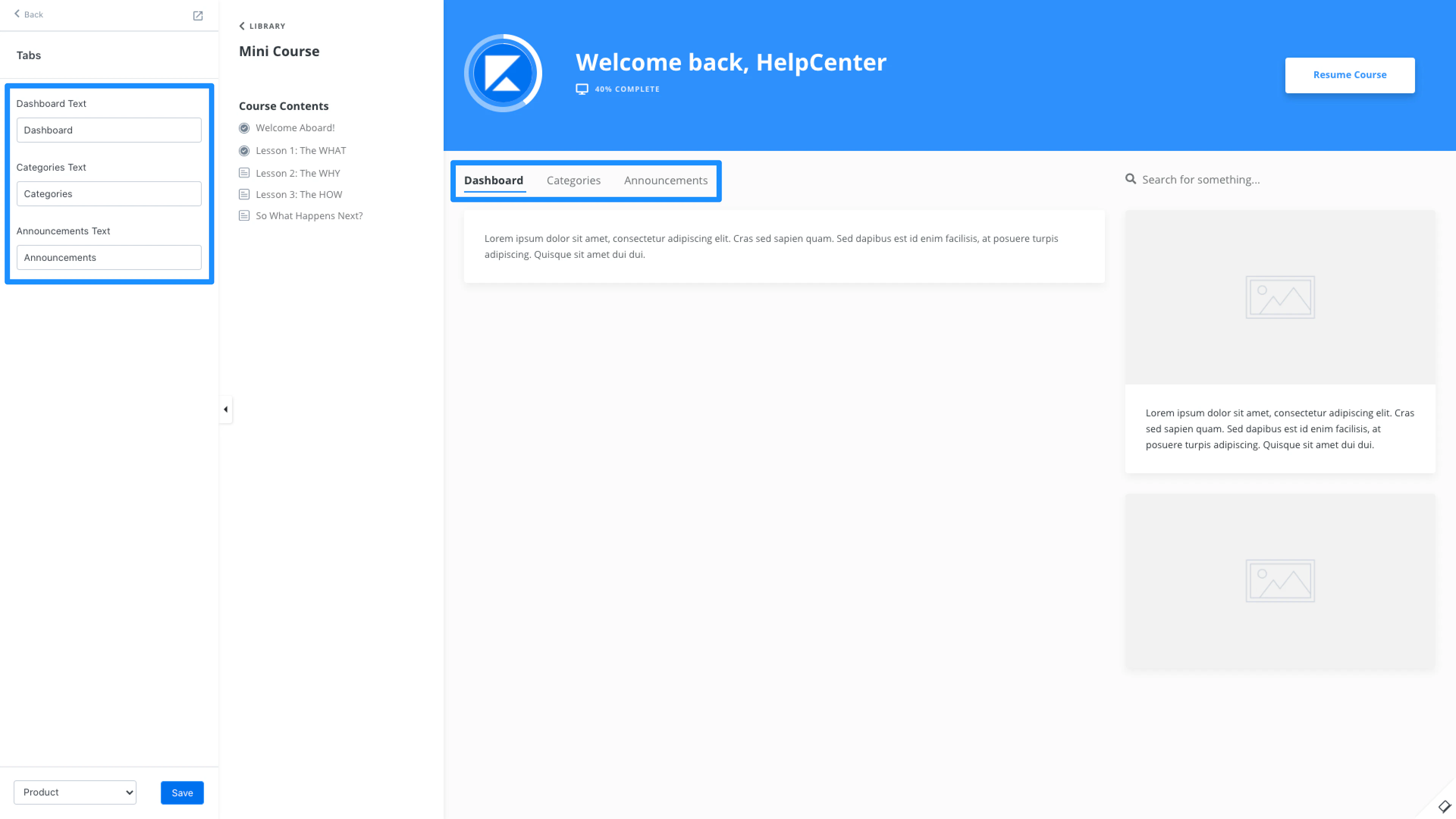
 Tabs are located directly below the Momentum template header to navigate between the Dashboard, Modules, and Announcements for the Course.
Customize the language for each tab by editing the Tabs section of the Momentum template:
Tabs are located directly below the Momentum template header to navigate between the Dashboard, Modules, and Announcements for the Course.
Customize the language for each tab by editing the Tabs section of the Momentum template:
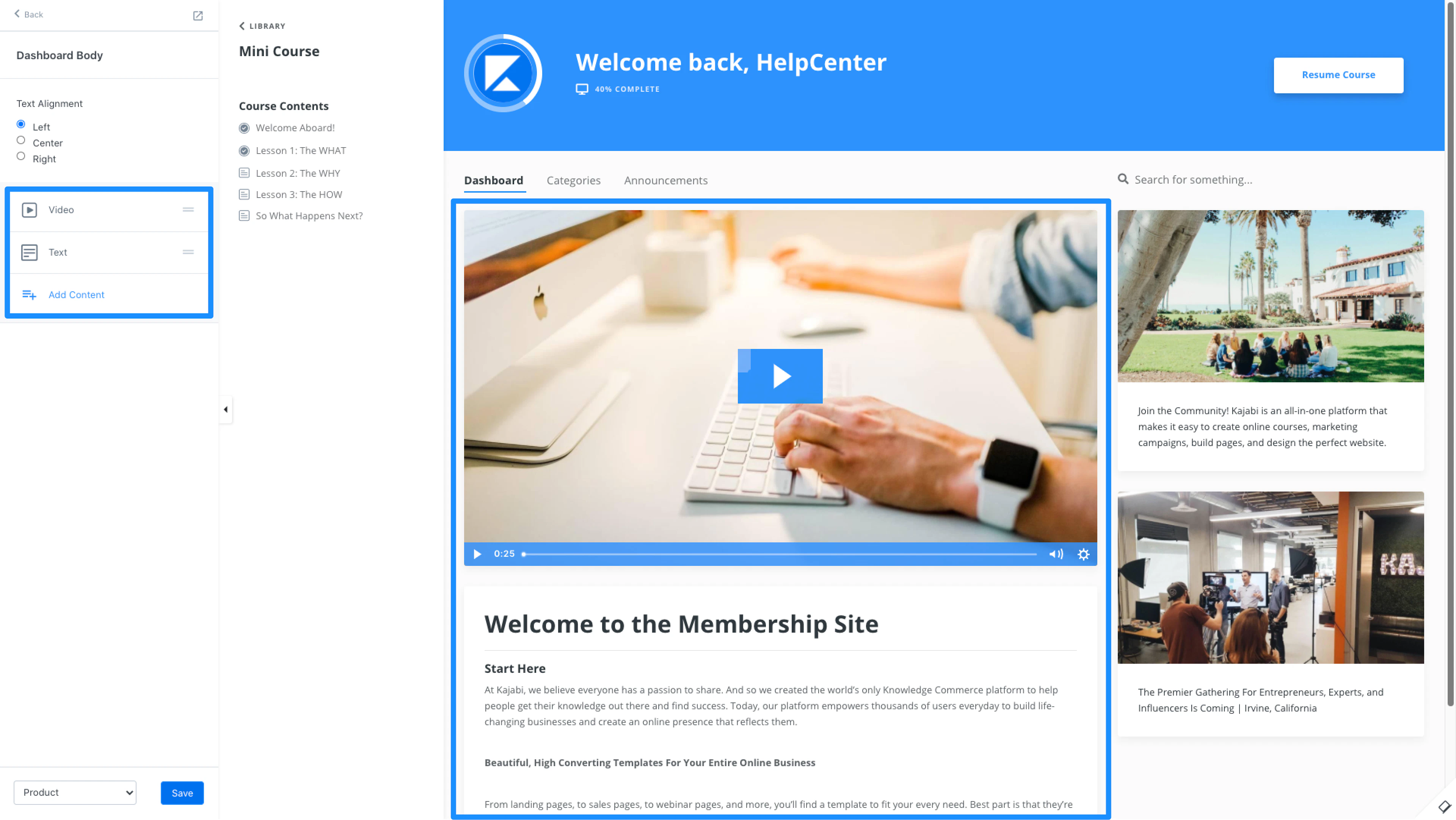
 Dashboard Body is located in the main, middle section of your Course Page.
Add a combination of text, image, and video block(s) to the Dashboard Body to optimize customers’ experience with the Course:
Dashboard Body is located in the main, middle section of your Course Page.
Add a combination of text, image, and video block(s) to the Dashboard Body to optimize customers’ experience with the Course:
 Community Widget: If you’ve created a Kajabi Community Product on the same site as the Course, you’ll have the option to add a Community Widget to the Course template to embed a Community Circle in the Course:
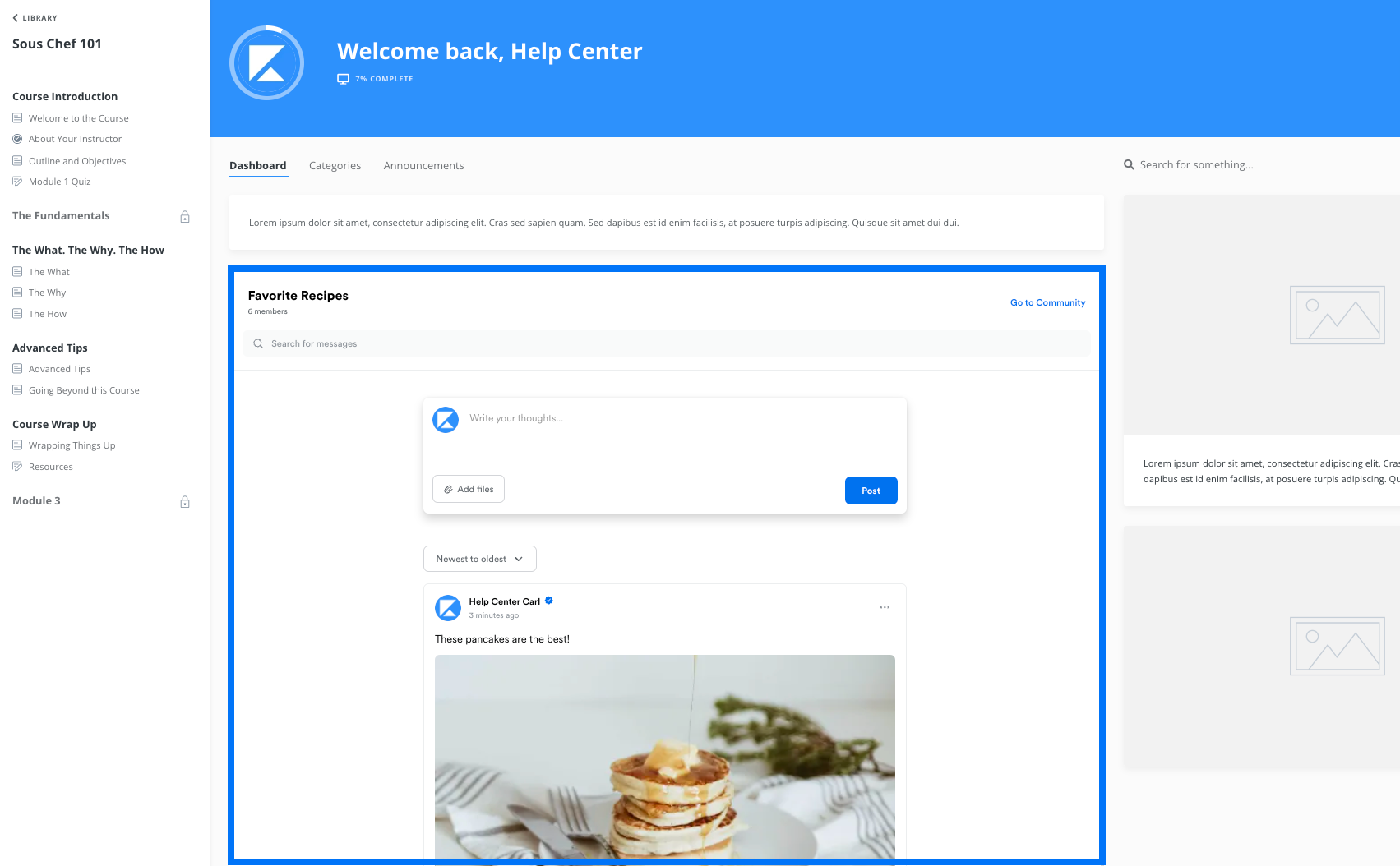 Before adding a Community Widget, you’ll need to link a Community Access Group in your Course Settings (and make sure the Access Group is added to your Course Offers). Learn how to embed a Community Circle in your Course.
Dashboard Sidebar is located on the far right of the Course page.
Similar to the Dashboard Body, add a combination of card, image, text, and video block(s) to optimize customers’ experience with the main Course Dashboard:
Before adding a Community Widget, you’ll need to link a Community Access Group in your Course Settings (and make sure the Access Group is added to your Course Offers). Learn how to embed a Community Circle in your Course.
Dashboard Sidebar is located on the far right of the Course page.
Similar to the Dashboard Body, add a combination of card, image, text, and video block(s) to optimize customers’ experience with the main Course Dashboard:
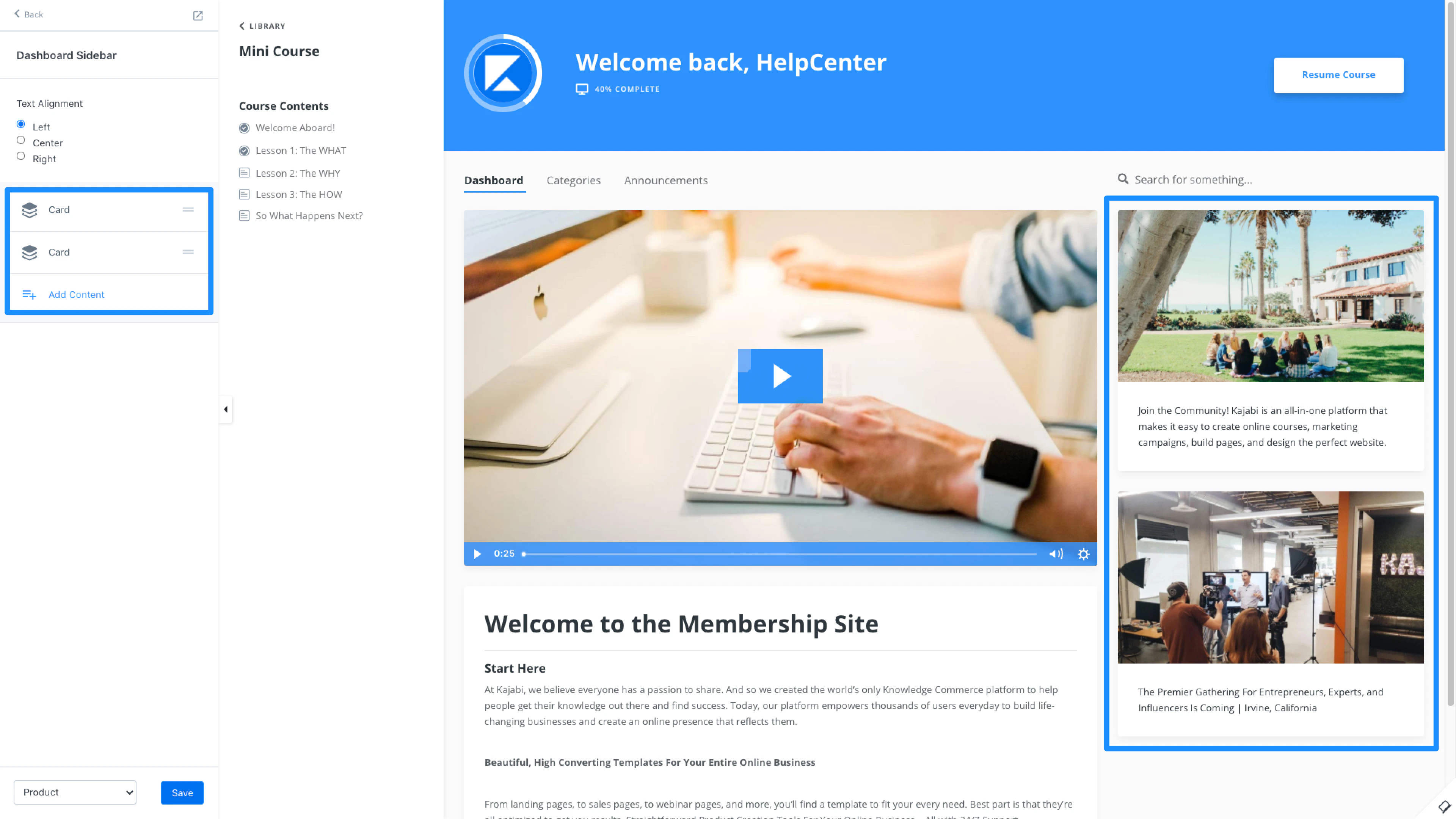 Customize the search bar located directly above the Dashboard Sidebar from the General Settings in the Page Settings tab.
Momentum page settings
The page settings of the template streamline the build and design of the entire Course by generating configured page settings across every page of the Course.
With Momentum, this will update your favicon, typography, color scheme, and general settings across your:
- Main Course page
- Announcements page
- Module page
- Lesson page
- Comment page
- Search page
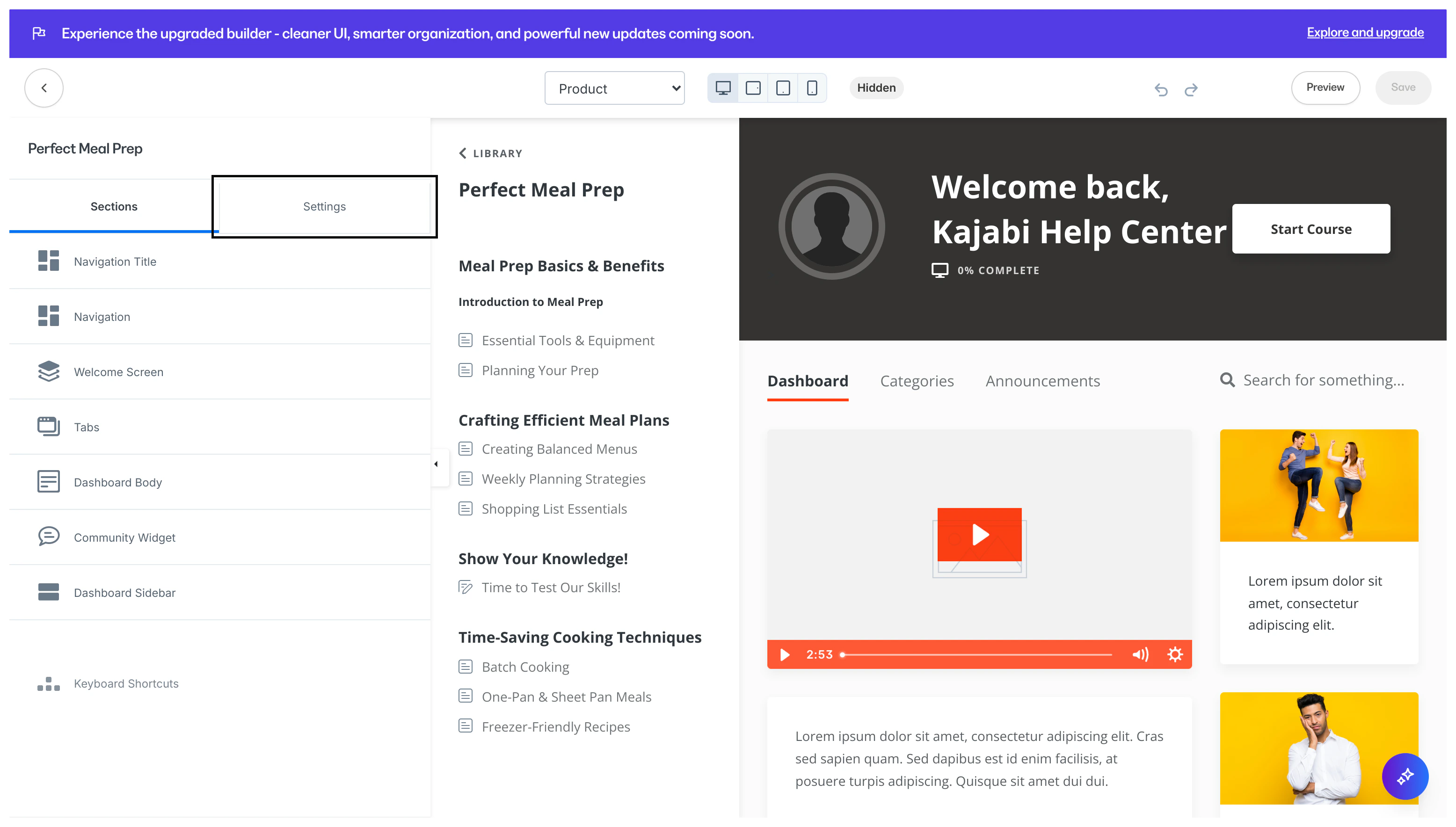
Customize the settings for the Course page by opening the Settings tab from the sidebar control panel:
 Favicon: a small icon on a website tab or window in a browser.
You’re probably familiar with the favicon for the sites you frequently visit, such as the blue Kajabi favicon for this very page:
Favicon: a small icon on a website tab or window in a browser.
You’re probably familiar with the favicon for the sites you frequently visit, such as the blue Kajabi favicon for this very page:
 While adding a favicon is simple, it’s just one more way you can signal professionalism and reinforce a brand.
The ideal image file size for favicons is a 32x32 PNG.
However, if you upload a bigger image Kajabi will help you resize it.
While adding a favicon is simple, it’s just one more way you can signal professionalism and reinforce a brand.
The ideal image file size for favicons is a 32x32 PNG.
However, if you upload a bigger image Kajabi will help you resize it.
Note:
Please allow some time for the favicon to update.
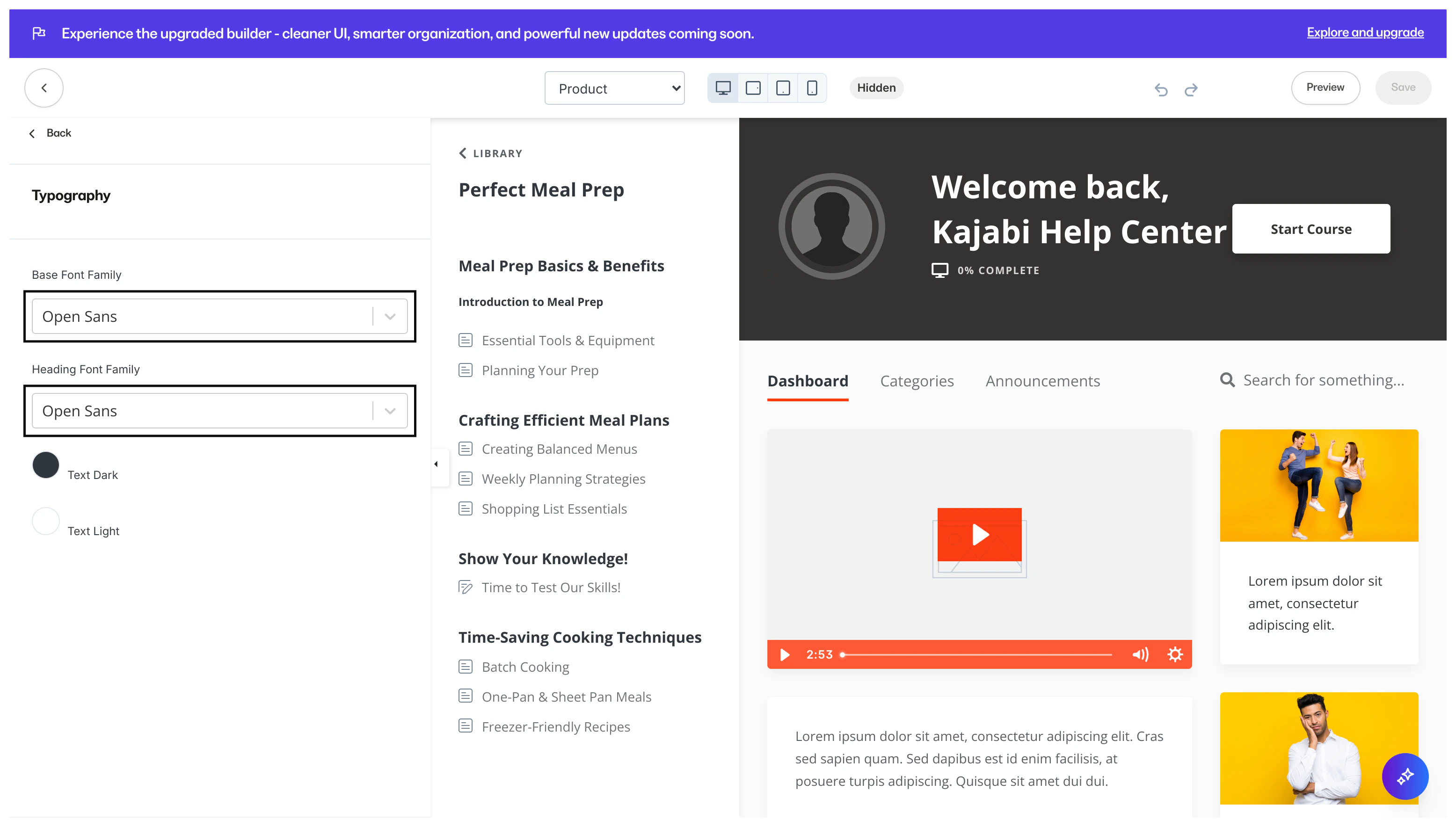 Color Scheme is the overall page color scheme:
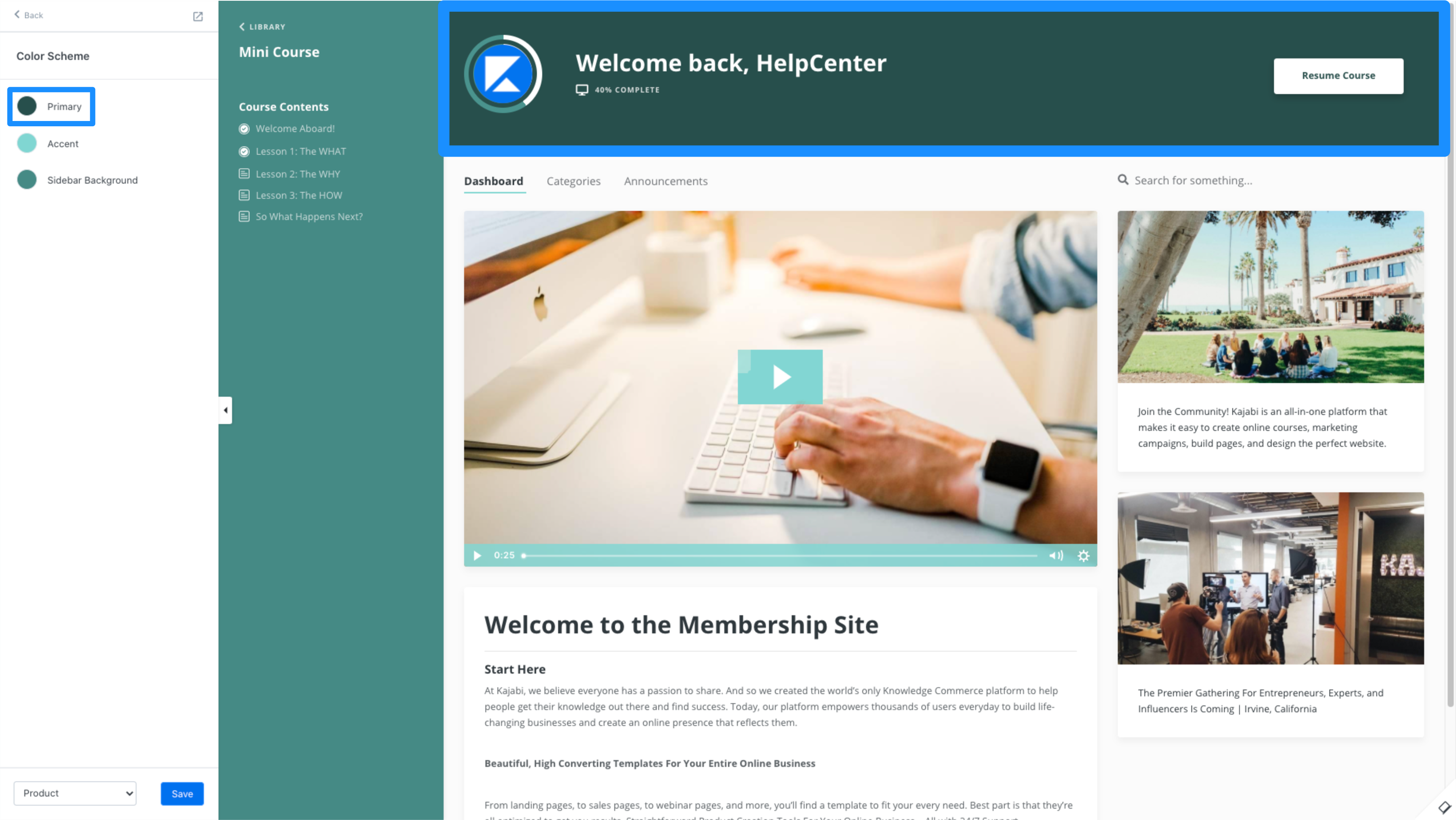
- Primary is the main color of the page. This will impact the welcome back screen located at the top of the Course page:
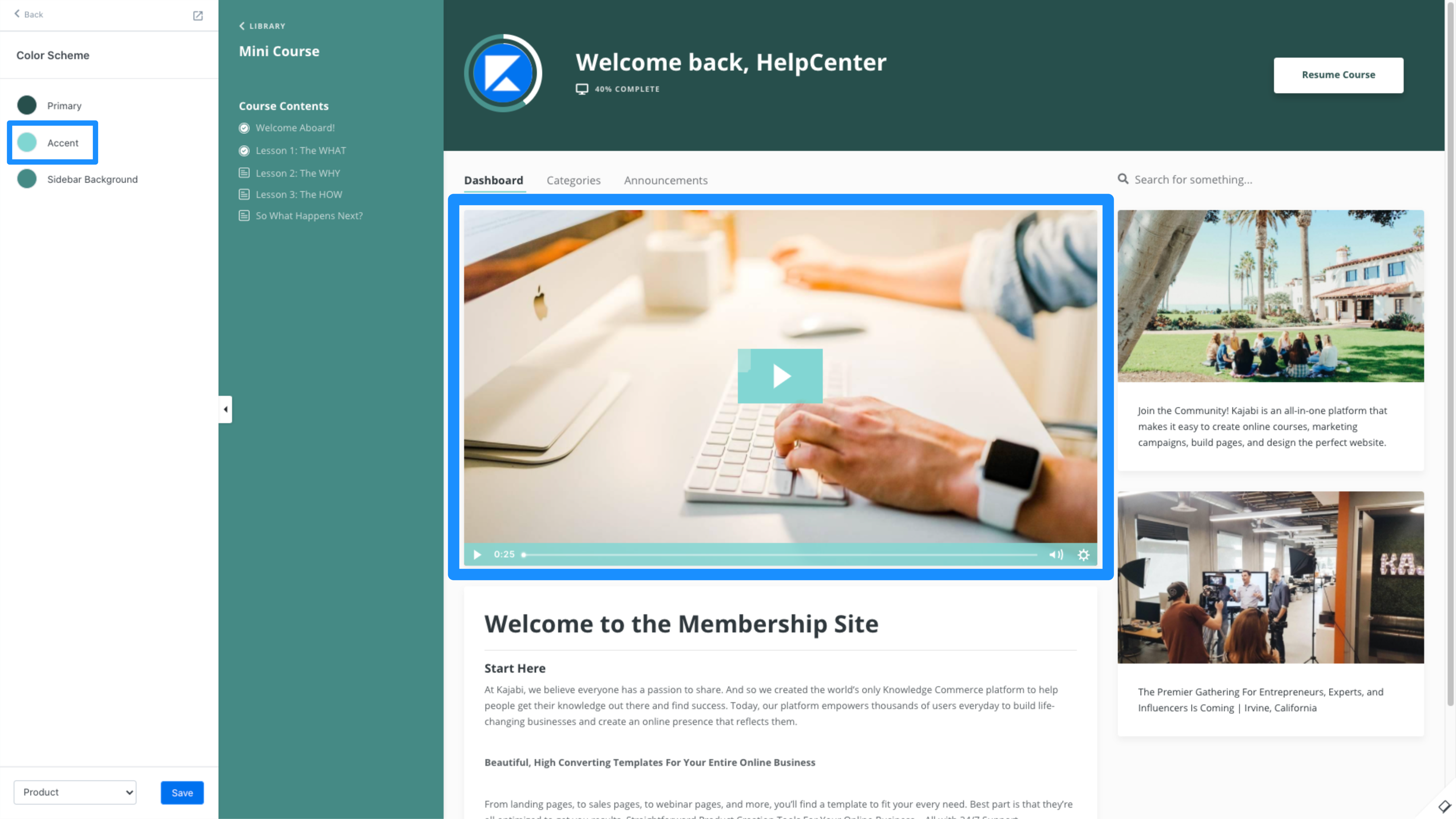
- Accent is the secondary color for the page and will change the color of the video player if applicable:
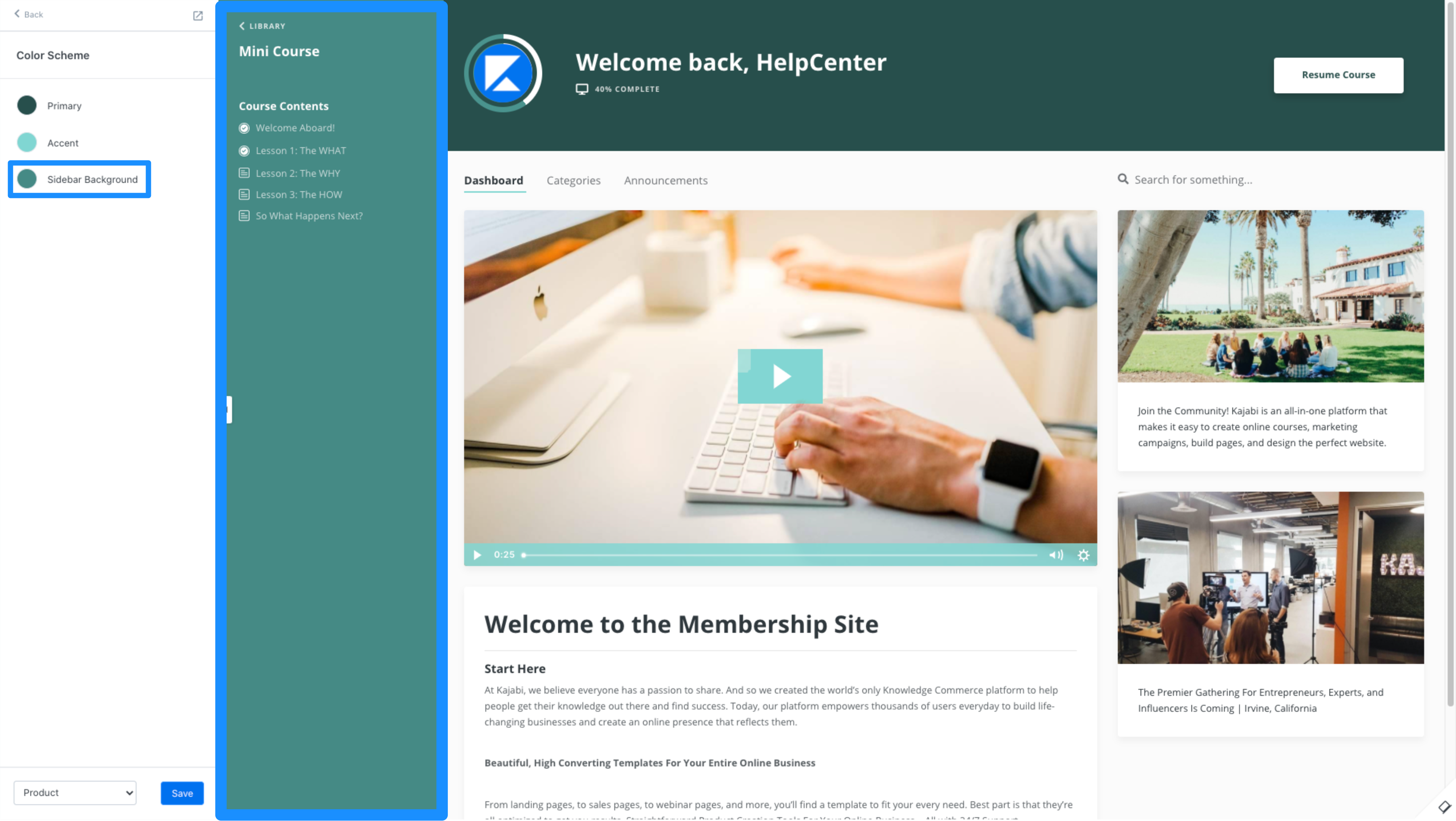
- Sidebar Background is the navigation menu sidebar located on the left-most portion of the Course page. Select the desired color to change the appearance of the left sidebar:
 General Settings include page visibility, pagination, and comments. Use General Settings to customize the language and text used to communicate the various sections of the page.
- Visibility changes the visibility of the Course Dashboard and Search bar. Hide or show the Dashboard and/or Search bar by customizing the Visibility General Settings.
- Pagination allows you to truncate the number of Lessons and/or Modules displayed on a single page.

