

Enable or disable comments
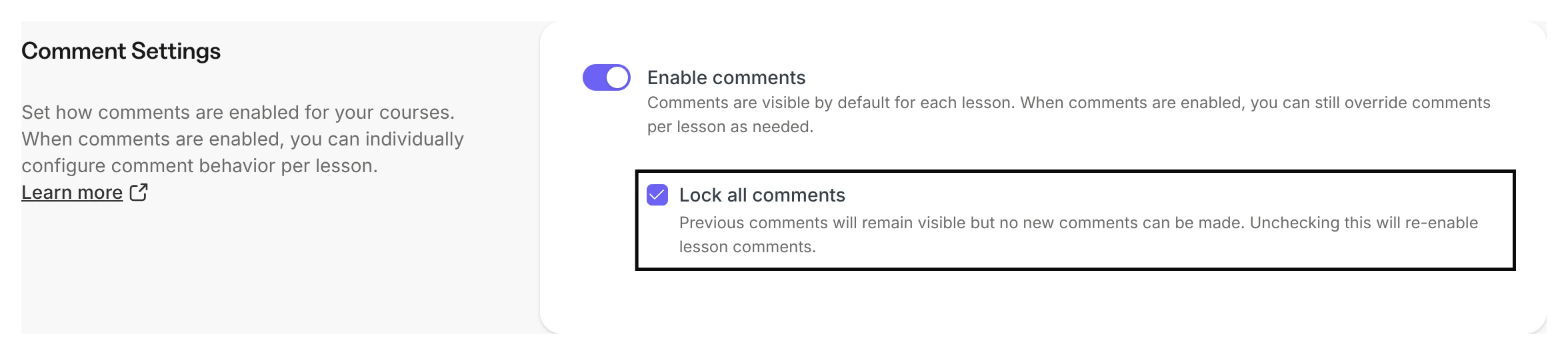
Enable or disable comments in your Courses. By enabling comments in your Courses, you can individually configure comment behavior per lesson (i.e., make it visible, hidden, or locked).Set comment settings
- Navigate to your Products tab.
- Select the Course you wish to update.
- Open Settings.
- Scroll to the bottom of the page to Comment Settings.
- Select Enable comments to enable or disable your comments.
- Enabled: Toggle is dark black.
- Disabled: Toggle is a light grey.
- Be sure to click Save to keep and apply your changes:
Change comment visibility
Change the visibility of the comments for each Course Lesson:- Open the Products tab in the Dashboard.
- Select an existing Course or create a new one.
- Click an existing Course Lesson or create a new one.
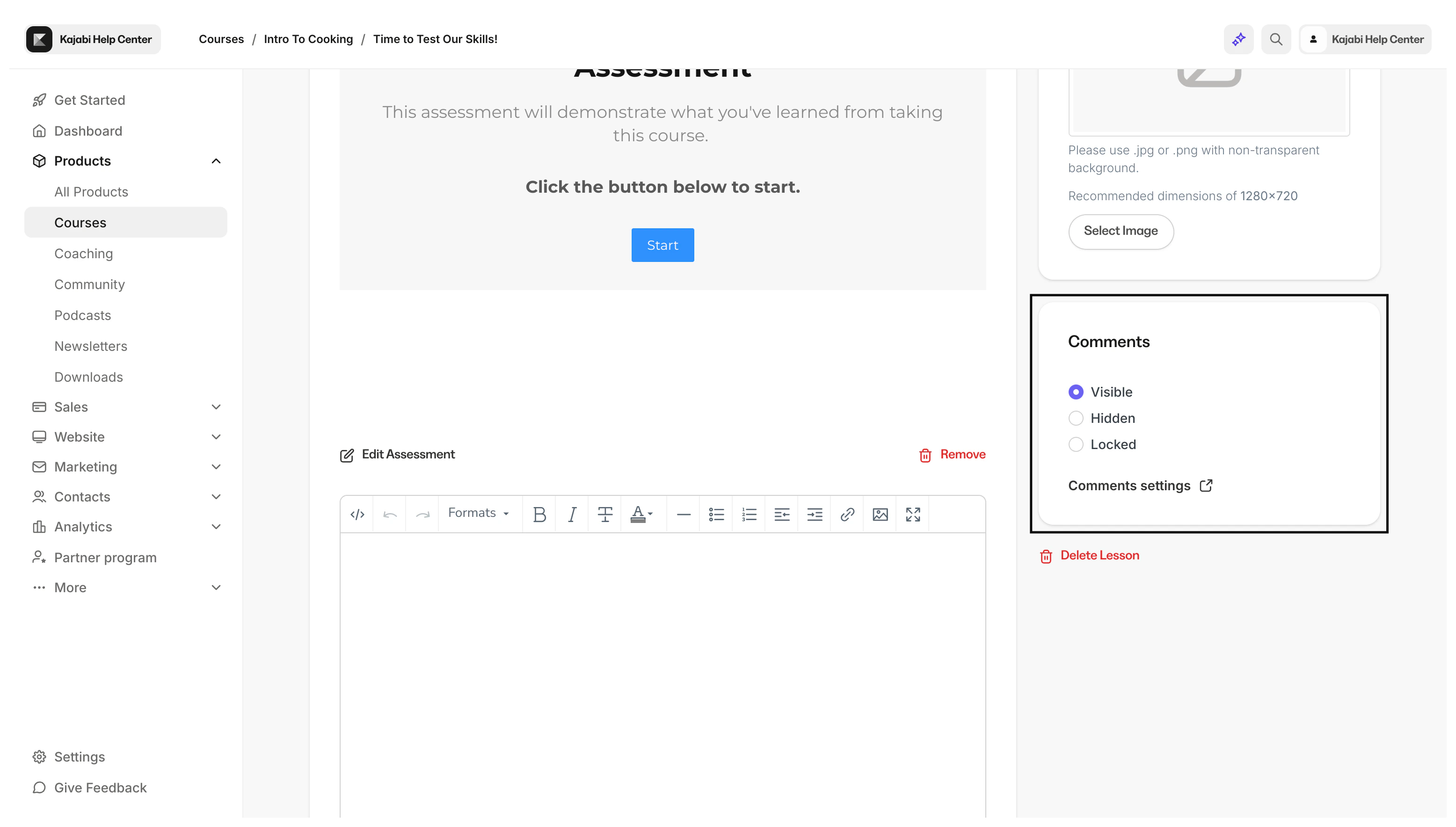
- Navigate to the Comment section on the right side of the page.
- Select your desired Comment visibility:
Visible
A “Visible” comment box will be visible on the page, will show existing comments in the thread, and will give your users the ability to add new comments: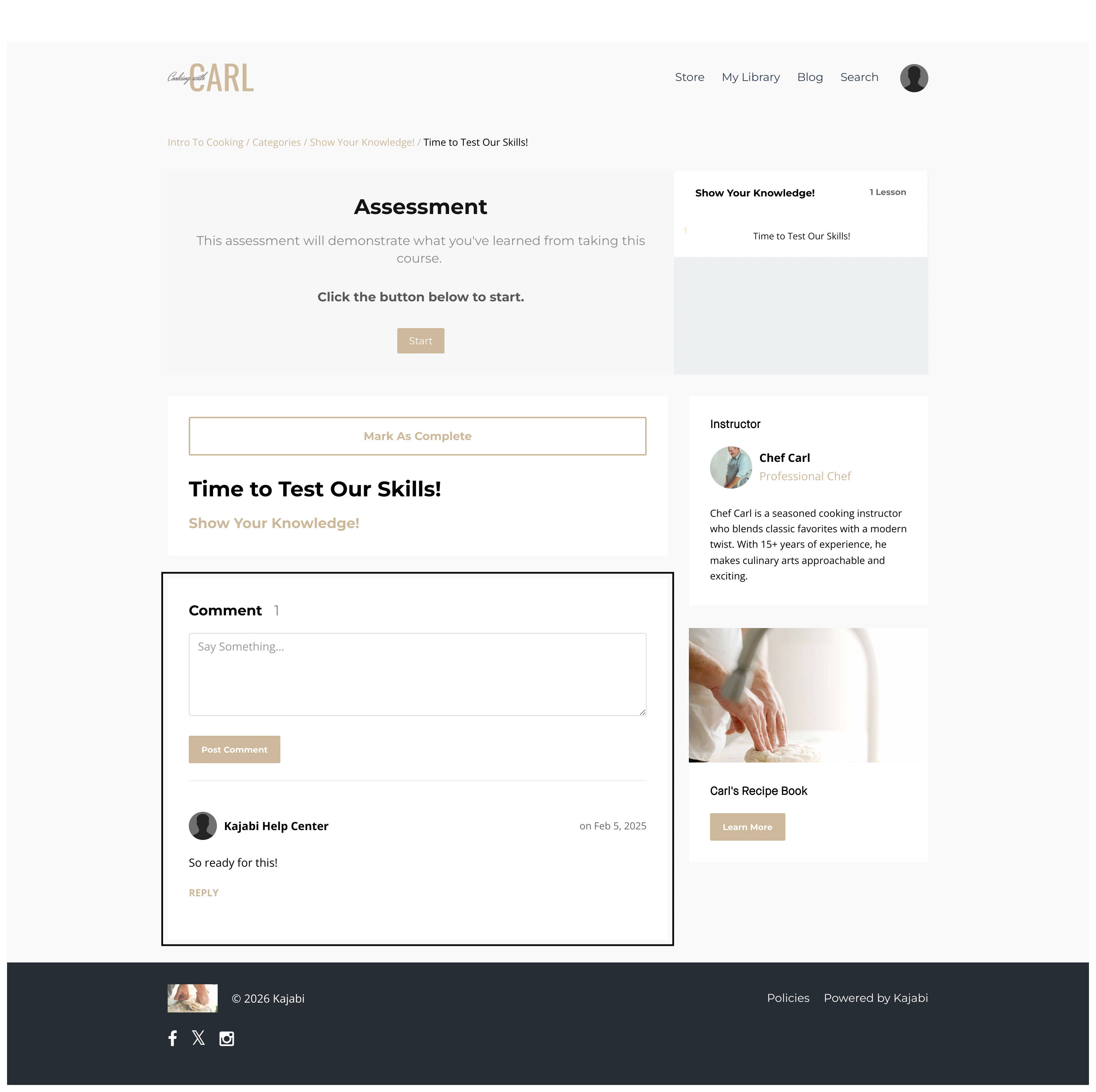
Hidden
A “Hidden” comment box will not be visible on the page and will not show existing comments in the thread:
Locked
A “Locked” comment box will remove your users’ ability to add new comments. However, any existing comments will still be visible: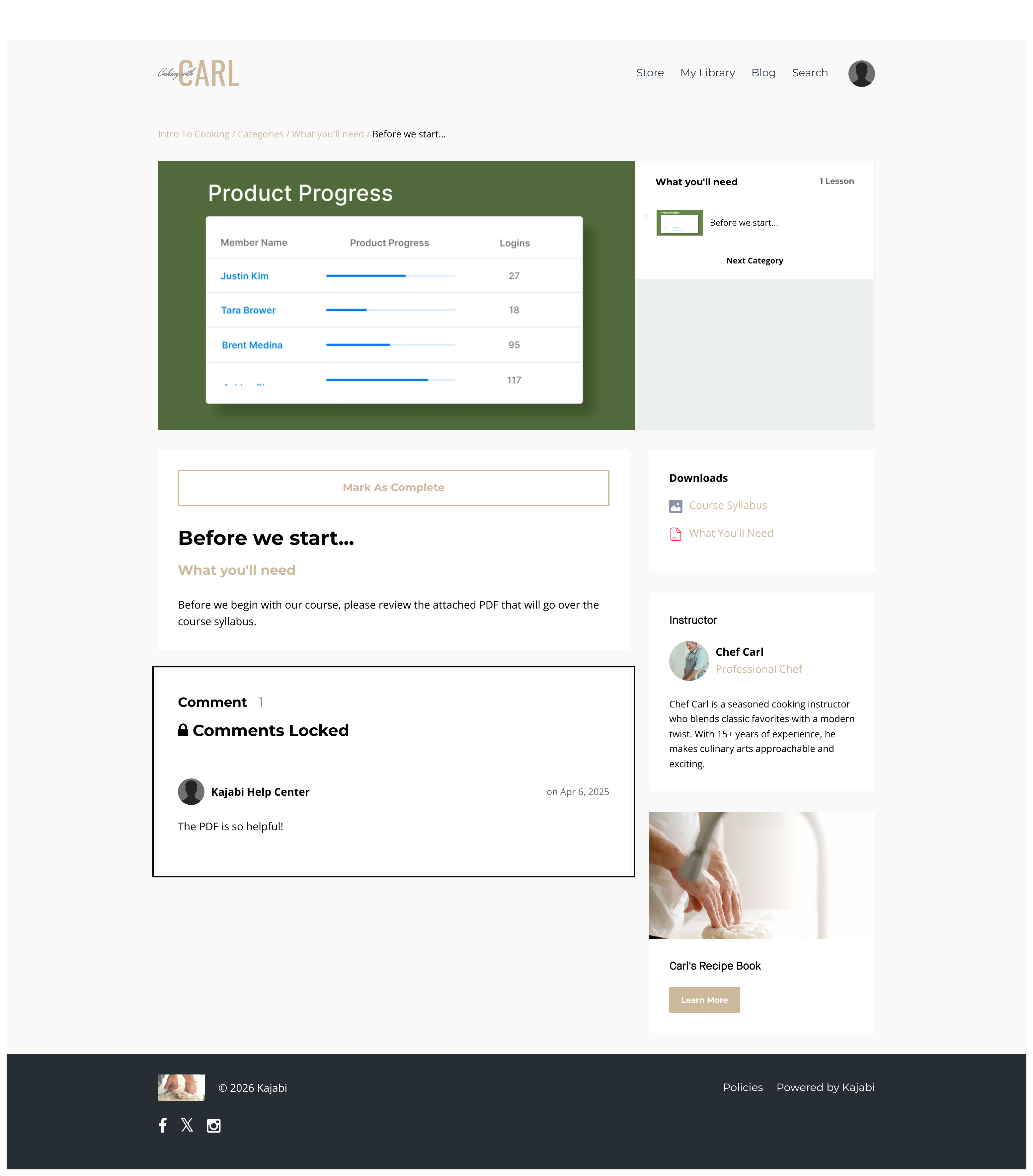
Note:
If you wish to disable comments for individual contacts, you can mute specific contacts. Learn about muting customers on Kajabi.
Manage comments in Course lessons
Access the Comments Manager for your Courses in your Products tab:- Open the Products tab from your Dashboard.
- Select the Courses tab.
- Then, click Manage Comments.
- This will take you to the Comments Manager in your Kajabi Admin:
Delete and restore comments
Delete a comment
- Open the Products tab from your Dashboard.
- Select the Courses tab.
- Then, click Manage Comments.
- Select the checkbox to the left of the comment you want to delete.
- Click the Delete button:
Restore a deleted comment
- Open the Products tab from your Dashboard.
- Select the Courses tab.
- Then, click Manage Comments.
- Click the Deleted tab to view all deleted comments.
- Select the checkbox to the left of the comment you want to restore.
- Click the Restore button: