Note:
The Cohort-Based Courses Feature is only available with the Growth and Pro Plans. Check out kajabi.com/pricing for more details.
What’s a Course template?
The Course template on Kajabi is where you can update the design of the Course. When students log into the Course, they’ll see Course materials and branding elements the way you’ve configured them in the template.Customize a cohort-based Course template
Cohort-based Courses are designed to work seamlessly with Kajabi’s Momentum template. Momentum is currently the only supported template option for creating a cohort-based Course. Additional templates are available to use for traditional evergreen Courses. Here’s an example of a Course homepage created using the Momentum template: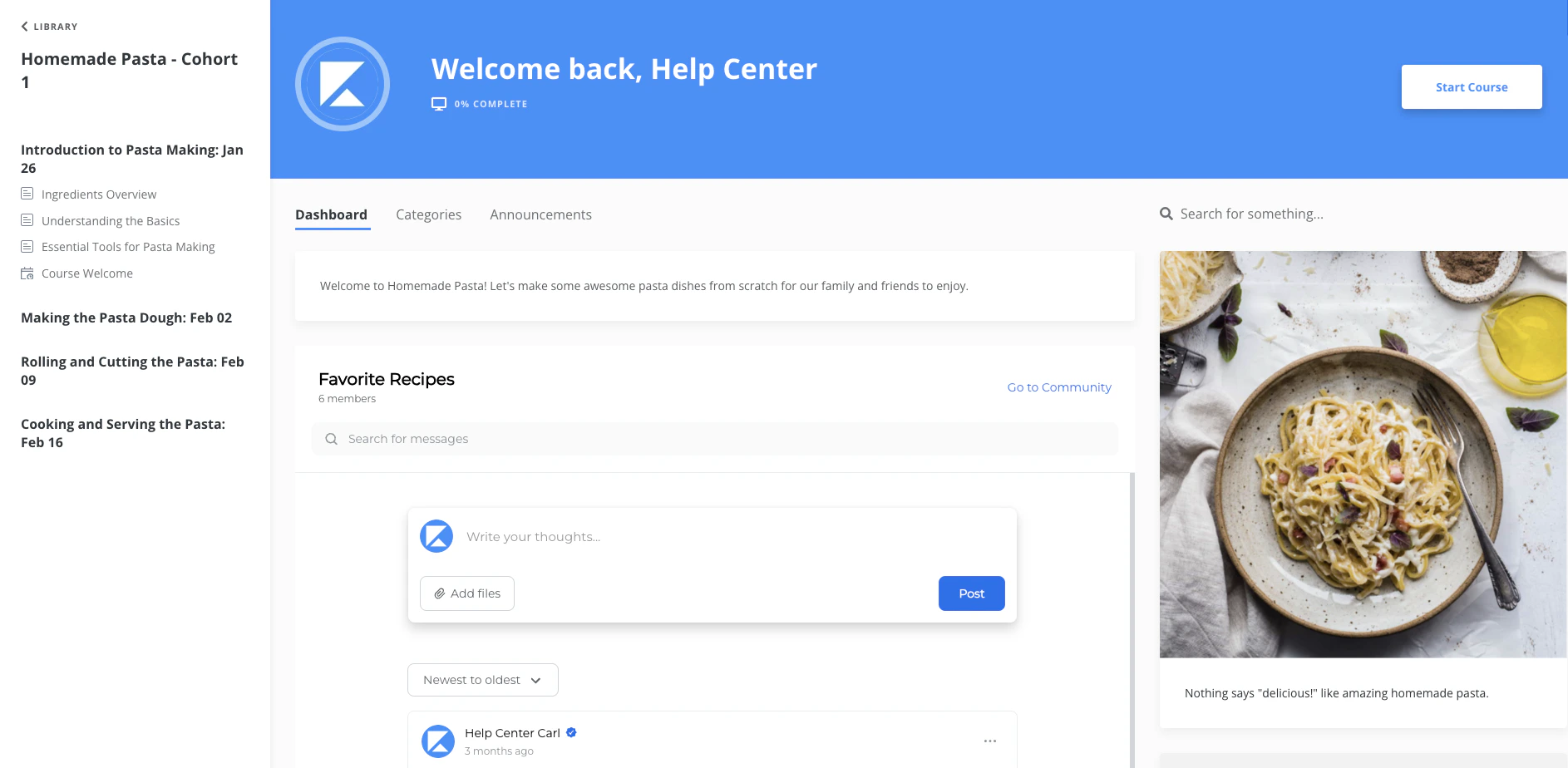
Open the cohort-based Course template for editing
- Select Products from the Dashboard.
- Then, select Courses.
- Click to open your cohort-based Course.
- Click the name of the cohort you want to edit.
- Then, click the Customize tab.
- Navigate to the template image and click Customize again.
- Your template will open in the Page Builder for editing:
Note:
Template customizations are done at the cohort level. Each cohort template inside the Course must be customized individually.
Live Session page
The Live Session page in the Momentum template is unique to cohort-based Courses. This is where your students will go to join your live sessions. They can access the Live Session page by selecting it from the course outline in the left sidebar: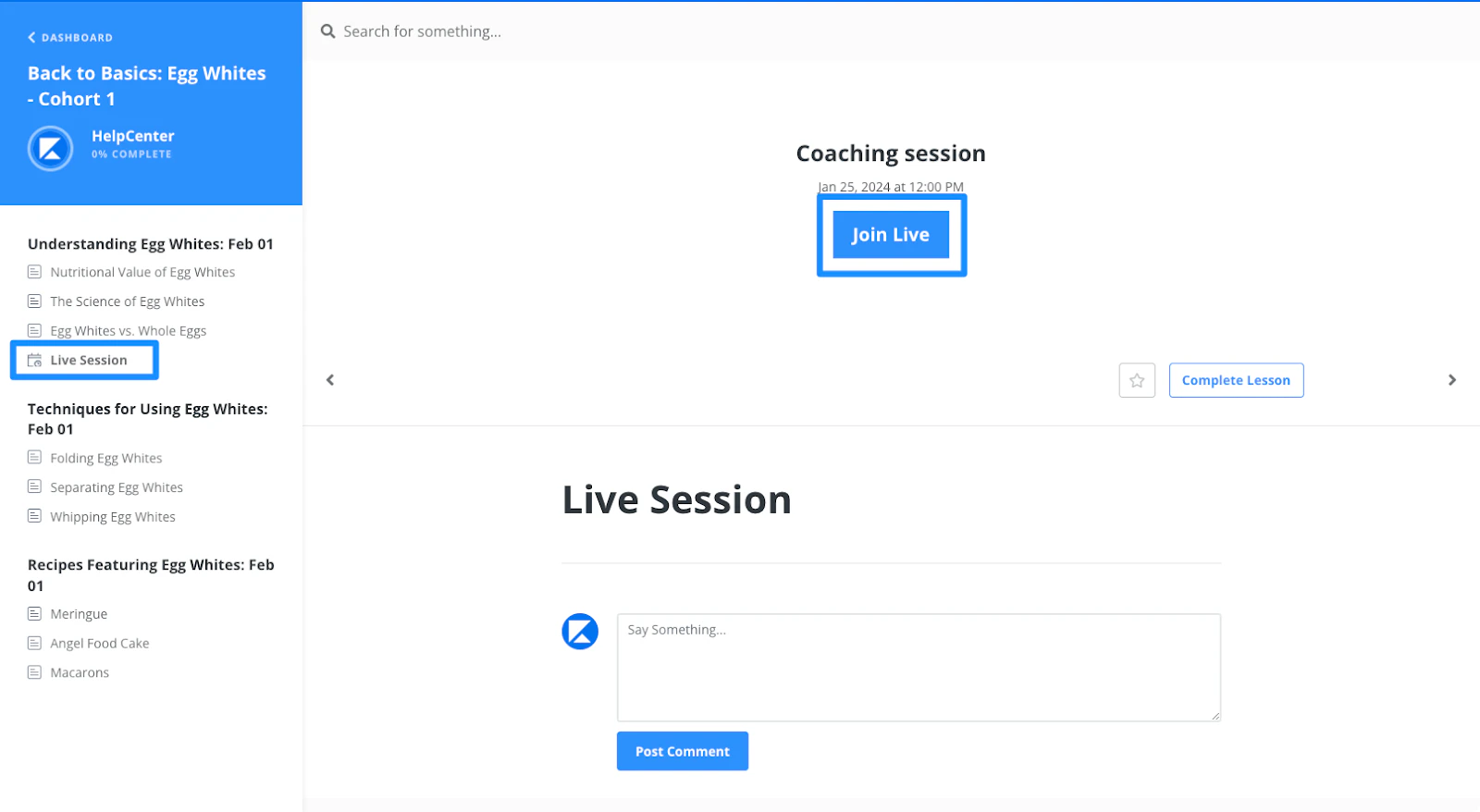
Note:
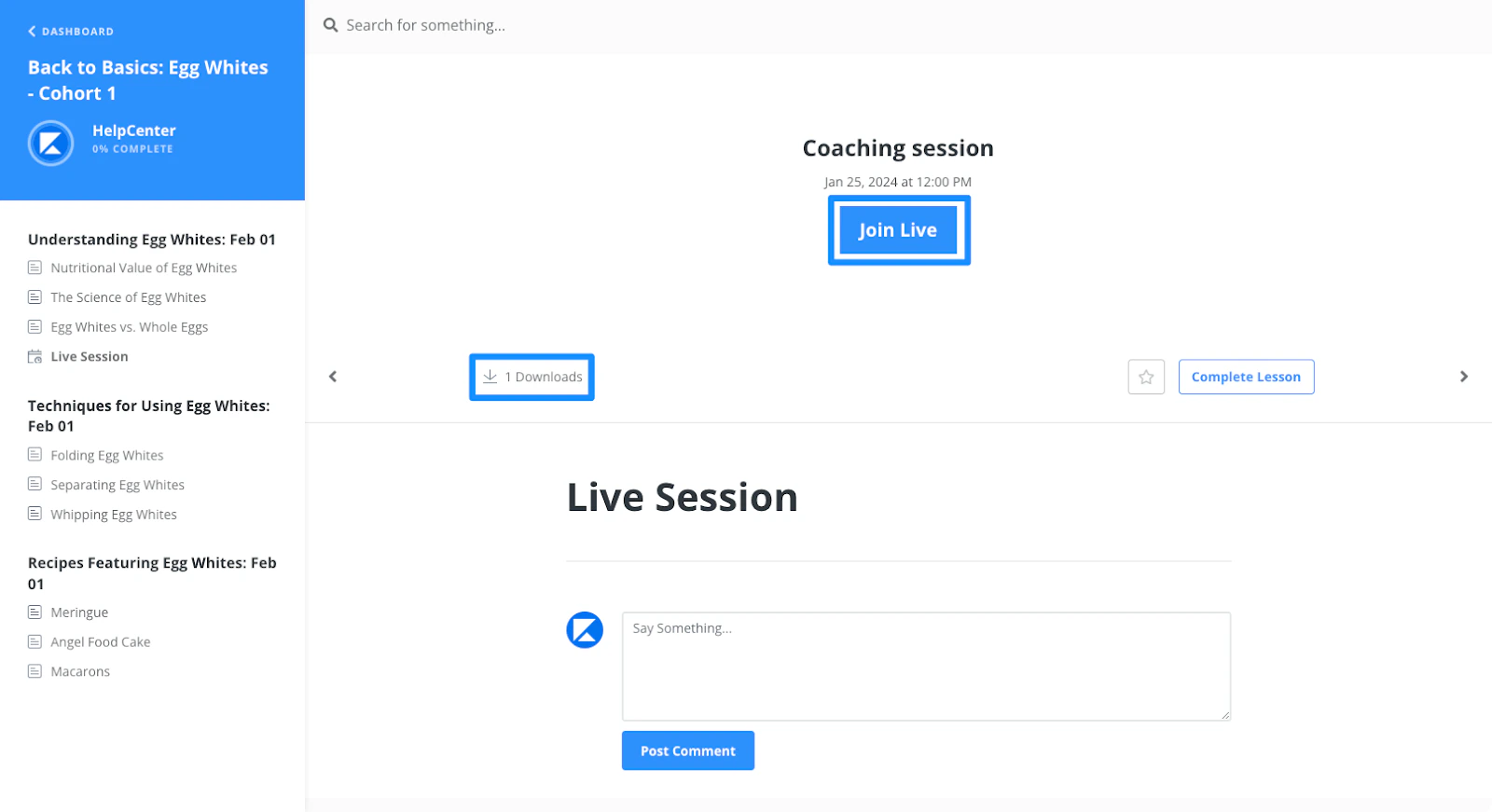
If you’re using a custom session location instead of Kajabi Live Video, students will see the location URL or description you entered in the Live Session settings instead of a join button.