

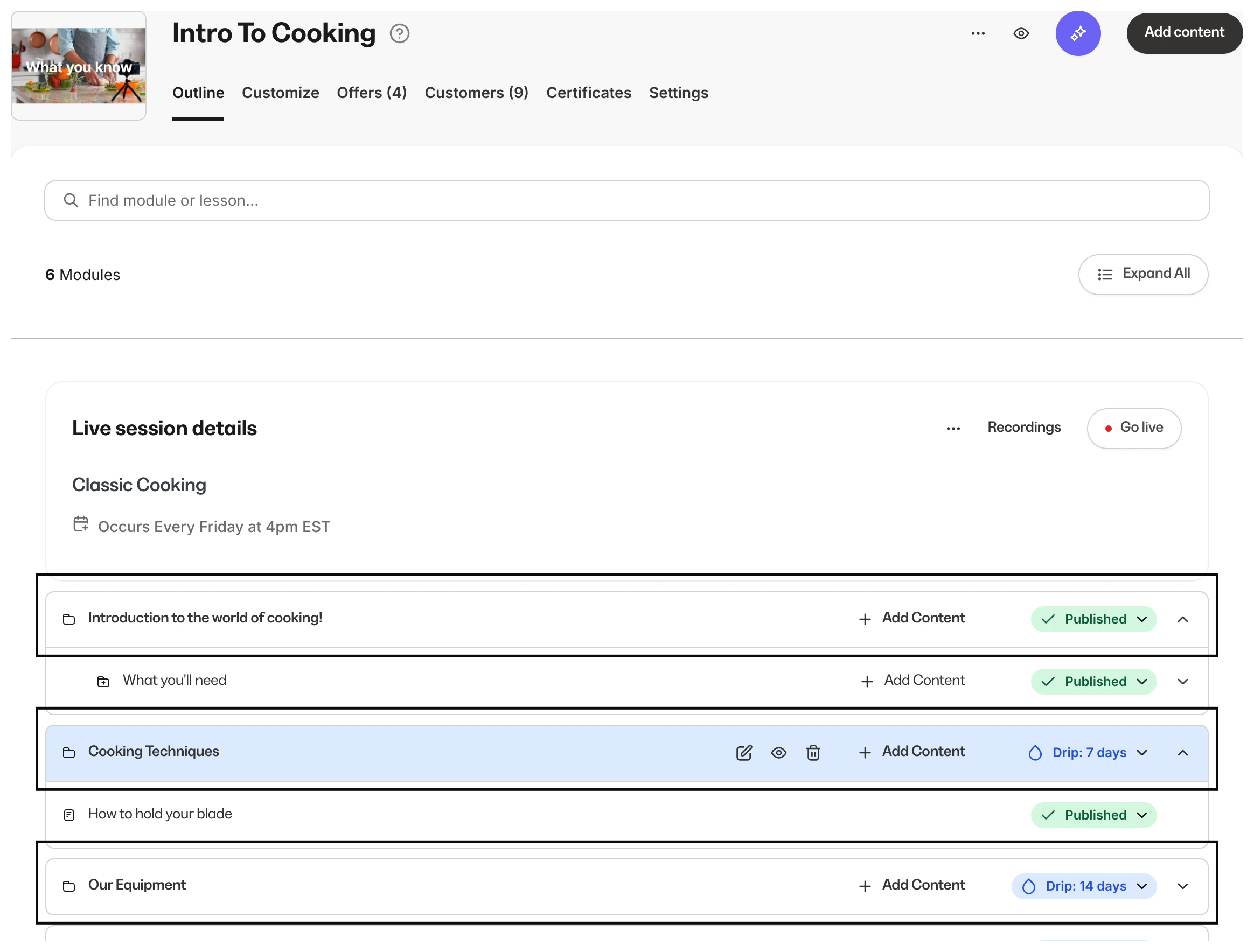
Create a module
- Go to Products > Courses and click on your course
- Click Add content
- Click Module or Submodule
- Add a Title, Description, and module Image. If applicable, set the top-level module (i.e., which module this submodule should live in). Then, click Create Module or Create Submodule
- Depending on your course template, the description and image may be visible for each module
- The module will be added to the bottom of your course outline
- By default, the status will be set to Draft
Notes:
- You can create up to 30 submodules inside a module.
- You can’t duplicate a module or submodule.
Edit a module
- Go to Products > Courses and click on your course
- Move your mouse over your module, and click the pencil icon
- Edit your Title, Description, or module Image
- Click Save Module or Save Submodule
Reorder modules
- Go to Products > Courses and click on your course
- In your course outline, move your mouse over over the folder icon next to the module or submodule
- Click and drag it to your desired location
Set the module status
- Go to Products > Courses and click on your course
- In your course outline, next to your module or submodule, click the Status dropdown. You have the following options:
- Draft: Hidden from customers
- Publish: Visible to customers
- Drip: Content is locked until a specific number of days after the customer purchases or is granted an offer containing your course (i.e., access start date)
- For more details on using the Drip status, see Drip content in Courses
- Lock: Content is locked until a specific lesson, quiz, or assessment is completed
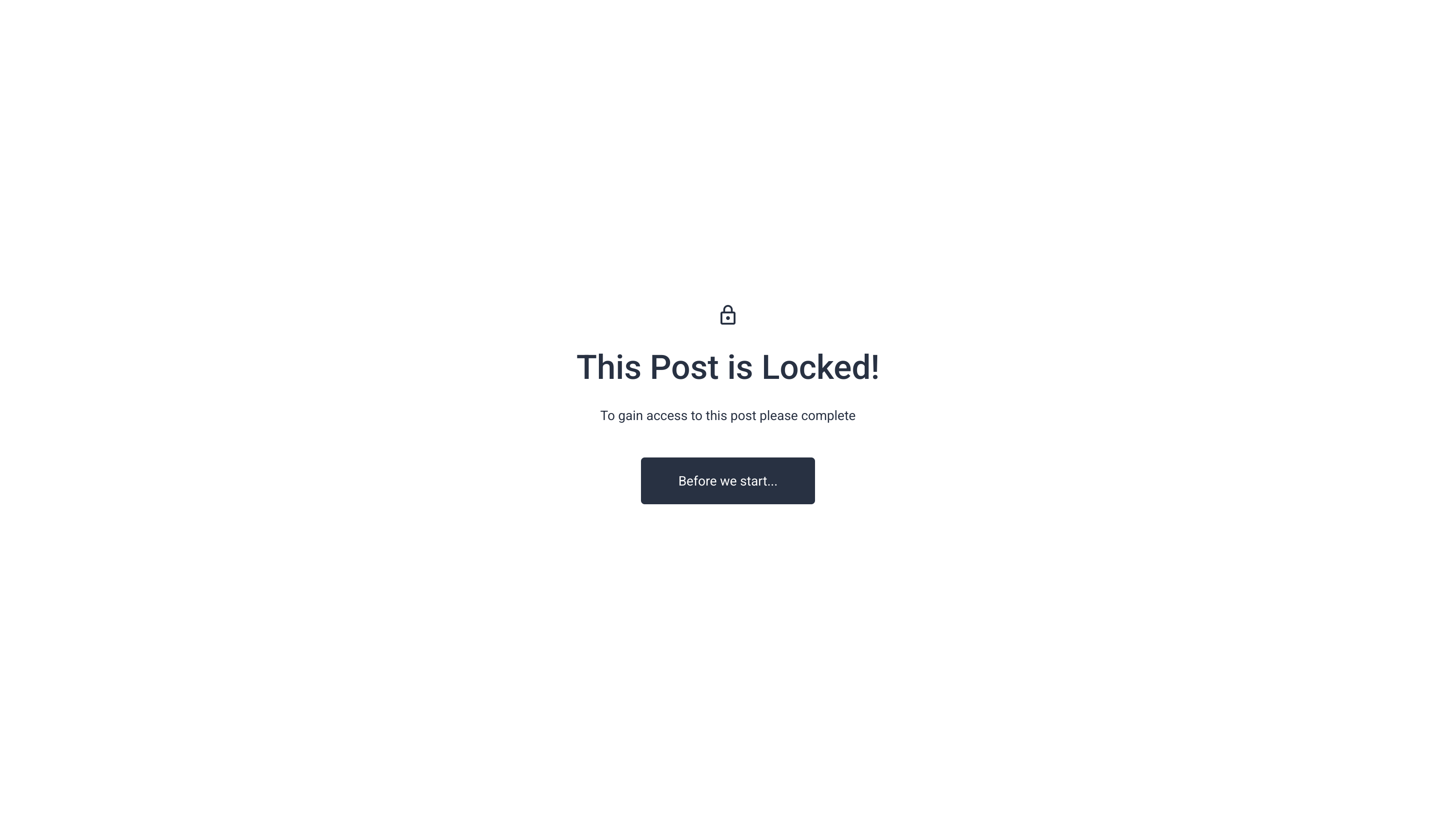
Locked status
- After choosing the Lock status, select the lesson or quiz that is required to be completed. Then, click Lock
Note: You won’t be able to select a lesson or quiz unless it is published.
How quizzes unlock modules
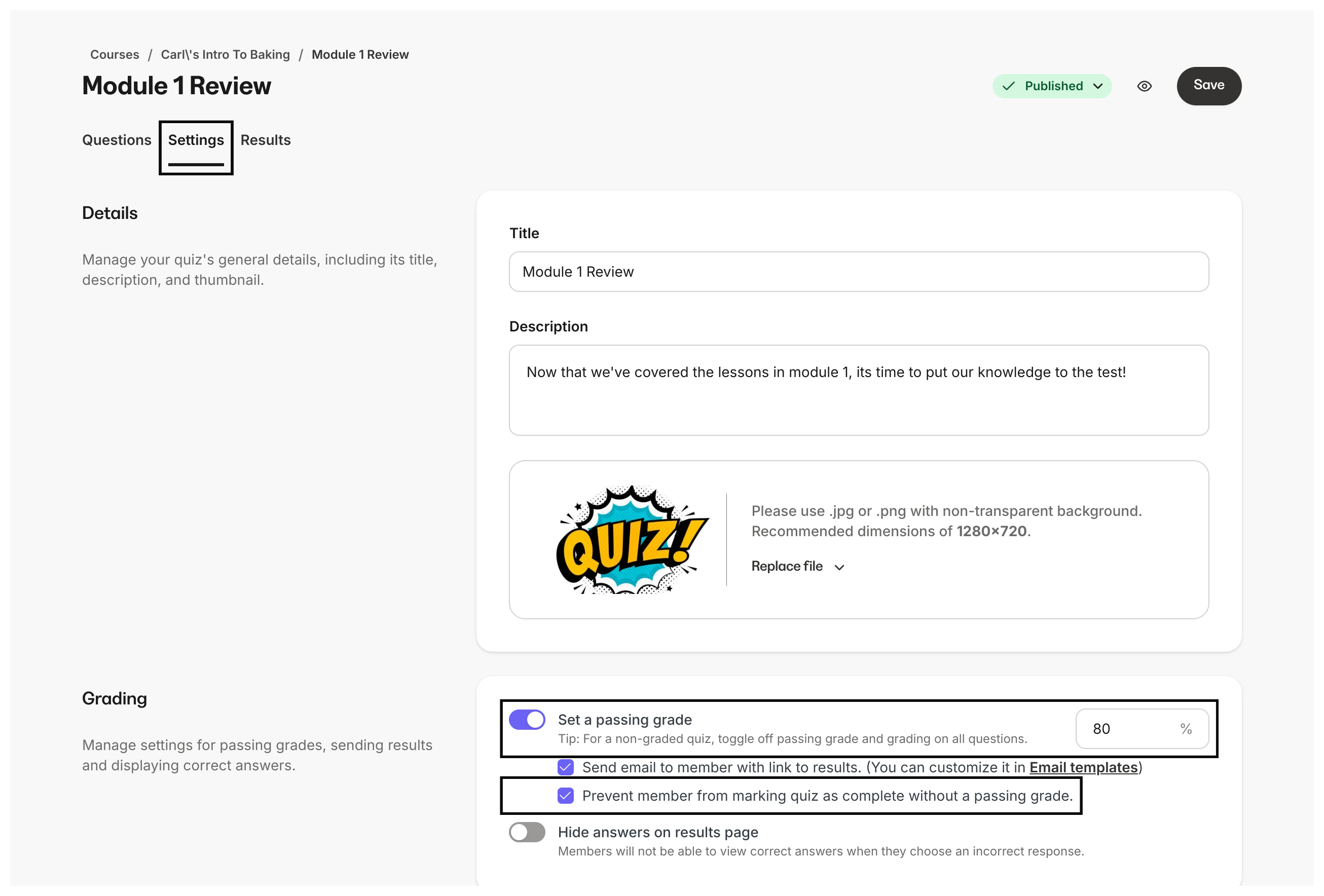
By default, after someone completes a quiz (regardless if it was passed, failed, or not graded) it will unlock a module. If you want to require a quiz to be passed before unlocking a module, you can customize your quiz settings.- In your course outline, select your quiz
- Click Settings
- In the Grading section, enable Set a passing grade and enter a percentage
- Check the box Prevent member from marking quiz as complete without a passing grade
- Click Save
How Assessments unlock modules
Unlike quizzes, assessments can unlock modules, regardless if they are passed. If your course template includes a “Mark as Complete” button on lessons, quizzes, and assessments, then this means an assessment can unlock the next module when:- They complete the assessment (regardless if it’s passed)
- They click the complete button, regardless if they completed the assessment
- As a workaround, you could hide the “Mark as Complete” button in your course template. This will hide the button from all lessons. This will require someone to complete the assessment before unlocking the module.
Note: The Assessment feature inside of courses has been sunset. This feature may still appear in older accounts. We recommend you use quizzes inside your courses. Assessments can still be added to pages.
Delete a module
- Go to Products > Courses and click on your course
- Move your mouse over your module, click the trash icon
- Click Delete Module or Delete Submodule
Note: Before you can delete a module, you must move any submodules, lessons, or quizzes inside it to a different module, or delete them.