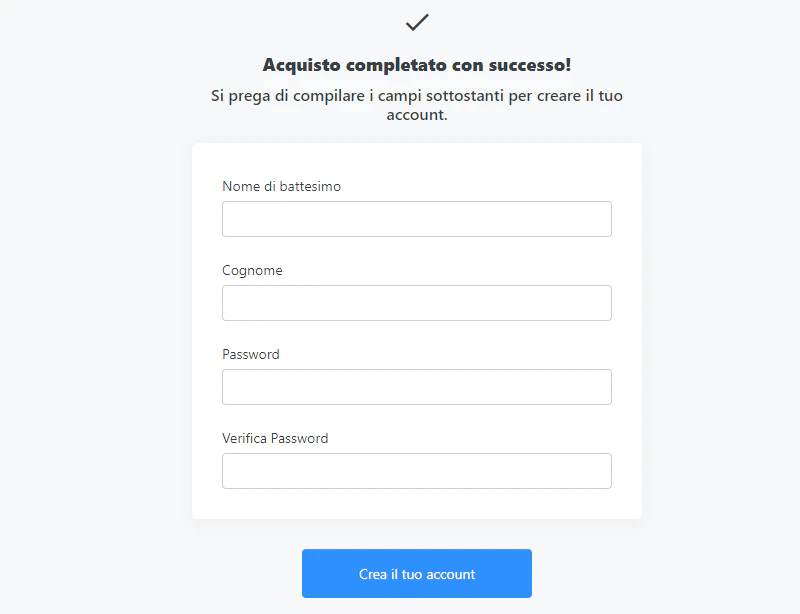
Kajabi supports multiple languages for auto-generated text across your site, such as checkout forms, customer settings, and success messages. Content in custom text blocks must be translated manually.
Set your language settings
Configure your Language Settings to auto-translate the automated text on your site.
With Kajabi, you can change your Language Settings to:
- Danish
- German
- English
- Spanish
- Finnish
- French
- Hungarian
- Italian
- Japanese
- Dutch
- Norwegian
- Polish
- Portuguese
- Russian
- Swedish
- Turkish
Auto-translate automated text
- Open the Settings tab from the Dashboard.
- Click Site Details.
- Select your preferred language from the Language dropdown menu.
- Click Save to keep your changes.
Keep in mind, the custom text blocks on your site pages are not automated text and will not auto-translate after you change your site Language Settings.
With your custom text blocks, you can enter various translations on your page(s).
Change your custom text blocks by entering your message in the language of your choice.
Tip:
If you want to use multiple languages on your site, use Kajabi’s unlimited landing pages to create pages for each language needed.
Automatic translations
Changing your Language Settings will automatically translate the automated text throughout your site.
Looking to update the customizable text on your Course Product (e.g., the course completion message)?
Build your Course Product to fit your language and brand by customizing your Product template. Learn more
Updating Language Settings for a site will translate
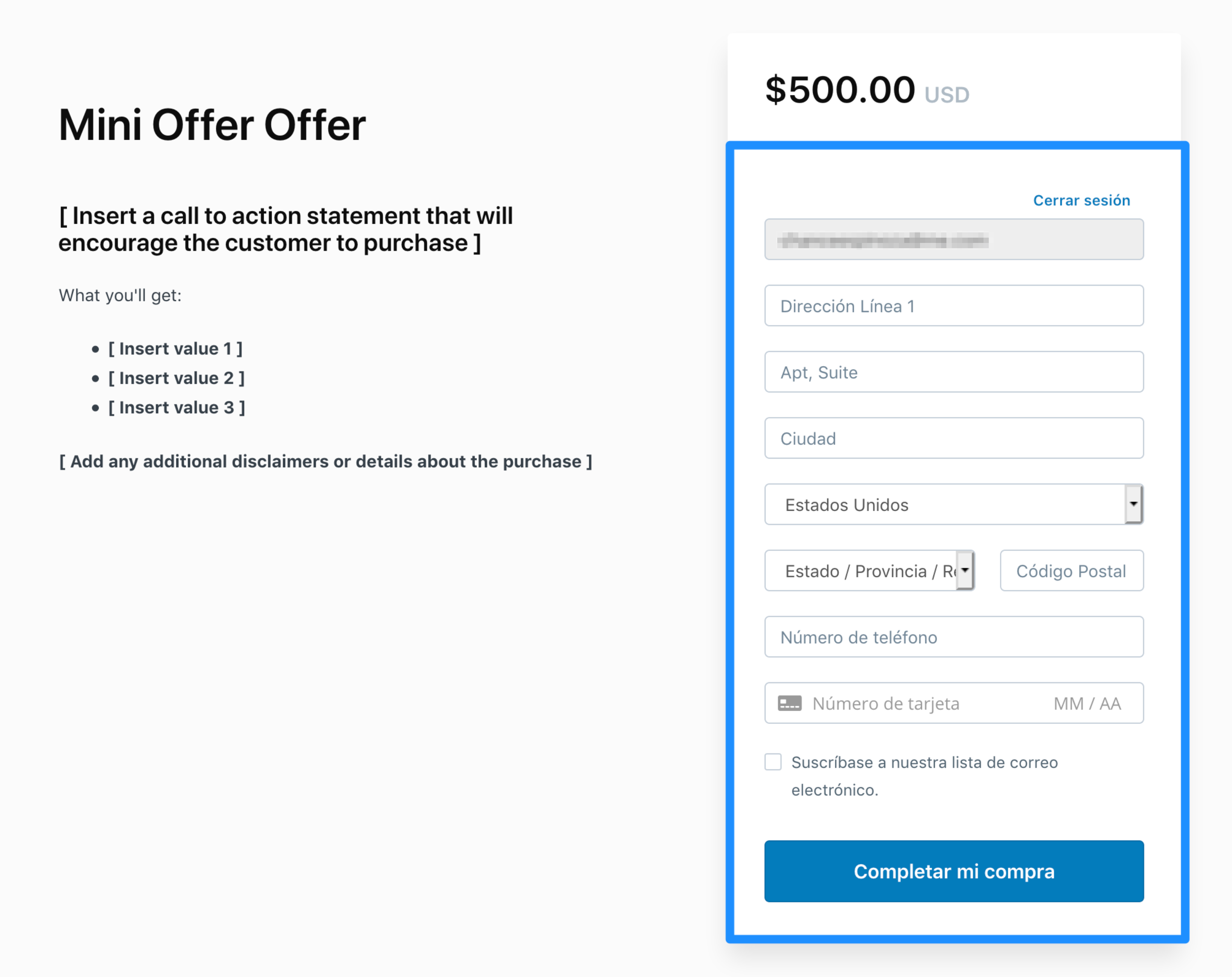
Checkout settings
Checkout settings refers to any text in a Checkout Page that is directly related to Checkout. In other words, the form text in the Checkout Page:
Customer settings
This refers to the Settings in your user’s own account. They get here by clicking the Avatar that lives in the top right corner of the page:
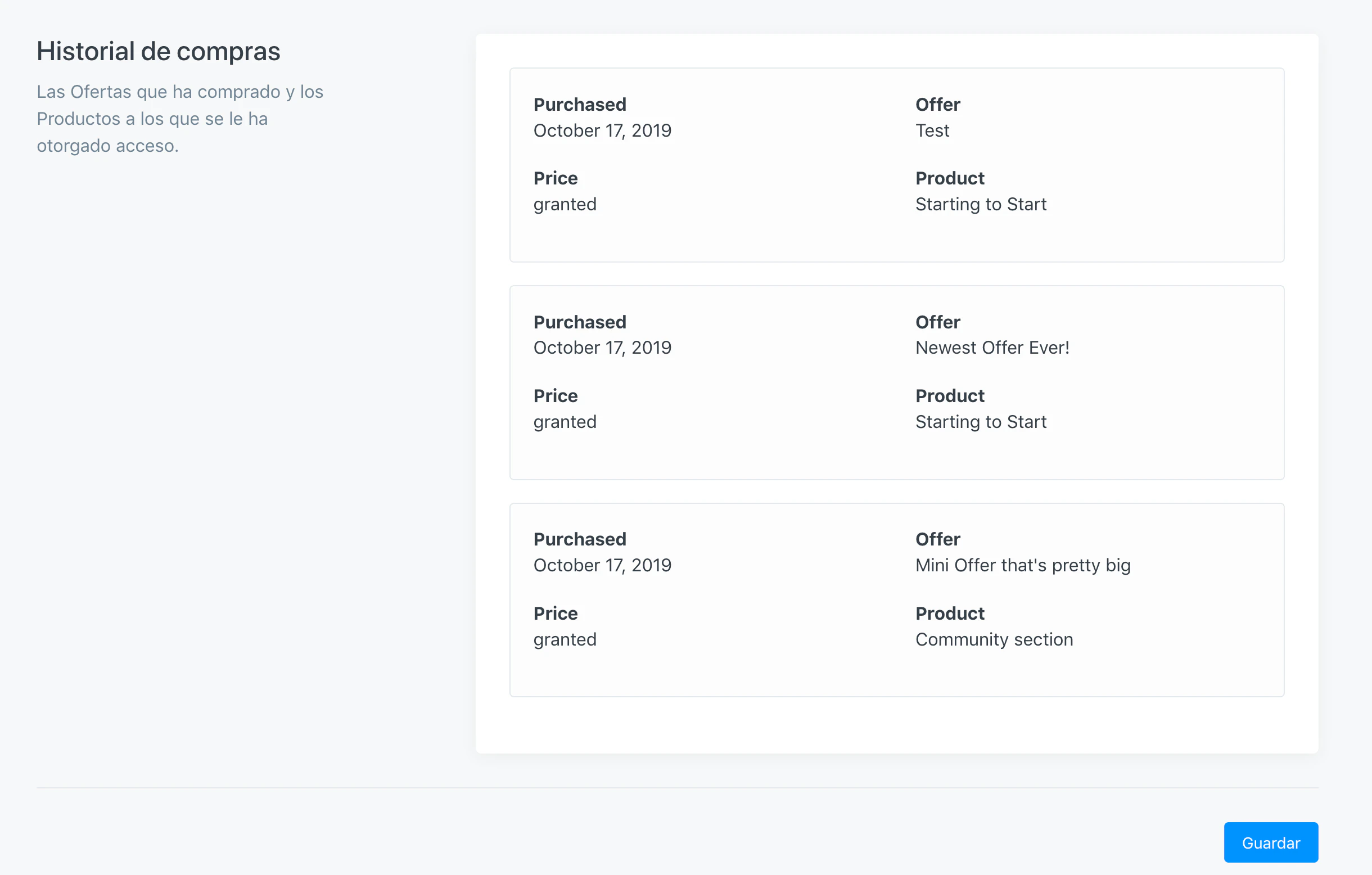
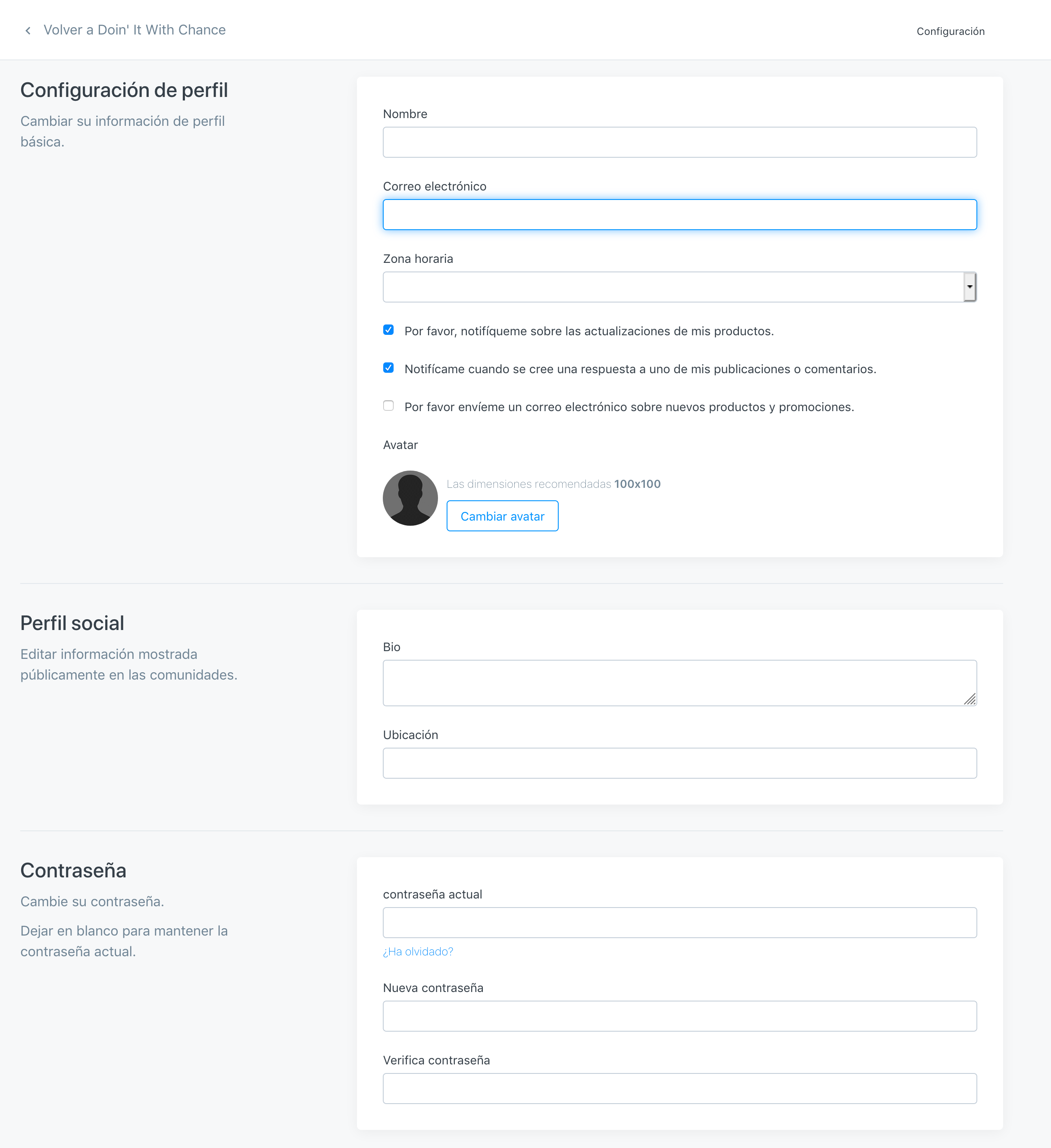 Language like “Purchased, Granted, Offer, and Product” aren’t currently translated, but all other fields and directions are:
Success/Alert messages
These are popup messages that appear after a successful purchase: