- Your plan usage is shared among all sites in your account.
- Sites cannot be moved to different Kajabi accounts.
Note:
Multiple sites within one account are not meant to be created for other people or businesses you do not own.
Add a site
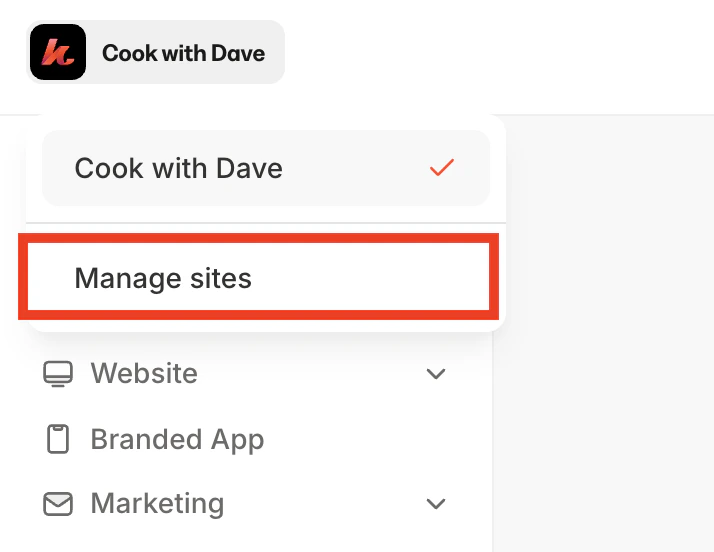
- Click your site name on the top-left.
- Click Manage sites.
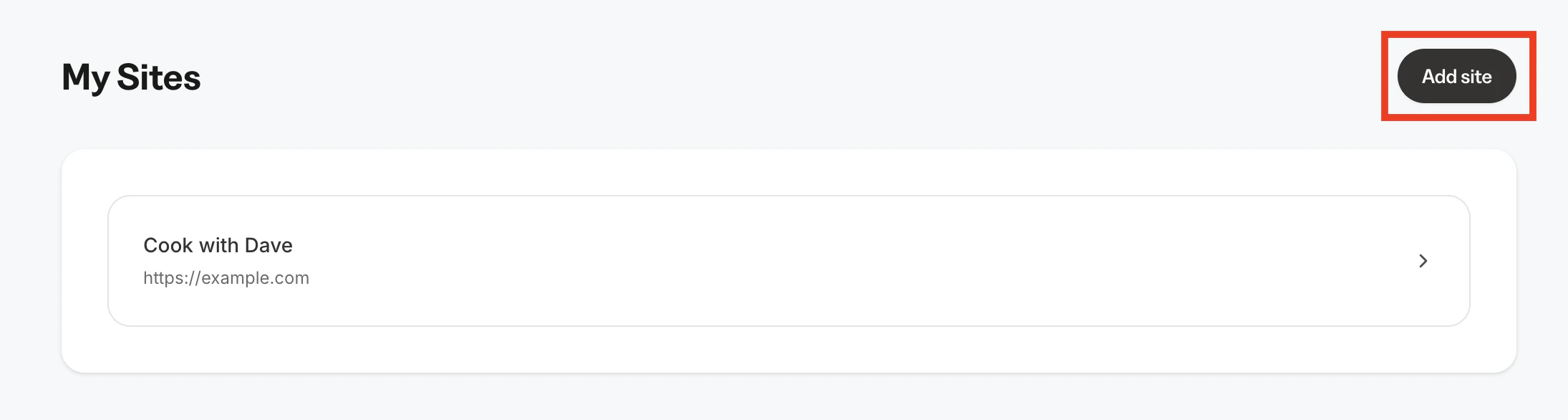
- Click Add site.
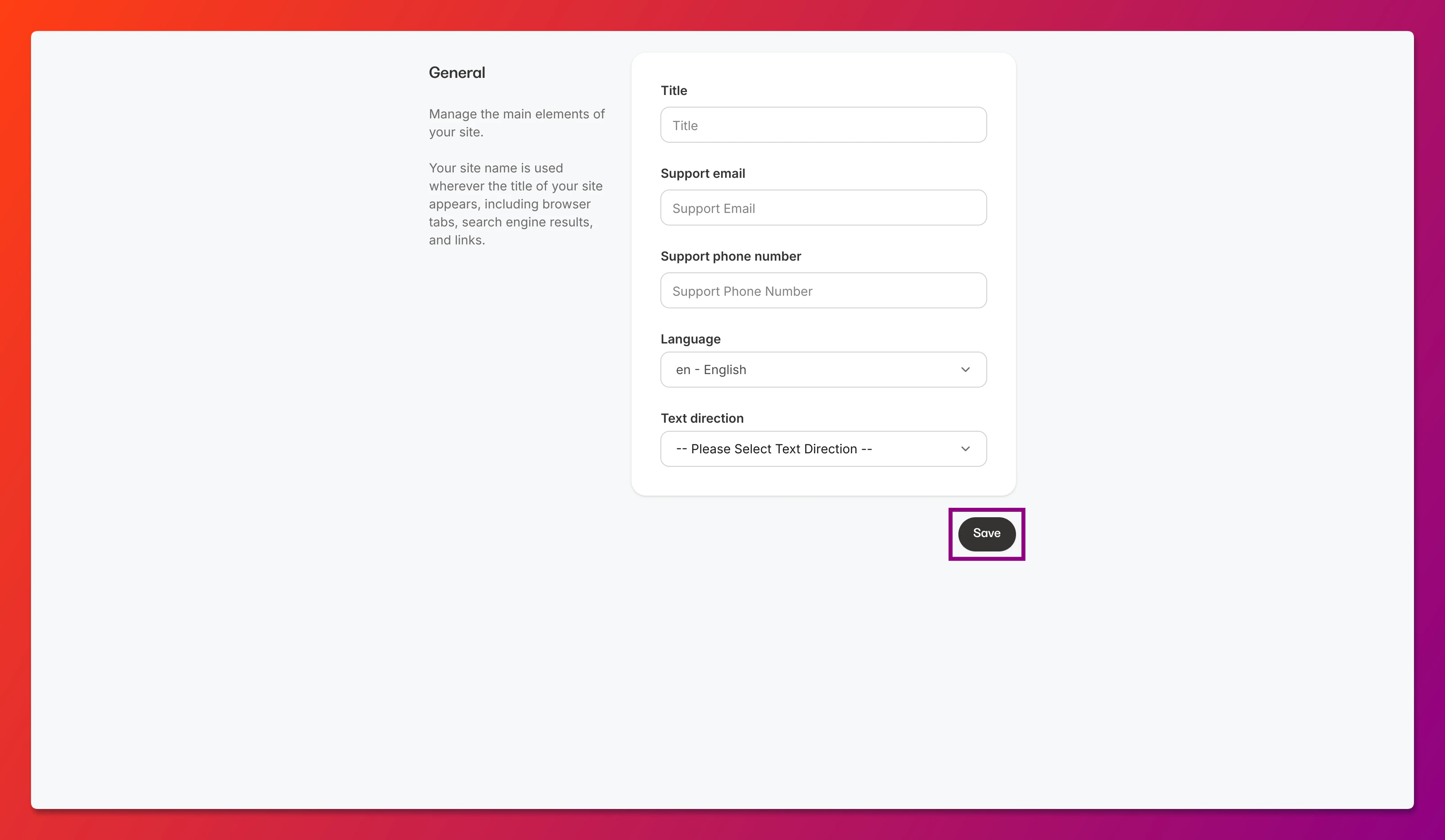
- Enter your site details (you can customize this later) and click Save.
Edit site details
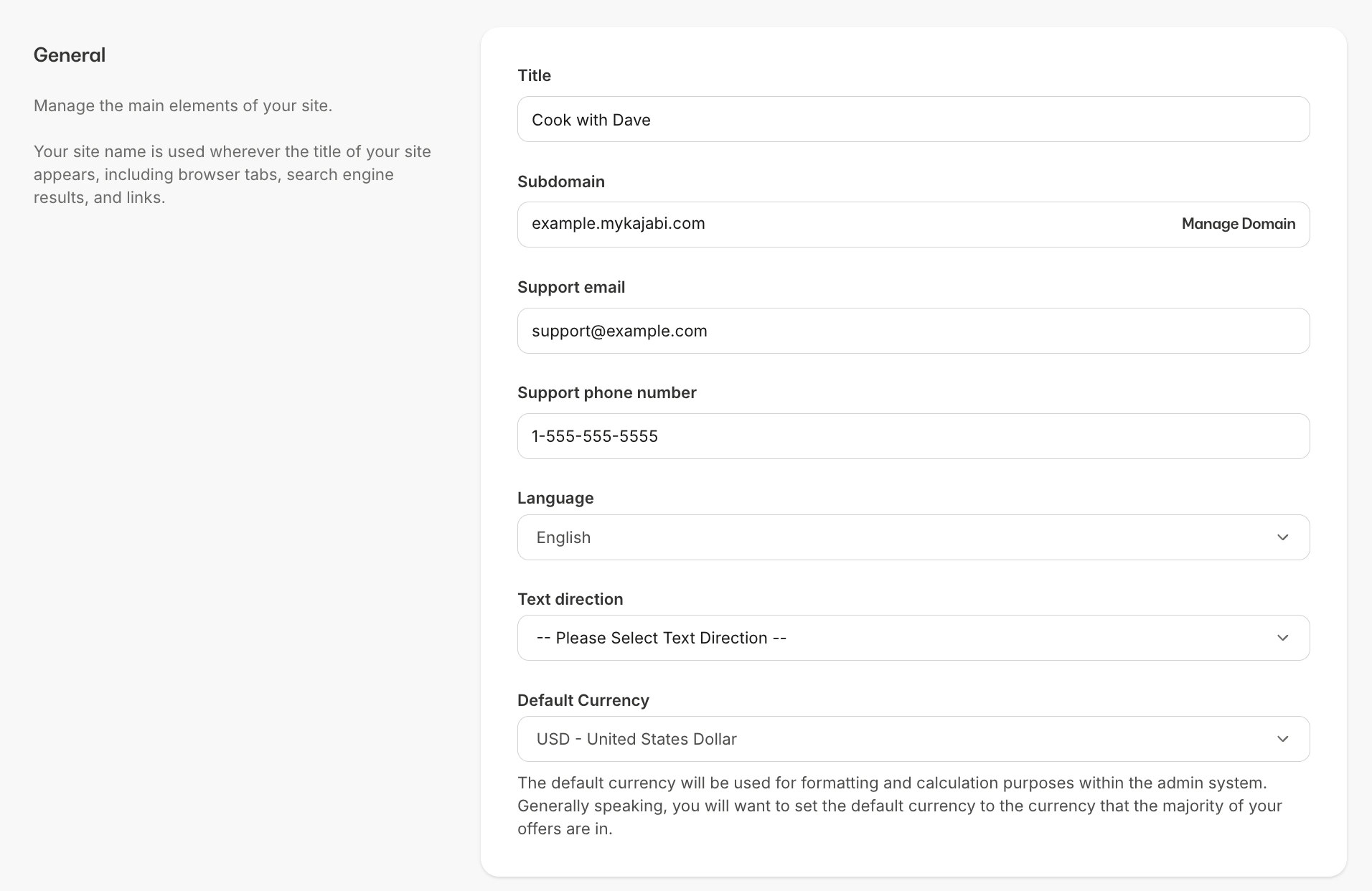
Go to Settings > Site details to edit the following details about your site. Then, click Save.- Title
- Support email
- Support phone number
- Language
- Text direction
- Default currency
Homepage
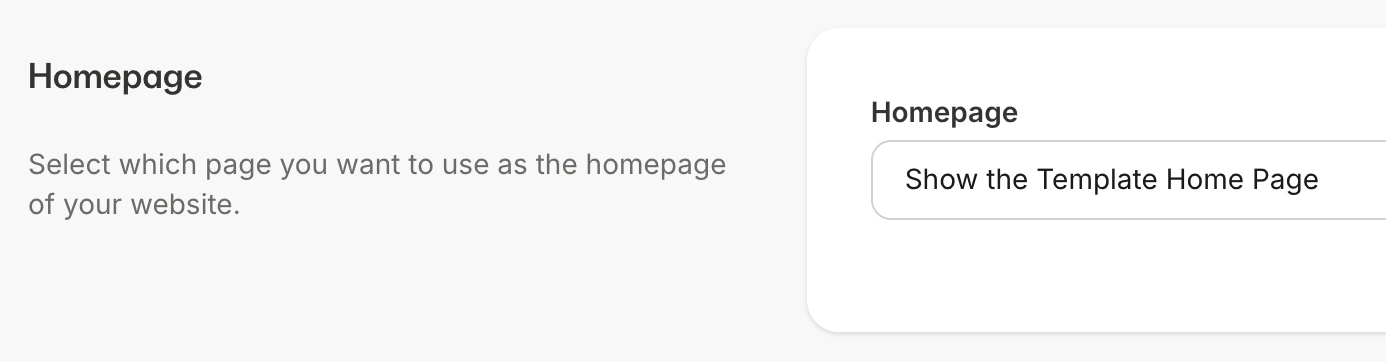
To change your site’s homepage:- Go to Settings > Site details.
- In the Homepage section, select one of the following options:
- Show the Store
- Show the Library - users will be prompted to sign in
- Show a Newsletter
- Show a Landing Page (you can select a page from Website > Landing Pages)
- Show the Template Home Page (this will show the Home page in Website > Website Pages)
- Click Save.
Branding
In the branding section on the site details page, you can set a default logo and favicon. By default, these will appear on pages and product templates. You can customize these on each of your templates. For any templates you’ve already installed, these defaults may not appear. Be sure to save your changes (at the bottom of the page).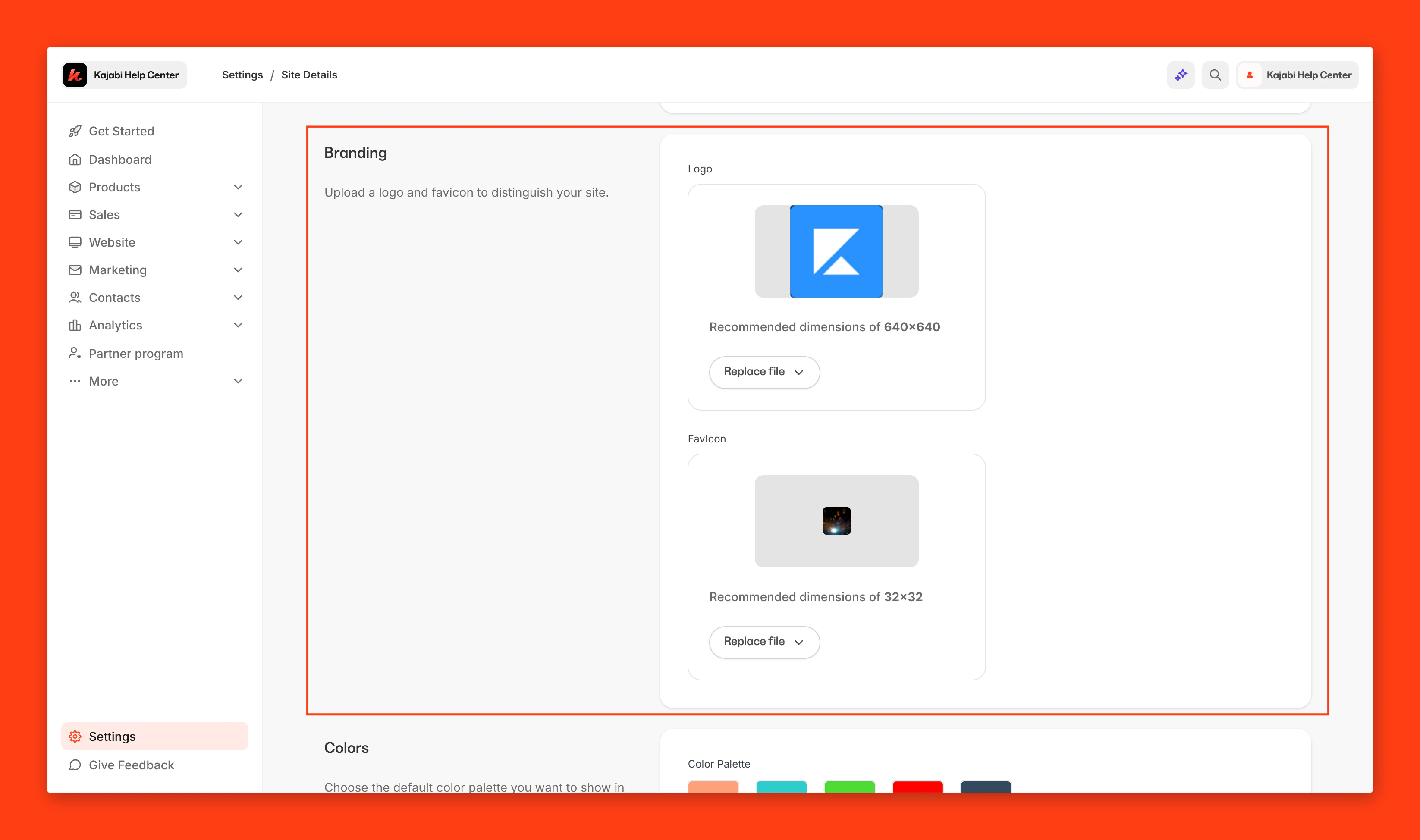
Colors
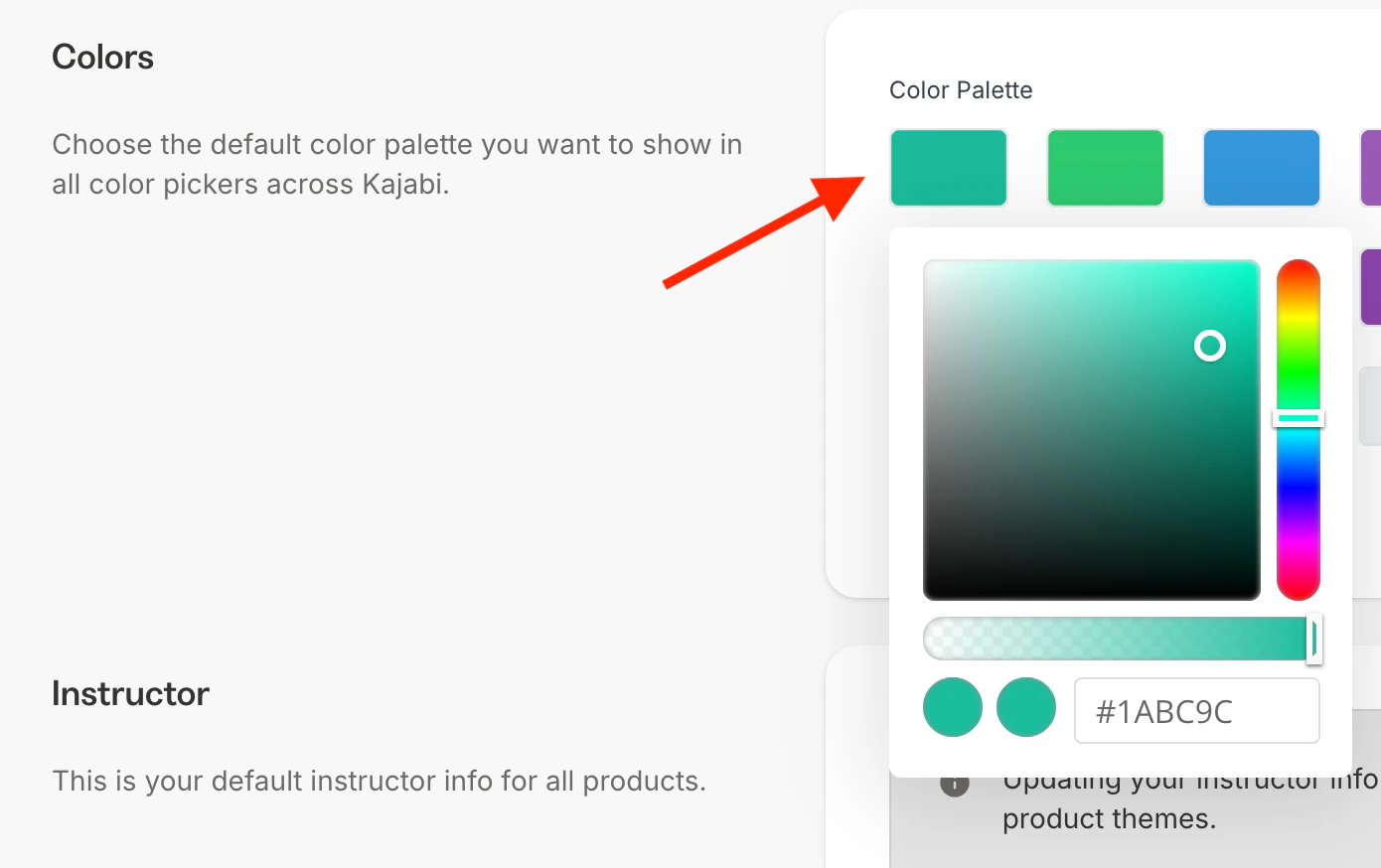
Set the default color palette that will be used in the color pickers on all editors of your site. Be sure to save your changes (at the bottom of the page).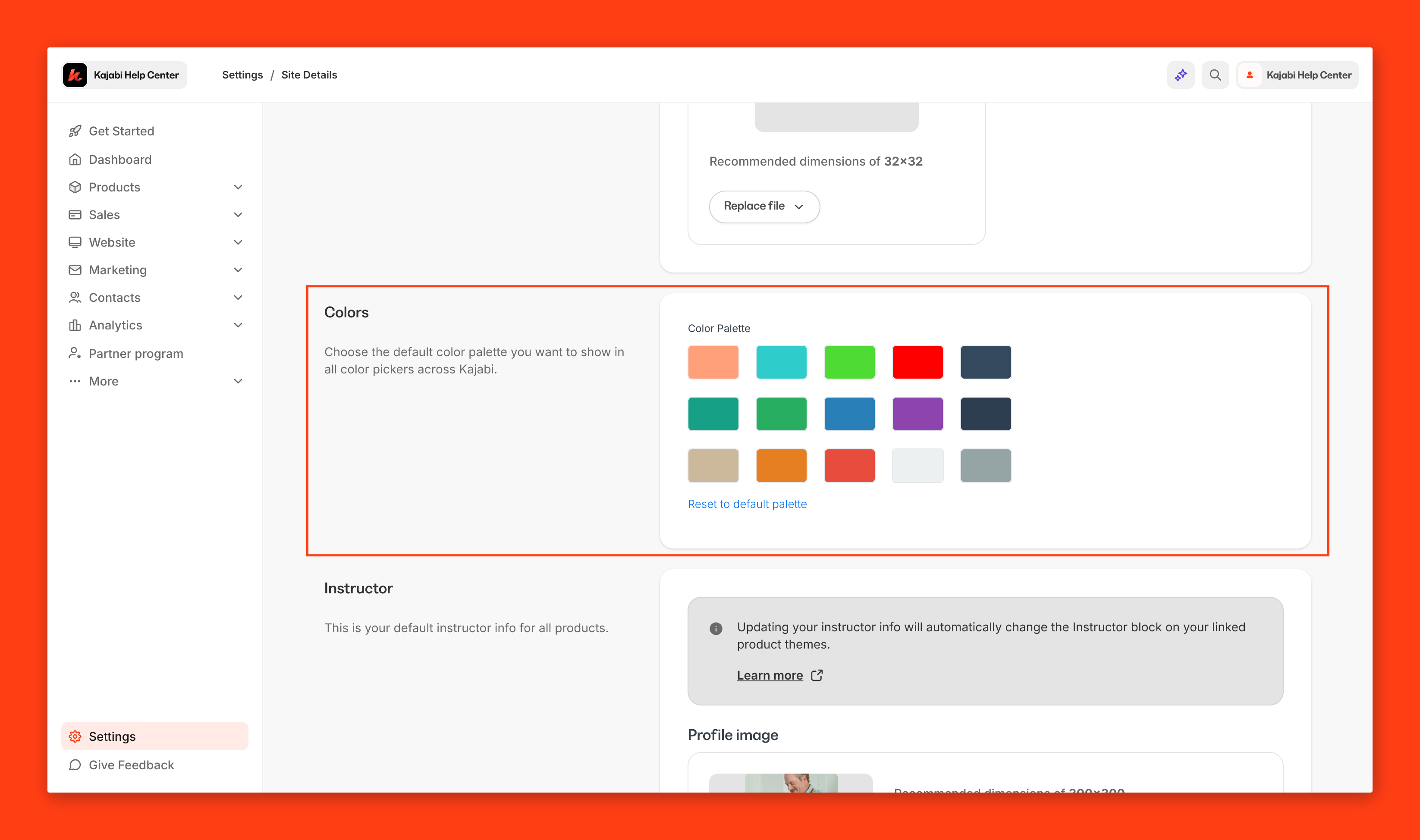
Customize a color
- Click on the color.
- You can either enter a HEX code or use the options to select a color.
Instructor
You can add the instructor’s image, name, title, and bio. This information will only be displayed for courses with Premier, Prosper, or Creative installed if linked to your instructor bio site settings. Be sure to save your changes (at the bottom of the page). You can customize the instructor block on your Course templates. Learn to customize the instructor information.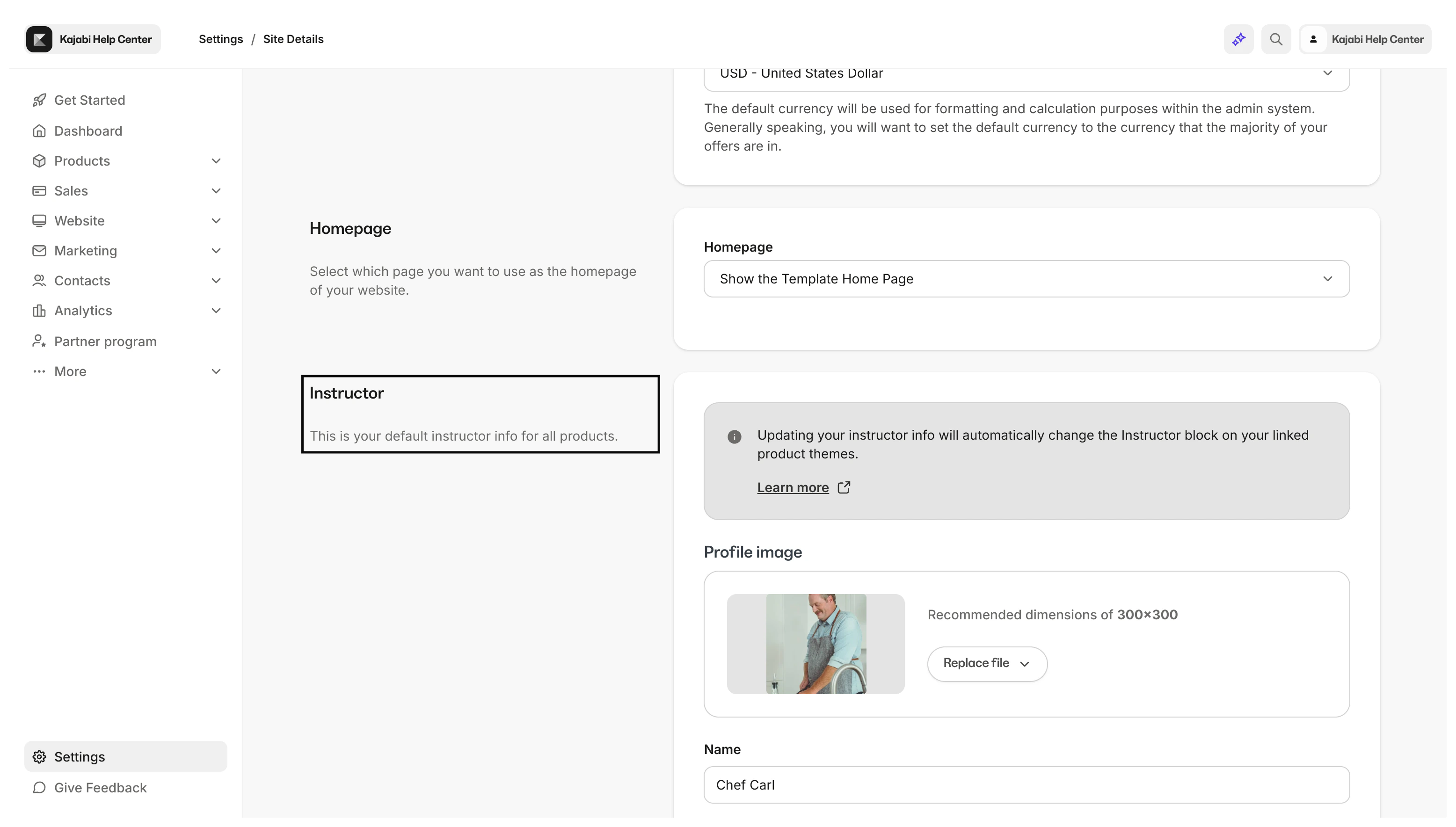
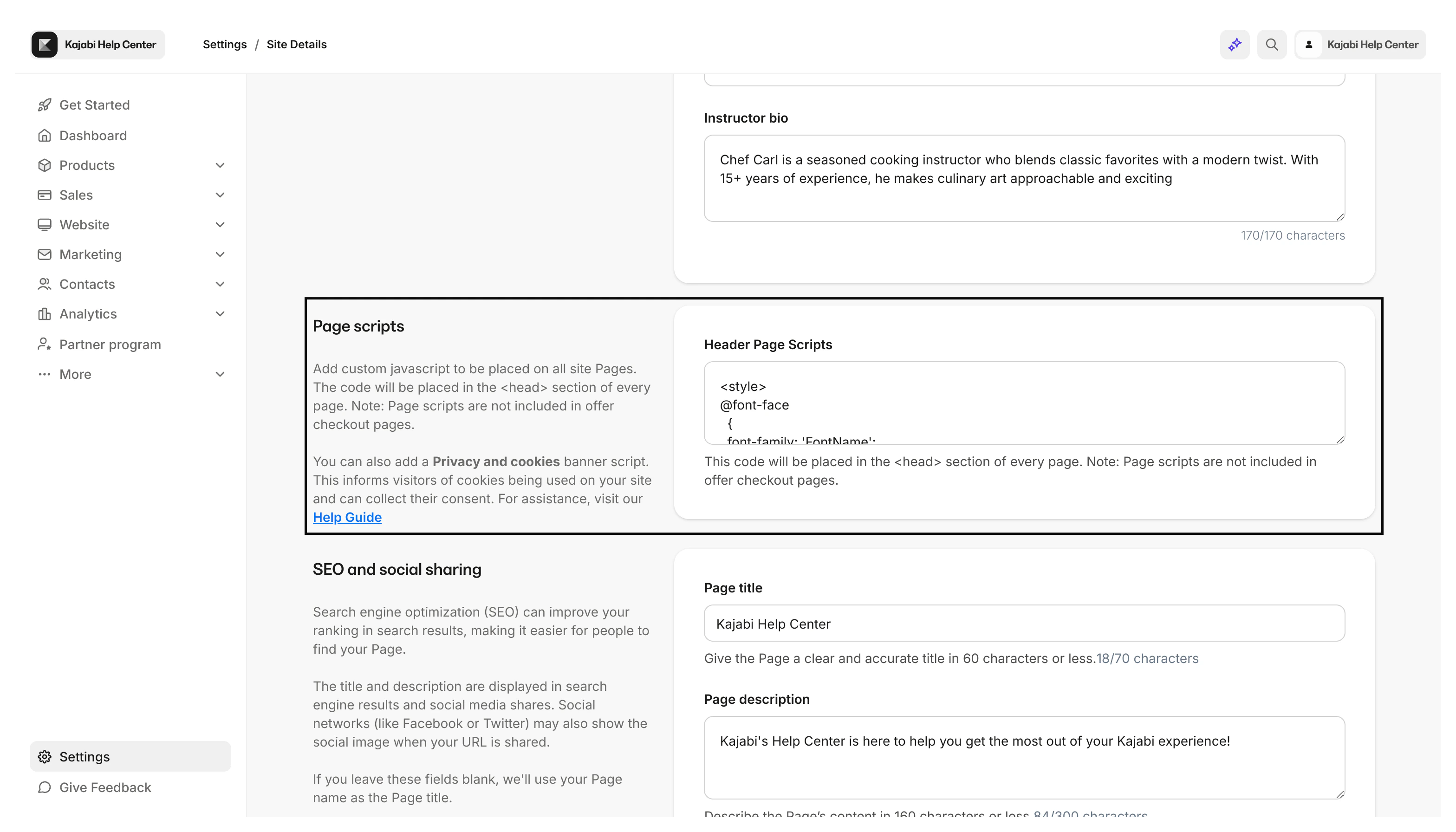
Page scripts
The code you enter in the Header Page Scripts field will be placed in the<head> section of every page on your site. This includes products, lessons, and pages. For example, you can add a cookie disclaimer. Be sure to save your changes (at the bottom of the page).
This will not affect Checkout pages. Learn to add custom tracking code to your checkout pages.
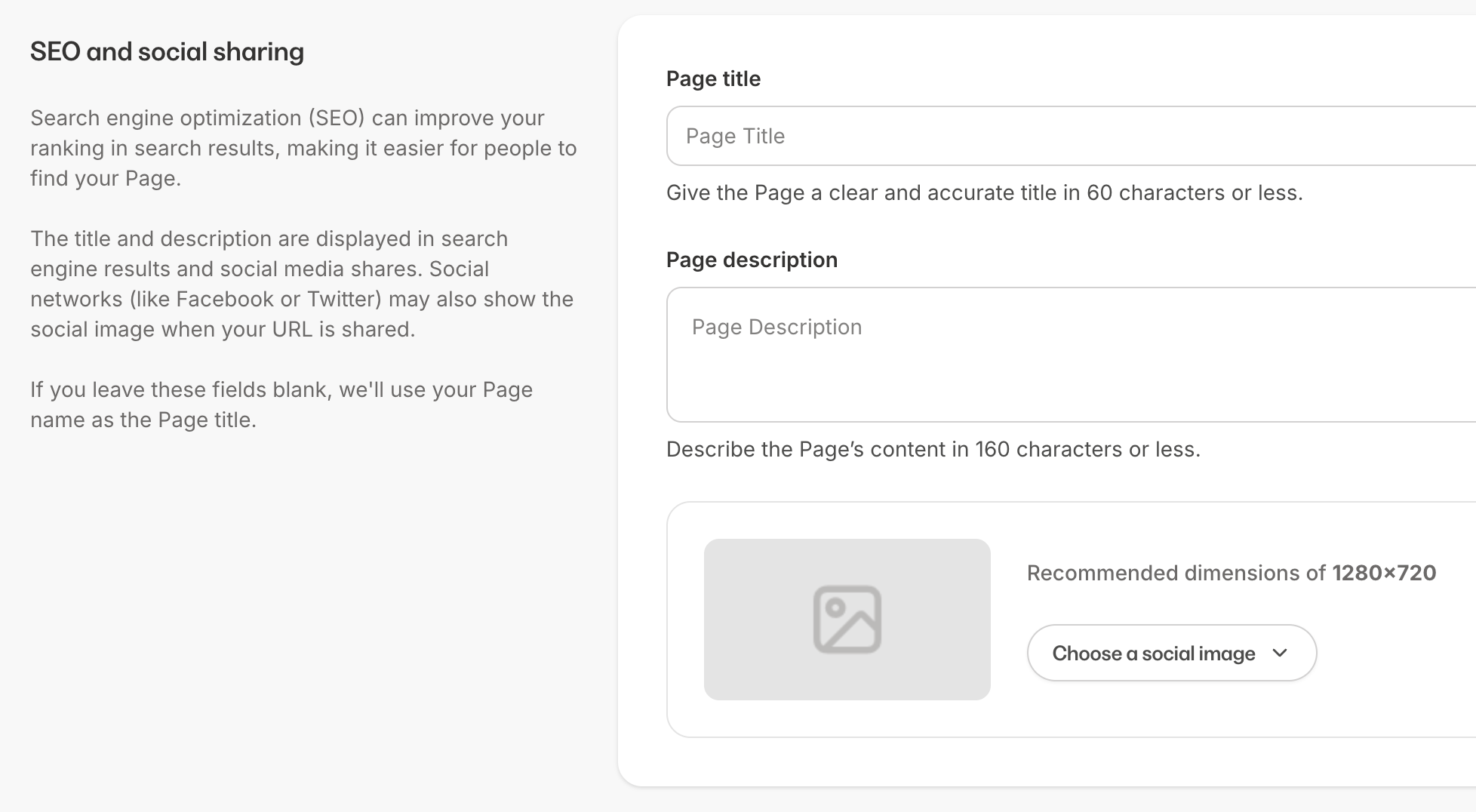
SEO and social sharing
This section applies to the following system pages (found under Website > Website Pages):- 404
- Announcements
- Blog
- Blog Post
- Blog Search
- Home
- Library
- Login
- Member Directory
- Store
- Thank You
Kajabi branding
By default, your website will show a link to Kajabi’s website on the footer. Depending on your plan, you can toggle this offer. Be sure to save your changes (at the bottom of the page).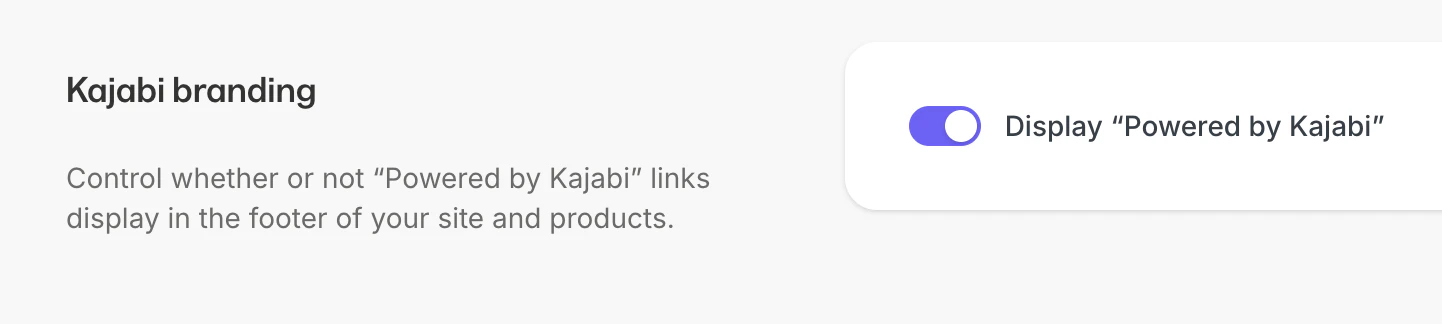
Switch to a different site
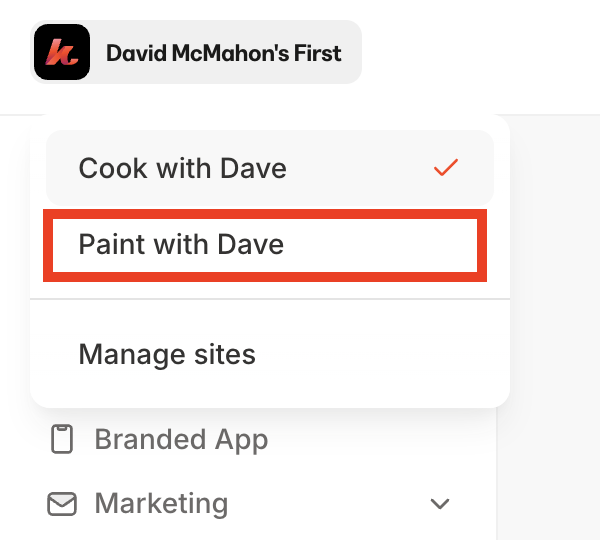
To switch the site you are working on:- Click your site name on the top-left.
- Then, click on the site you want to switch to.
Delete a site
- Go to Settings > Site details.
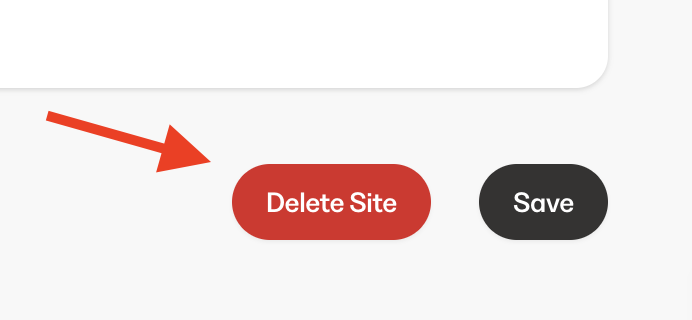
- Scroll down to the bottom of the page, click Delete Site.
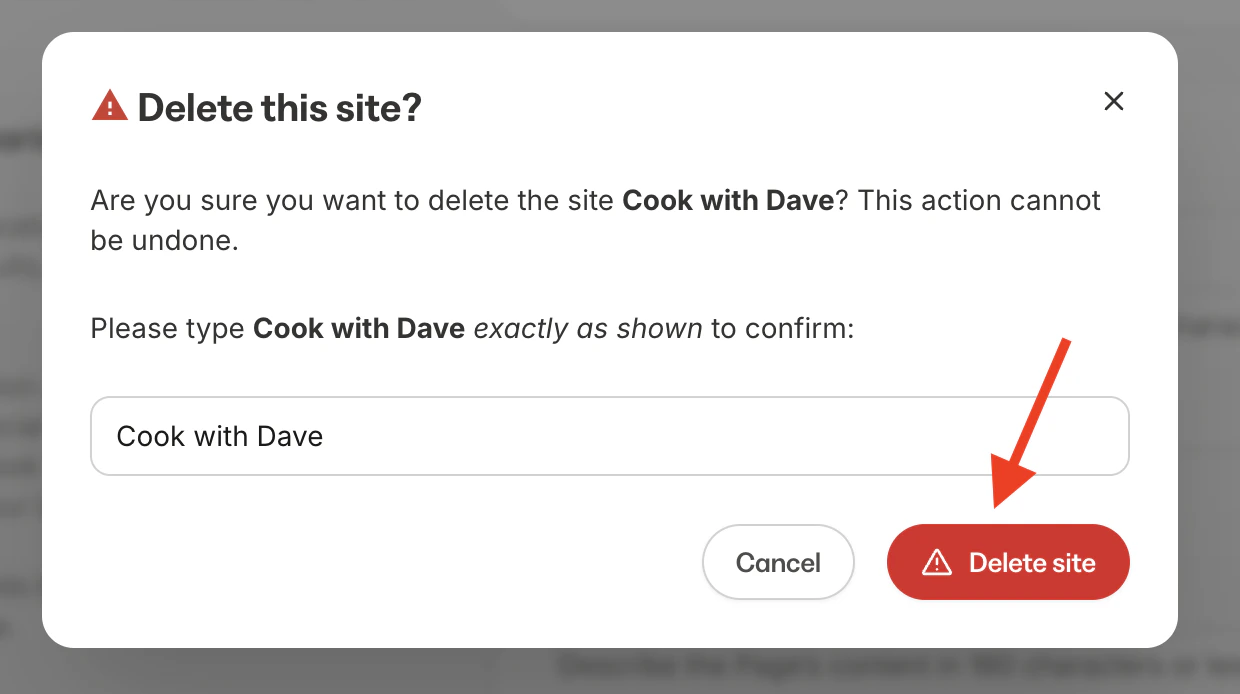
- Type in your site name and click Delete site.