

What are tags?
Tags are tools to help you manage your contacts on Kajabi. With Tags on Kajabi, you can create segments, filter your contacts, create email sequences specific to contacts with a Tag, and more. Tags are built to help you organize, categorize, and manage your list more efficiently throughout your site on Kajabi.How many tags can I create?
You can create up to 100 total Tags in a site.Manually add tags to contacts
Add tags to individual contacts
- Open the Contacts tab from the Dashboard.
- Select the name of the contact you wish to view.
- Click Add Tag.
- Open the dropdown menu to create a tag or choose an existing one.
- Click Save to keep and apply your changes:
Note: This process is the same for Customers and Contacts. Keep in mind that each site has a total limit of 100 tags per site.
Add a tag during import
Tag contacts during import
- Open the Contacts tab from the Dashboard.
- Navigate to the top right corner of the page.
- Click + Add Contacts.
- Follow the importing process.
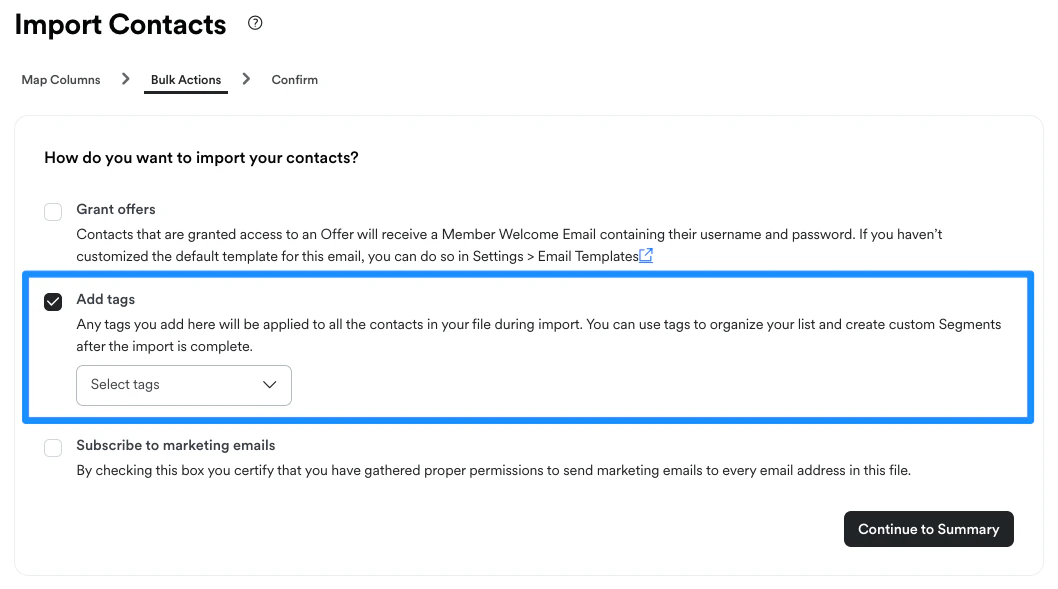
- After mapping your columns, select Add Tags in the Bulk Actions step.
- Select an existing tag or enter a tag:
Add tags with automations
Automatically add tags after a set action occurs with Automations. Follow the links below to learn more about adding tags with automations:- Add a tag after form submission
- Add a tag after an email sequence is completed
- Add a tag after an offer purchase
Bulk tag
Add tags to a filtered selection of contacts in bulk
- Open the Contacts tab from the Dashboard.
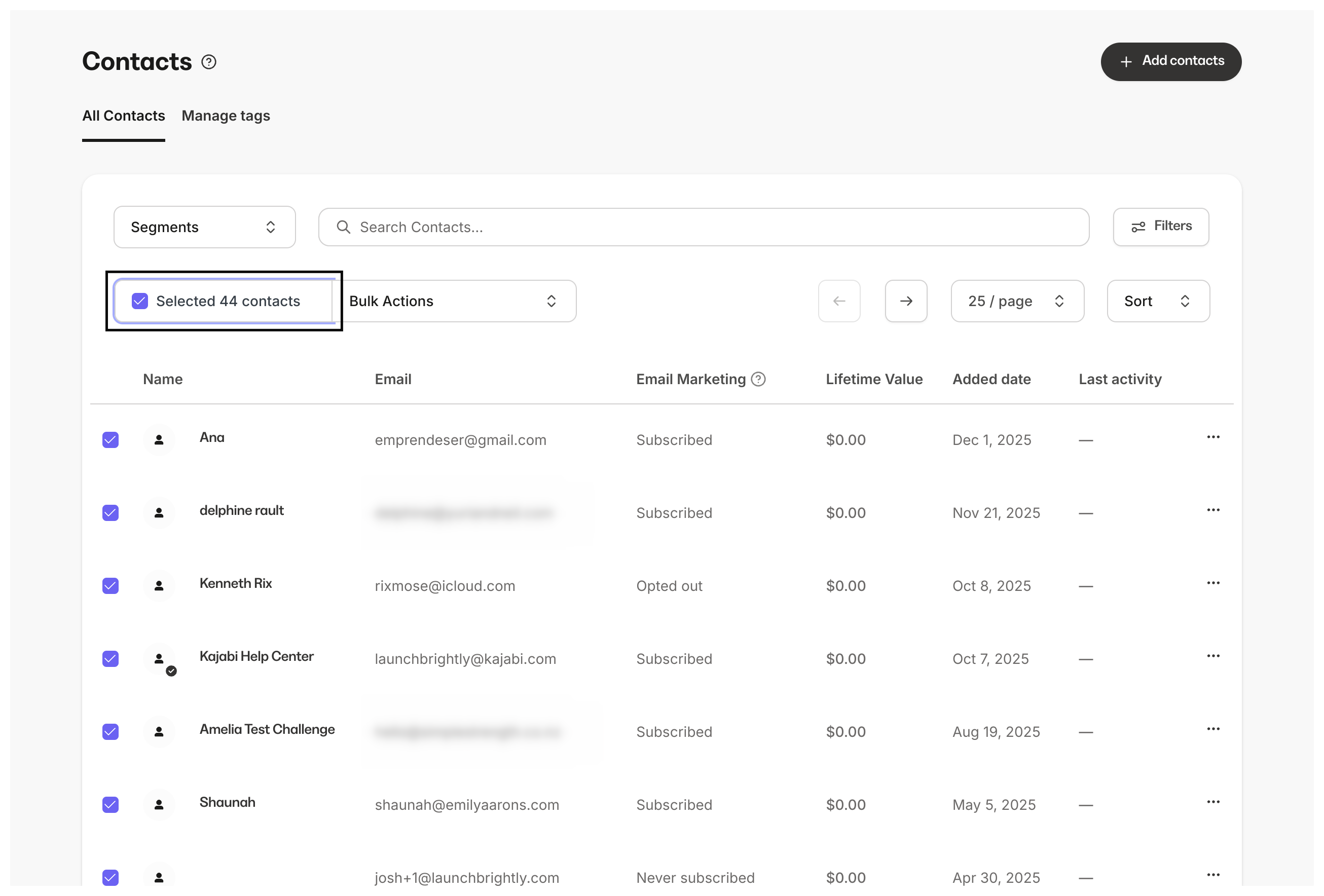
- Click the checkbox to bulk select your contact list.
- Use Filters to narrow your list.
- After selecting all, click the Bulk Actions dropdown menu.
- Navigate to Tags in the dropdown menu.
- Click Add Tag to select an existing Tag or enter a Tag.
- Click Submit. All the users in your filtered selection will be tagged:
Remove a tag from a user
Remove a tag from a contact
- Open the Contacts tab from the Dashboard.
- Select the name of the contact you wish to edit.
- Click Open full profile.
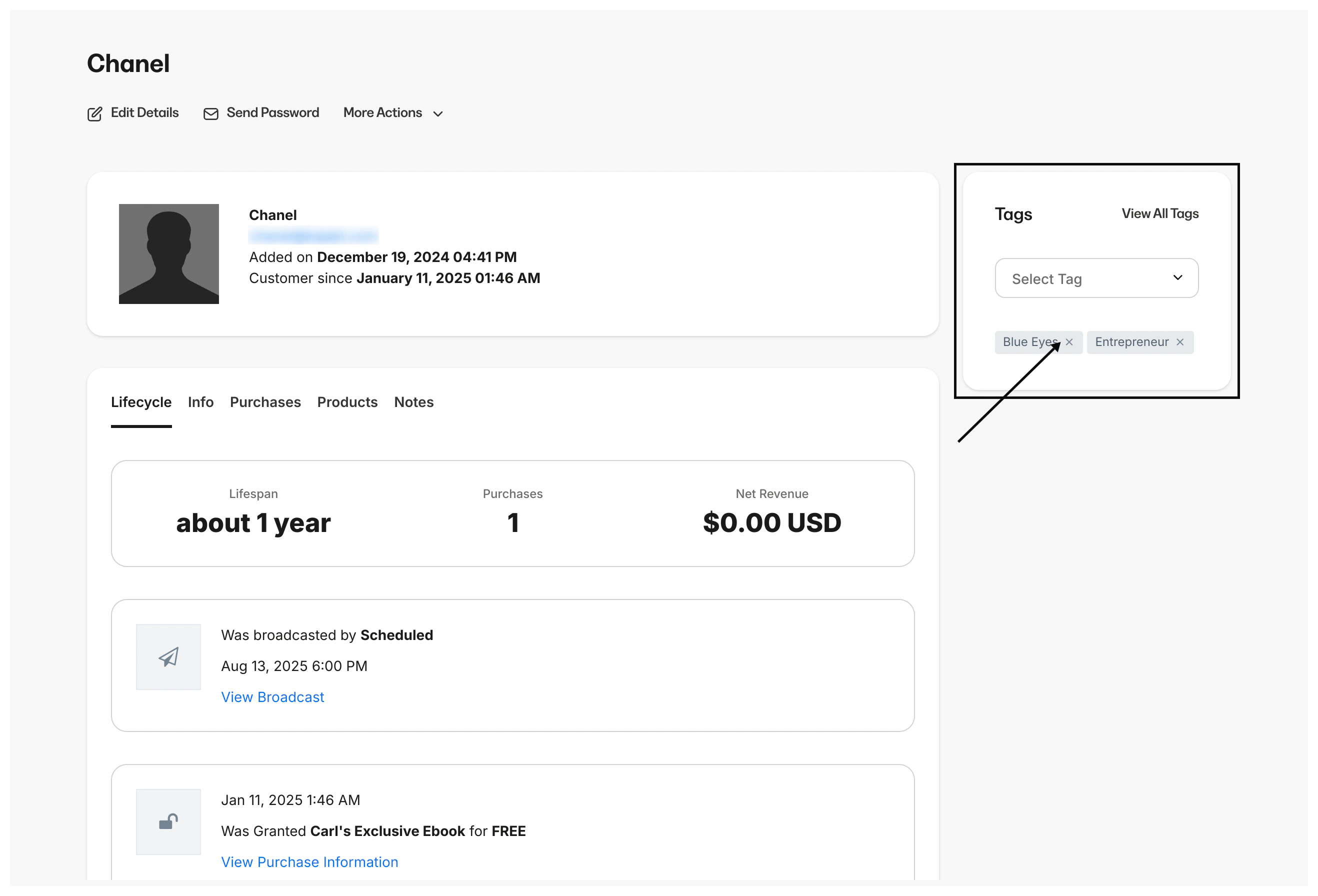
- Click the remove icon to the right of the Tag name:
Edit an existing tag
Edit a tag
- Open the Contacts tab from your Dashboard.
- Click Manage tags.
- Click the pencil icon to edit the Tag:
Permanently delete a tag
Delete a tag from a site
- Open the Contacts tab from your Dashboard.
- Click Manage tags.
- Click the delete icon next to the Tag.
- Confirm the deletion by retyping the Tag name exactly as it appears.
- Click Delete tag to confirm:
Note: Each site has a total limit of 100 Tags.