

Pause subscriptions or payment plans
Pause your customer’s subscription or payment plan if their payments were processed through Stripe to disable your customer’s billing temporarily directly from Kajabi.Note:
The pause subscription feature on Kajabi is only available if the payment was processed through Kajabi Payments or Stripe. If your customer used PayPal to process their payment, you will not have the option to natively pause the subscription. Manually pause a customer’s subscription if you do not have this feature.
Pause a customer’s subscription or payment plan
- Open the Contacts tab from your Dashboard.
- Select the name of your customer and Open full profile.
- Open the Purchases tab.
- Select More Info for the Offer to refund.
- Select the Offer you wish to pause.
- Then, open the More Actions menu (
…). - And select Pause Payments.
- Confirm your intention to pause the subscription by clicking Pause Subscription in the prompt:
Note:
If there is a past due invoice, pausing the subscription will not stop that payment from being re-tried. Pausing will only stop future payments after the paused date.
Resume a customer’s subscription
- Open the Contacts tab from your Dashboard.
- Select the contact you wish to pause.
- Click Purchases.
- Select the Paused Offer.
- Then, open the More Actions menu (
…). - Click Resume Payments.
- Confirm your intention to resume the subscription by clicking Resume Subscription in the prompt:
Manually pause a customer’s subscription
If you do not want to use the Pause subscription feature, you can also pause subscriptions with the following method. First, identify the payment method.- Open the Contacts tab from the Dashboard.
- Select the Customer you wish to pause/suspend their account.
- Click View More for Total offers in the Contact Preview.
- Then, select View next to the Offer you wish to pause.
- Determine if your customer processed their payment as a PayPal Customer or a Stripe Customer:
Stripe
With Stripe, you can manually pause recurring subscriptions for Active Customers and configure the invoice behavior directly from your Stripe account. Check out Stripe’s Support for more details. Please note that performing actions directly in Stripe may not reflect in Kajabi.Pause Stripe subscription
Pause payments processed through Stripe directly from your Stripe account. Pause subscriptions in Stripe.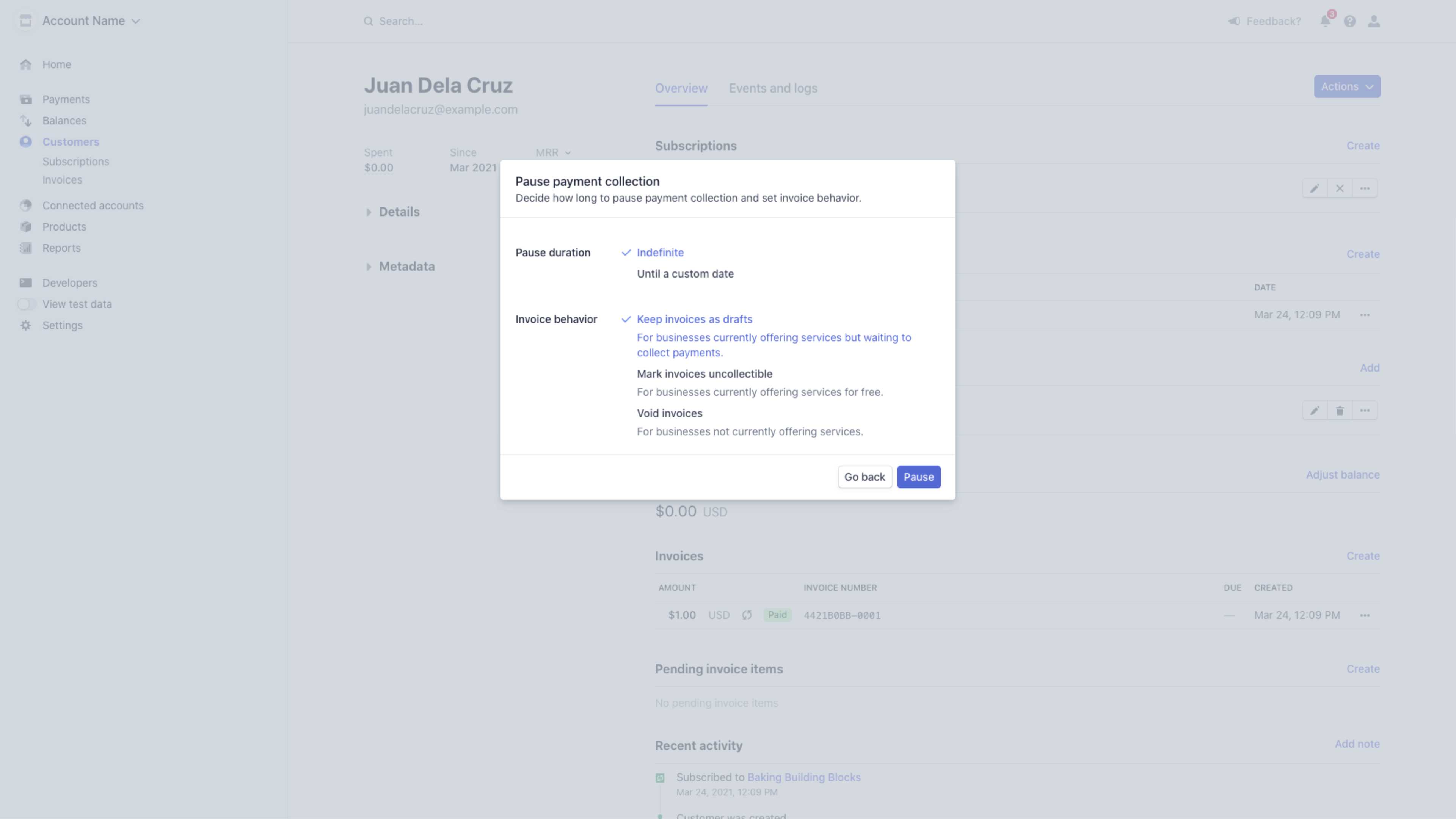
- Open the Contacts tab from the Dashboard.
- Select the Customer you wish to pause/suspend their account.
- Click View More for Total offers in the Contact Preview.
- Then, select More Info next to the Offer you wish to pause.
- Click Revoke Product next to all Product(s) you wish to temporarily revoke.
- In the popup confirmation, click Yes, Revoke access:
Reactivate Stripe subscription
If you chose to pause your customers’ subscription indefinitely, you will need to resume the subscription manually in Stripe when you are ready to resume their subscription. Pause and resume subscriptions on Stripe.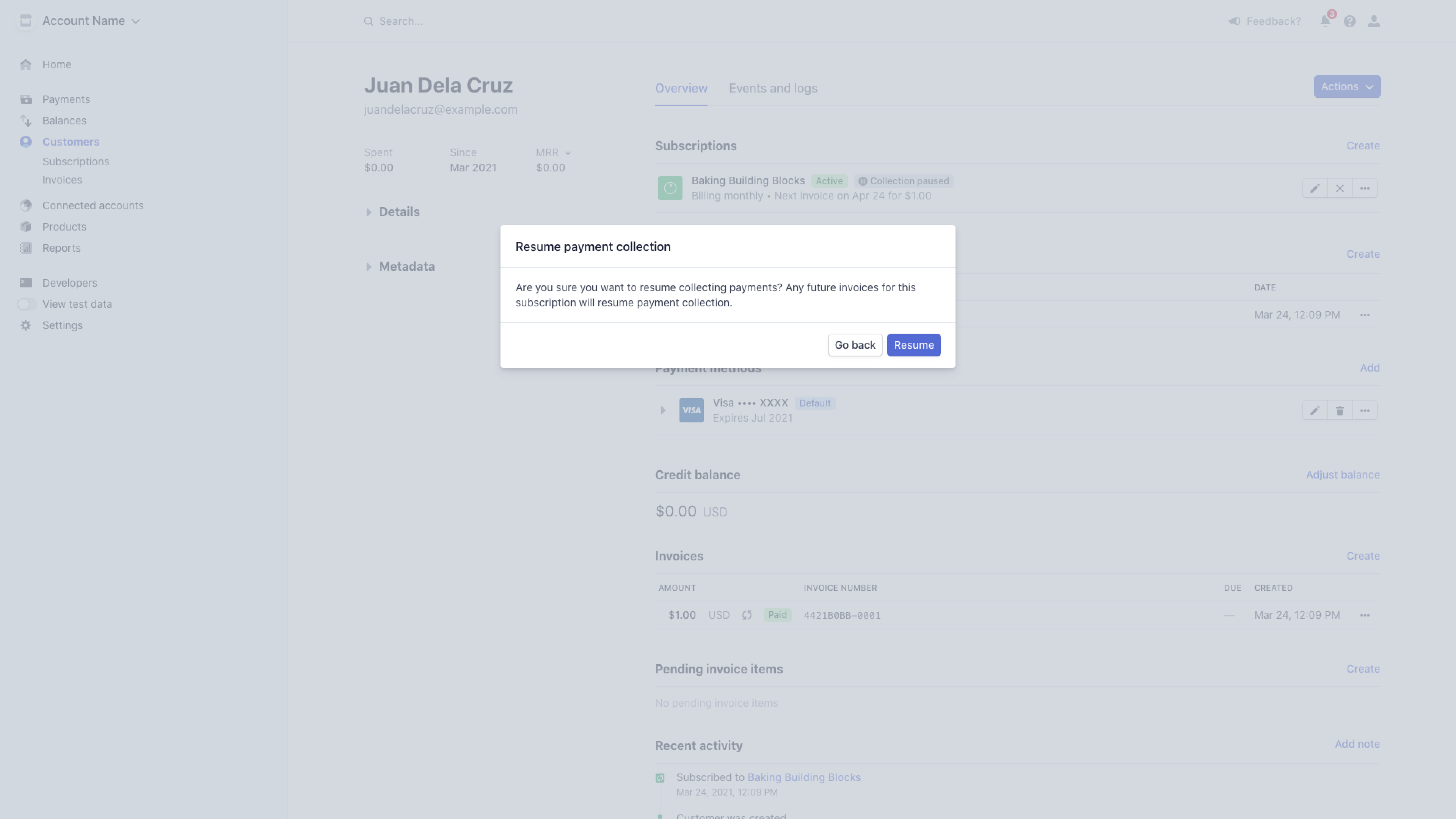
- Open the Contacts tab from the Dashboard.
- Select the Customer you wish to pause/suspend their account.
- Click View More for Total offers in the Contact Preview.
- Then, select More Info next to the revoked Offer.
- Click Resume all products to reactivate product access:
PayPal
PayPal allows you to suspend and reactivate your Customer’s Subscription with your PayPal Business or Premier account. Suspend and reactivate a Subscription in PayPal for detailed instructions.Pause PayPal subscription
Suspend subscription- Log into your PayPal Business or Premier account.
- Click Activity in the top menu.
- Open the All transactions dropdown menu.
- Select Subscription payments.
- Locate the subscription you wish to suspend and click the subscription name.
- Click Suspend.
- Confirm in the popup and click Suspend Profile:
- Open the Contacts tab from the Dashboard.
- Select the Customer you wish to pause/suspend their account.
- Click View More for Total offers in the Contact Preview.
- Then, select View next to the Offer you wish to pause.
- Click Revoke all products to temporarily revoke all Product(s) included with the Offer.
- In the popup confirmation, click Yes, revoke access:
Reactivate PayPal subscription
- Log into your PayPal Business or Premier account.
- Click Activity in the top menu.
- Open the All transactions dropdown menu.
- Select Subscription payments.
- Locate the subscription you wish to reactivate and click the subscription name.
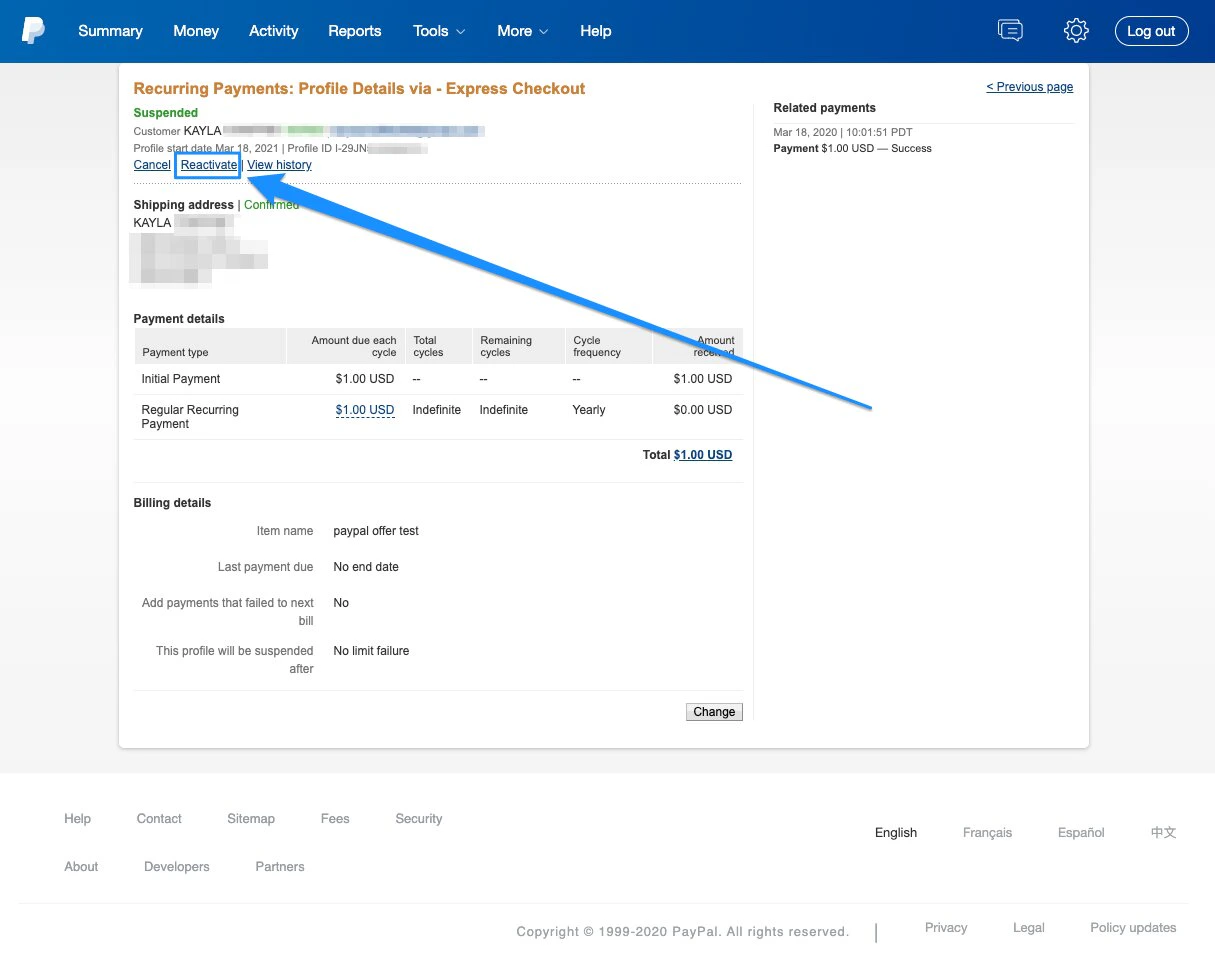
- Click Reactivate.
- Confirm in the popup and click Reactivate Profile:
- Open the Contacts tab from the Dashboard.
- Select the Customer you wish to pause/suspend their account.
- Click View More for Total offers in the Contact Preview.
- Then, select More Info next to the revoked Offer.
- Click Resume all products to reactivate product access:
Set up an automation to revoke access
In some cases, you may wish to set an Automation to easily revoke Offer access to your paused customers by simply adding a Tag. Using Tags can also help identify customers you have paused by filtering your Contacts tab by Tags or by creating Segments with Tags. This can streamline the process if you are temporarily pausing your customer’s subscriptions on a regular basis.Set an Automation with Growth or Pro Plans
- Open the Marketing tab from the Dashboard.
- Click Automations.
- In the top right corner, click + New Automation.
- In the When dropdown menu, select Tag is added.
- Enter your Tag name in the Add Tag field. We recommend including the name of the Offer that is revoked when this tag is applied to easily assign the correct Tag to your customers. (For example, Subscription Offer)
- In the Then dropdown menu, select Revoke an offer.
- Select the Offer you wish to be revoked when your Tag is added (In this example, the Subscription Offer).
- Then, click Save to keep your changes:
Reactivate a customer’s Offer Access
Reactivate your customer’s Offer Access while maintaining their Product Start Date and connected payments by removing the Tag from their Profile and manually reactivating your customer’s Offer Access from within your Stripe or PayPal account.Note: The action triggered by adding and removing a tag can take a few minutes to process. Once processed, you can see the Offer revoked under the Lifecycle tab.