

Why use filters
Organize, manage, and search your list with filters. Additionally, filters can help you build Segments to design personalized marketing and efficiently manage your list.Create filters
Add multiple filters, duplicate filters, and use the same filter more than once.Select filter criteria
- Category: a specific division available on Kajabi
- Conditional: dynamic requirements or conditions specific to the Category selected
- Value: the specified parameter for the Category and Conditional
Filter the contact list to manage and organize contacts
- Open the Contacts tab from your Kajabi Dashboard.
- Click Filters.
- Select your Category, Conditional, and Value:
Note: Create up to 10 filters.
Things to consider when applying filters
There are a few things to consider when applying filters to your Contacts tab, in order to obtain the most accurate filter results.Apply duplicate categories
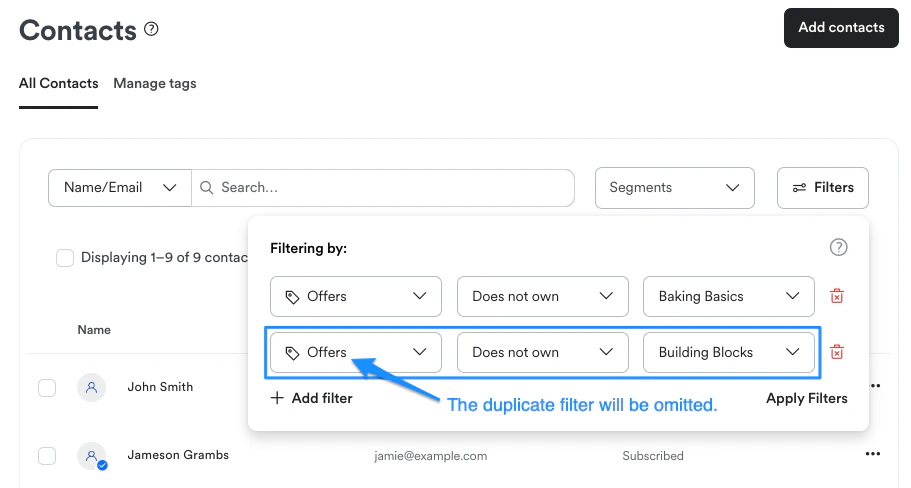
- If multiple instances of a filter with the same category and conditional are applied, the duplicate instance will be omitted, regardless of any differences in values:
Select multiple values
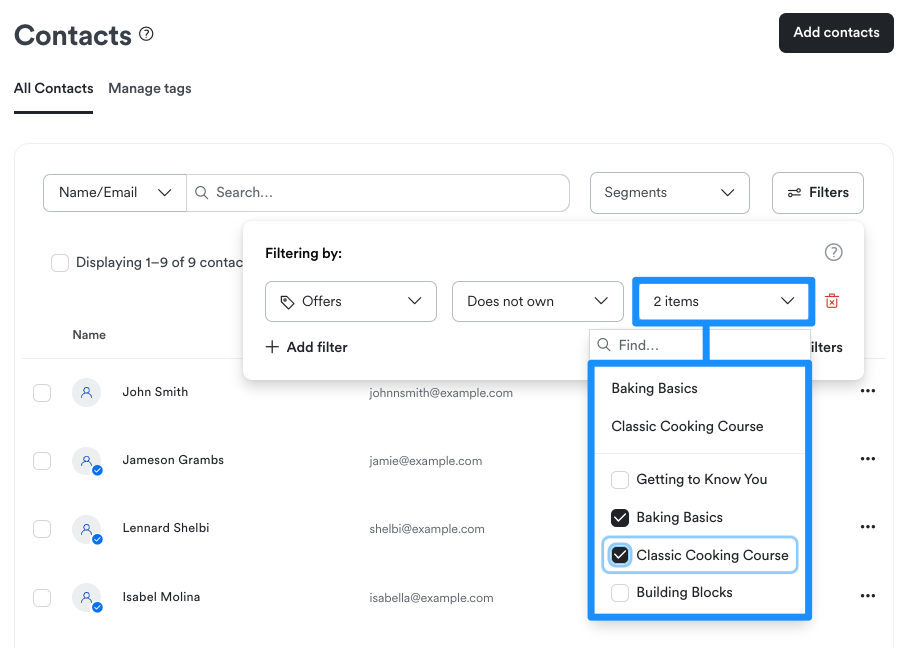
- Depending on the selected Category, you may be able to select multiple values. For example, creating a Filter with the “Offer” or “Tags” Category allows you to select multiple Values to define the Filter:
Conditionals
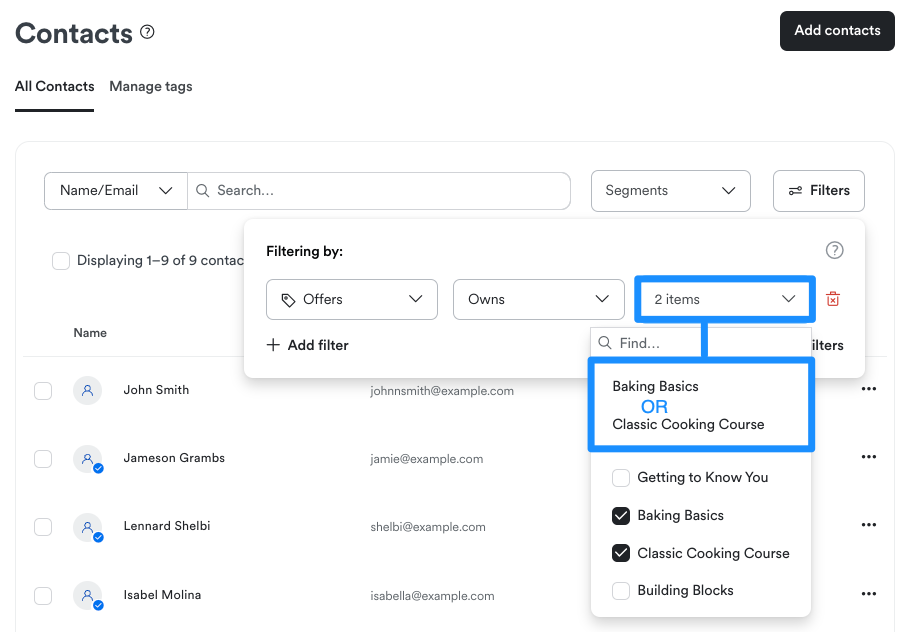
- Applying a Filter for “Offer” with the Conditional, “Owns”, functions as an “OR” statement, not as an “AND” statement:
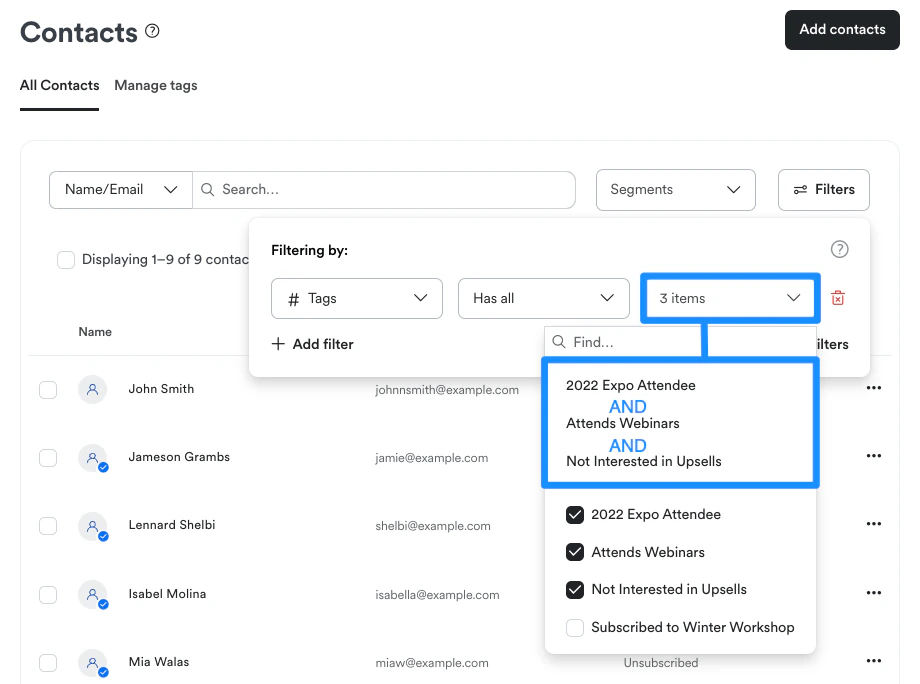
- Applying “Tags” with the Conditional, “Has any” or “Has all”, functions as an AND statement when selecting multiple Tags for the Filter:
Remove filters
To remove filter(s):- Click Filter.
- Navigate to the right of your Filter and click the Trash icon.
- Select Remove: