

Access a contact’s profile
- Open the Contacts tab from the Dashboard.
- Select the name of the person you wish to view.
- Click Open full profile:
Customer profile features
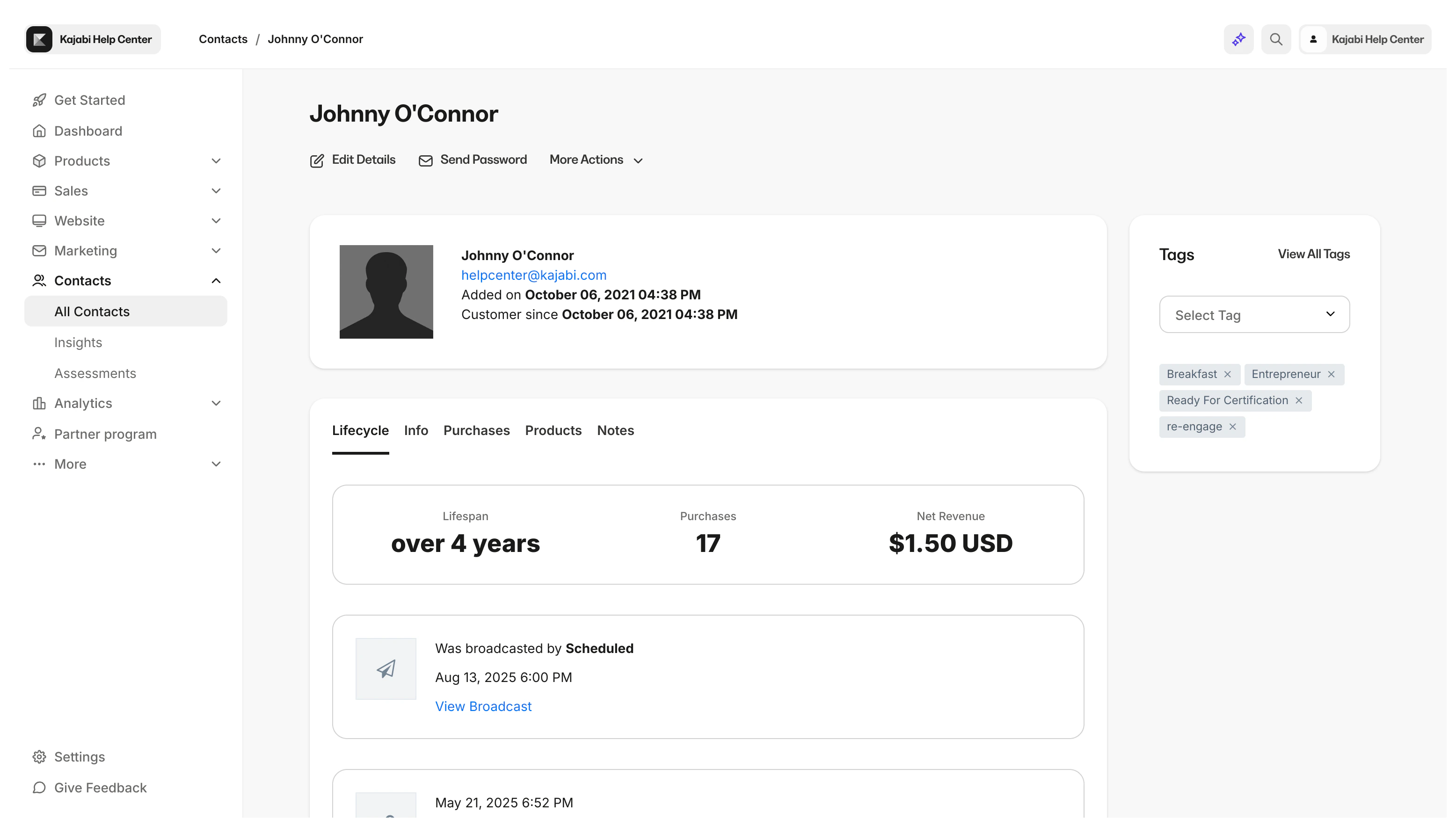
Lifecycle
Track a Customer’s lifecycle including
- Offers Purchased and Granted
- Email Campaigns sent
- Email recipient actions on broadcast and sequence emails (e.g., opened, clicked, unsubscribed, complained, or bounced)
- Forms submitted
- Lifespan: number of days from start date (date added to Contacts through import, purchase, or opt-in)
- Purchases: number of purchases made and Offers Granted
- Net Revenue: Net revenue generated by Customer
Note: Lifecycle will only display the last 20 actions.
Info
- Added on date
- Net Revenue
- Subscription to Marketing Emails Status
- Customer Start Date
- Sign in count: total number of sign ins
- Last activity at: The date and time of the Customer’s last activity on your site. Learn more
- Additional Info: Customer ID & Products owned
Purchases
- Offers Purchased
- Offers Granted (this includes information about the person that granted the Offer: Owner or account user.)
Note: In the event of an Account User granting, revoking, or canceling a Customer’s Offer or Product access, you can see the person responsible (noted by their email address) by navigating to the Customer and viewing their Purchases tab.
Products
- Products owned by Customer
Notes
- Add notes.
- Review and remove previous notes.
Edit details
Edit Customer Details to update the name, email, and form submission answers of Customers.- Name
- External user id for third-party integrations
- Contact Information
- Custom Fields
Send password
Send a password reset link to a Customer.More actions
- Mute Customers. Read Muting Customers for details.
- Hide a Customer’s profile from the Contacts tab.
- Grant Offers to Customers. Read Grant an Offer to learn more.
- Change Password for a Customer.
- Delete a Customer permanently. Read Delete a Customer for details.
Tags
Add Tags to filter and segment your List to easily organize and categorize it. Tags can be used when sending Email Campaigns and creating Automations. Read Use Tags to learn more.Contact profile features
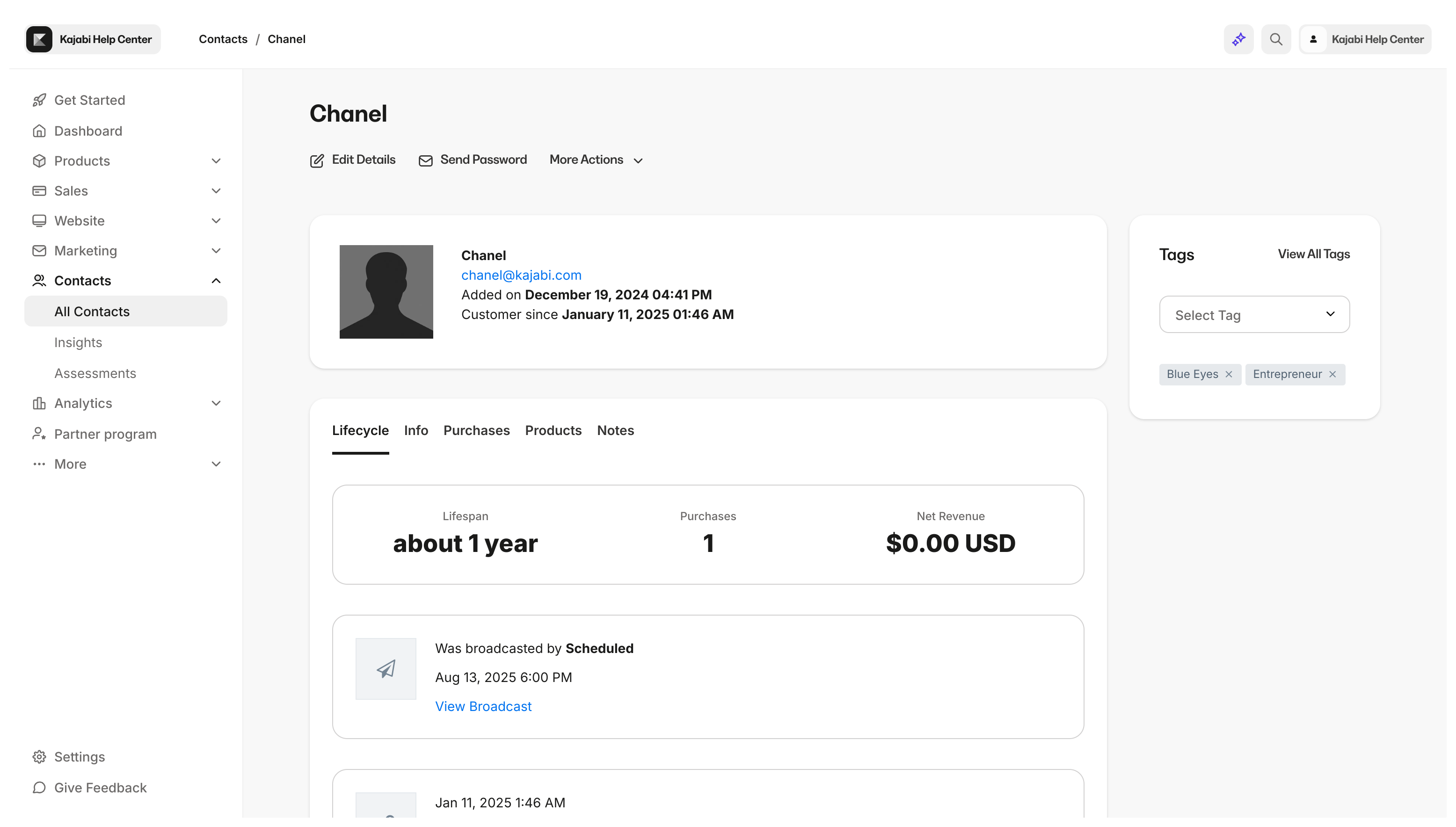
Lifecycle
Track a Contact’s lifecycle including
- Email Campaigns sent
- Email recipient actions on broadcast and sequence emails (e.g., opened, clicked, unsubscribed, complained, or bounced)
- Forms submitted
- Lifespan: number of days from start date (date added to Contacts through import or opt-in)
- Purchases: number of purchases made (As a contact, this will appear as a 0 until converted into a Customer)
- Net Revenue: Net revenue generated by a Contact (As a contact, this will appear as a 0 unless converted into a Customer with a Purchase)
Note: Lifecycle will only display the last 20 actions.
Info
- Added on date
- Subscription to Marketing Emails Status
- Additional Info will display if additional info applies (e.g., custom field submissions in a Form)
Purchases
This will remain empty unless converted into a Customer.Products
This will remain empty unless converted into a Customer.Notes
- Add notes.
- Review and remove previous notes.
Edit details
Edit Contact Details to update the name, email, and form submission answers of Contacts.- Name
- Contact Information
- Custom Fields
More actions
- Hide a Contact’s profile from the Contacts Dashboard.
- Grant Offers to a Contact and convert into a Customer. Read Grant an Offer to learn more.
- Delete a Contact permanently. Read Delete a Customer for details.