

- View the overview information for the Offer purchased or granted
- Review any transaction activity such as refunds, subscription charges, and payments if applicable
- View and or send receipts
- Edit receipt Contact info
- Edit access start date
- Revoke all products or individual products
- Refund transactions
- Manage product access to the list of products that may be included with the offer purchased or granted
- Manually cancel any future payments and revoke access from your Customer’s Transaction Details page
- Respond to disputes if applicable. Explore the Disputes page
Access the Transaction Details page
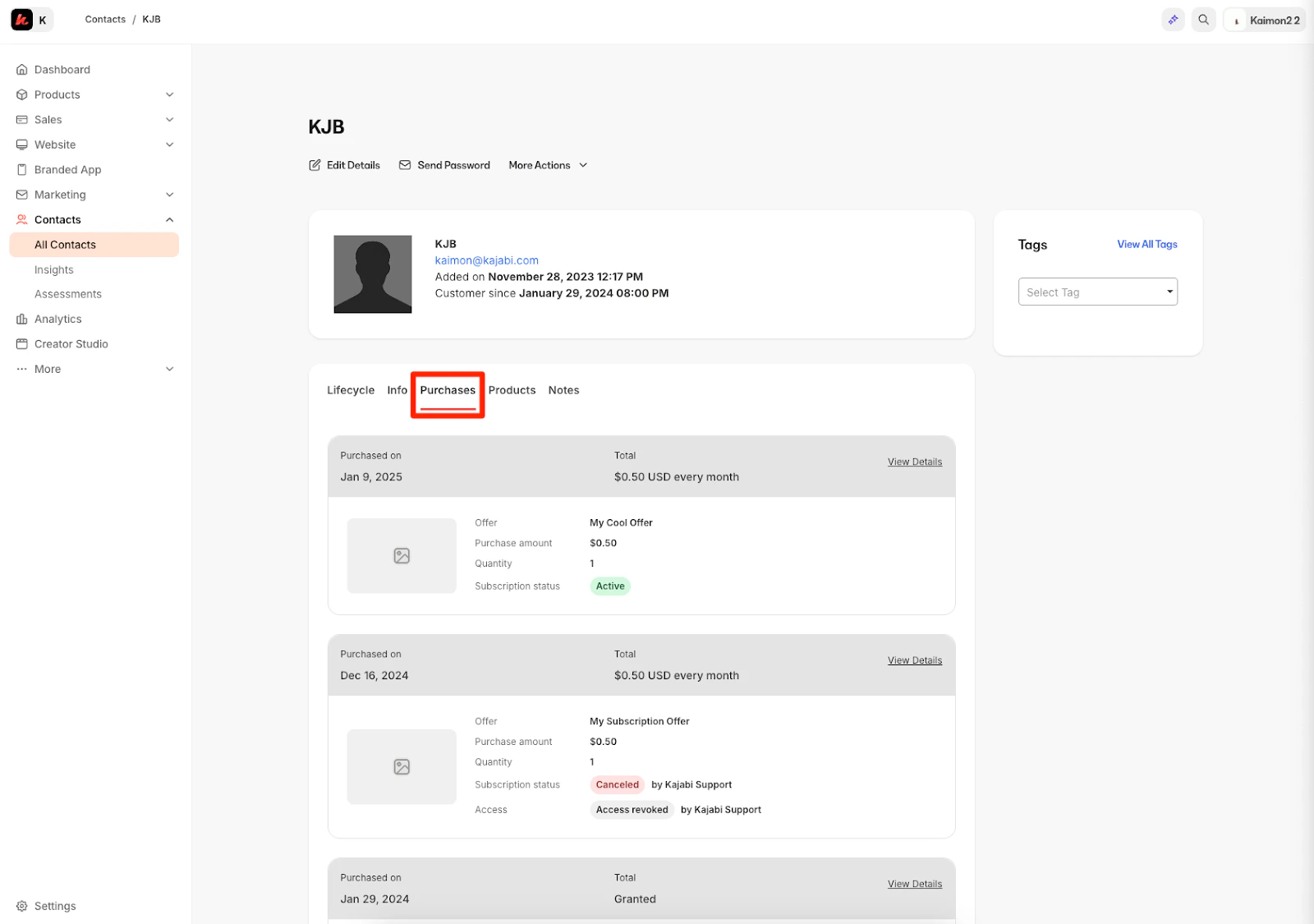
To view a Customer’s Transaction Details Page:- Open the Contacts tab from your Dashboard.
- Select the Customer you wish to view.
- Click into View More next to “Total Offers” from the Contact Preview.
- Locate the Offer you wish to view.
- Click View Details to open the Transaction Details Page for the Offer.
- Click Transactions tab (only applicable to Subscriptions and Payment Plans):
- Offer title
- Purchase date
- Purchase amount
- Subscription status
- Access status (if access has been revoked)
Transaction details
View more information about a purchased or granted Offer on the Transaction Details page. The information displayed on this page may slightly differ based on the offer type, whether it’s a one-time purchase, subscription, payment plan, invoice, granted offer, etc.Transaction Details page contents
- Customer’s Name
- Customer’s Email
- Offer Title and Status: Active, Paid, Completed, Cancelled
- Their Kajabi Payments email if applicable
- Stripe Customer ID or PayPal Customer ID if applicable
- Purchase Date
- Access Start Date. Explore access start dates
- Access end date if applicable
- Price of the Offer when purchased
- Payment exchange rate if purchased via Kajabi Payments
- Fees if purchased via Kajabi Payments
- Net profit if purchased via Kajabi Payments
- Dispute information and status if applicable. Respond to a dispute with Kajabi Payments
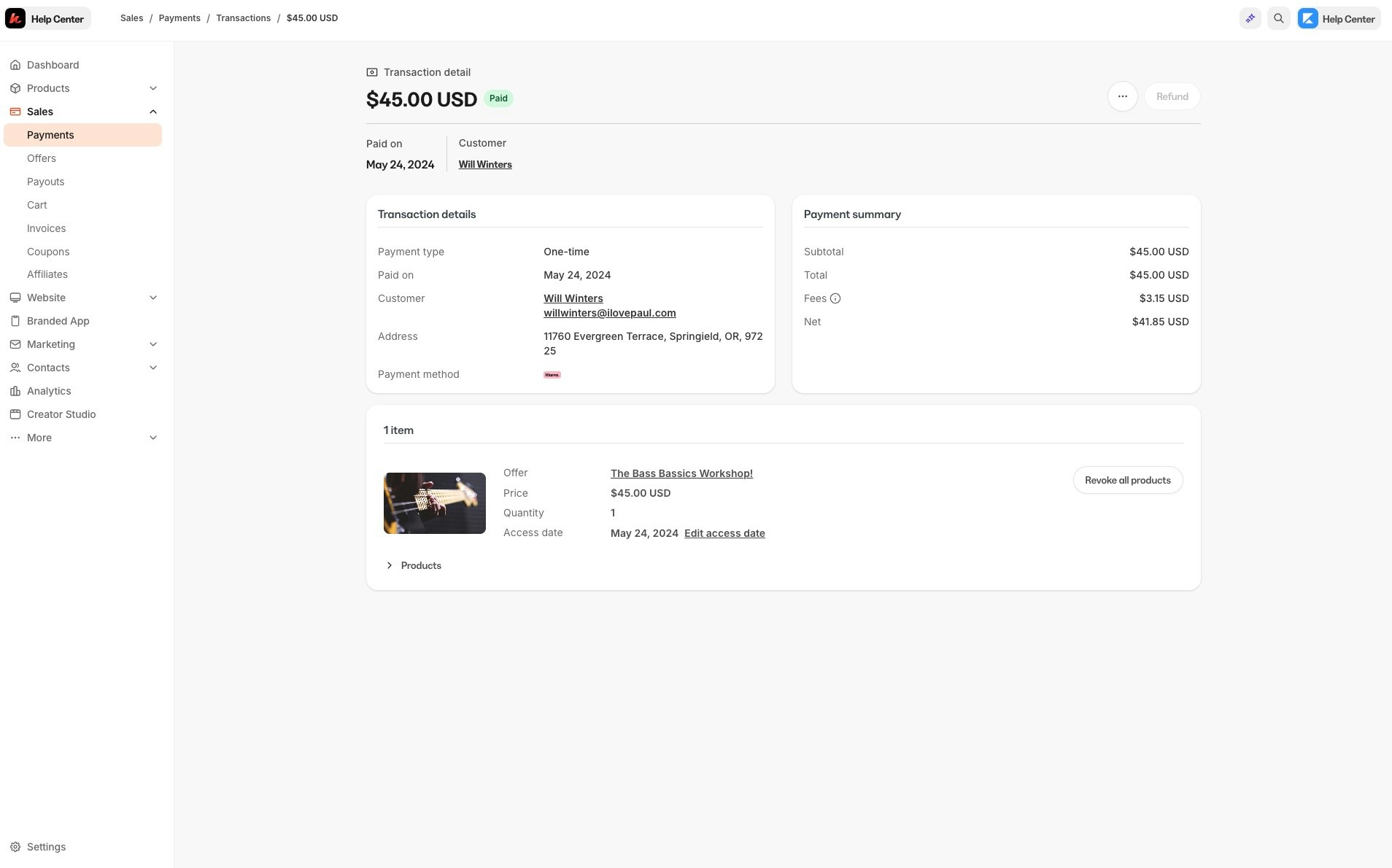
One-time payments
If you are viewing the transaction details page for a One-Time Payment purchase, the page will show transaction details, customer details, as well as refund info if the payment has been refunded.Subscriptions and Payment Plans
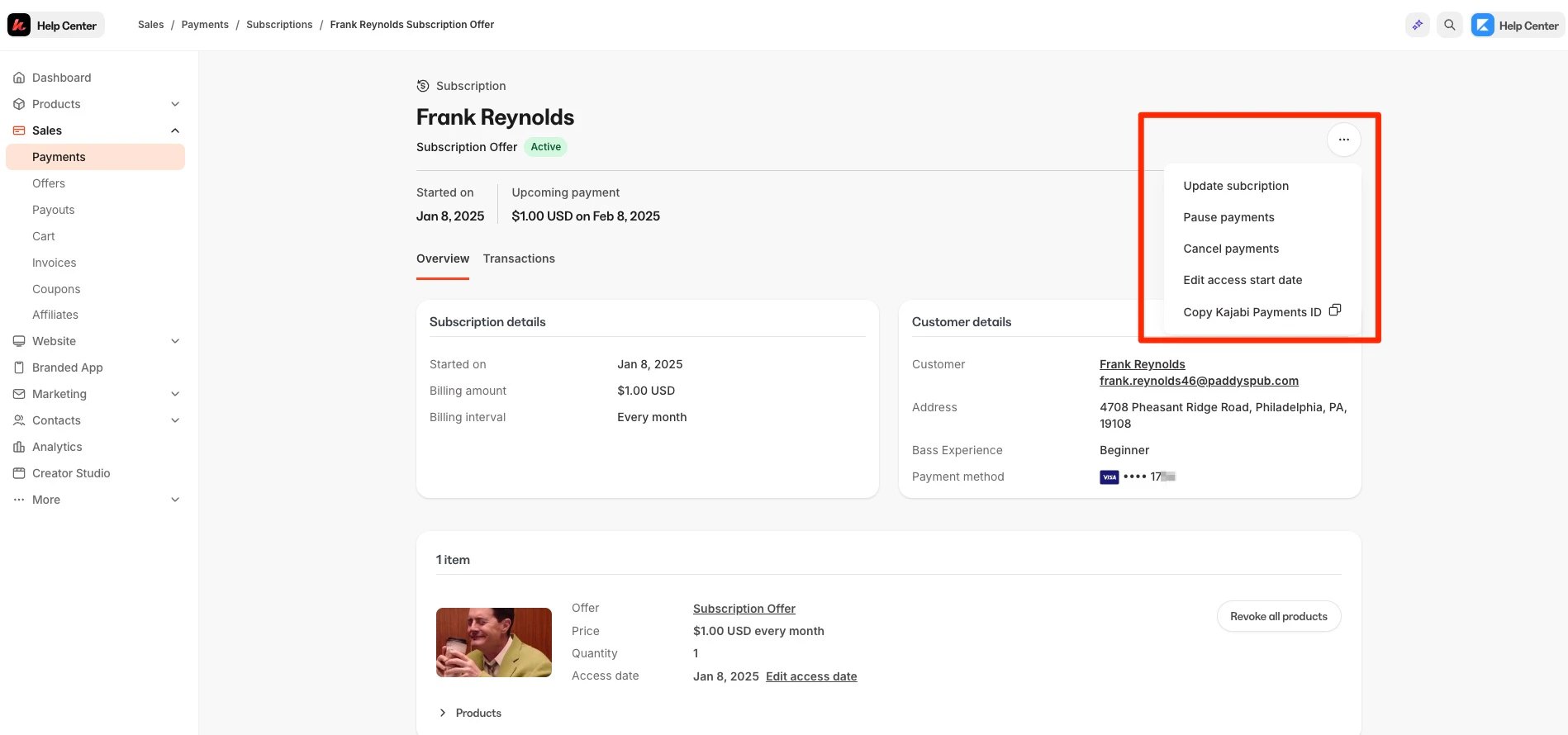
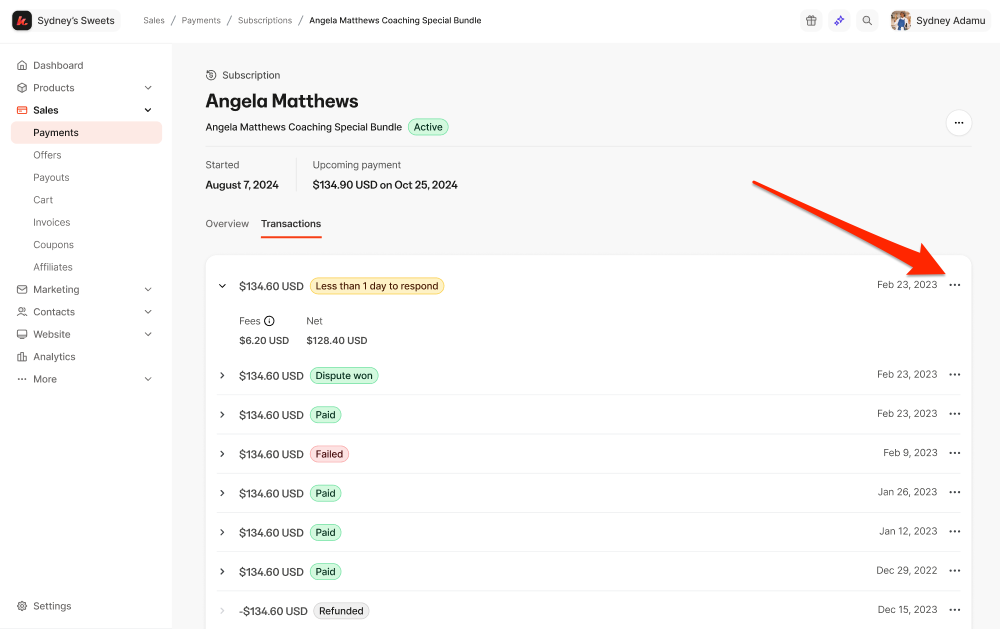
Navigating to the transaction details page for a Subscription or Payment Plans purchase will present you with an Overview and Transactions tab. The Subscription details page will show subscription details and customer details, as well as refund info if any of the subscription payments have been refunded: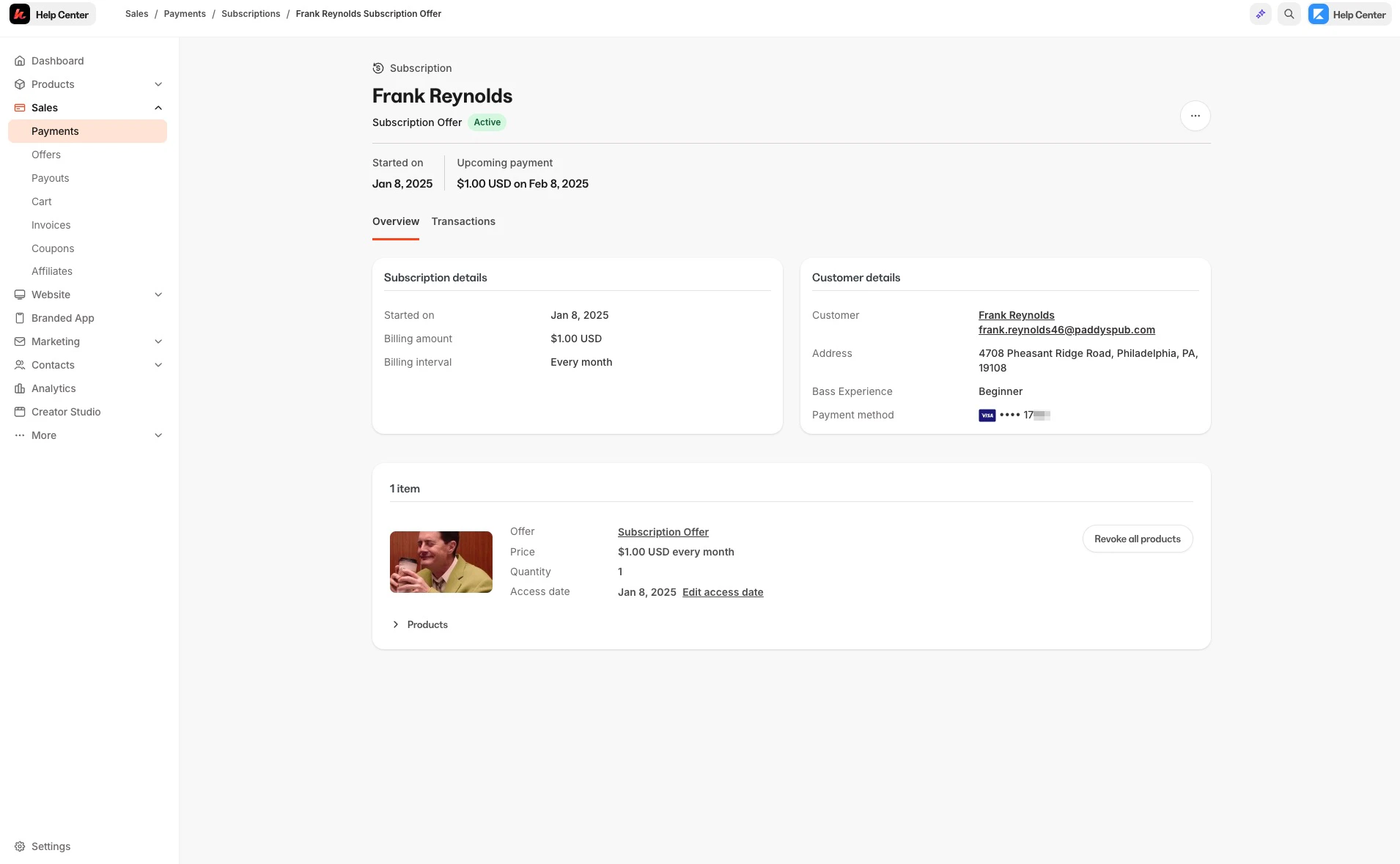
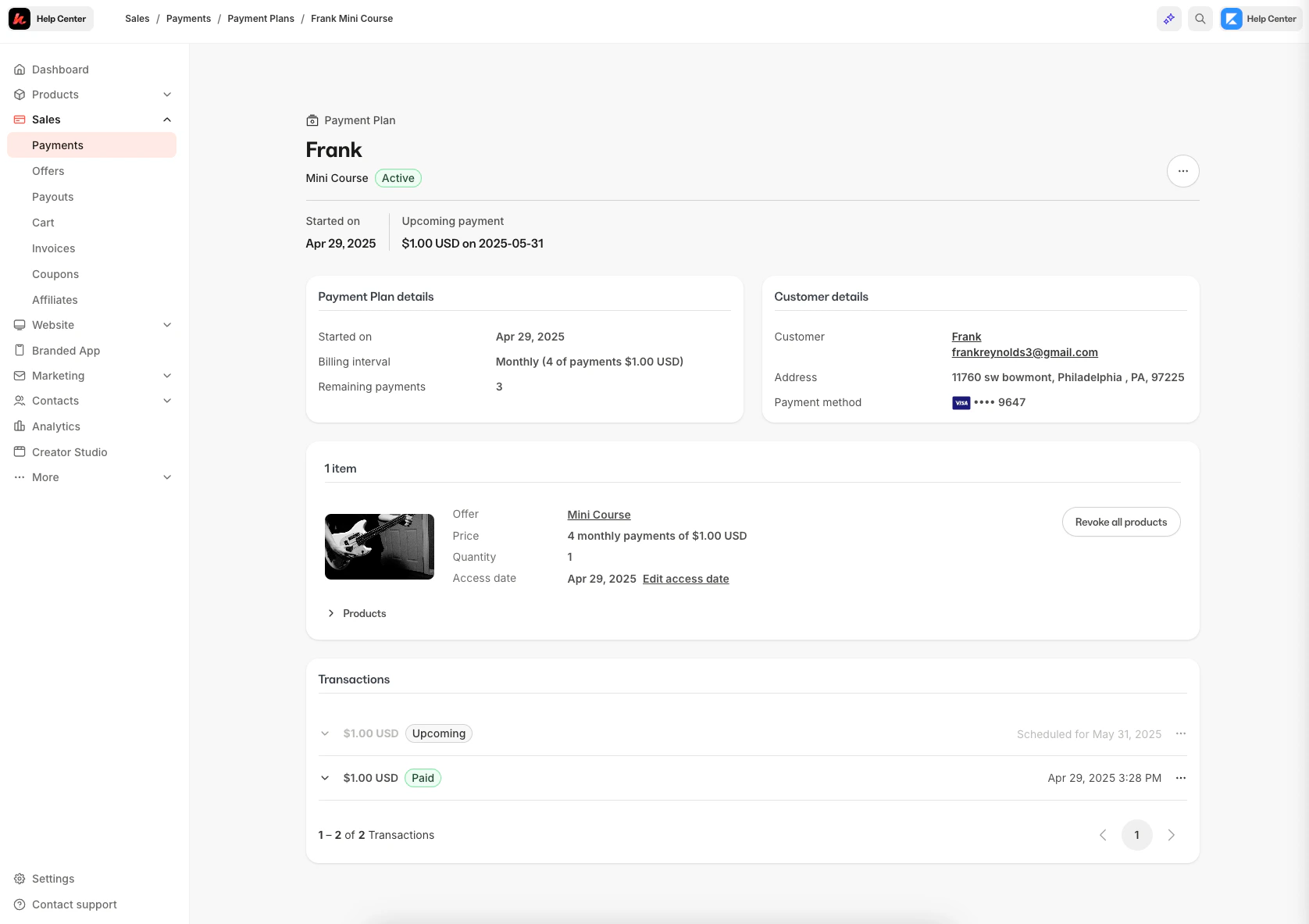
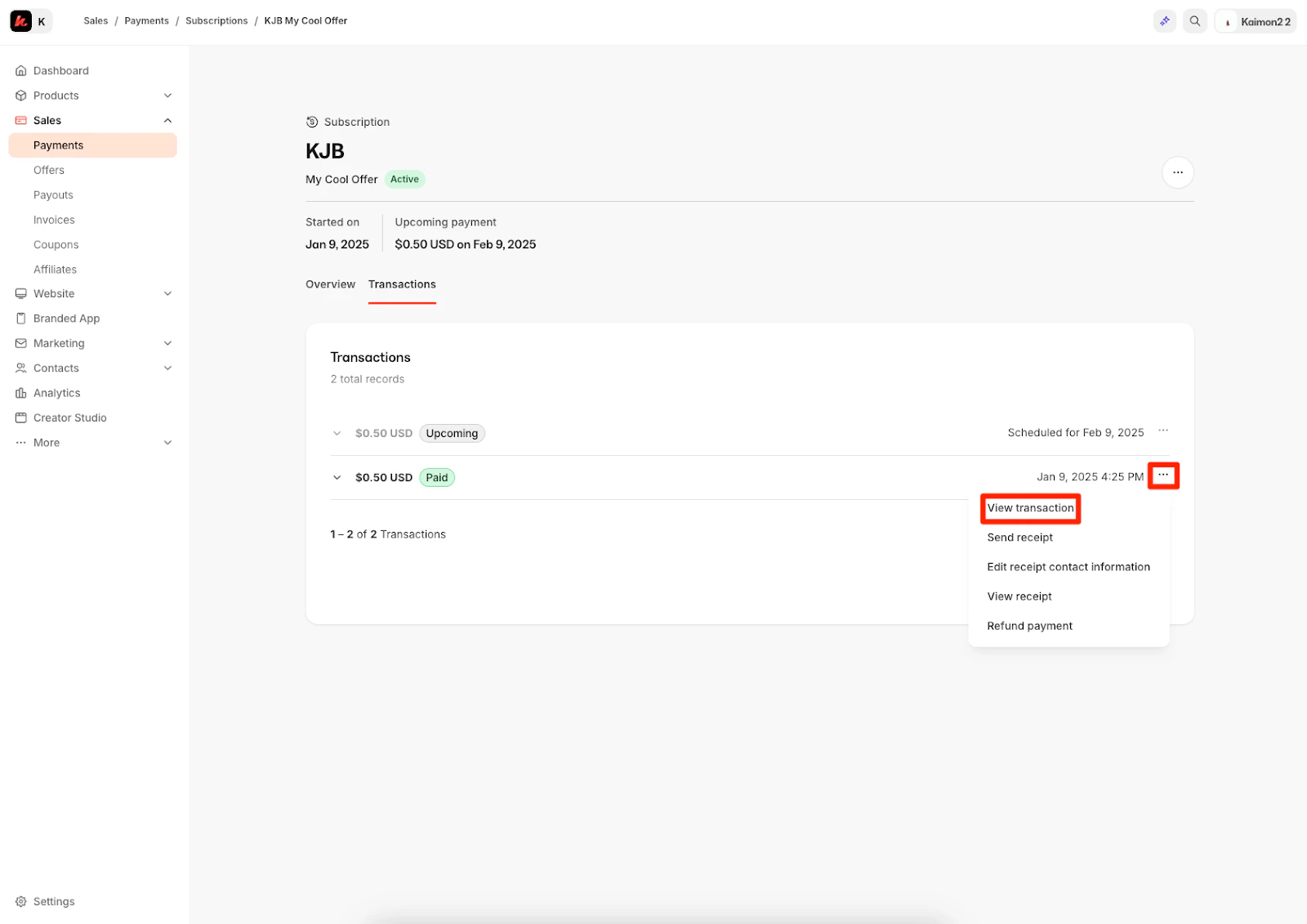
- From the transaction details page, click Transactions.
- Locate the transaction you wish to view, then select the “More Actions” (…) menu.
- Click view transaction to view more information about that transaction:
Granted Offers
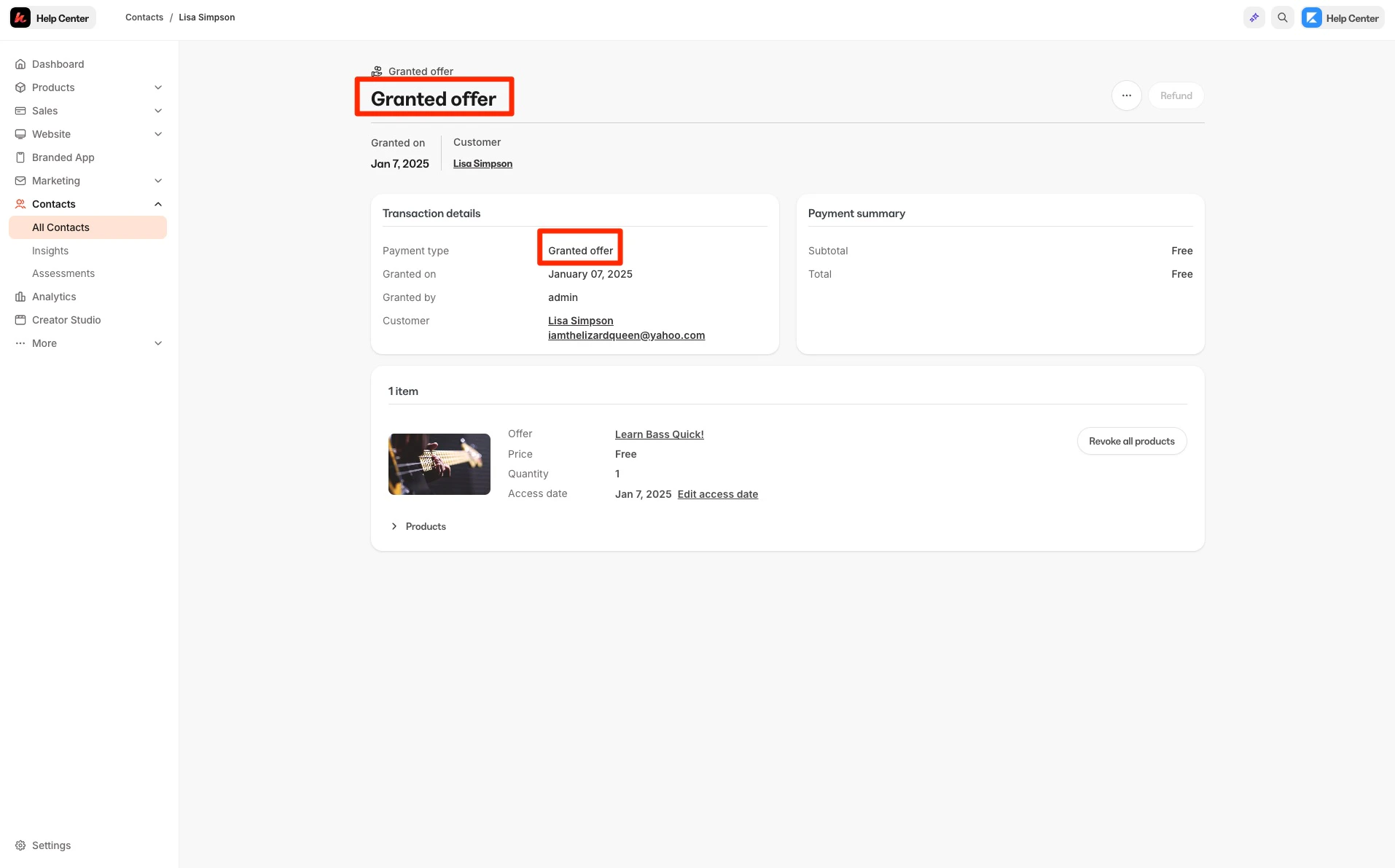
The Transaction Details page will vary if the Offer was granted instead of purchased.Granted Offers will display
- Customer Name
- Offer Title
- Purchase Created Date
- Access Start Date
- The Payment summary will list the subtotal and total as “free”
Disputed Offers
When a customer files a dispute, an alert will appear on the Transaction Details page, displaying the dispute status. This banner will update as the dispute progresses and is where you can manage and respond to disputes. Respond to a dispute with Kajabi Payments. To view and manage all disputes in one place, visit the Disputes page.View disputed transactions
One-time transaction disputes
Disputes for one-time transactions will be displayed on the Transaction Details page: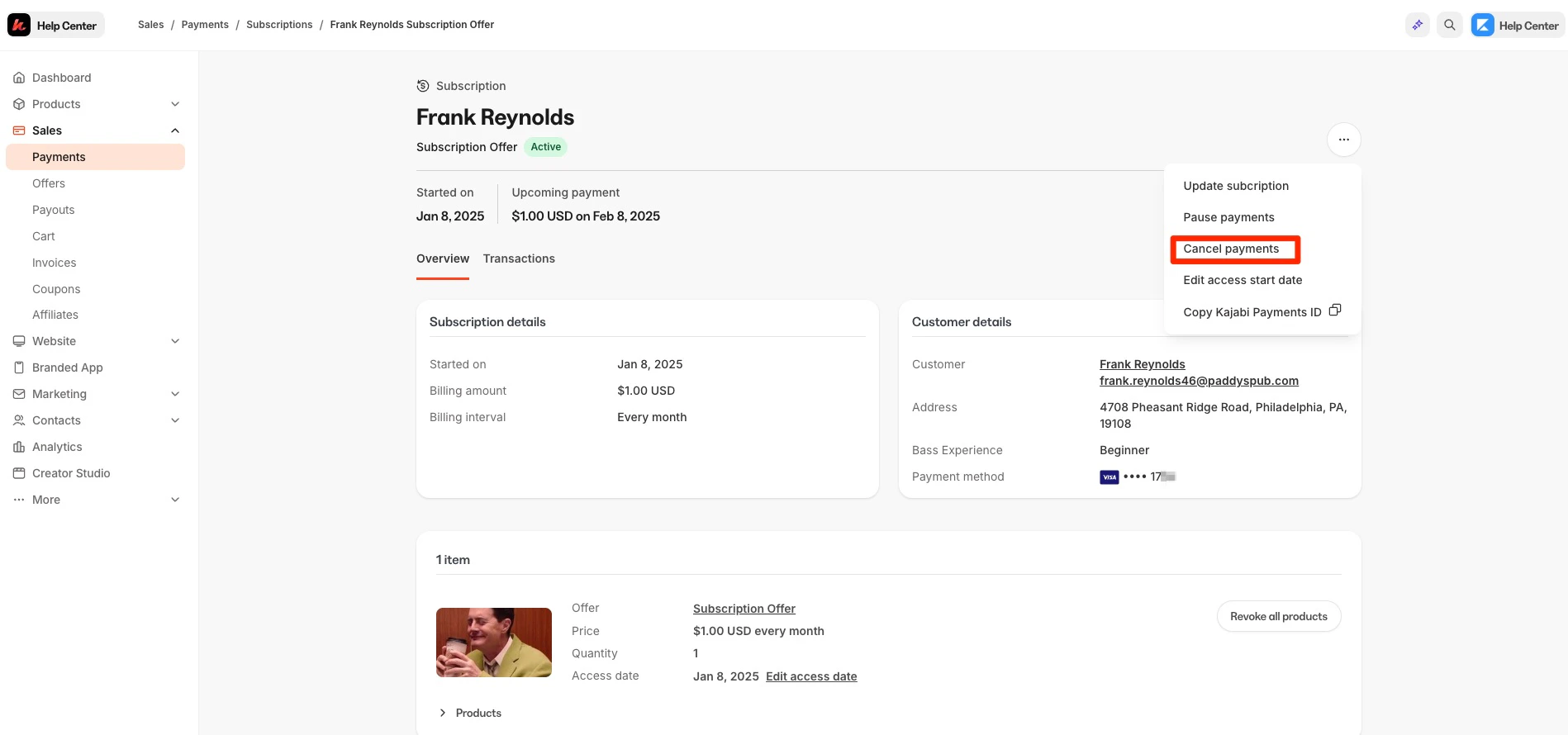
Subscription and Payment Plan transaction disputes
To view disputed subscription or payment plan transactions:- Go to the Transaction Details page.
- Click Transactions.
- Find the disputed transaction, then select the More Actions (…) menu.
- Click View transaction to see more details and respond to the dispute.
Products included in an Offer
View the Offer title and review the Product(s) included with the Offer purchased or granted. In the Products Included section of the Transaction Details Page, view a brief overview of the Product Access Start Date and your Customer’s Product Progress: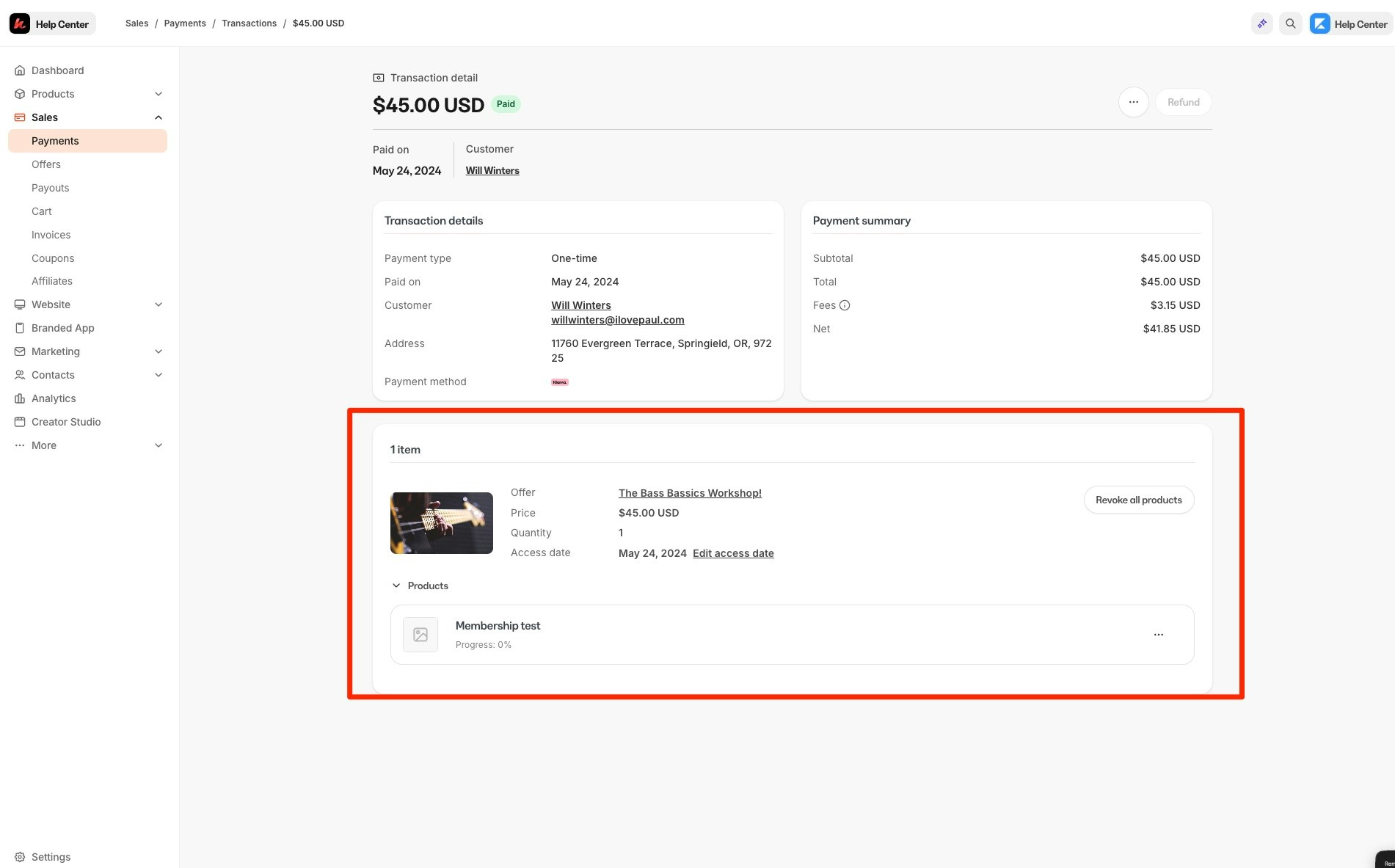
Cancel payments and access
The More Actions menu (…) of the Payment Details Page Overview will vary depending on whether the Offer was purchased or granted. If the Offer was purchased as a recurring subscription or payment plan you will have the ability to Cancel Payments and Revoke Access directly from the Transaction Details page. Cancel a customer’s subscription However, if the Offer was granted or if the Offer does not contain any future payments (i.e., One-Time Payment Offer) you can Revoke Access to the entire Product offering for the Offer purchased or granted. Revoke Product access from a customer