

Understand auto unsubscribing
First, review what a Hard Bounced and Complained email means. Hard Bounces (permanent failures) can occur if:- The email address no longer exists
- The email address is invalid
- The domain doesn’t exist
Review a contact list
Review your list and learn more about the subscription status of your contacts.Subscription status
View your contacts’ subscription status and locate the contacts that have never subscribed, are subscribed, and have unsubscribed. Included with the Unsubscribed status is the action that triggered the unsubscribe:- Bounced: If a contact is determined to be permanently undeliverable, the contact is automatically unsubscribed.
Note:
You may encounter contacts in your hard bounced segment that remain subscribed. Your contacts will remain subscribed unless they are determined to be permanently undeliverable. As such, contacts may not be unsubscribed immediately upon a hard bounce.
- Manual Unsubscribe: You or one of your authorized users unsubscribed the contact. Or the contact manually unsubscribed from your email marketing by updating their email preferences from their account.
- Opted out: Contact opted out from receiving your marketing emails by clicking unsubscribe in the footer of the email received.
- Marked spam: Contact marked the email as spam in their inbox.
- Never Subscribed: Contact added to the Contacts tab without subscribing to marketing emails.
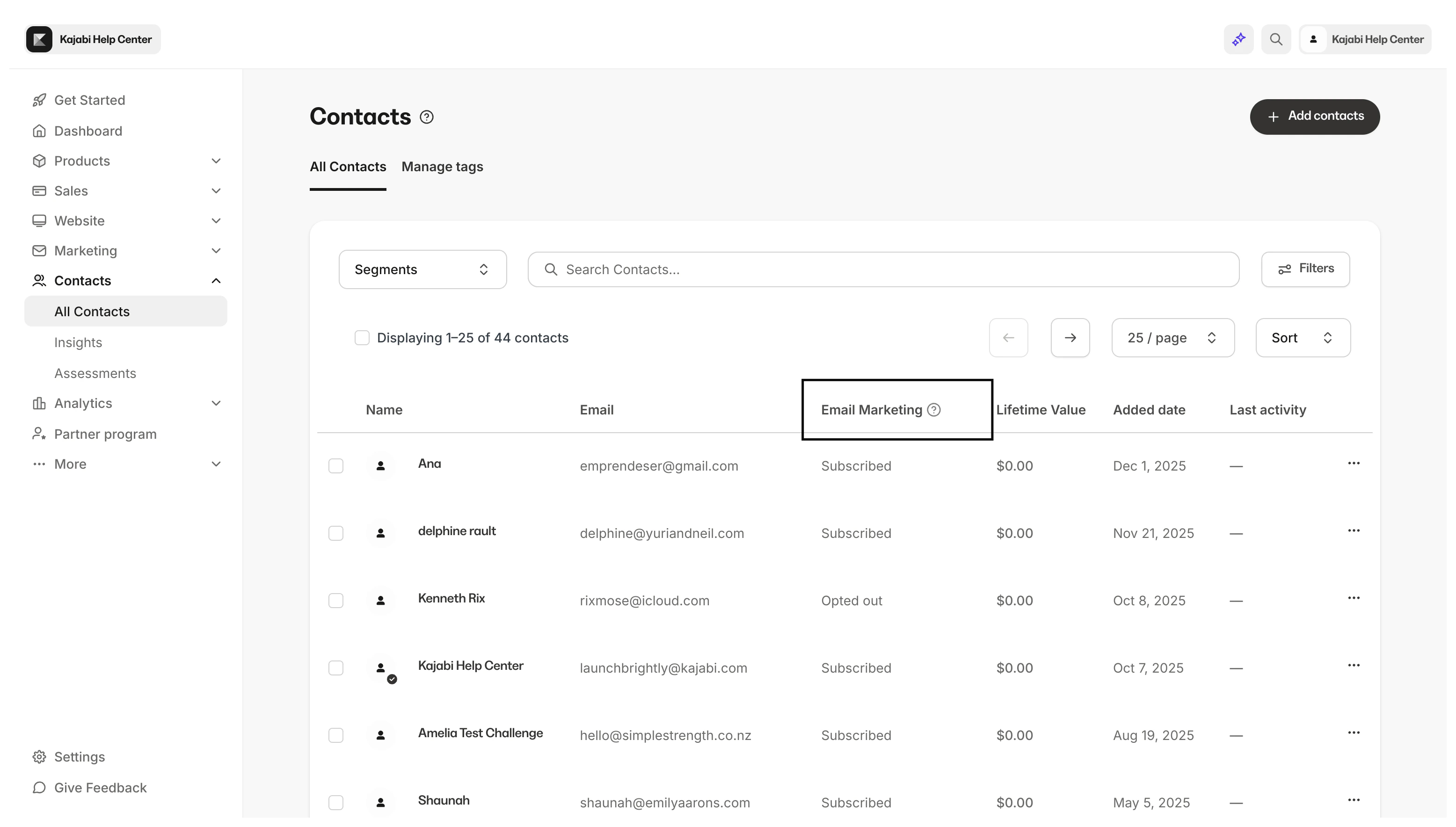
Contacts view
- Open the Contacts tab from the Dashboard.
- Click through the Segments in the top menu and filter your contacts.
- Locate the Subscription Status column to quickly view your contact subscription status.
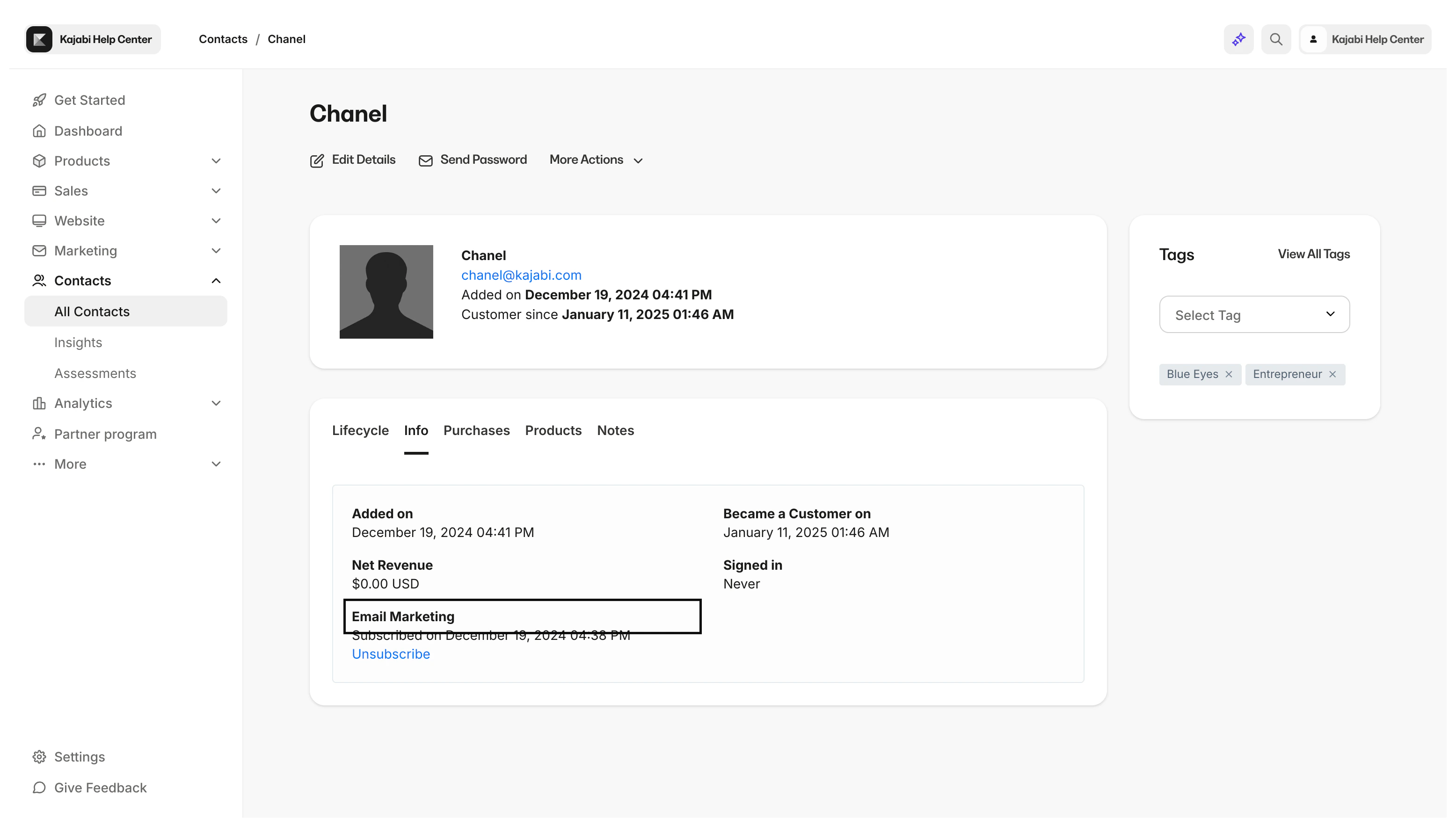
Contact info view
- Open the Contacts tab from the Dashboard.
- Search for the contact you wish to view.
- Select your contact.
- Open the Info tab.
- Locate the Subscription Info header:
Resubscribe unsubscribed contacts
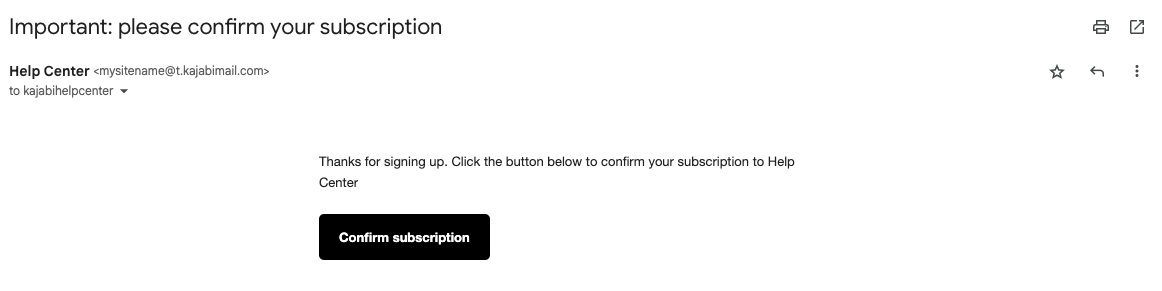
As you maintain and review your Contacts tab, you may find emails that have been mistakenly unsubscribed due to a typing error when entering the email address, or a contact may have changed their email address. To resubscribe a contact that may have been unsubscribed due to a typing error or a change in email address, complete a Double Opt-in Form for your contact. Using a Double Opt-in Form will require your contact to confirm their desire to subscribe to your marketing emails and can help aid in staying compliant with email laws (see Disclaimer). If your customer wishes to resubscribe to your marketing emails from their account, read update email preferences. First, create a Double Opt-in Form to resubscribe unsubscribed contacts. Be sure to include any applicable custom fields to capture additional information associated with your contact(s). After creating your Double Opt-in Form, complete the form with your subscriber’s correct information:- Open the Marketing tab from the Dashboard.
- Click Forms.
- Select the Double Opt-in Form you created to resubscribe unsubscribed contacts.
- Click Preview in the top menu.
- Enter the correct contact information in the form.
- Then, Submit the form.
Disclaimer: Manually resubscribing a contact after having unsubscribed may result in non-compliance with various electronic communication and/or data privacy laws. If your contact has been unintentionally unsubscribed, it is best to organically allow your contacts to resubscribe to your marketing emails with a form submission on your site. This article and other materials posted on our website is offered for informational purposes only and is not intended to constitute legal advice. Do not rely on the information found here without consulting a licensed attorney in your location for your specific circumstances. It is ultimately your responsibility, and you hereby release Kajabi from all responsibility, to determine the laws or regulations, including international laws, applicable to you or the emails you send through Kajabi. It is always best to be familiar with ALL opt-in, opt-out, email, and spam legislation that may be applicable to you and your recipient’s country/region.