

Add a field to a Form
- Open the Marketing tab from the Dashboard.
- Select Forms.
- Create a Form or edit an existing one.
- Scroll down to Form Fields and click Add Form Field.
- Select an existing field or click Create A New Field.
- Click Save:
Note:
Create up to 50 custom Form Fields in your site. Custom Fields are created by selecting Create a New Field in a Form. If you reach your maximum custom Form Fields for your site, learn to archive or permanently delete custom Fields.
Edit a Form field
Form Editor options
- Click on an existing field on the Form to edit the field
- Change the order of the fields on your Form by clicking and holding
=next to the field title and dragging to your desired location - Choose to make the Form field required by checking or unchecking Make this field required in the Field Editor
Edit field settings
Note:
Selecting Make this field required makes the field required in every Form in which the field is used. If you need the field to be required in one Form while staying optional in another, create two identical custom fields — one as a required field and the other as an optional field.
Create a field type
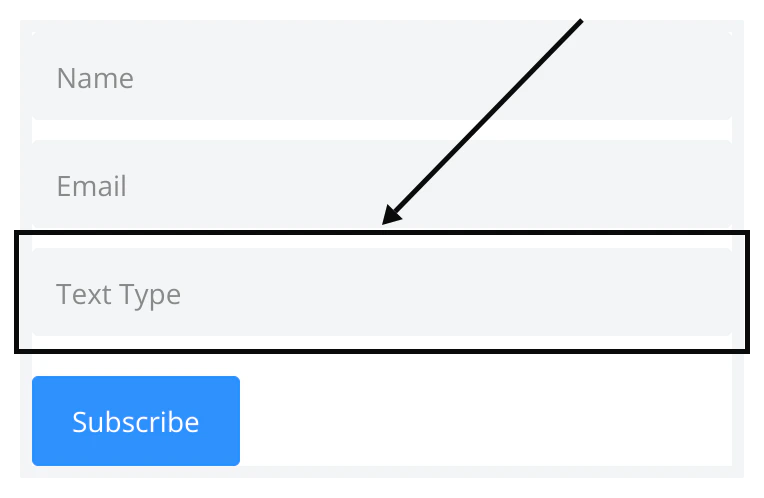
- Text — allows Form submitters to enter a short line of custom text:
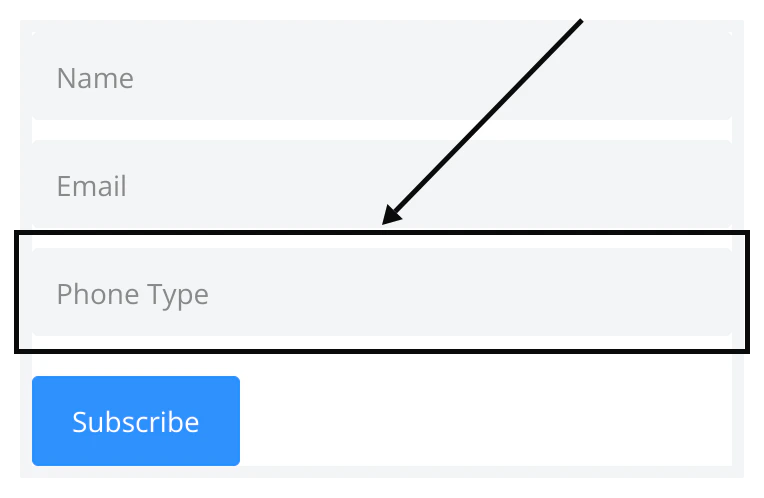
- Phone — allows Form submitters to enter their phone number:
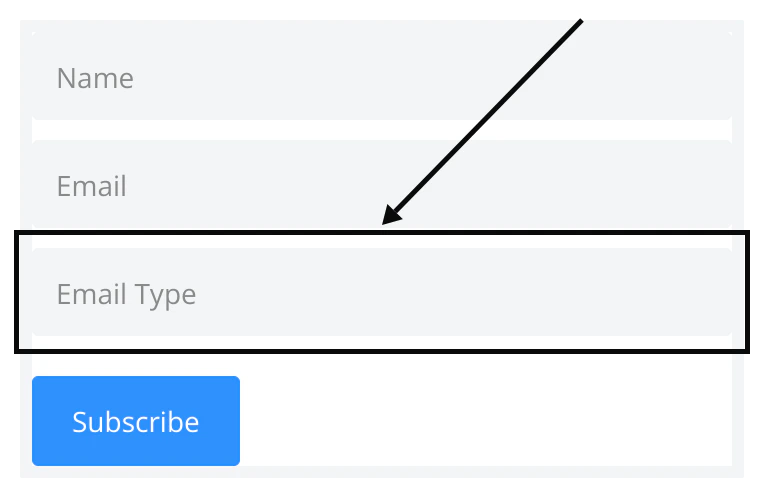
- Email — allows Form submitters to enter another email:
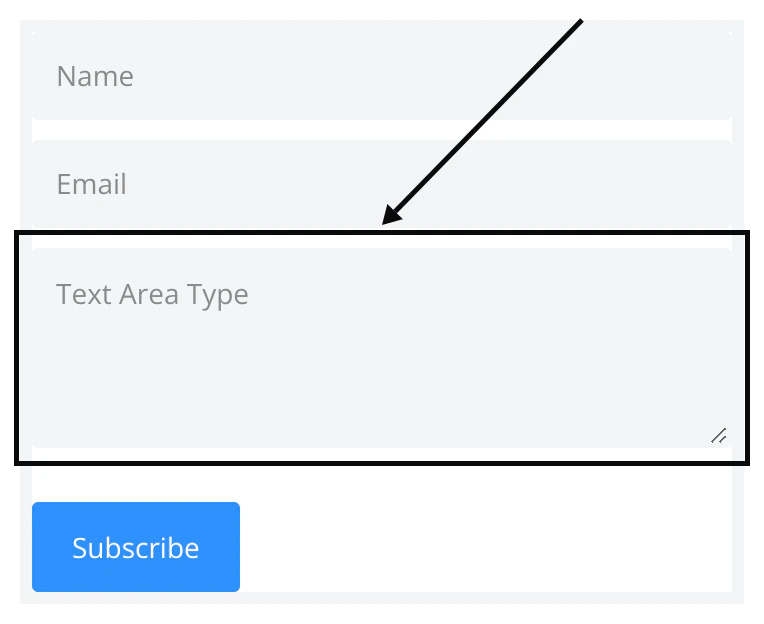
- Text Area — allows Form submitters to enter more text than the Text type:
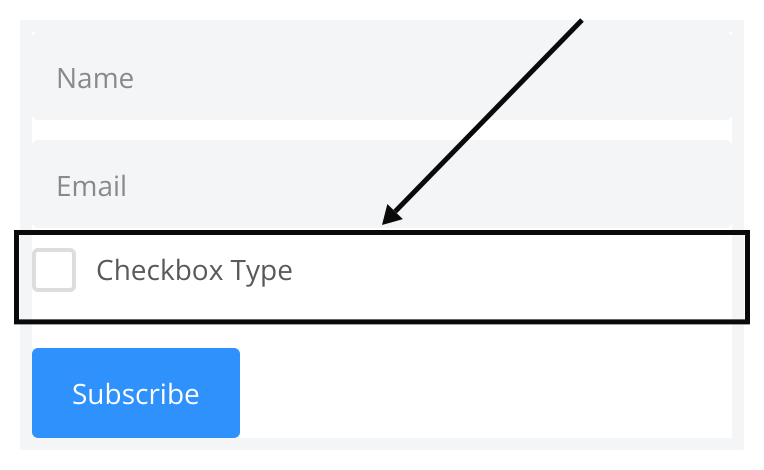
- Checkbox — allows Form submitters to check a box or leave it unchecked (typically used with yes or no type inquiries, but can also be used for a “select all that apply” question):
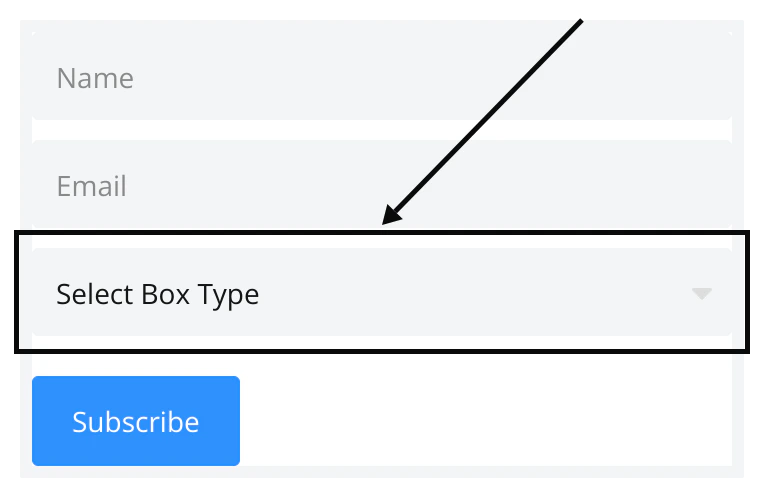
- Select Box — allows Form submitters to select a choice from a dropdown menu:
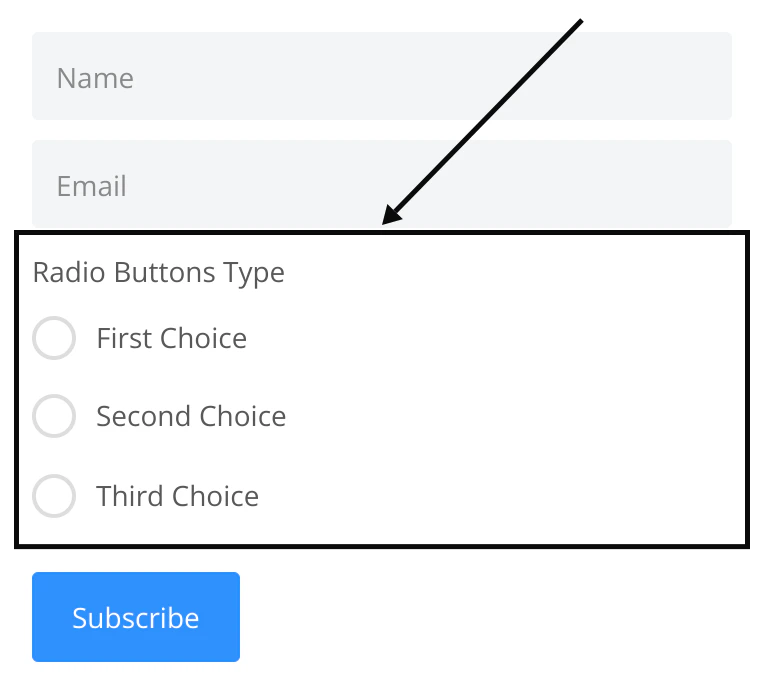
- Radio Buttons — allows Form submitters to check a button next to their selection:
- Country — allows Form submitters to select their country from a dropdown menu