Note:
Although the embed code works well on most external webpages, the embedded Form may not function properly on all external pages. External page code may break the embed or disallow the Form from being embedded. This is dependent on the page where you paste the embed and not an issue with the Kajabi embed code.
Find the embed code
- Open the Marketing tab.
- Select Forms.
- Edit an existing Form or create a new one.
- Select the Embed tab from the top menu of the Form Editor.
- Click the copy icon next to Embed your form with one line of javascript:
Paste the embed code
Paste the embed code in the source code of the external page where you want the Kajabi Form to appear:- Paste the embed code into the source code of your external web page.
- If you are using the inline style, the location of this embed code determines where the Form is located on the page.
- Save and refresh the page.
Embed settings
Customize the design and copy for your embedded Form. You can replace the default Title (i.e., Join the Newsletter) and Subtitle for your Form when embedding it on an external page:- Edit the Form Title, Subtitle, and Button Text.
- Choose the color for the button, background, and text.
- Save your changes before copying the embed code.
Embed style
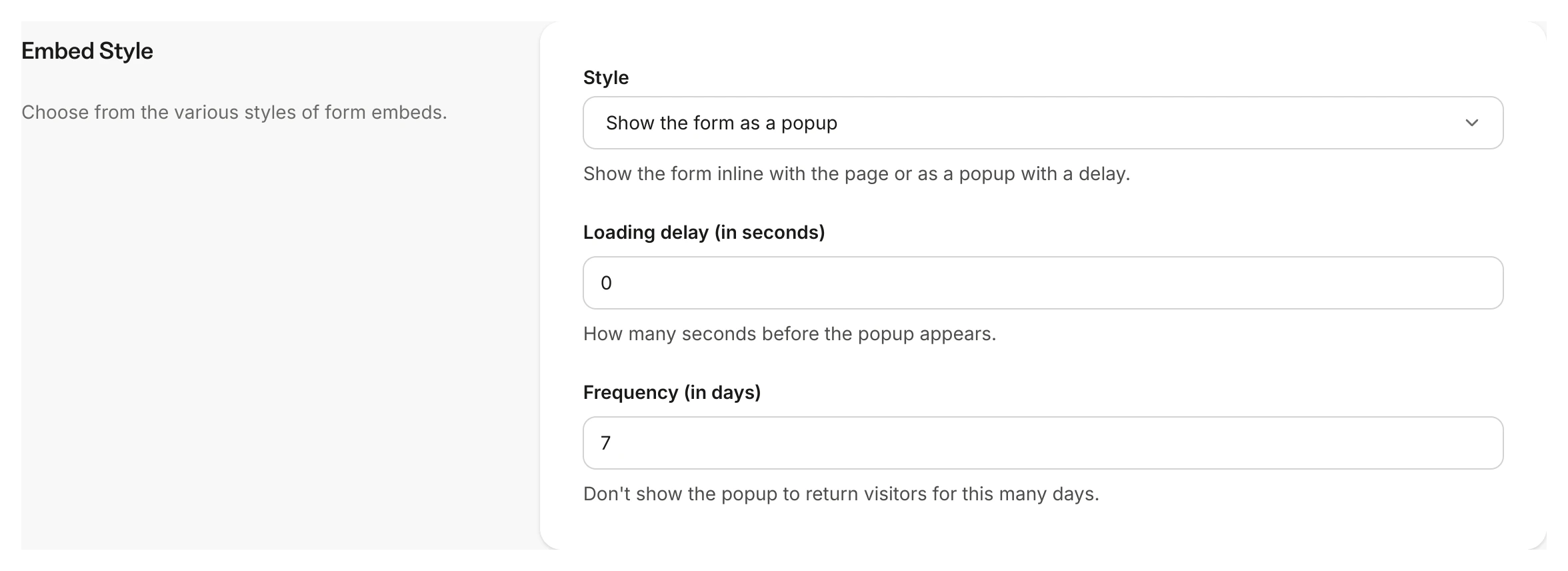
After customizing the Form Settings, you can select the Form Style. Style determines how the embedded Form displays on the web page:- Inline embeds display within the web page
- Pop-up Forms display as a pop-up on the page
Pop-up Form settings
Customize additional settings for a pop-up style Form:- Loading Delay — how many seconds before the pop-up appears
- Frequency — don’t show the pop-up to return visitors for this number of days