

- Grant or revoke an Offer
- Subscribe to or unsubscribe from an Email Sequence
- Register to or deregister from an Event
- Add or remove a Tag
- Send an Email
- Send a single-use Coupon
Note:
Creating a Form that triggers an Automation based on the response of the submitter requires Advanced Automations available with the Growth and Pro Plans. Learn more about the different plans.
Trigger Automations with a checkbox
A checkbox allows your Form submitters to either select an option or leave it unselected. Create multiple checkboxes for your Form submitters to select one or more options: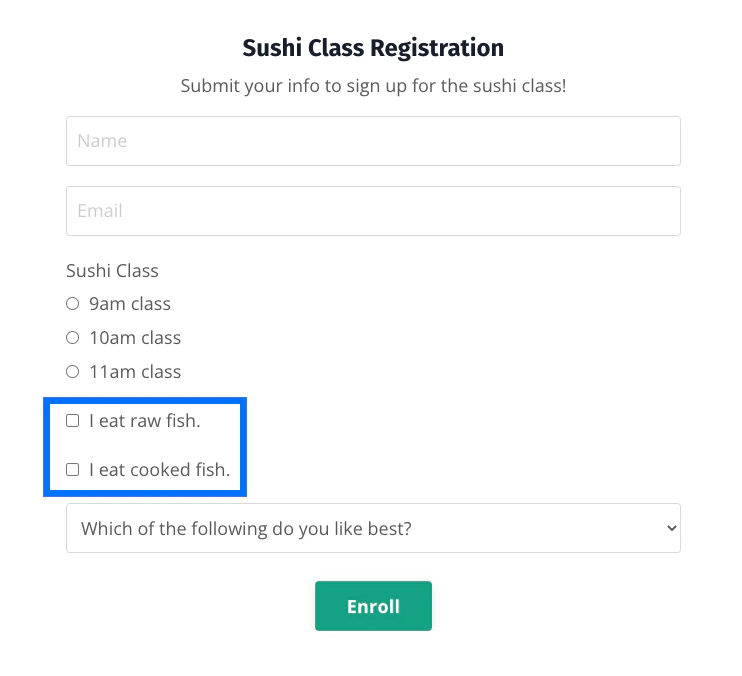
Create a checkbox
- Open the Marketing tab from your Dashboard.
- Select Forms.
- Create a Form or choose an existing Form to edit.
- Under Form Fields, choose Add Form Field.
- Click Create a New Field.
- Title your custom field and select Checkbox as the field type.
- Click Save.
- Navigate to the upper right corner of the Form Editor and click Save again:
Customize the Form Automation
After creating your checkbox, create an Automation in your Form to process the Form submitter’s checkbox selection:- Inside the Form Editor, click Add Automation.
- Select the action you want to occur after the Form is submitted in the Then dropdown menu.
- Click the Add Condition button.
- Select your custom checkbox field filter in the Select filter dropdown menu (custom field filters can be found at the end of the menu).
- Enter
1in the final field to trigger the Automation if the box is checked, or0to trigger the Automation if the box is not checked. - Click Apply.
- Click Save:
Trigger Automations with a select box
A select box lets your Form submitters select a single response from a dropdown experience: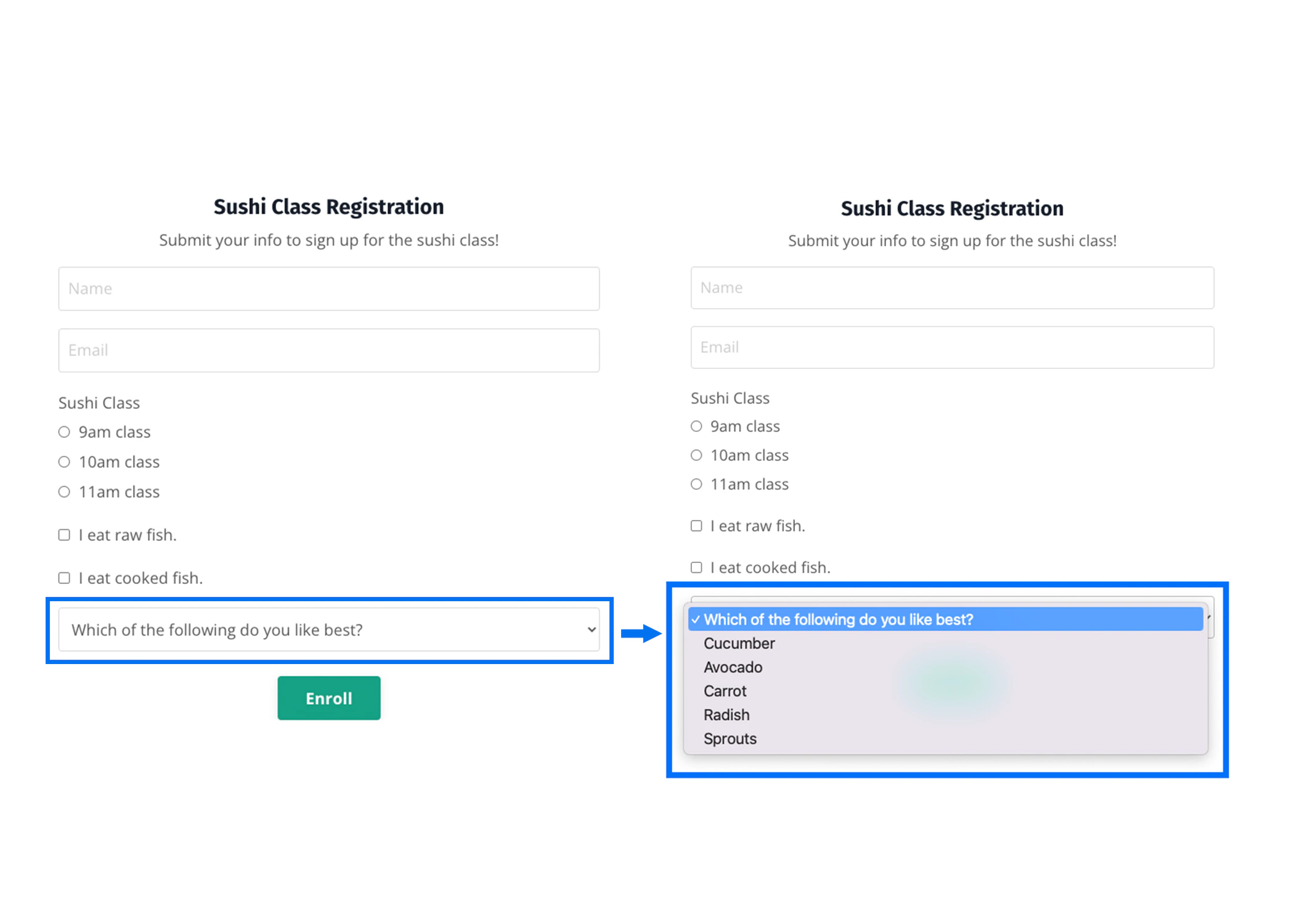
Create a select box
- Open the Marketing tab from your Dashboard.
- Select Forms.
- Create a Form or choose an existing Form to edit.
- Under Form Fields, choose Add Form Field.
- Click Create a New Field.
- Title your custom field and select Select Box as the field type.
- Enter your select box answer options.
- Click Save.
- Navigate to the upper right corner of the Form Editor and click Save again:
Customize the Form Automation
After creating your select box, create an Automation in your Form to process the Form submitter’s select box selection:- Inside the Form Editor, click Add Automation.
- Select the action you want to occur after the Form is submitted in the Then dropdown menu.
- Click the Add Condition button.
- Select your custom select box field filter in the Select filter dropdown menu (custom field filters can be found at the end of the menu).
- In the second dropdown menu, select your desired select box answer option to trigger the Automation.
- Click Apply.
- Click Save:
Trigger Automations with radio buttons
Radio buttons let your Form submitters select a single response from multiple options: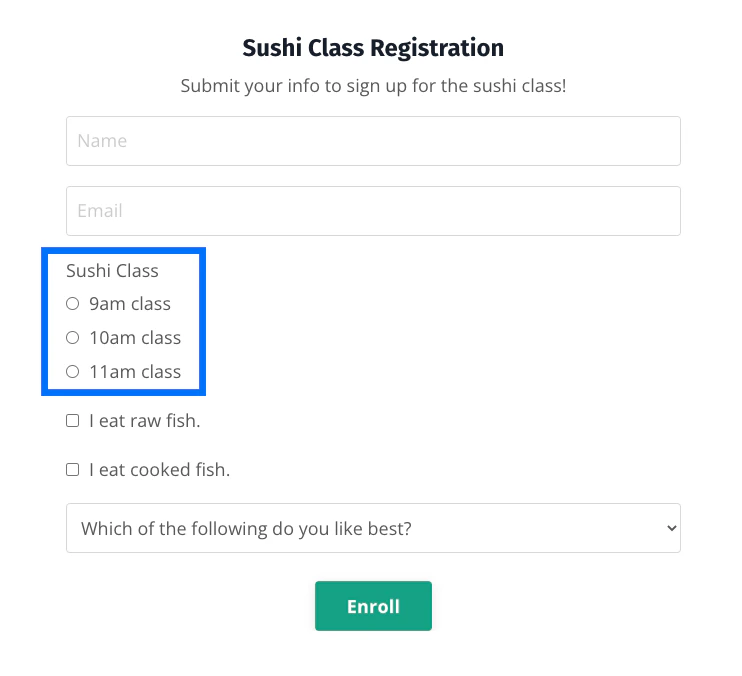
Create radio buttons
- Open the Marketing tab from your Dashboard.
- Select Forms.
- Create a Form or choose an existing Form to edit.
- Under Form Fields, choose Add Form Field.
- Click Create a New Field.
- Title your custom field and select Radio Buttons as the field type.
- Enter your radio button answer options.
- Click Save.
- Navigate to the upper right corner of the Form Editor and click Save again:
Customize the Form Automation
After creating your radio buttons, create an Automation in your Form to process the Form submitter’s radio button selection:- Inside the Form Editor, click Add Automation.
- Select the action you want to occur after the Form is submitted in the Then dropdown menu.
- Click the Add Condition button.
- Select your custom radio buttons field filter in the Select filter dropdown menu (custom field filters can be found at the end of the menu).
- In the second dropdown menu, select your desired radio button answer option to trigger the Automation.
- Click Apply.
- Click Save: