Note:
Sending targeted email sequences based on Form responses requires the Conditional Field only available with Advanced Automations. Learn the difference between Basic and Advanced Automations for details.
Create email sequences
Draft and design personalized, branded email sequences to send to your Form submitters depending on their selected responses. For example, if you create a Form as a survey to collect user feedback (i.e., Love the course, Course was sometimes helpful, or Did not like the course) you may want to consider creating email sequences for each feedback response. Not sure how to create an Email Sequence? Learn how to create an Email Sequence.Create a custom Form field
Now that you have completed the email content, set up your Form. For the purpose of this guide, we use a survey to collect user feedback as an example:- Open the Marketing tab from the Dashboard.
- Click Forms.
- Select the Form you wish to edit or create a new one.
- Under Form Fields, click Create a New Field.
- Add a title (easily identifiable) and select Radio Buttons as the type.
- Enter custom Choices for your contacts to select from (e.g., Everyday, Sometimes, Never).
- Select Make this field required if you wish to require the field for your users to submit the Form.
- Click Save:
Create the Automation
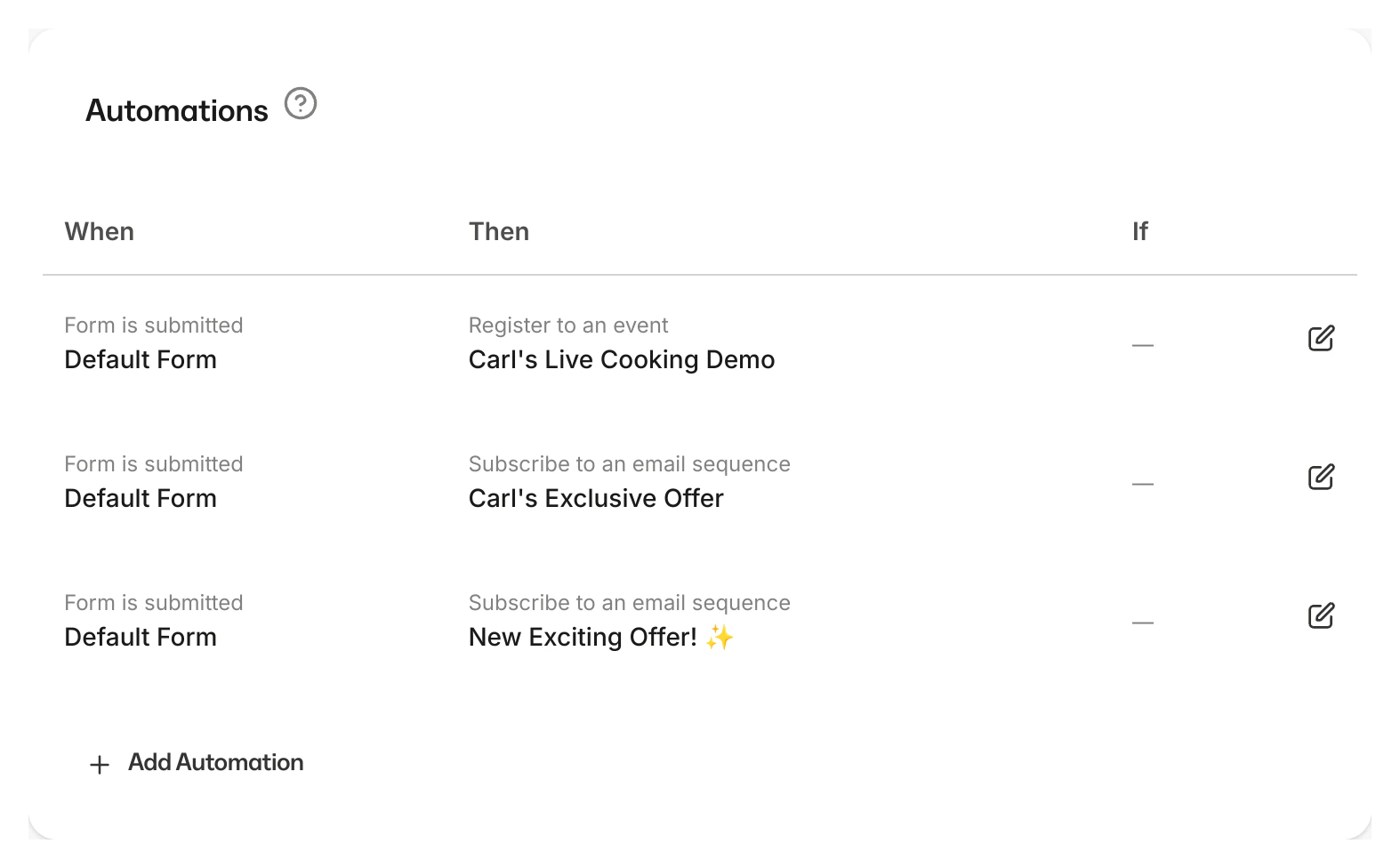
After creating your custom Form field, build your Automation to subscribe your Form submitters to different Email Sequences depending on their selected choice.- In your Form, locate Automations.
- Click + Add Automation.
- Select Subscribe to an email sequence in the THEN field.
- Select the Email Sequence that corresponds with your first custom Form field choice.
- Click Condition and select the Title of your custom Form field.
- In the dropdown menu, select the Choice that corresponds with your desired email sequence.
- Click Apply.
- Click Save to keep your changes: