

Create a test customer account
With a test customer account you can experience logging in, accessing the Library, viewing Products, and changing customer settings. To get started, clear your cache and cookies from your browser or open a private/incognito window or use a different browser.- Open the Contacts tab from your Dashboard.
- Click + Add Contacts.
- Select Add Single Contact.
- Enter First Name, Last Name, and Email.
Note: You will need to use a valid email where you can receive mail.
- Check Grant offers from the Extra Actions dropdown.
- Select at least one Offer from the Select offers dropdown.
Note: We recommend granting all the Offers you wish to test to view the Products in your test customer’s Library.
- Click Save:
Log in as a customer
Your customers will access their Library by logging in through their customer account. As the creator of your site, you can customize your customer’s login experience with the Login Page. Build a Login Page After you have created your test customer account you can preview the login experience to better understand how your customers access their purchased or granted Products.Log in with a test customer account
- In a private/incognito window open your website.
- Open the User Menu on your site.
- Enter your test customer’s credentials.
- Click Log In:
View the customer Library
Logging into your site will bring your customers to their Library page. The Library page contains all of the Product(s) your customer has purchased or been granted: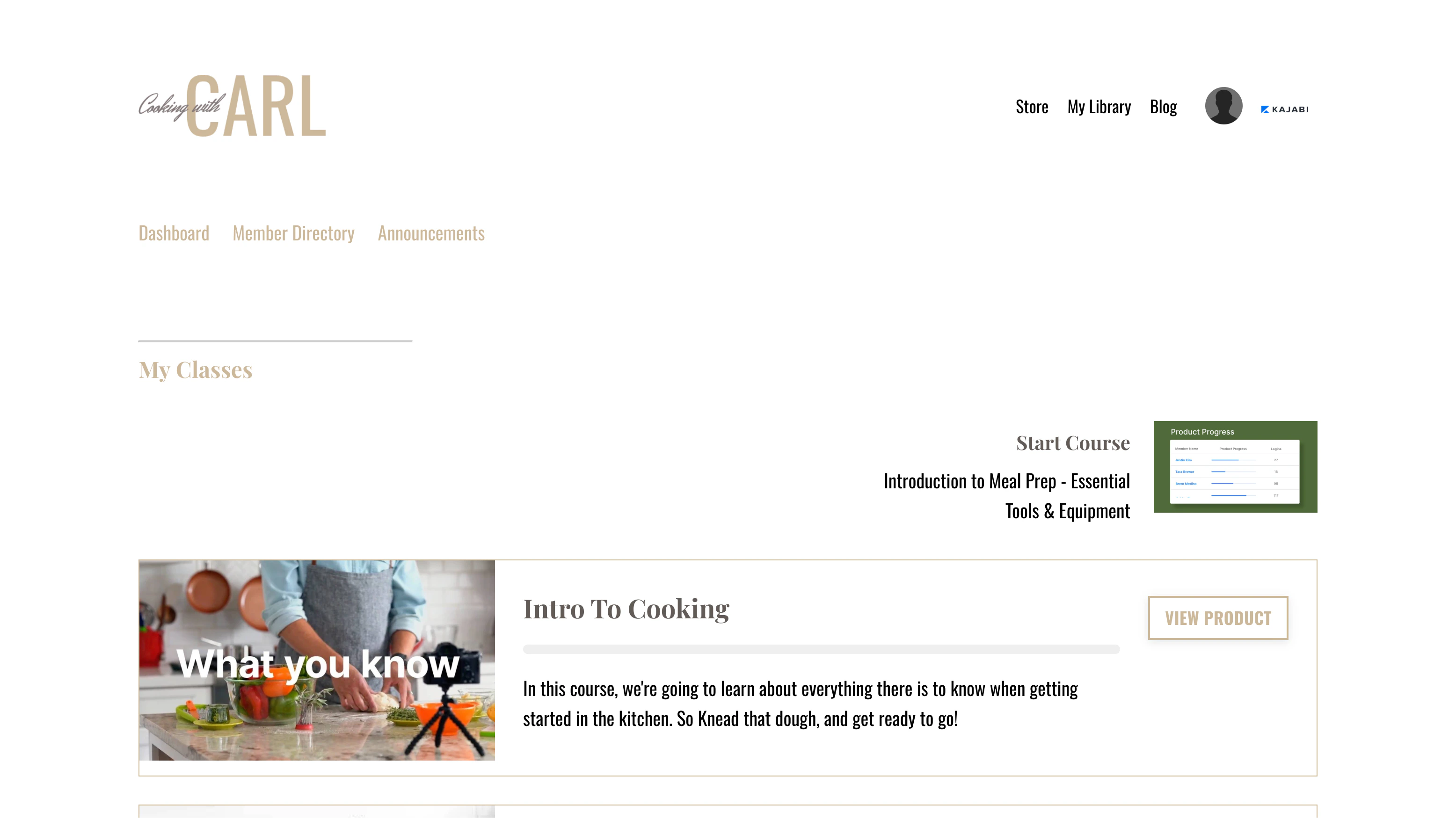
View a Product as a customer
With Kajabi you can create various types of Product(s) to best deliver your value: online courses, coaching dashboards, and Podcasts. Depending on your Product and how you choose to brand and design your Product, your customer’s experience with your Product(s) will be unique to your business. With your test customer account you can experience your Product(s) just as your customers would.View a Product with a test customer account
- In a private/incognito window open your website.
- Open the login page from your site.
- Enter your test customer’s credentials.
- Click Log In.
- Select the Product you wish to view:
Change customer settings
Your customers can view and download purchase receipts, and update their email preferences, contact information, billing information, and password by logging into their account to access their Customer Settings.View the customer settings page
- After logging in, click on the avatar in the top right corner of the page.
- Select Settings from the dropdown.
- Here you can edit your test customer’s information: