

Note: The ability to self-cancel subscriptions only applies to subscriptions, not payment plans.
Disable subscription cancellations
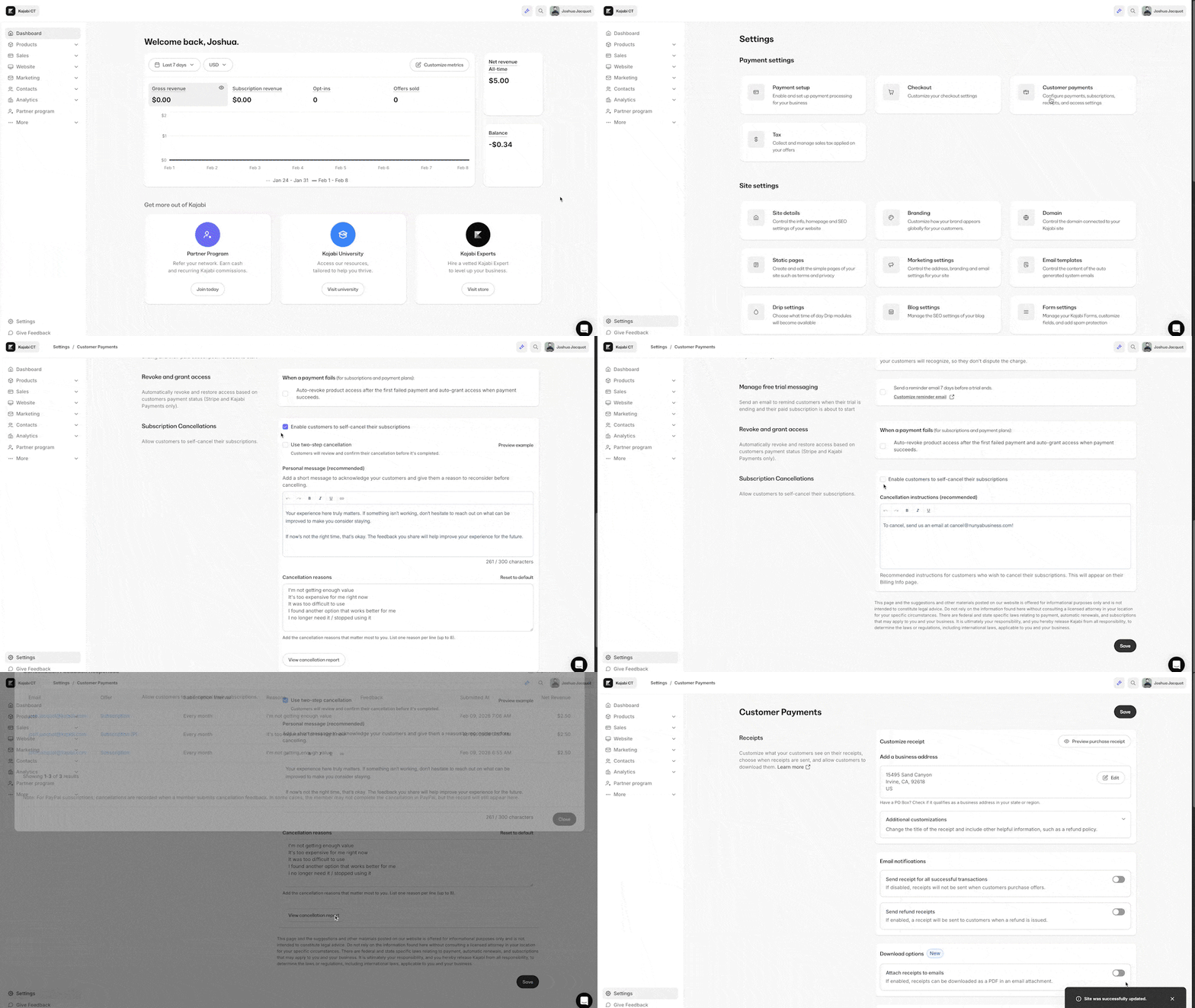
If you wish to remove customers’ ability to self-cancel their subscriptions, disable Subscription Cancellations in the Customer Payments setting:- Open the Settings tab from your Dashboard.
- Click Customer Payments.
- Uncheck the box labeled “Enable customers to self-cancel their subscriptions”
- Optional step: Include Cancellation instructions directing customers on how to cancel.
- Click Save to keep your changes:
View the disabled setting as a customer
If you disable customers’ ability to self-cancel their recurring subscriptions, they will see your cancellation instructions directly below the Active Subscriptions section of their Billing Info.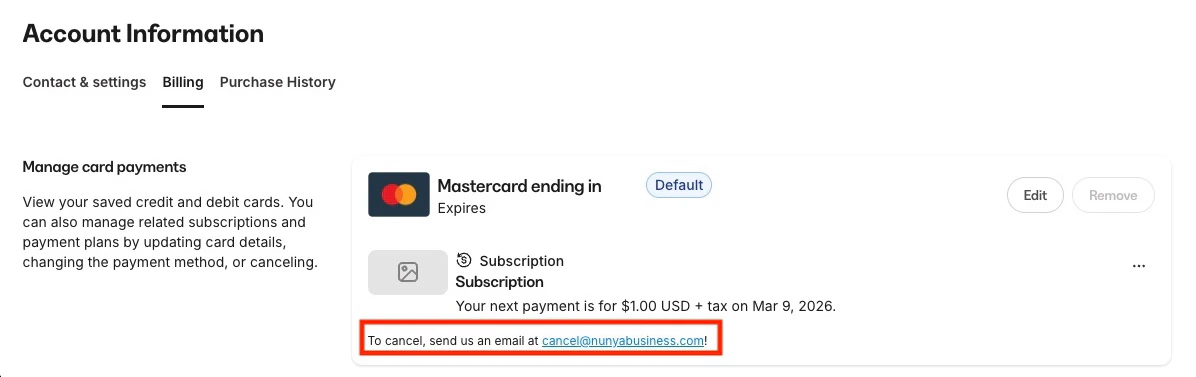
Enable subscription cancellations
Although we wish they didn’t, subscription cancellations happen. Show your customers how to cancel their subscription from your site.Enable the subscription cancellations
- Open the Settings tab from your Dashboard.
- Click Customer Payments under the Site Settings header.
- Check the box labeled “Enable customers to self-cancel their subscriptions”
- By default, Kajabi enables two-step cancellation. You can disable two-step cancellation by toggling it off.
Note: Some jurisdictions do not allow two-step cancellation. Verify laws in your region before proceeding with two-step cancellation.
- Add a personal message to acknowledge your customers and give them a reason to reconsider, or use the default message provided.
- Create up to 8 cancellation reasons for cancelling customers to choose from, or use the set of default cancellation reasons provided.
- This allows you to better understand why customers are cancelling and adjust for better retention
- List one cancellation reason per line
- Click View cancellation report to review your customer feedback
- Click Save to keep and apply your changes:
Customers cancel their subscription
Now, your customers can manually cancel their subscription from their account:- A customer will log in to their account.
- Click on their Avatar from the page header.
- Select Settings from the dropdown.
- Click Billing:
- Kajabi Payments
- Stripe
- Paypal
Kajabi Payments / Stripe
- On the Billing page, customers can click the 3 dots […] next to the subscription they wish to cancel.
- Then click Cancel subscription, after which they will be shown the personal message and cancellation reasons you set previously.
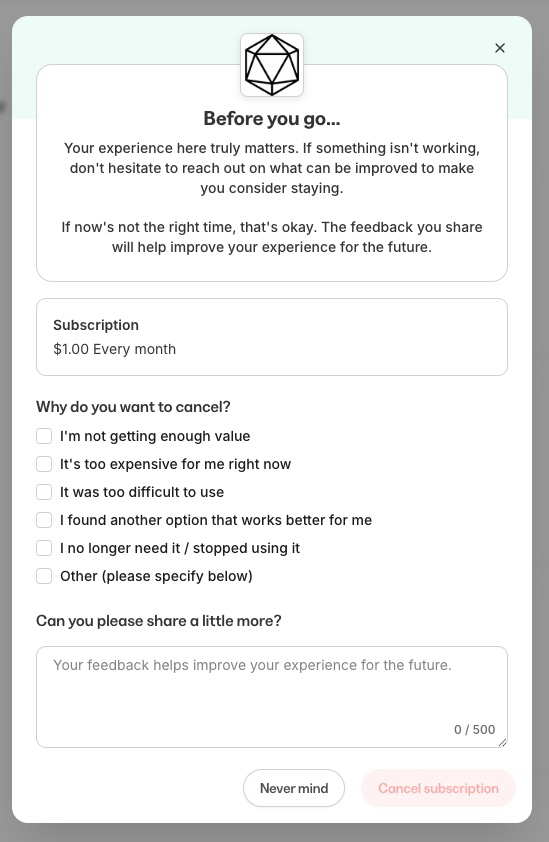
Note: This confirmation screen will appear differently depending on whether you have two-step cancellation turned on or not. No matter your choice, cancelling customers are always shown your personal message and cancellation reasons.
PayPal
- Click Cancel subscription next to the PayPal subscription.
- They will be shown the personal message and cancellation reasons you set previously.
Note: This confirmation screen will appear differently depending on whether you have two-step cancellation turned on or not. No matter your choice, cancelling customers are always shown your personal message and cancellation reasons.
- They then click Continue to Paypal to be redirected to their PayPal account. If your customer is not logged in, they will be prompted to log in to their PayPal account.
- Once logged into PayPal, customers can select the merchant whose agreement they want to cancel.
- Click the Cancel button.
- Confirm their wish to cancel and click Cancel Automatic Payments.
After customers cancel their subscription
After your customer cancels their subscription, they will lose access to their Offer Subscription at the end of the current billing cycle. Your customer can view their canceled subscription and access end date in their Billing Information:Disclaimer: This article and other materials posted on our website are offered for informational purposes only and is not intended to constitute legal advice. Do not rely on the information found here without consulting a licensed attorney in your location for your specific circumstances. It is ultimately your responsibility, and you hereby release Kajabi from all responsibility, to determine the laws or regulations, including international laws, applicable to you and your business. It is always best to be familiar with ALL laws, rules, regulations, and legislation that may be applicable to you and your recipients’ country/region.