

The Billing tab has been redesigned to provide greater clarity for customers with multiple saved cards and subscriptions. These updates are gradually rolling out and you can expect to see them in your account soon if you don’t have access already. To view details of the previous Billing experience, review the previous billing guide.
Access billing settings
To manage their payment methods, customers must first log in to their account on your site. Billing settings can be found at:<yoursite.mykajabi.com>/settings/cards>
- Log in to your site.
- Click the User menu in the top-right corner.
- Select Settings.
- Click Billing.
Note: The Billing tab may not appear if the customer was granted the Offer, purchased the Offer using PayPal, or if the active subscription was processed through a payment processor that has since been detached (such as a disconnected Stripe or PayPal account).
- Subscriptions purchased through PayPal must be managed within the customer’s PayPal account.
- If a payment processor is detached, card management must be handled through the payment processor directly.
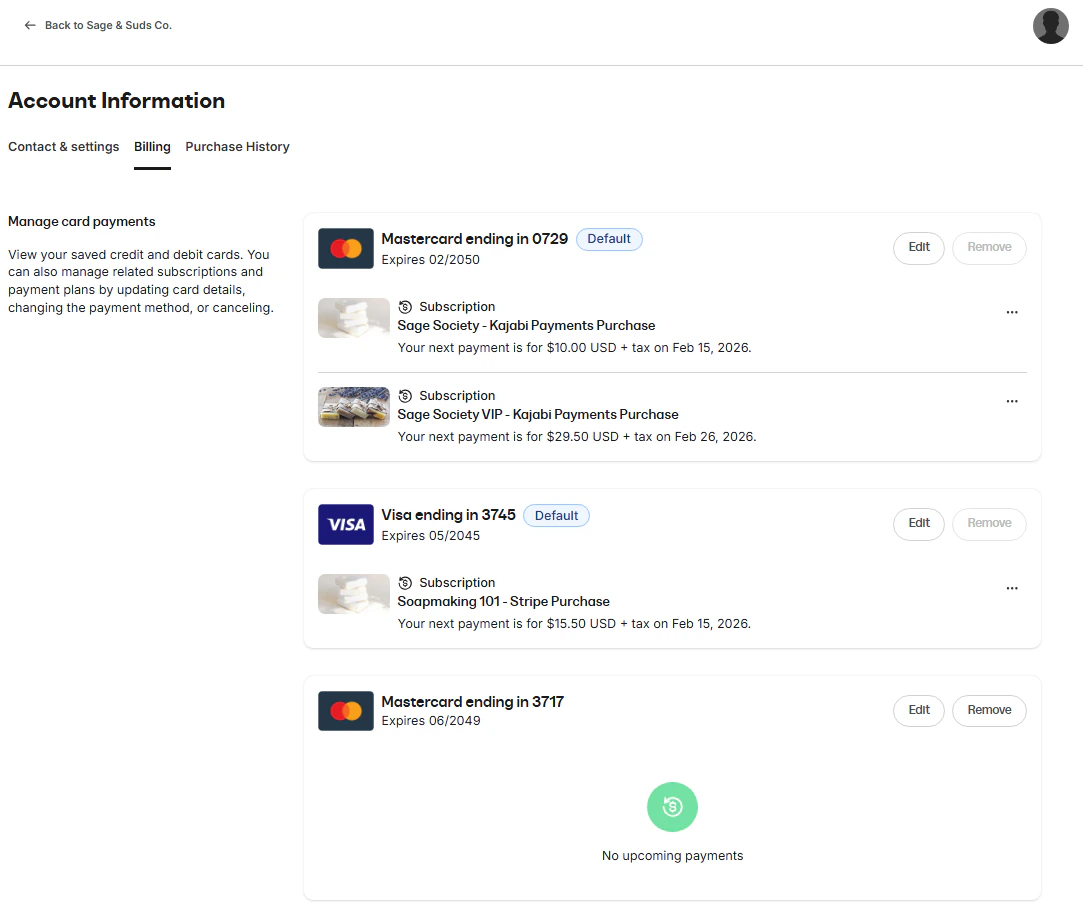
Update the card on file
Customers can manage how their subscriptions are billed using the options available within Manage Card Payments. Depending on their goal, they may update card details, switch which card is used for a subscription or payment plan, or remove a card that is no longer needed.Edit card
The Edit option replaces the selected card with updated card details. This means the existing card on file is overwritten rather than creating a saved card.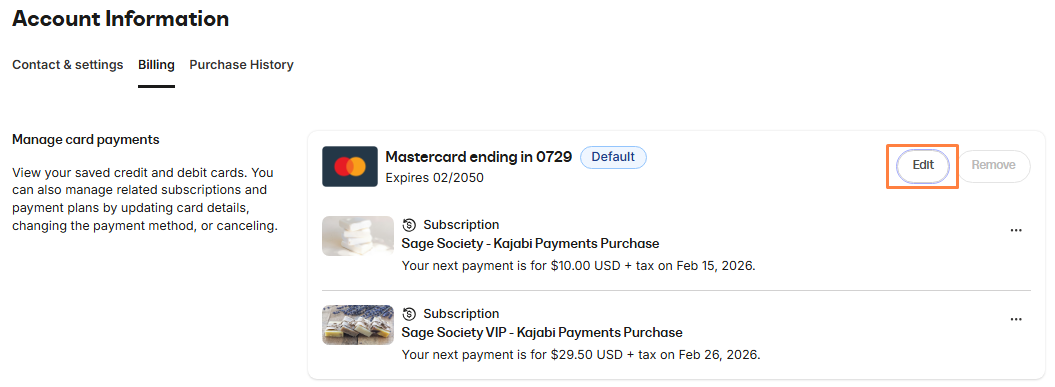
- Go to Billing.
- In Manage Card Payments, locate the card tied to the subscription(s).
- Click Edit.
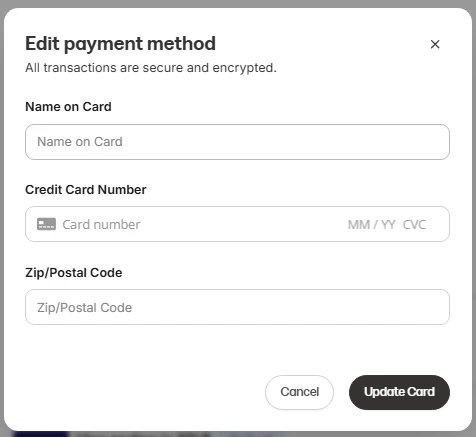
- Enter the updated card information.
- Click Update Card to save the changes.
Change payment method
The Change payment method option allows customers to switch which saved card is used for a specific subscription or payment plan.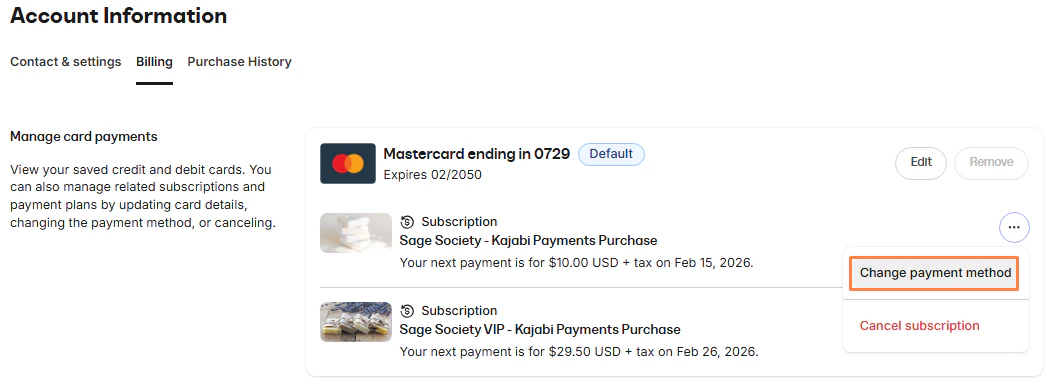
- Go to Billing.
- Locate the subscription under its current card.
- Click the (⋯) menu next to the subscription.
- Select Change payment method.
- Choose another saved card, or add a card.
- Confirm the change.
Note: Saved cards from Stripe and Kajabi Payments are not interchangeable. Customers can only select cards that belong to the same payment processor as the subscription.
Remove card
The Remove option allows customers to delete a saved card from their account. A card can only be removed if no active recurring payments are tied to it. If a card is currently being used for an active subscription or payment plan, it cannot be removed. If the Remove option is unavailable, it means the card has active recurring payments and must first be replaced with another payment method.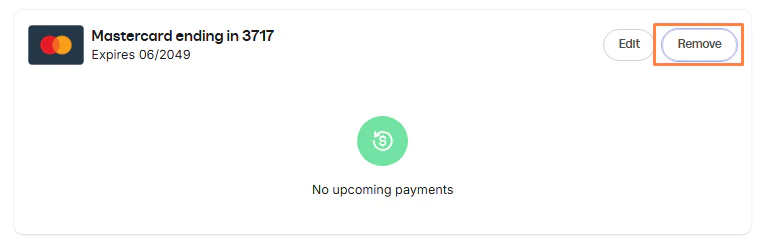
- Go to Billing.
- In Manage Card Payments, locate the card you want to remove.
- Click Remove.
- Confirm the removal.