

Add an Offer
- Open the Products tab from your Kajabi Dashboard.
- Select Community from the sidebar.
- Click Go to Community.
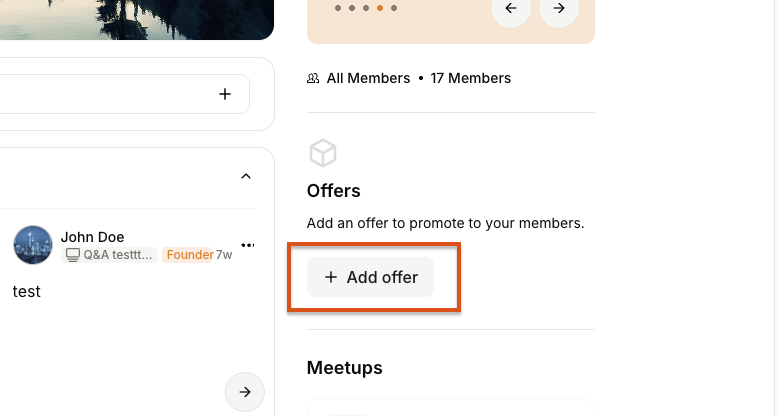
- Click the “Add offer” button located on the right-hand side bar:
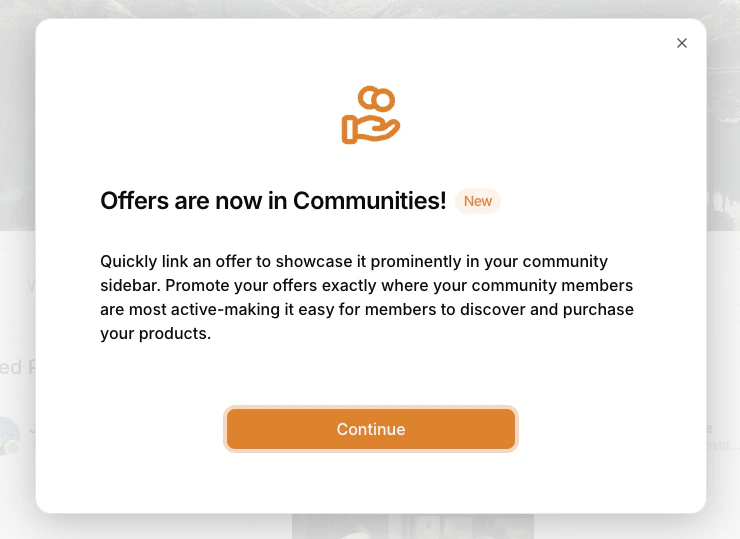
- Click Continue:
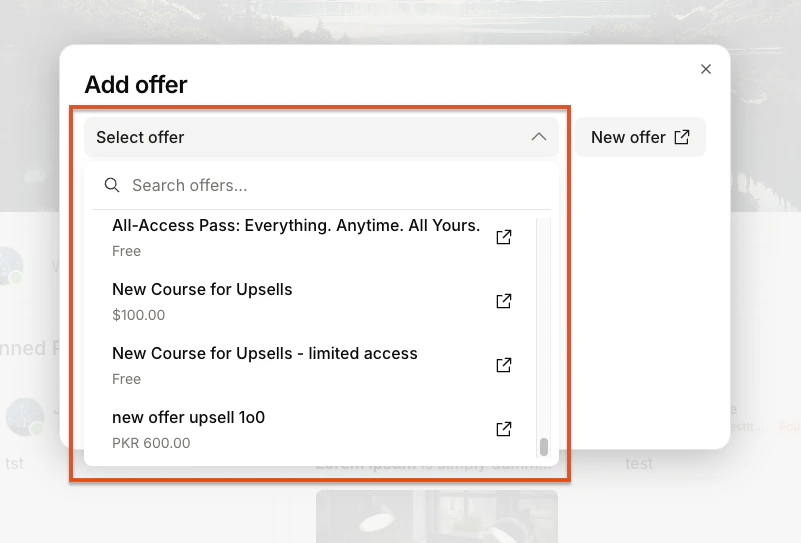
- Use the dropdown menu to select or search for the offer you want to feature:
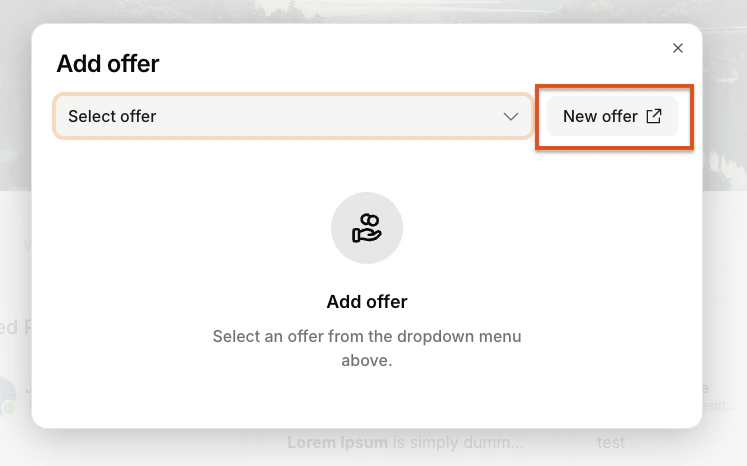
- If you’d like to create an offer instead, click New Offer:
- Once you select an offer, a preview will appear showing how it will look in your Offer Block:
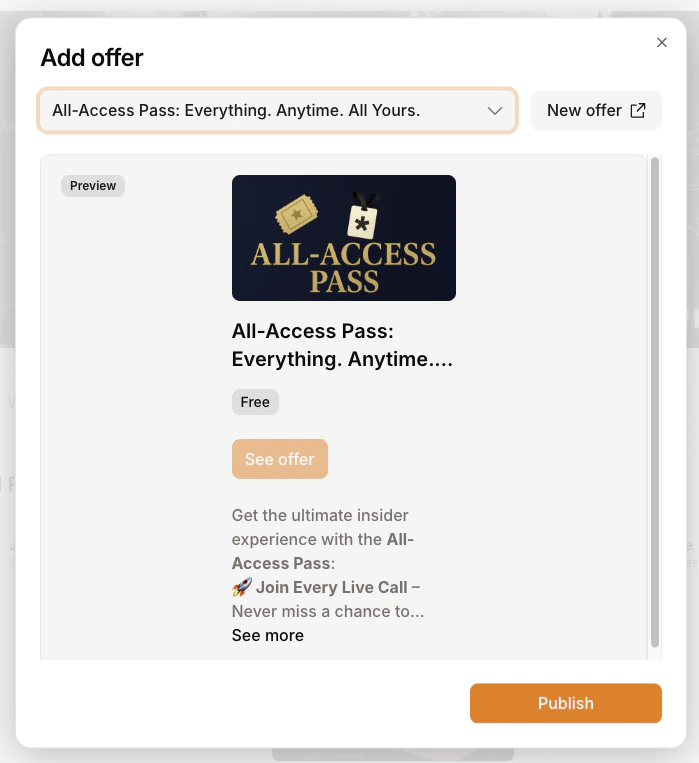
- Click Publish to save and display it in your Community:
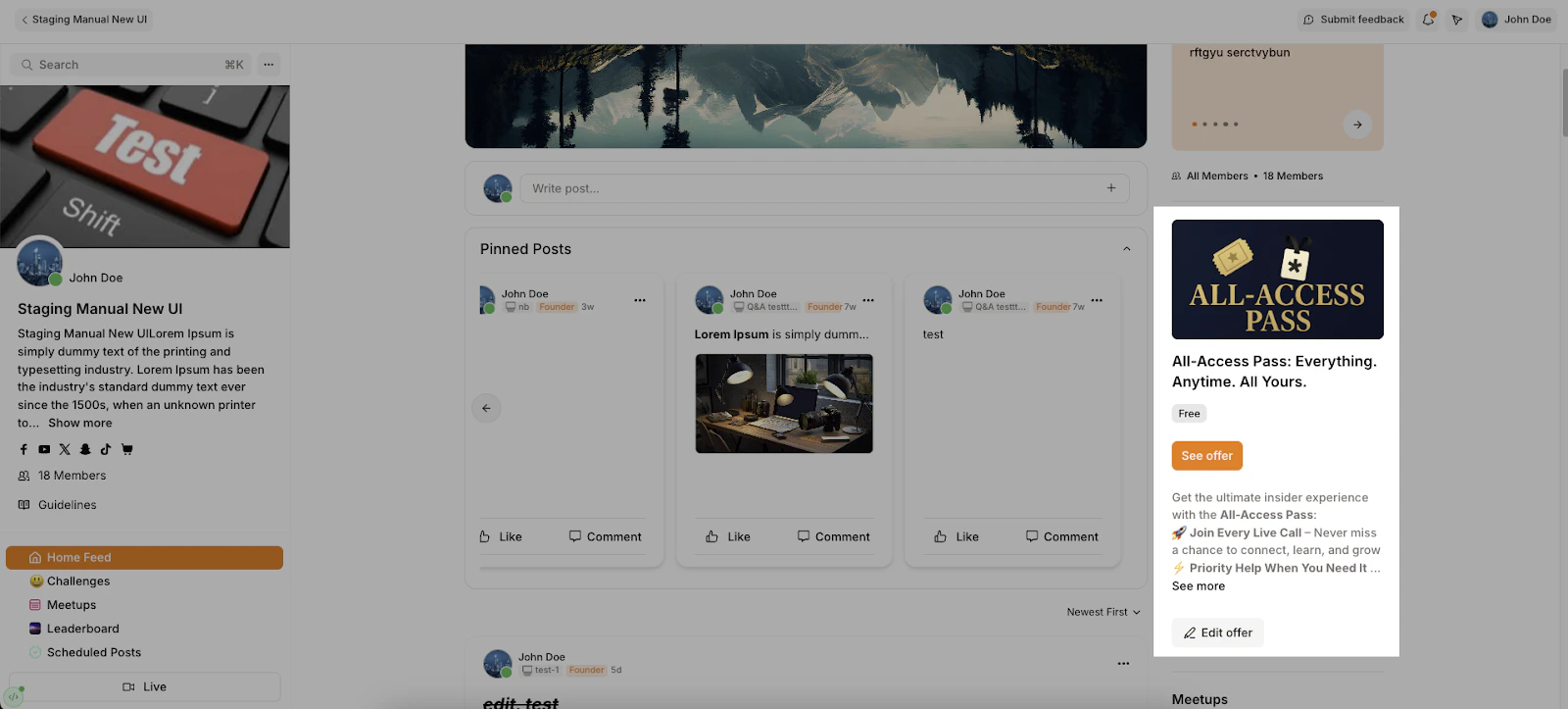
Note: Offer descriptions will be truncated after five lines.
How the Offer appears to members
- Members will see the offer banner in the right-hand sidebar of the home feed.
- When your members click the offer button, it will open the offer checkout page in a popup
- For now, offer blocks are not dynamic. Your members will see the same offer even after they have purchased.
Update the offer details in the Offer Block
The Offer Block in the Community pulls its content from the linked offer in your Kajabi Dashboard. To update these details, go to your Offers dashboard, select the offer you want to update, or create one.Note: The offer block does not update automatically when changes are made to the offer. To reflect the updated details in the Community, open the Edit Offer modal inside the Community and click Update. This will refresh the data and apply the information to the banner.
Remove an offer from the Offer Block
To remove an offer from your Offer Block:- Go to the right-hand sidebar of the Home feed where the offer is currently added.
- Click the Edit Offer button.
- In the editor panel, click Unlink Offer.
- Click Update to save your changes.