

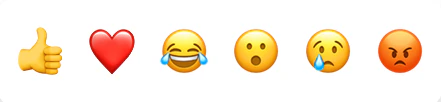
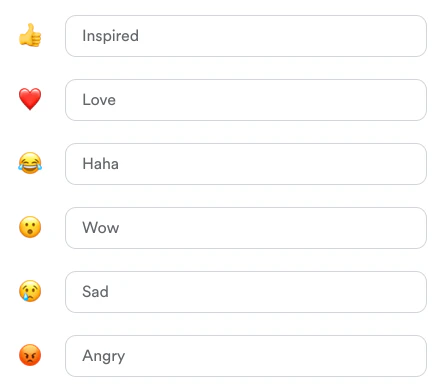
Customize Community reactions
Update the label for each of your emojis as desired in the Customization tab of your Community settings. To customize your emoji labels:- Click the settings ellipsis icon on your Community cover image. (Or, if you’re using the mobile app, navigate to either the Feed or Challenges page, click your profile icon at the top right, then click the settings gear icon).
- Select Customization from the left navigation menu.
- Scroll down to Customize reaction terminology.
- Use the text input field next to each emoji to enter a label as desired.
- Check out how your updated emoji look by scrolling your cursor over each emoji in the Preview box just below.
- When you’re done updating your label terminology, click Save:
Apply a reaction
Reactions can be applied to feed-style Channel posts, Challenge entries (thumbs-up emoji only), and comments members have left on a Channel post. To add a reaction to a Channel post or comment using the web app:- Navigate to the post or comment where you’d like to react.
- Place your cursor over the Inspired (thumbs-up) button. A small popup will appear displaying your emoji choices.
- Scroll your cursor over each emoji to preview its label in a tooltip.
- Select the emoji you want to react with: