

What is a Community Challenge?
A challenge in your Community is an activity, assignment, or check-in that your community can participate in together.What is a Challenge Series?
A Challenge Series is a collection of challenges.2 types of challenges
A one-time challenge is a single challenge (e.g., Night Photography Challenge, Social Media Detox Challenge). A recurring challenge is a challenge that repeatedly occurs daily, weekly, or even monthly (e.g., 14-Day Networking Challenge).Create a Challenge
Create a Challenge on the web
- Open the **Products **tab.
- Select your Community.
- Click Go to Community.
- On the left sidebar, click the ellipsis icon beside the search bar.
- Click Create New.
- Choose Challenge.
- Choose the type of challenge you want to create (one-time or recurring), the timeframe for the challenge, and the series (if applicable). Toggle on **Visible to all members **if you want your members to see the challenge before its start date.
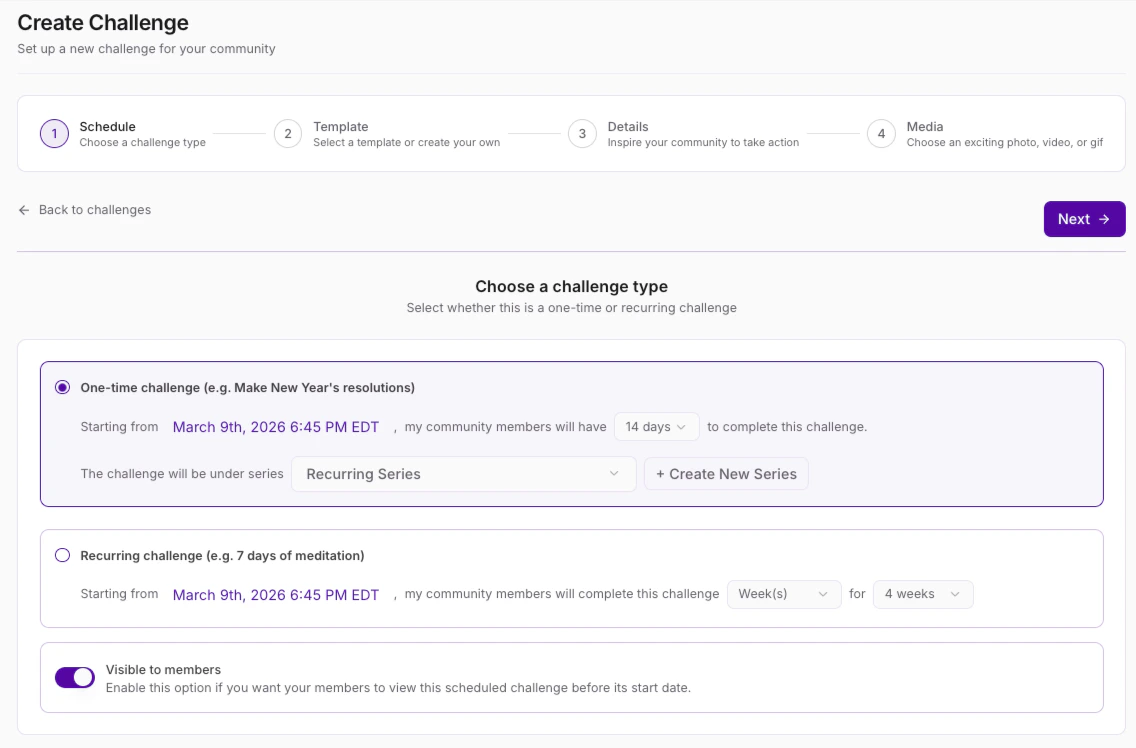
- Click Next.
- Either choose a template or click Create custom challenge.
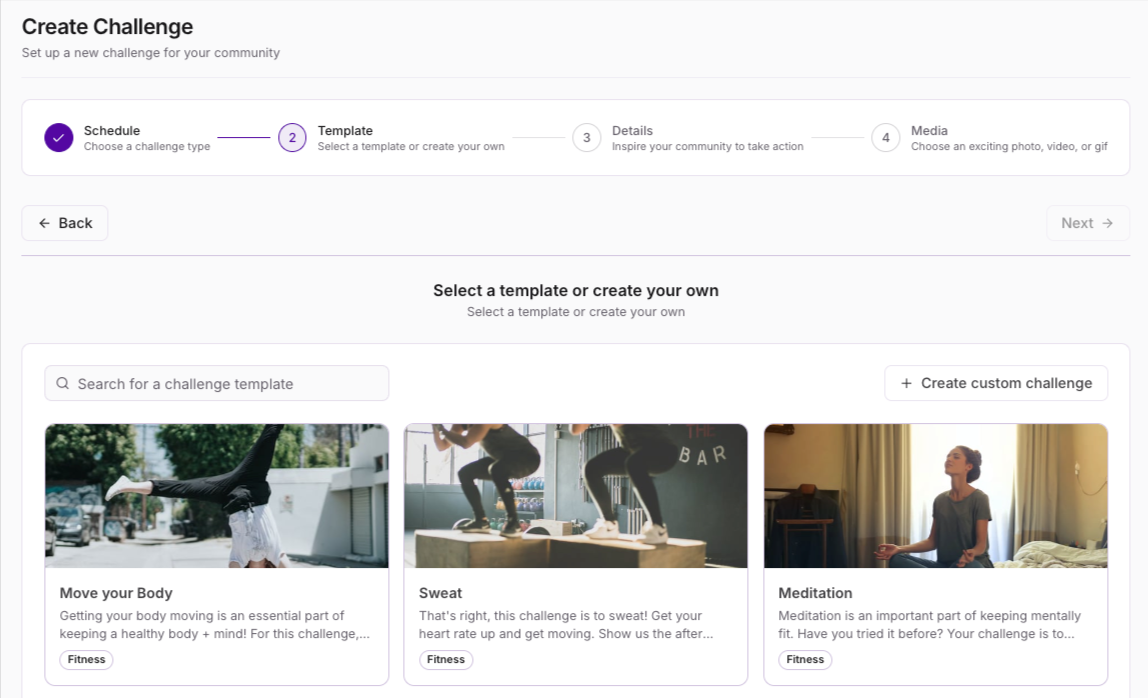
- Add a Title and Description for your challenge and select which Access Group will have access to it. (Note: Click Advanced if you want to set a prize for your challenge).
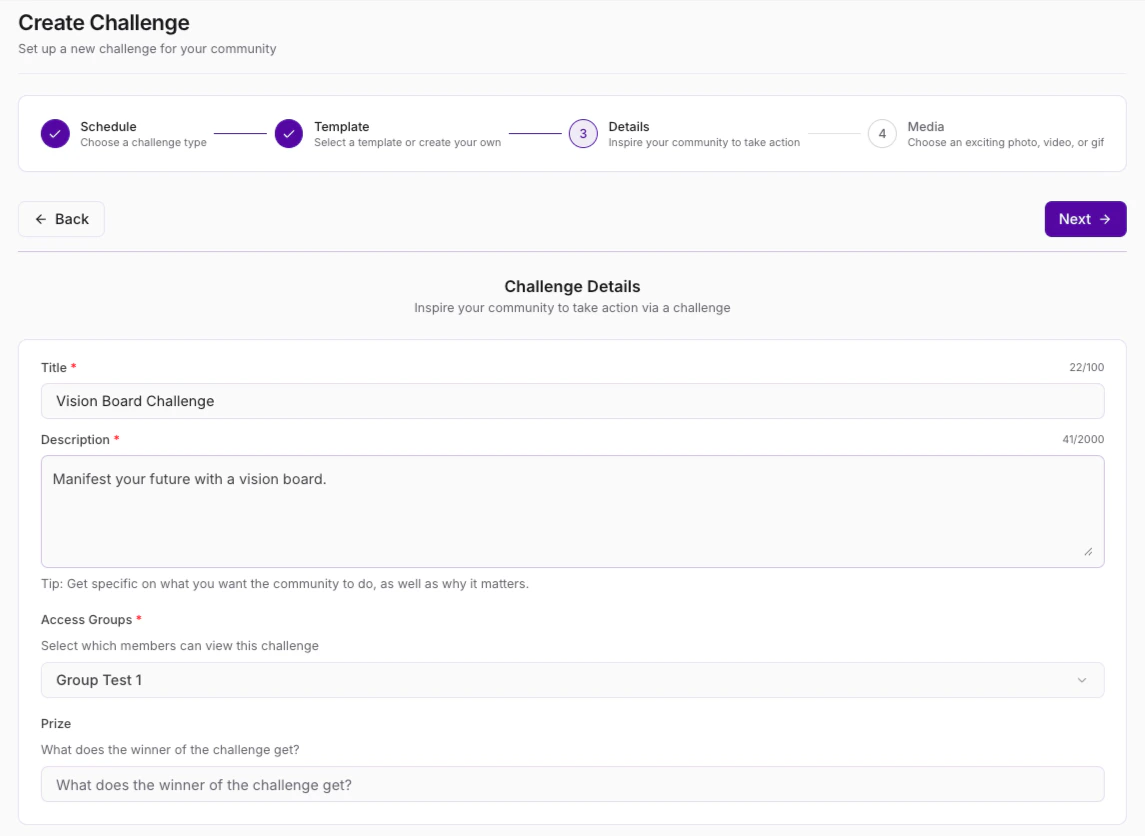
- Click Next.
- Add a photo or a video to the challenge, and click Save.
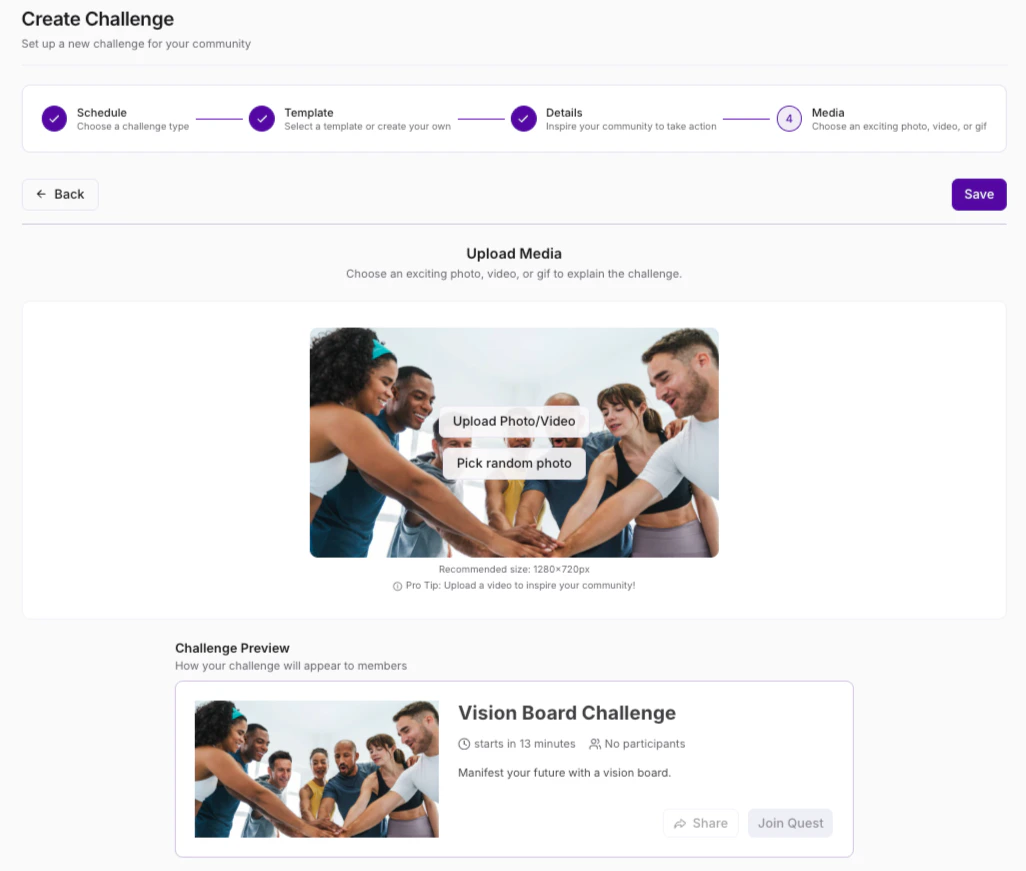
Note: The image upload limit for a challenge is 40 MB. The video upload limit is 1 GB. The recommended size: 1280x720px.
- To create a challenge on mobile:
- Select your profile icon at the top left.
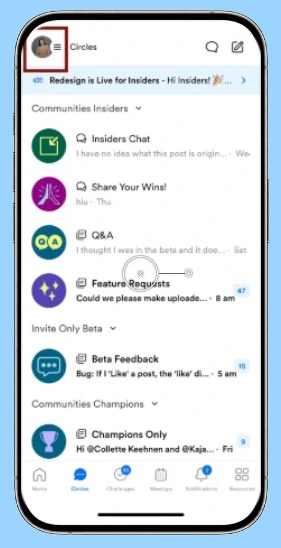
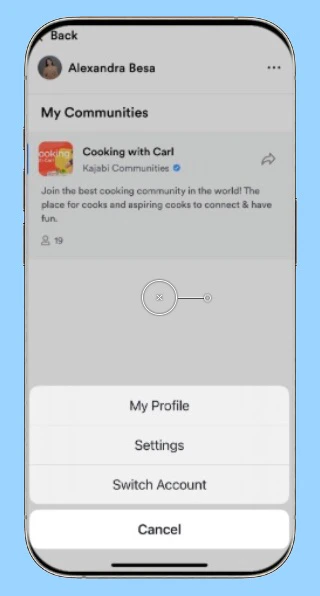
- Click the ellipsis at the top right.
- Choose Settings.
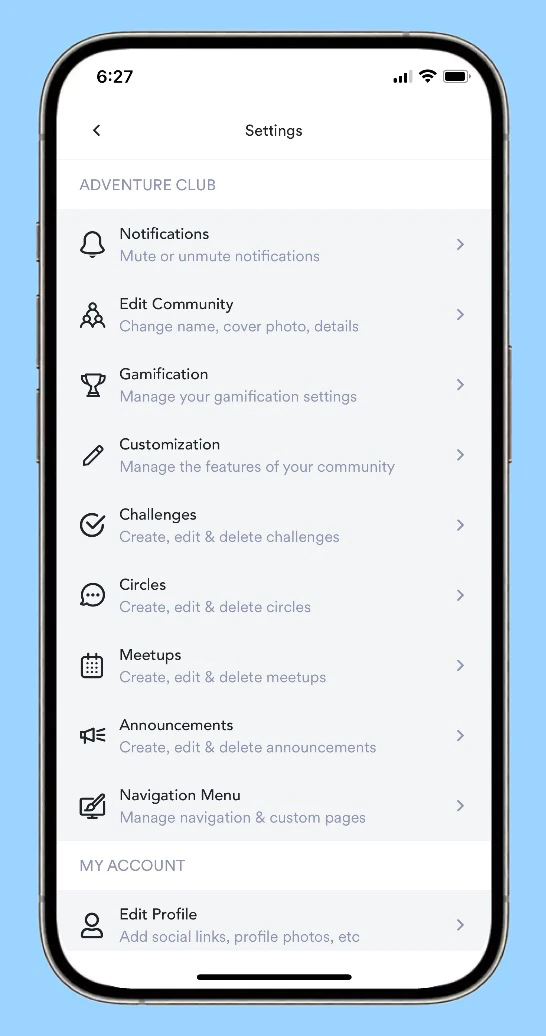
- Select Challenges.
- Click + New challenge.
-
- Choose the type of challenge you want to create (one-time or recurring), the timeframe for the challenge, and the series (if applicable). Toggle on **Visible to all members **if you want your members to see the challenge before its start date.
- Click Next.
- Either choose a template or click Create custom challenge.
- Add a Title and Description for your challenge and select which Access Group will have access to it. (Note: Click Advanced if you want to set a prize for your challenge).
- Click Next.
- Click the Challenges icon.
- Scroll all the way down the Challenge page and Click + New challenge.
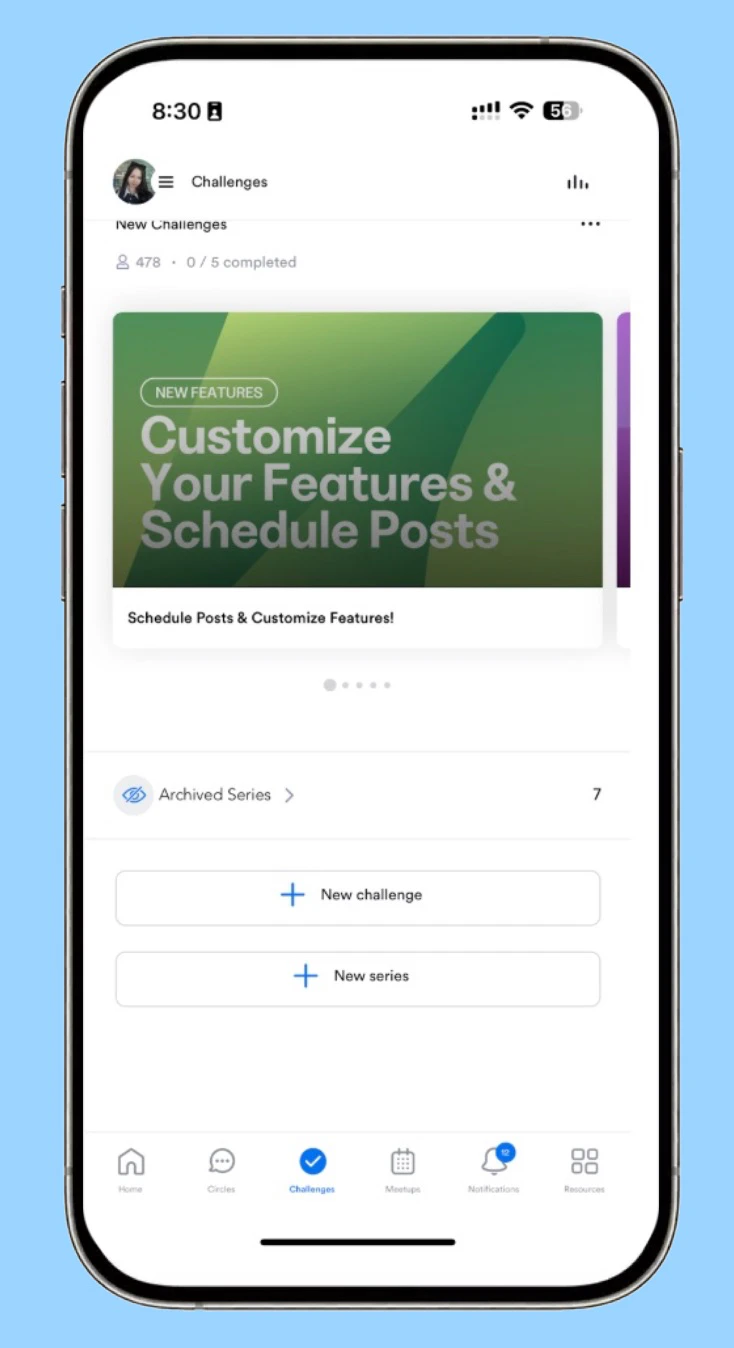
- Use the same steps as mentioned above when creating the challenge.
Enable or disable Challenges
- Open Products from your Kajabi Dashboard.
- Select Community.
- Click Go to Community.
- On the left sidebar, click the ellipsis icon beside the search bar.
- Open Community Settings. Learn more.
- Click Customization.
- Locate Features.
- Under Challenges, use the toggle for Enable Challenges to turn on or off your Challenges.
- Then, click Save to keep and apply your changes:

Review Challenge entries
Challenge entries can be viewed by clicking the “entries” link near the top of the Challenges page: Click the checkmark button next to a challenge entry to mark it as read, or click the “Mark all as read” button to mark all unread entries as read: Read challenge entries will automatically be hidden from the Challenges page. To see everyone who has completed a challenge, go to Settings, open Challenges, and click the link to the right of the challenge to download a CSV of all challenge participants: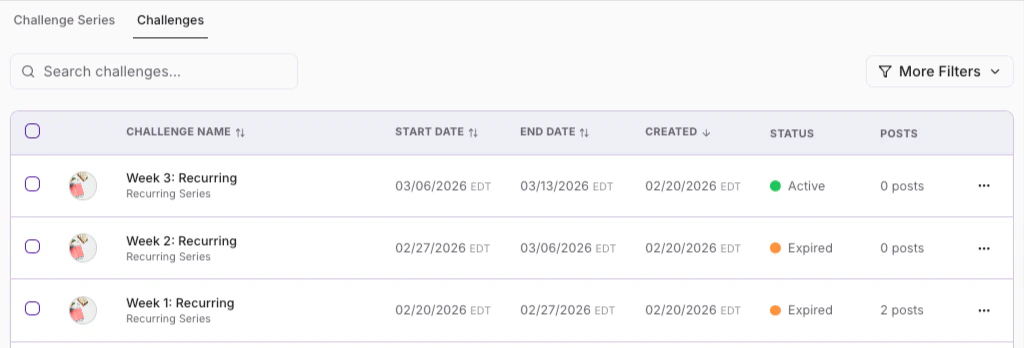
Note: Members cannot join Challenges until the scheduled start date.
Create an evergreen Challenge
Build an evergreen challenge to have a challenge that is always available to your community members. Simply create a challenge, then when you are prompted to select a start date, choose one in the past, and for an end date choose 1 day. Once that time period has passed, the challenge will become evergreen and your members will be able to complete it at any time.Edit a Challenge
- Go to Challenges.
- Locate the challenge that you want to edit.
- Click the
...icon and select Edit:
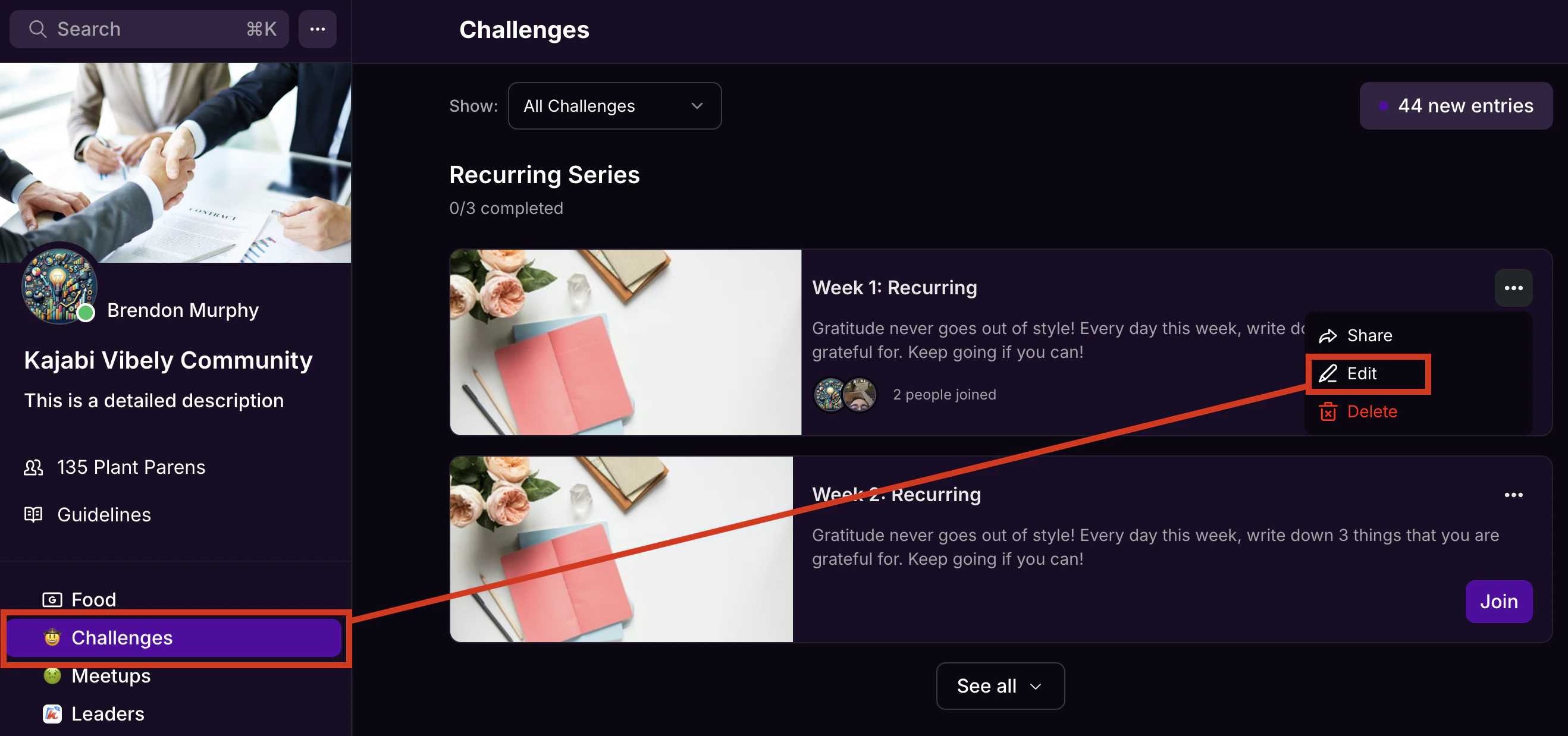
- Edit the details as desired.
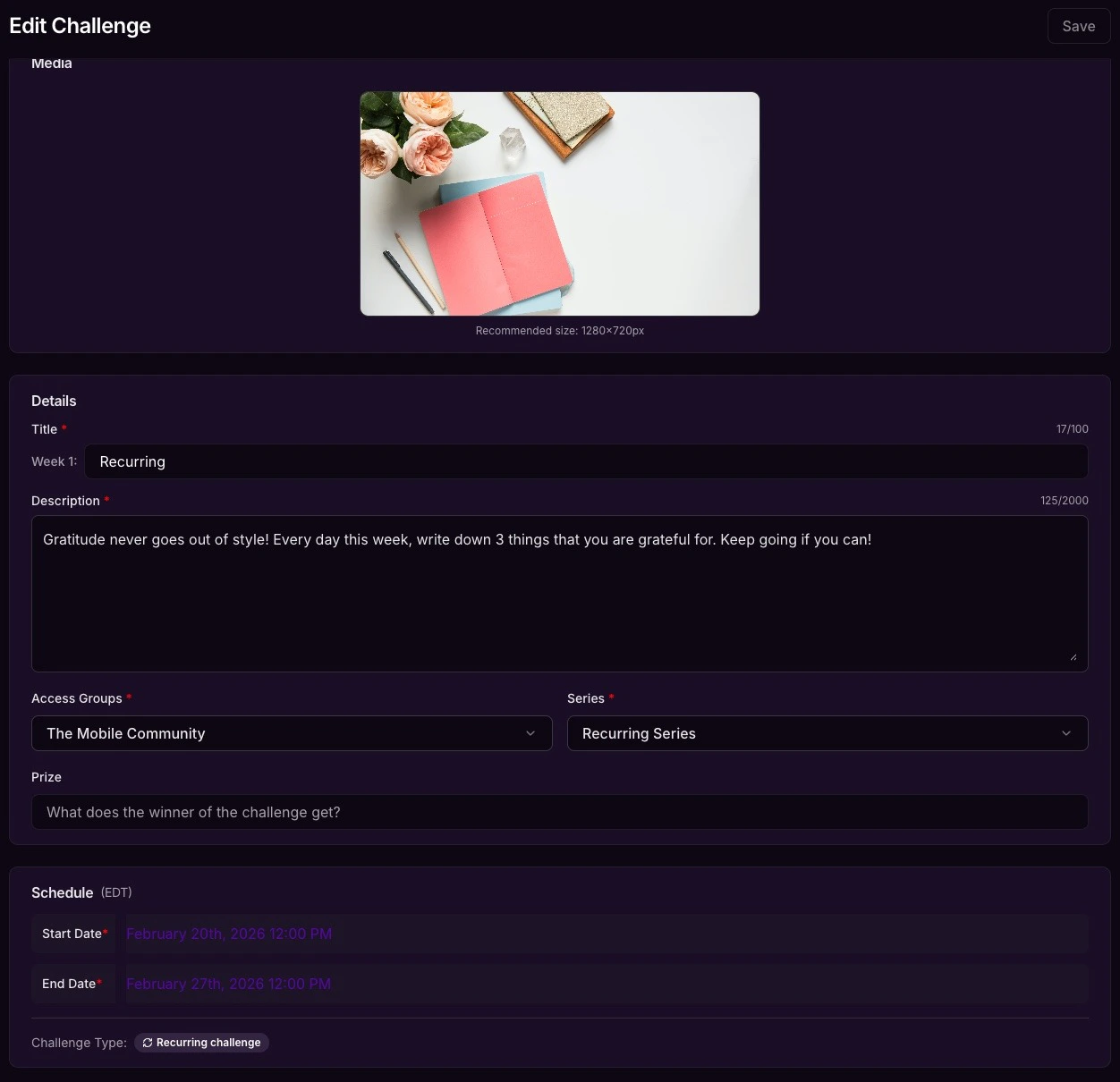
- Then, click **Save **to keep and apply your changes.
Maximize success
Tips for maximizing the success of your challenges.| Name | Example | Tips |
|---|---|---|
| Series (collection of challenges) | 7 Days of WalkingFrozen to FearlessGlow Up Series | 1. Try X days of a Y structure, as numbers create urgency and structure the challenge within a time constraint.**2. Imply outcomes. **Challenges are not just fun! People participate in challenges for personal growth. The best challenges hint at outcomes members would like to achieve. |
| Challenges (single activity) | Day 1- WalkingWeekly Check-InFav Lip Shade Challenge | 1. **Choose an exciting photo, video, or gif. **Overlay text to describe the challenge, like a YouTube video thumbnail.**2. Outline why this challenge is important. **Why is it good for your members to participate? How will it benefit them?3. Strong call-to-action. Easy-to-understand instructions reduce mental overhead.**4. Lead by example. **You lead, and they follow. Your members will love seeing you complete the challenge.**5. Share widely. **IG/FB stories, IG/FB posts, and YouTube videos are great ways to engage. |
Create challenges that engage a community
- Give your community members some quick advice on how to best start the challenge.
- Be simple and brief when describing the challenge.
- Give your challenge specific numbers or measurements (“List 5 goals”, “Read ten pages”, “Walk 30 minutes”, etc.).
- Ask your community to upload photos, drop emojis, leave comments, or provide some other proof that the challenge has been completed.
- Encourage interaction and support between members.
- Attach guides, like worksheets or YouTube videos.
- Offer prizes.
- Don’t make the challenge too difficult. Typically, challenges shouldn’t take more than 5-10 minutes to be accomplished in one sitting.
- Provide a short video or cool photo along with the text of the challenge.
- Recommend that challenges are paired with things they already do, like writing in their journal right after brushing their teeth.
- For multi-day challenges, gradually increase intensity (i.e. read for 5 minutes on Day 1, 10 minutes on Day 2, and 15 minutes on Day 3).
- Let them know the direct benefits of completing the challenge.
- Do the same challenges alongside your members if you can.