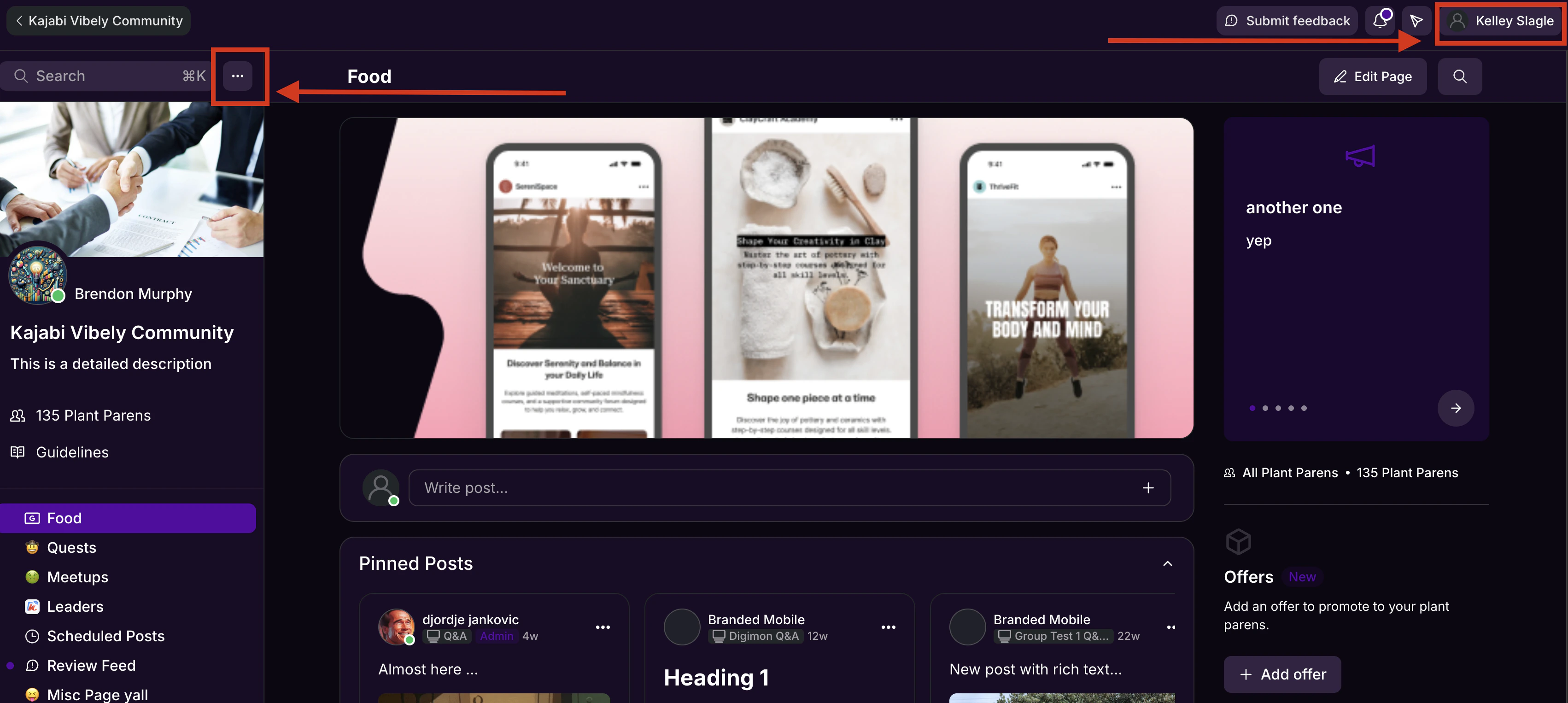
Note: You can also access Community Settings by clicking the profile icon in the top-right navigation bar.
Community URL and URL slug
The Community URL can be customized to reflect your brand. Updating the URL slug builds brand recognition and makes it easier for members to find your Community.- Click the ellipsis … icon next to the Community cover image, then select Community Settings.
- Select Details in the left sidebar.
- Under Basic Information, navigate to the URL Slug field.
- Enter the desired URL slug and click Save.
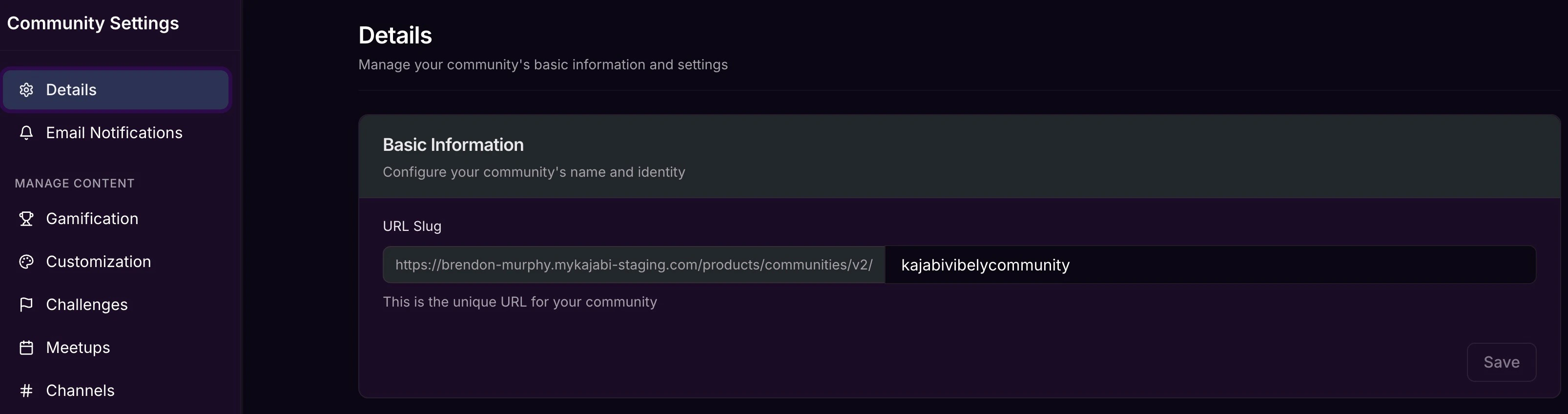
- The first section of the URL is pulled from your site’s domain
- The last section is the part you can customize via Community Settings
sitedomain.mykajabi.com/products/communites/v2/communityname may be customized to be sitedomain.mykajabi.com/products/communites/v2/kitchencommunity, where “kitchencommunity” is the URL Slug.
Update Community Title, Description, and Cover Image
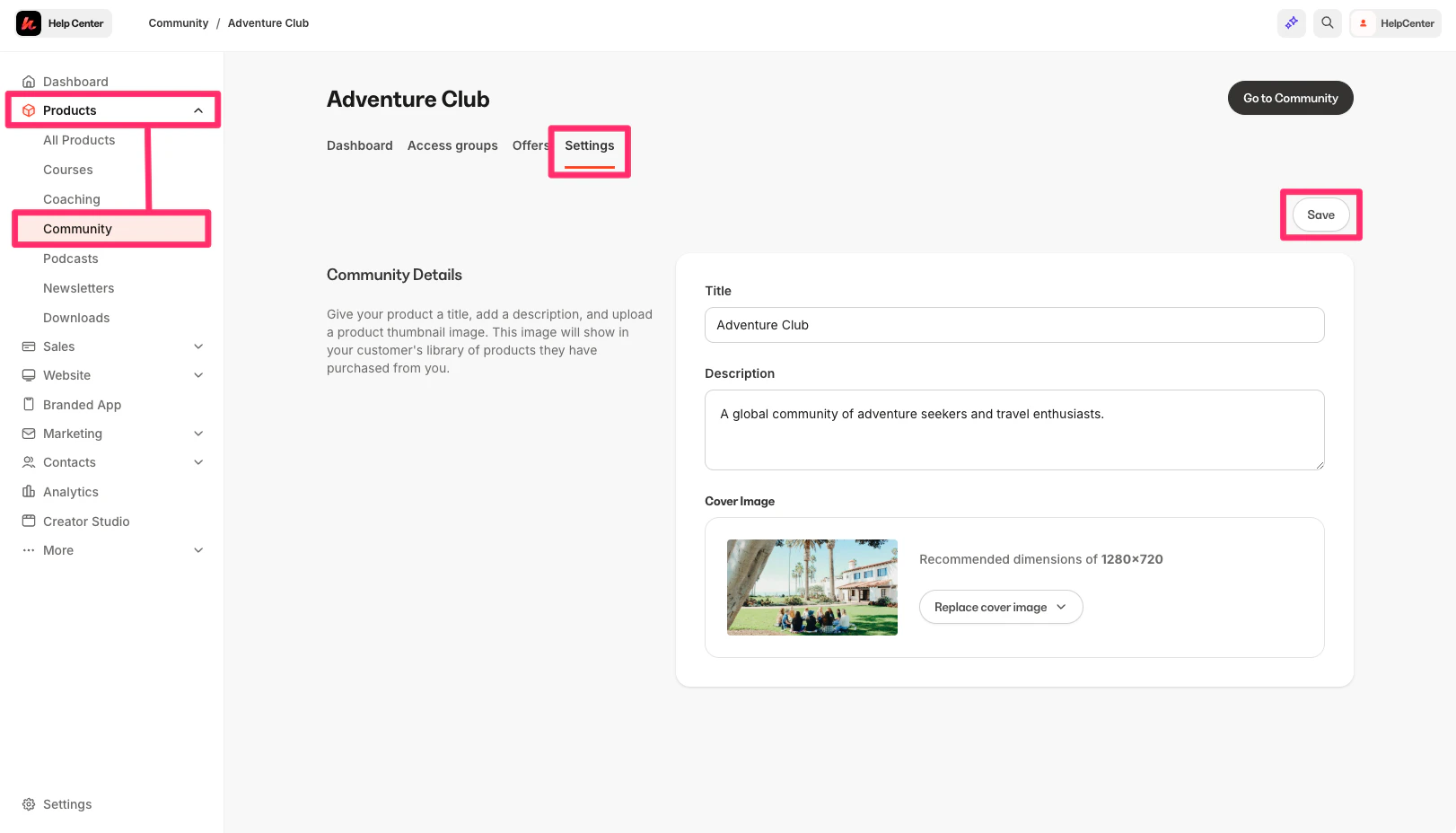
Your Community Title, Description, and Cover Image are managed through the Community Product settings in the Kajabi app.- Go to your Kajabi Dashboard and select Products from the left sidebar.
- Select Community.
- Click the Settings tab in the top menu.
- Update the Title, Description, and/or Cover Image as desired.
- Click Save to apply your changes.
Community Social Links
Add icons to the Community sidebar that link to your TikTok, YouTube, Facebook, X (Twitter), Snapchat, YouTube, and Shop accounts, as well as your personal website.- Click the ellipsis … icon next to the Community cover image, then select Community Settings.
- Select Details in the left sidebar.
- Navigate to the Social Links section on the Community Details page.
- Enter the social media account and website URLs in the associated Social Link fields.
- Click Save.
- Click Back to community to view the social links.
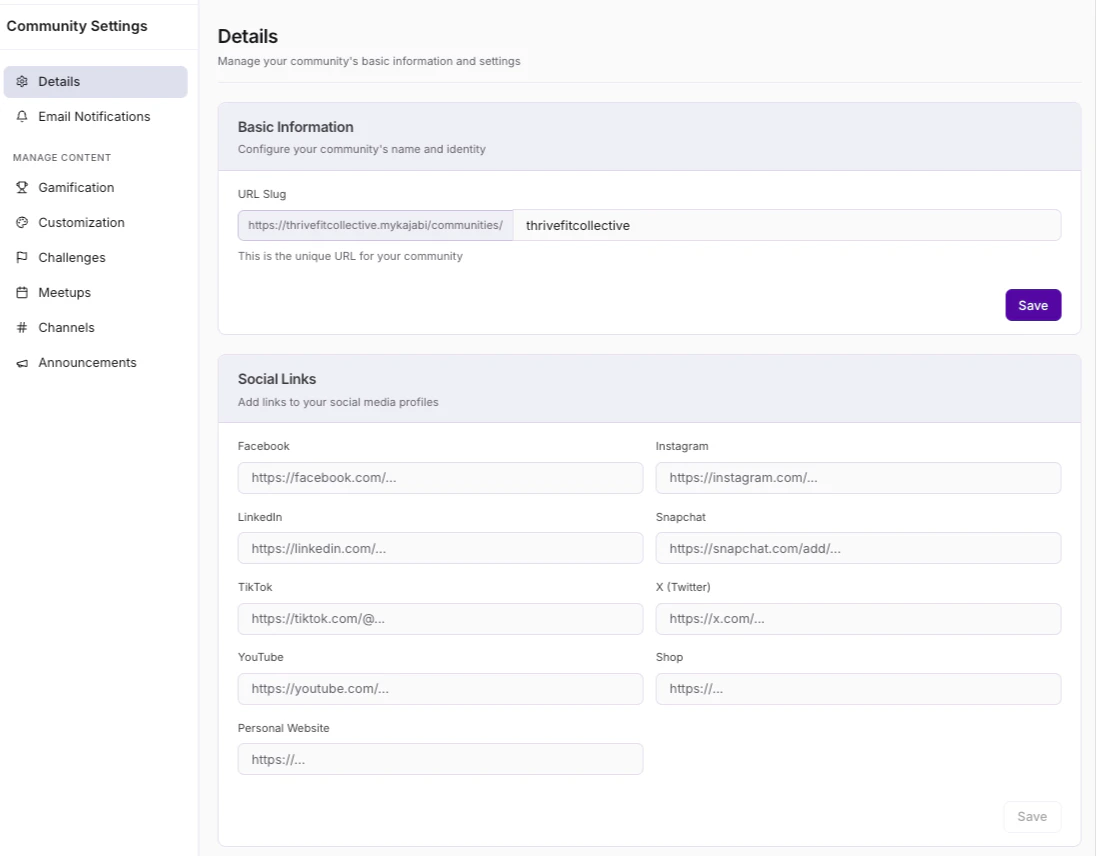
Note: Any Social Links added to the Community sidebar will also appear on your User Profile page.
Community Guidelines
Community Guidelines detail your expectations for members’ participation. These guidelines are presented to members to accept before they can join, and all members must re-accept them anytime the guidelines are edited.- Click the ellipsis … icon next to the Community cover photo, then select Community Settings.
- Select Details in the left sidebar.
- Scroll down to the Community Guidelines section.
- Click Add guidelines.
- Add a Title and optional Image.
- Under Description, add a welcome message for members and detail the guidelines you would like to implement.
- Click Save.
- Click Back to community to view the guidelines pop-up.
Note: The created guideline will also appear in the left sidebar.
Update Founder Profile Photo
- Click the profile icon at the top right of the Community to open the options menu.
- Select Profile.
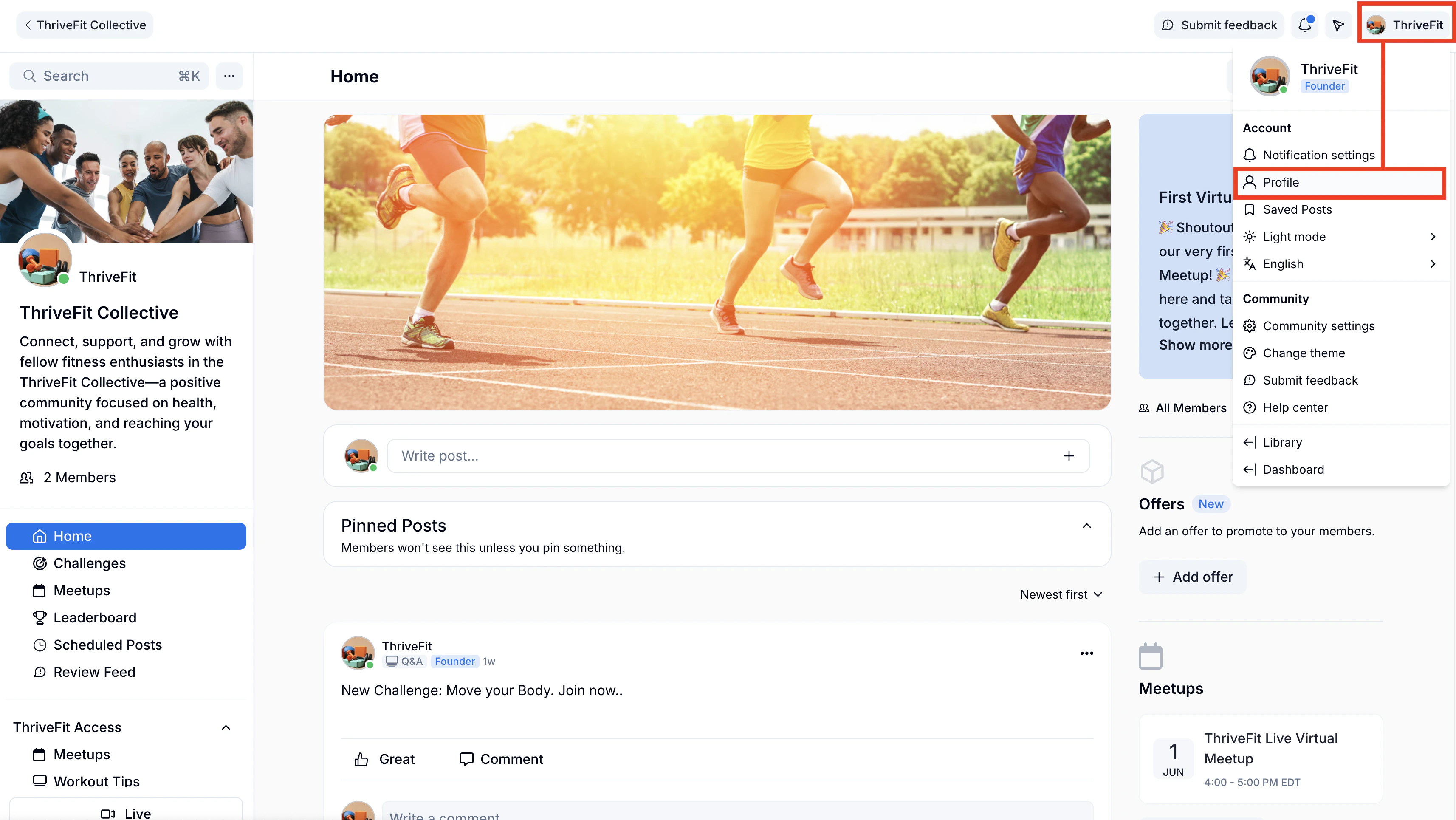
- Place your cursor over the Profile Photo and click Change photo.
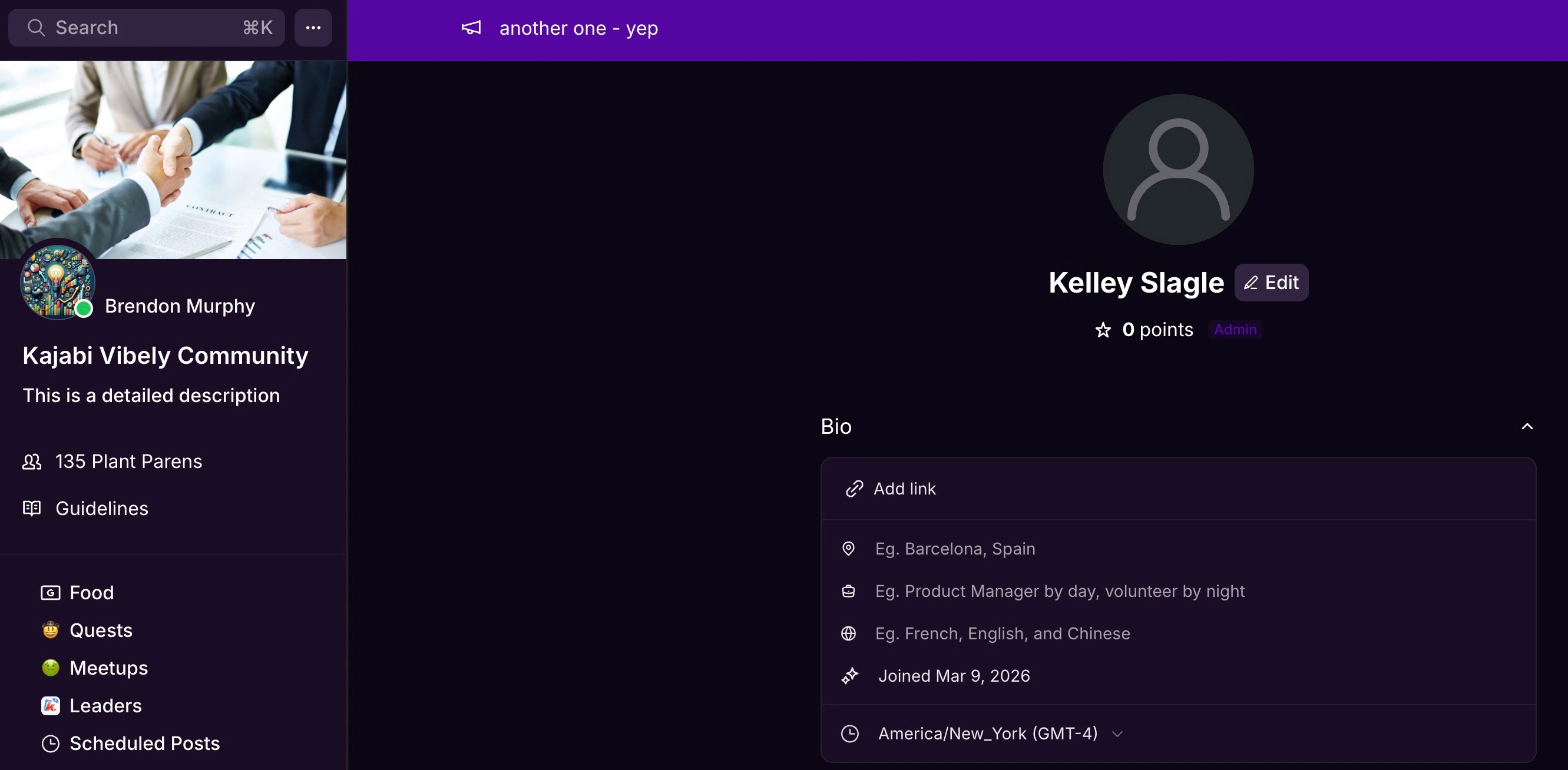
- Select an image to upload.
- Click Save to apply your changes.
Update User Profile Name
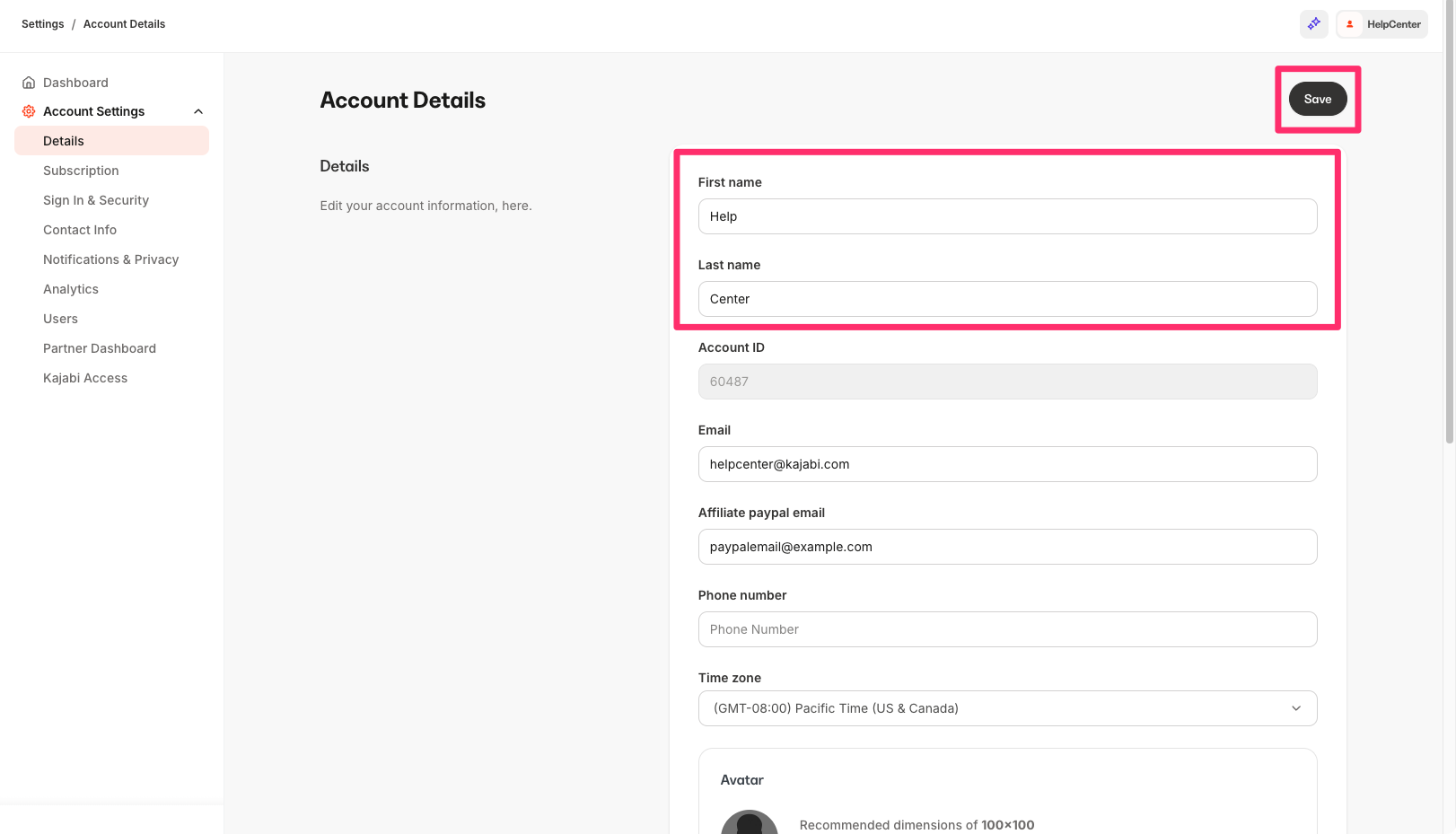
The User Profile Name that appears next to your personal Profile Photo in your Kajabi Community is automatically populated with your Kajabi Account Name. To update it, you need to change your name in Account Settings in the Kajabi app.- Go to your Kajabi Dashboard and click Settings in the lower left sidebar.
- Scroll down to Account Settings and select Account Details.
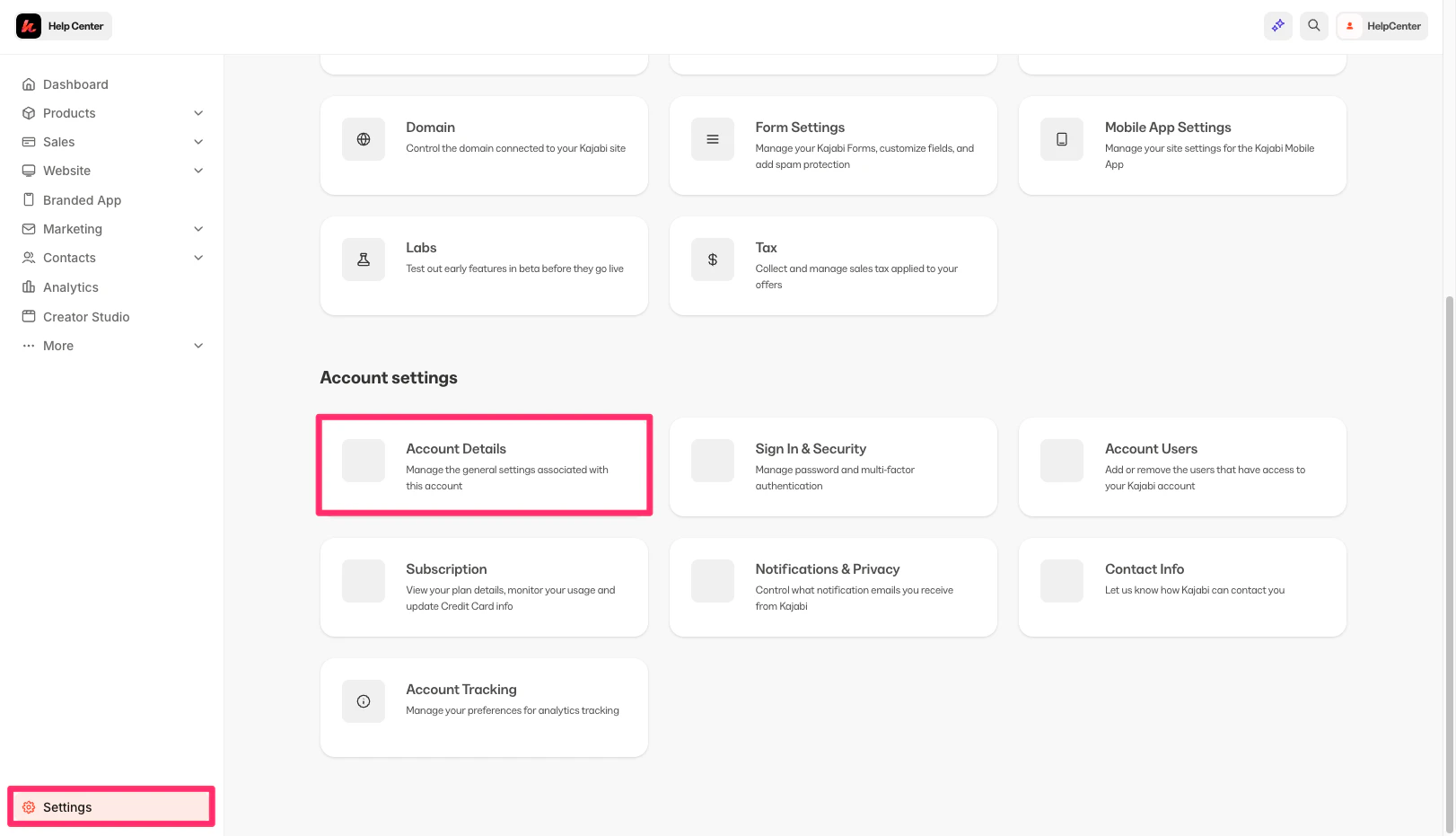
- Update your First name and Last name as you wish them to appear in your profile.
- Click Save to apply your changes.
Add social links to a User Profile
Social links on your User Profile page let members connect with you on other platforms.- Click the profile icon at the top right of the Community to open the options menu.
- Select Profile.
- Under Bio, click Add link.
- Enter your social URLs in the Social Link fields that appear.
- Click Save to apply your changes.
- To view your changes, click Back to community, then click your Profile Photo in the sidebar to open your Profile page.
Note: Any Social Links you add to your User Profile page will also appear on your Community sidebar.
Add Bio information
Share your personal interests, goals, and professional background on your User Profile page.- Click your profile icon at the top right to open the options menu.
- Select Profile.
- Under Bio, complete the relevant fields with personal information you wish to share, including your location, job, languages, join date, and timezone.
- Use the prompts provided below Bio to write about your personal interests and goals.
- Click Save to apply your changes.
- To view your changes, click the Community Title in the top left to return to the Kajabi Dashboard, then click your name in the top right corner to open your Profile.
Note: If you don’t immediately see your updates on your User Profile page, try refreshing your browser.
Select preferred language
Community members can view posts and items in the Community in their preferred language.Note: This setting changes the language for each individual Community member, not for all members.
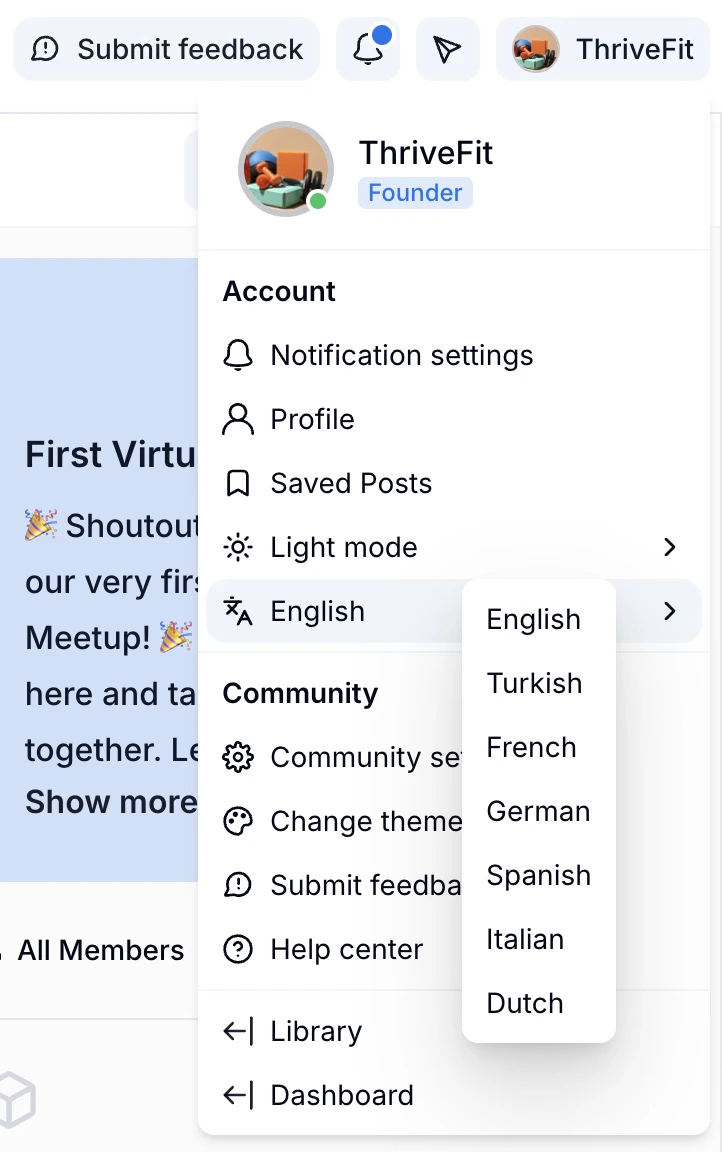
- Click the profile icon at the top right of the Community to open the options menu.
- Click the language selector and choose a language from the dropdown.
- Kajabi Communities can display in English, Dutch, French, German, Italian, Spanish, and Turkish.