Take control of your Community experience by scheduling posts within Feed Channels. Planning posts ahead of time ensures a consistent and engaging flow of content for your members.

Community Feed Channels

Community Feed Channels encourage lively discussions about any topic you choose, giving your Community a voice and fostering a sense of belonging. With Feed Channels, you can support posts and topic threads. They are displayed in a feed-like style layout where the community can post photos and videos, share content, and show appreciation.


Schedule posts

To schedule your feed Channel posts to your Community:
  • Open your Community.
  • Select the Feed Channel where you want to post. Alternatively, you can go directly to the Scheduled Posts or Main Feed page.
  • Create your post and customize it as desired.
  • Click the dropdown next to Post.
  • Choose your preferred date, time, and timezone.
  • Click Schedule to finalize and schedule your post:

View scheduled posts

  • Open your Community.
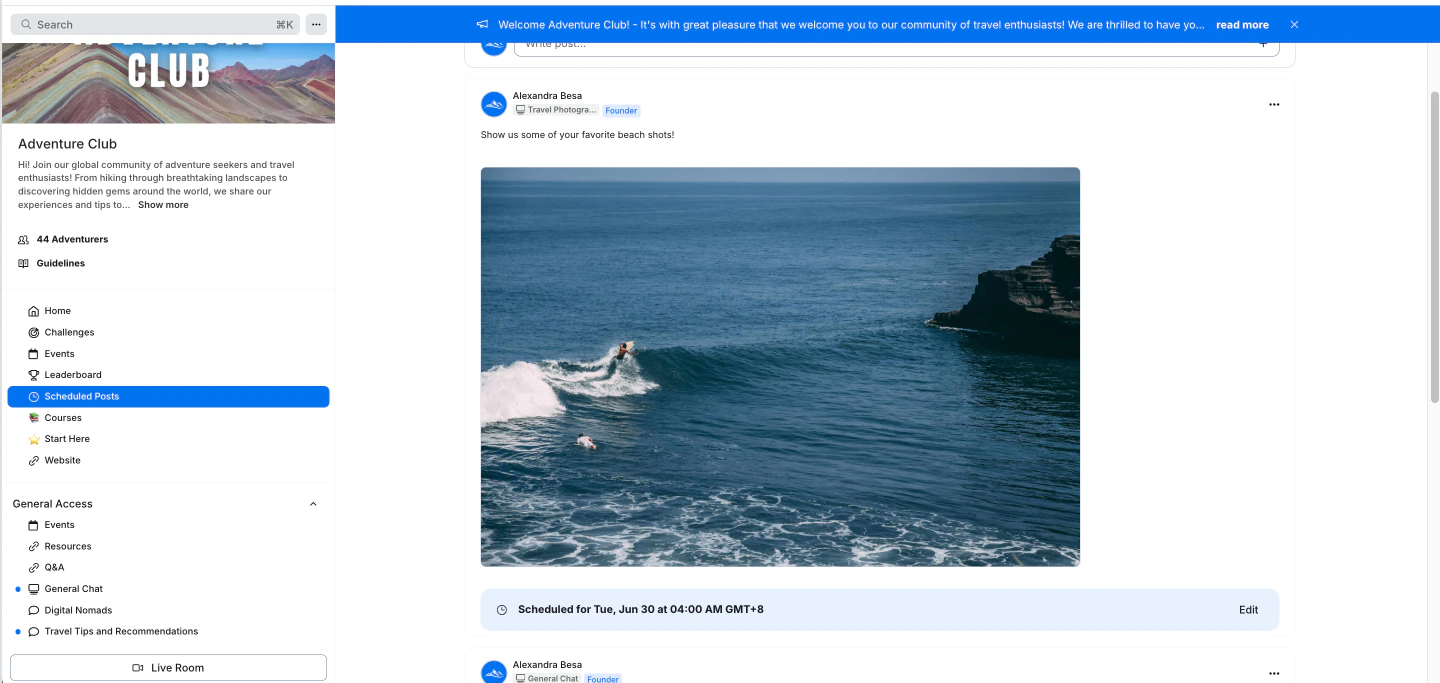
  • In the left navigation bar, select Scheduled Posts.
  • A list of all your scheduled posts will be displayed.
Scheduled posts list

Edit a scheduled post

  • Open your Community Product.
  • In the left navigation bar, select Scheduled Posts.
  • Find the post you want to edit.
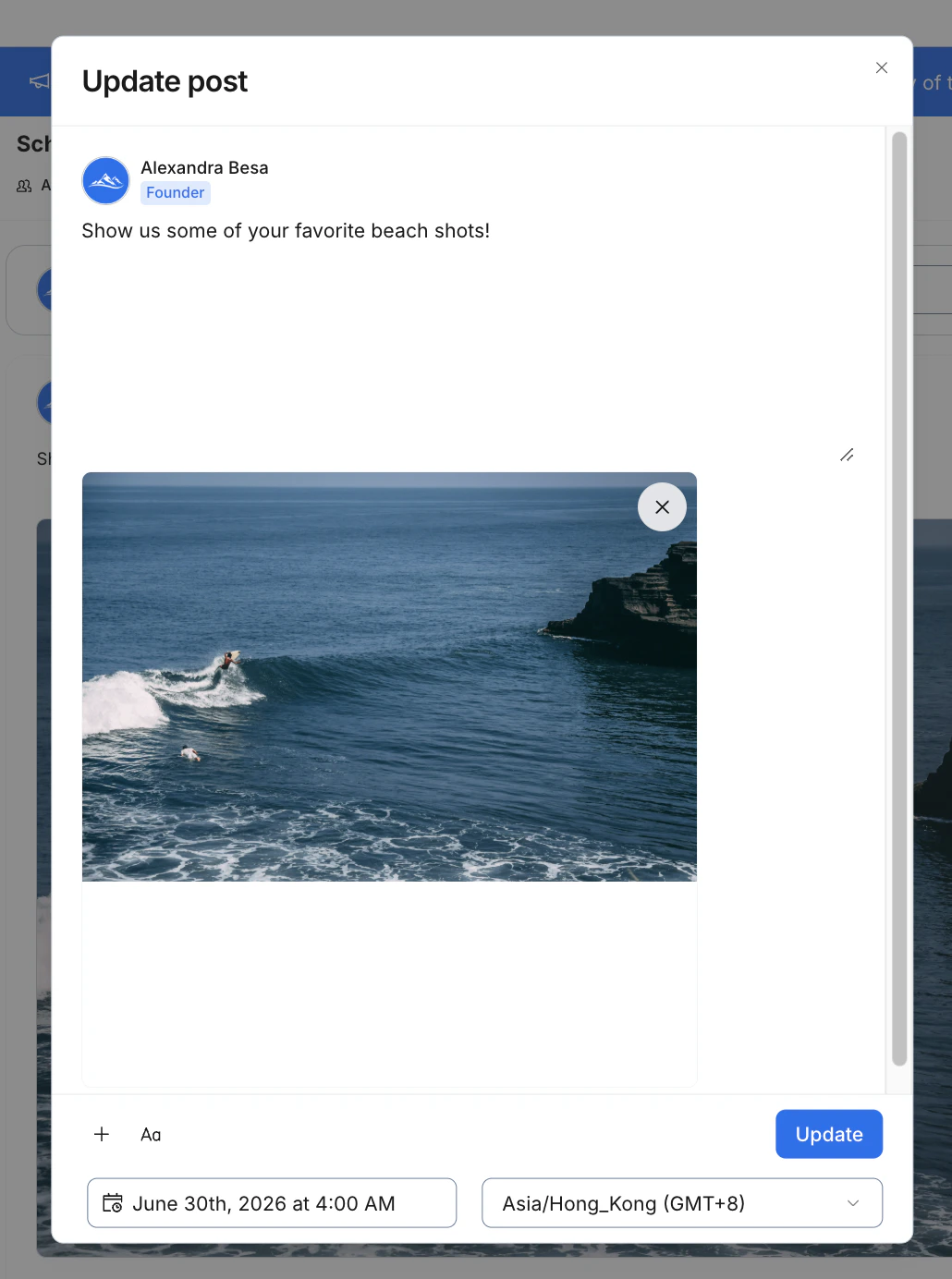
  • Click the three-dot menu (…) in the upper-right corner of the post or click Edit below the post.
  • Adjust the date, time, or content as needed.
  • Click Update to save your changes.
Edit scheduled post