Global Feed
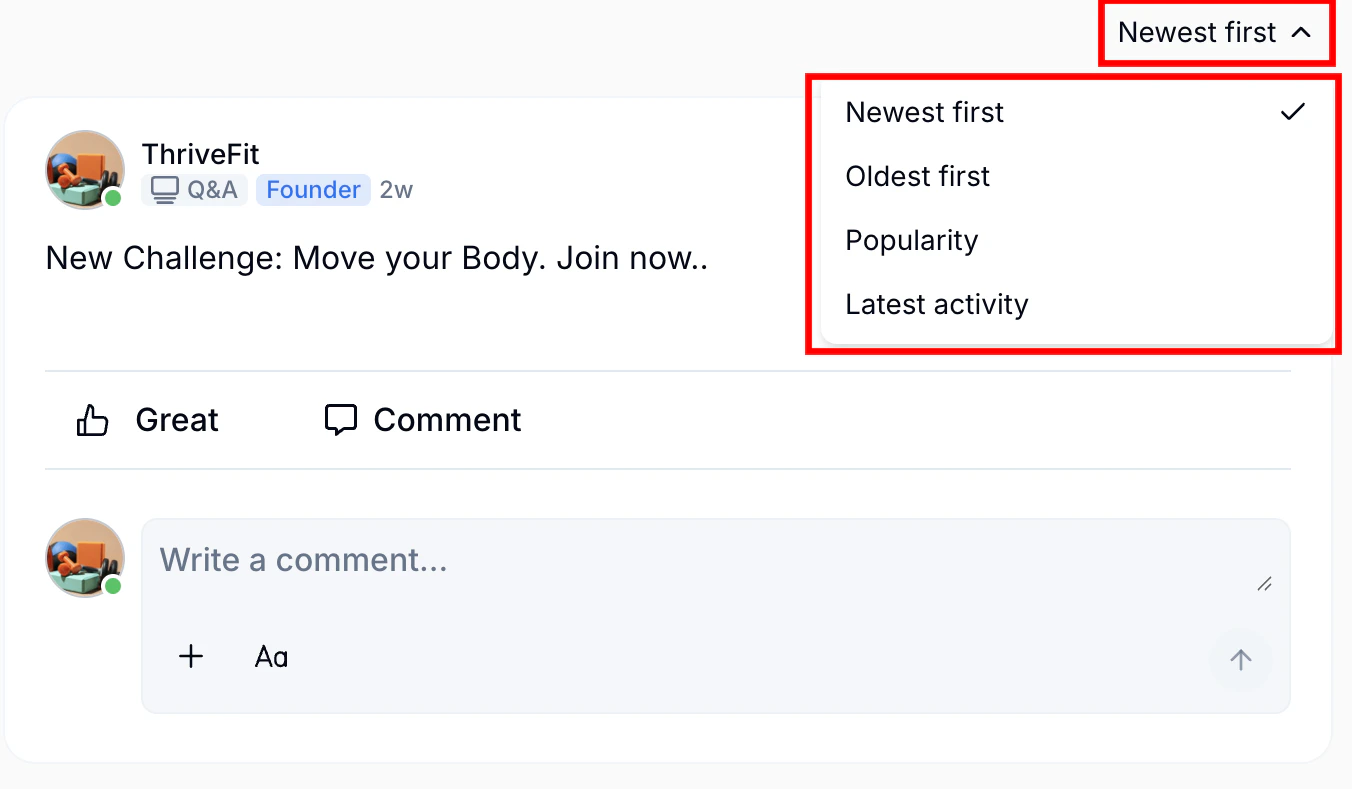
Your Community default Home page aggregates a global Feed of all Posts from only feed-type Channels that you have access to. You may view and sort Posts in several ways, including from newest to oldest, oldest to newest, by popularity, or by latest activity.To sort Posts in the global Feed or in an individual Channel:
- Open the Products tab from your Kajabi Dashboard.
- Click Community.
- Click the Go to Community button at the top right of the Community Dashboard.
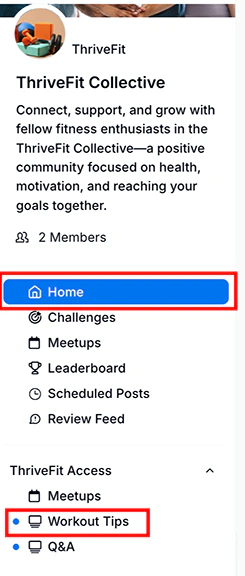
- In the left sidebar, click Feed (or Home) or click a <Channel Title>.
- Click the sort menu at the top right of the Feed page or Channel.
- Select how you wish to sort the Posts from the dropdown:
Note: Chat messages do not appear in the global feed on the Feed page.
Create a Post

- From the Feed or Channel page, click + icon next to the blank form field at the top right.
- Add any written content as desired.
- When crafting your post, click the + icon in the bottofm left corner to attach media. You may add images, GIFs, videos files, audio files, and more.
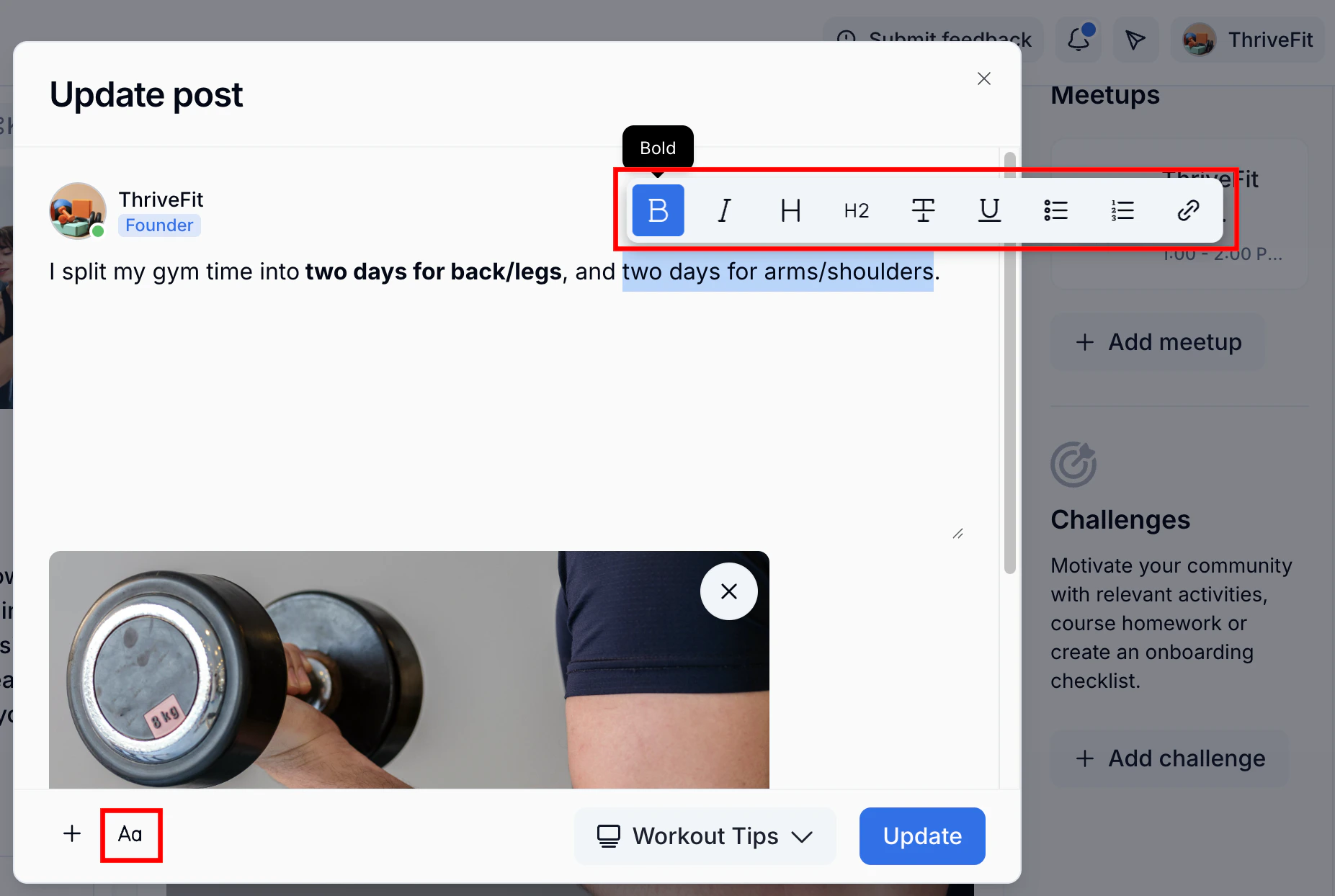
- Click the Aa button or highlight a selection on a Post or Comment to enhance its visual appeal with text formatting. This includes bold, italics, underline, strikethrough, ordered lists (numbered lists), unordered lists (bullet points), headings 1 and 2 (only available in Posts, not Comments), and hyperlinks.
- Click Post, then select a Channel (if posting from the global Feed page).
- Click Post again to publish it.
Pin a Post
As an Admin, you may spotlight an important Post by pinning it to the top of a Channel or the global Feed. This helps ensure members see your most important content first. If you want the Post featured on your global Feed, choose Pin to Feed.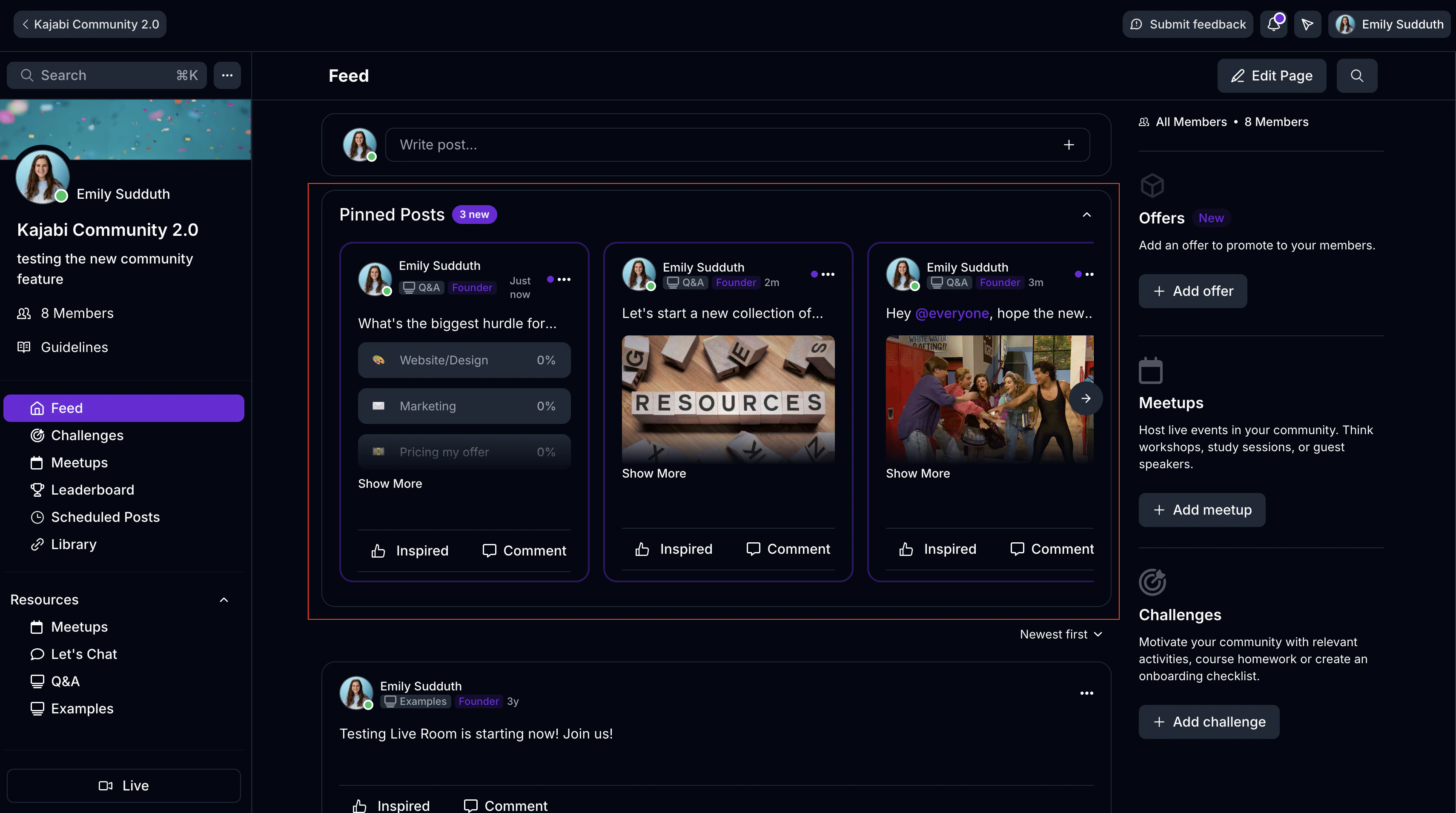
To pin a Post to the global Feed or a Channel:
- Navigate to the global Feed or a Channel.
- Locate the Post you wish to pin.
- Click the ellipsis
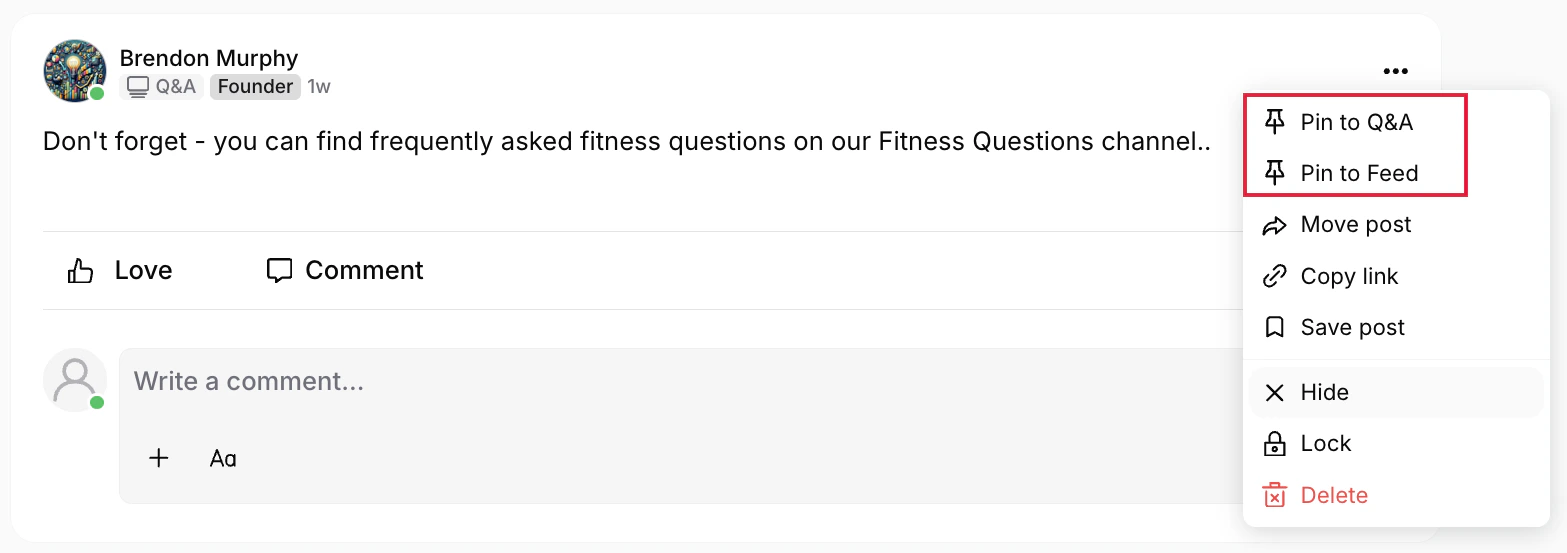
…menu. - Select Pin to <Channel Title> or Pin to Feed:
Save a Post
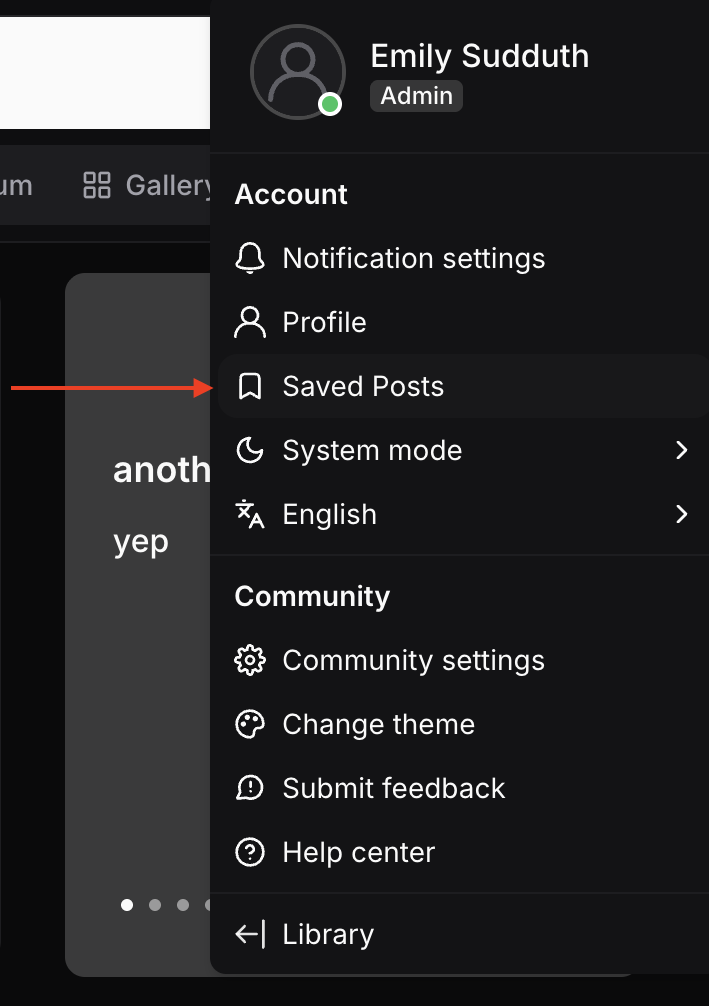
Admins and Members may save any Posts they want to refer back to later.To save or unsave a Post:
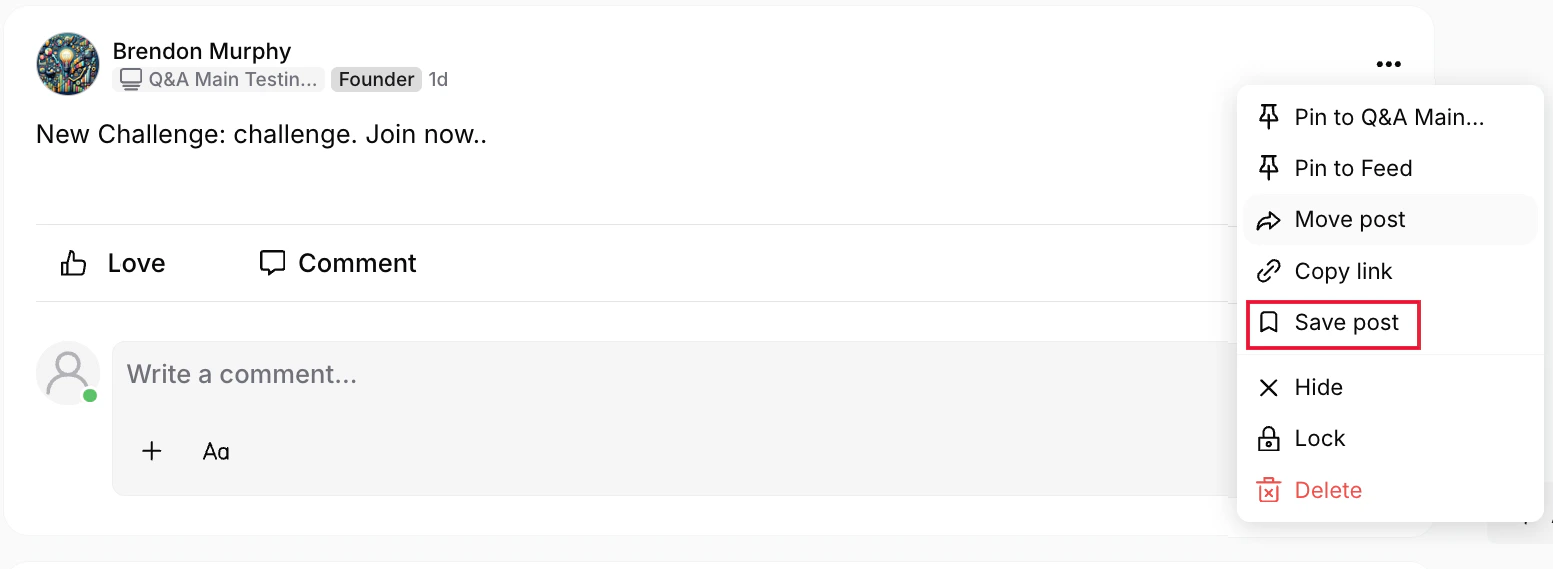
- To save a post, click Save post under its ellipsis … menu. Tapping it bookmarks it for future reference.
- To unsave a post, select Unsave post from the same menu to remove it.
Move Posts between Channels
Both Admins and Members are able to move a Post between Channels. This option is available when editing a Post or by clicking Move post from the ellipsis … menu.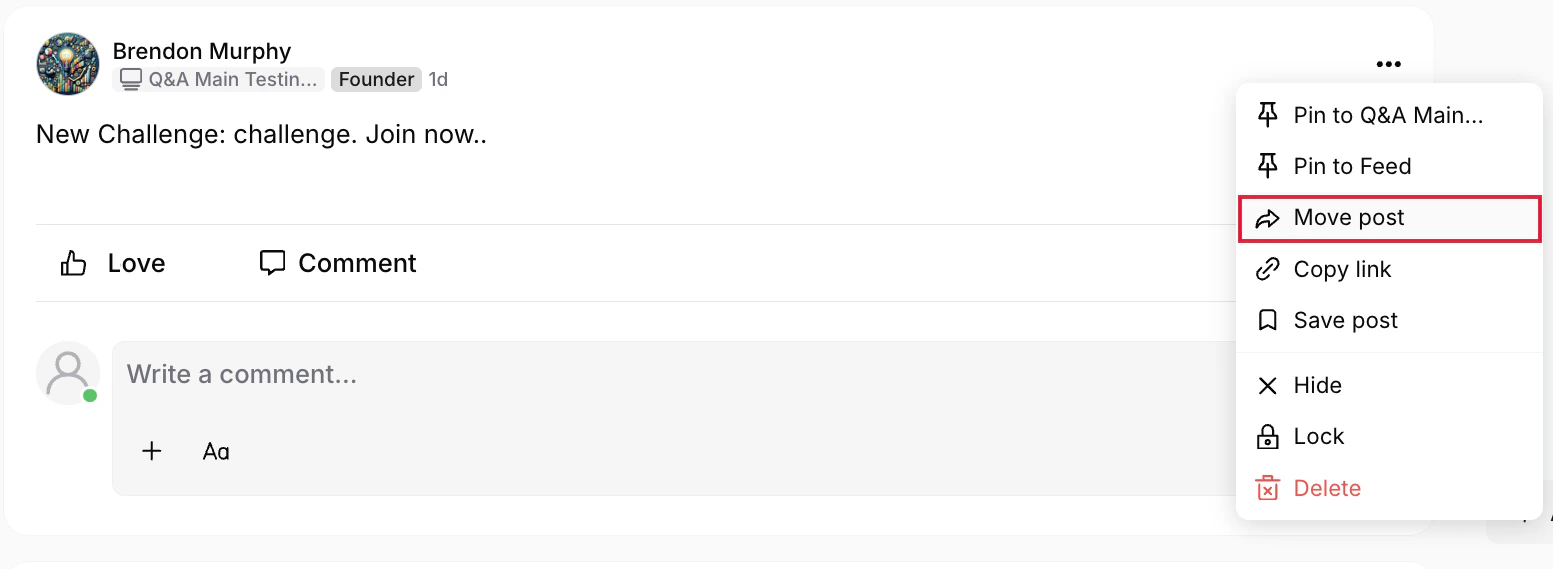
Note: For larger threads, there may be a delay for all Comments to appear in the new Channel after moving a Post.
Schedule a Post
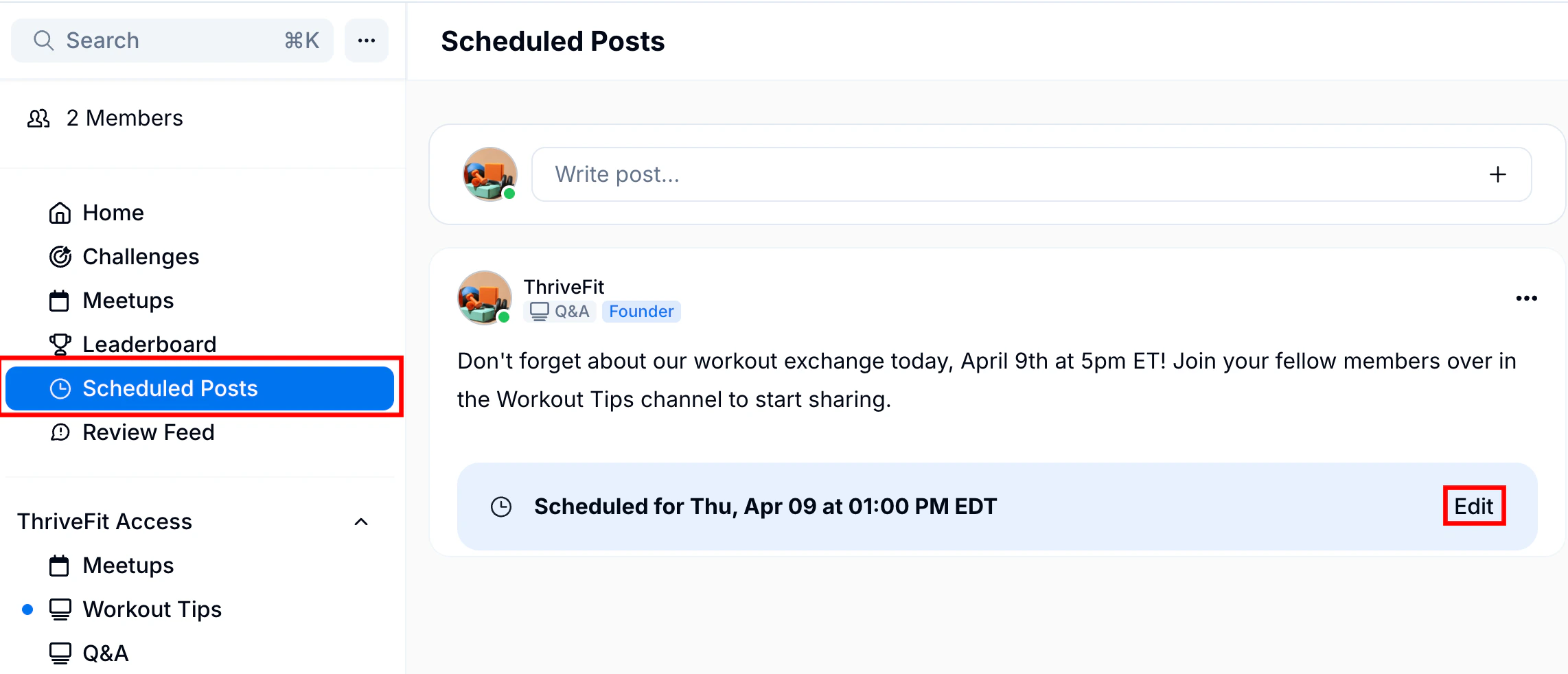
Scheduling Posts within Channels ahead of time ensures a consistent and engaging flow of content for your members.To schedule Posts:
- Click the + icon in the Post form at the top of one of these locations: the global Feed, an individual Channel, or the Scheduled Posts page linked in the Community left nav bar.
- Add content and any media as desired.
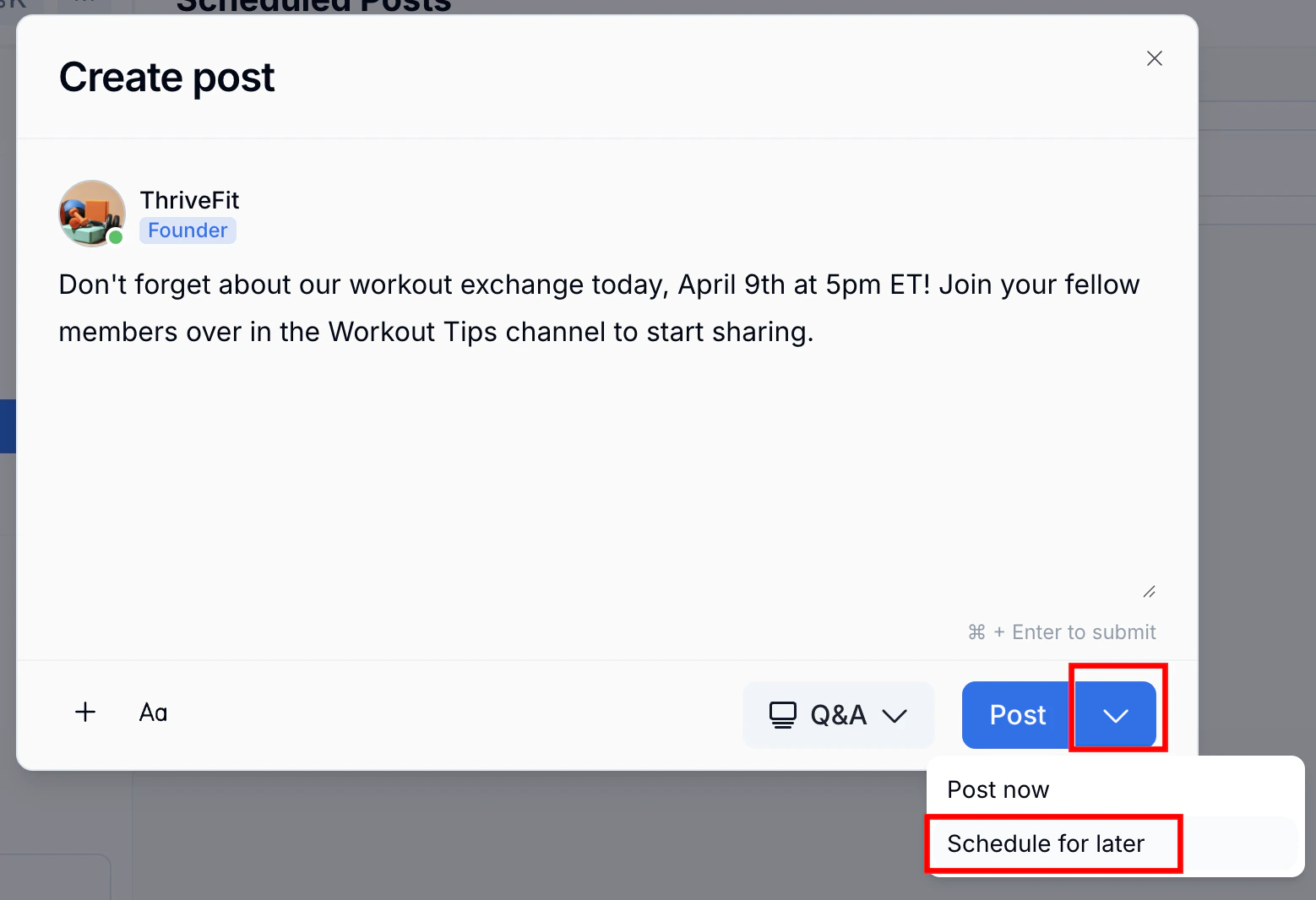
- Click the dropdown arrow next to the Post button and select Schedule for later:
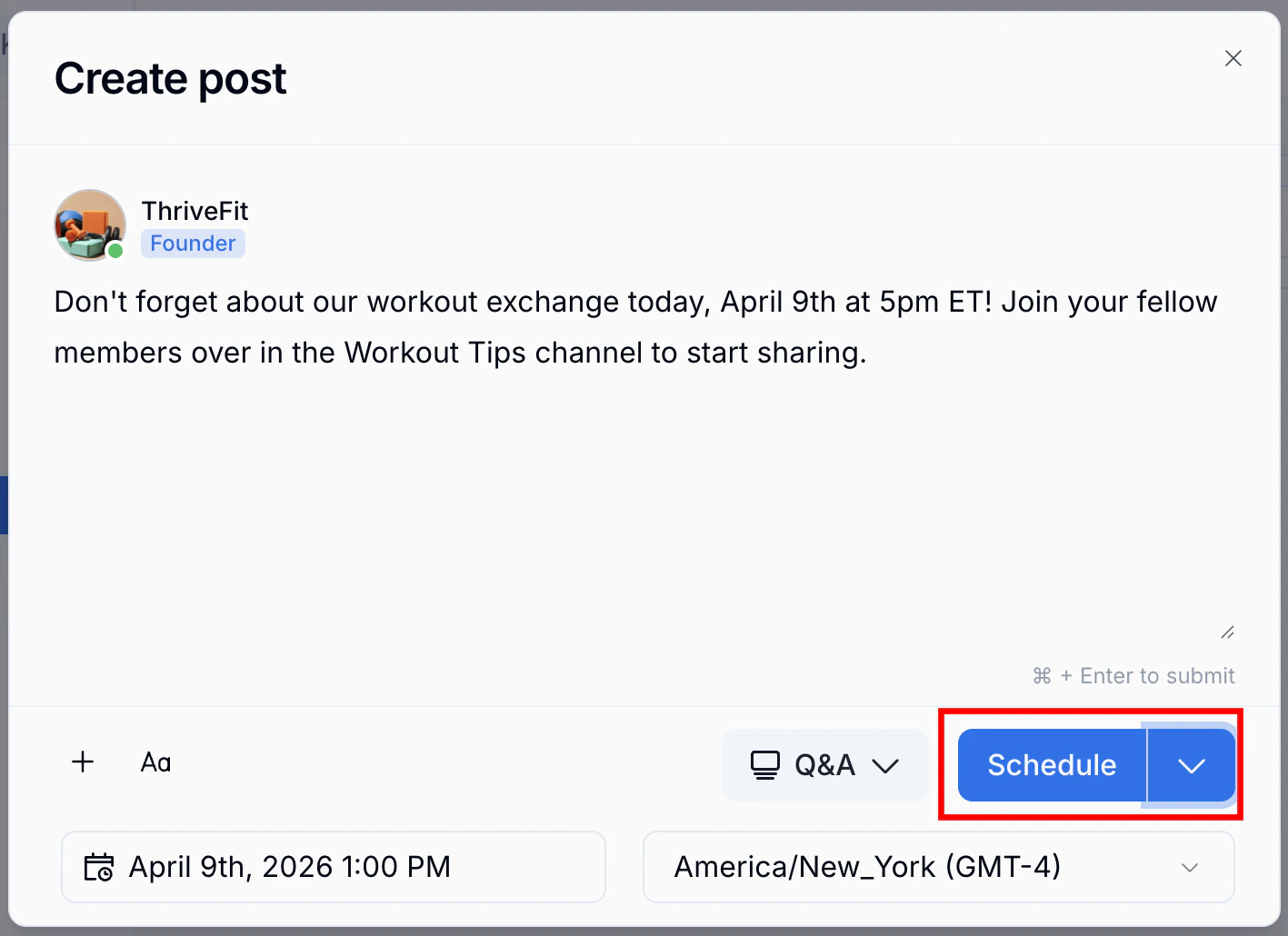
- Choose a Date / Time and Timezone.
- Click Schedule to finalize and schedule your post:
- Click Scheduled Posts in the left nav bar to see a list of and access all your scheduled Posts: