

Understanding Community notifications
Community notifications are delivered in three ways:- Emails — Sent to the member’s email address
- In-app notifications — Appear in the notification center within the Community
- Mobile push notifications — Sent to members using the mobile app
- Community level — You set defaults for all members in Community Settings
- Individual level — Each member adjusts their own preferences in their profile settings
When a member joins your Community, all notifications are enabled by default. Members can then customize their preferences at any time. If you disable a notification type at the Community level, members will see that setting grayed out and cannot reactivate it.
Notification types by Community feature
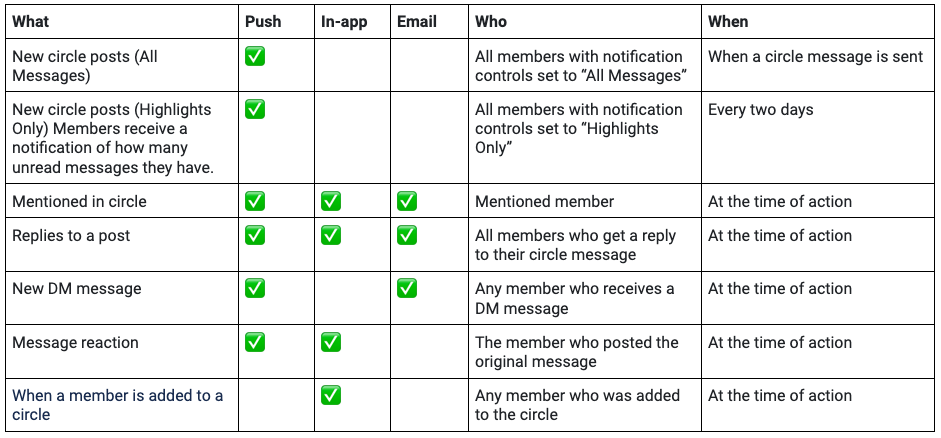
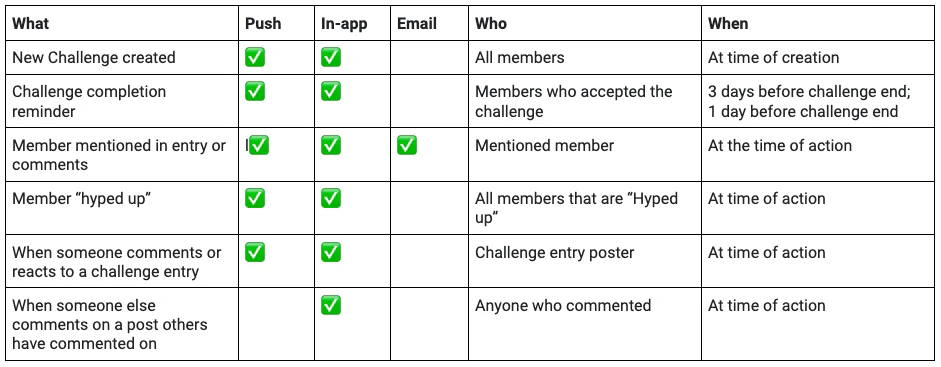
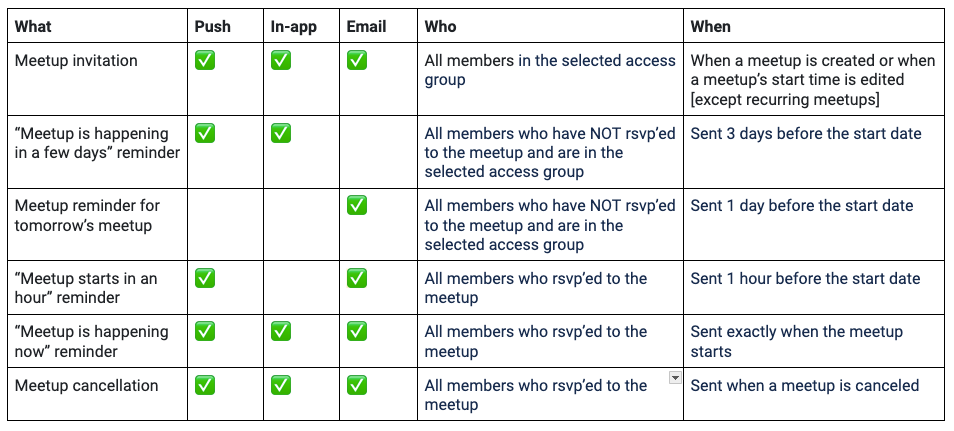
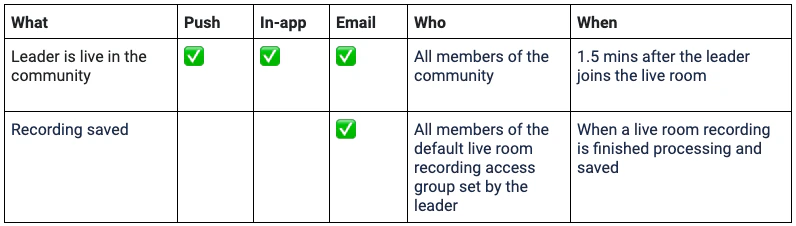
The following charts show which notification types are available for each Community feature. You and your Moderators, Administrators, and Community members can customize and receive these notifications.Channels & DMs
Challenges
Meetups
Live Rooms
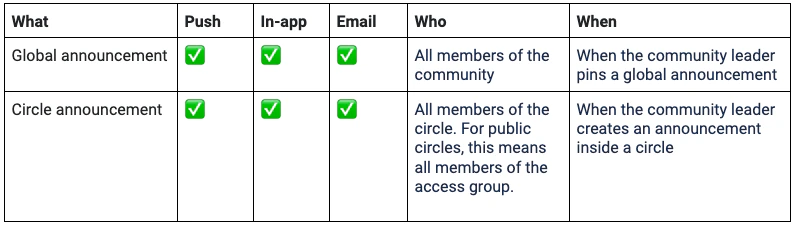
Announcements
Weekly Digest

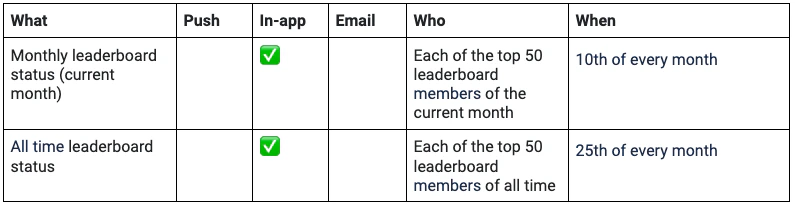
Leaderboard
Community owner email notifications
As a Community leader, you receive the following email notifications: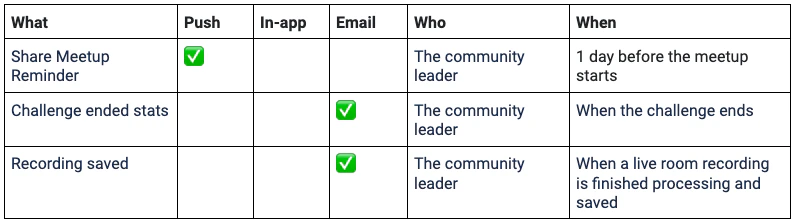
Customize push, in-app, and email notifications
To adjust your notifications using the Community web app:
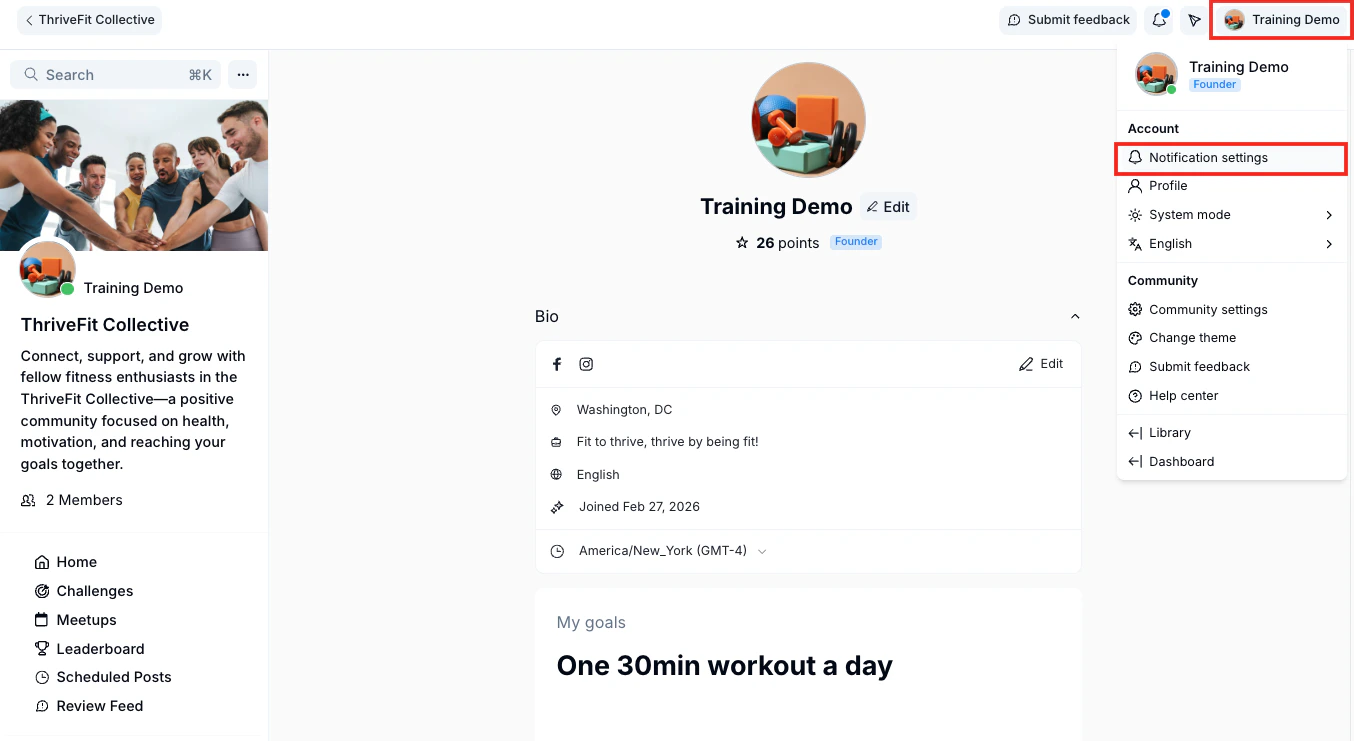
- Open your Community and locate your profile icon at the top right of the page.
- Select Notification settings:
- Click the toggles next to Push, In-app, and/or Email to adjust notification settings as desired for each Community feature:
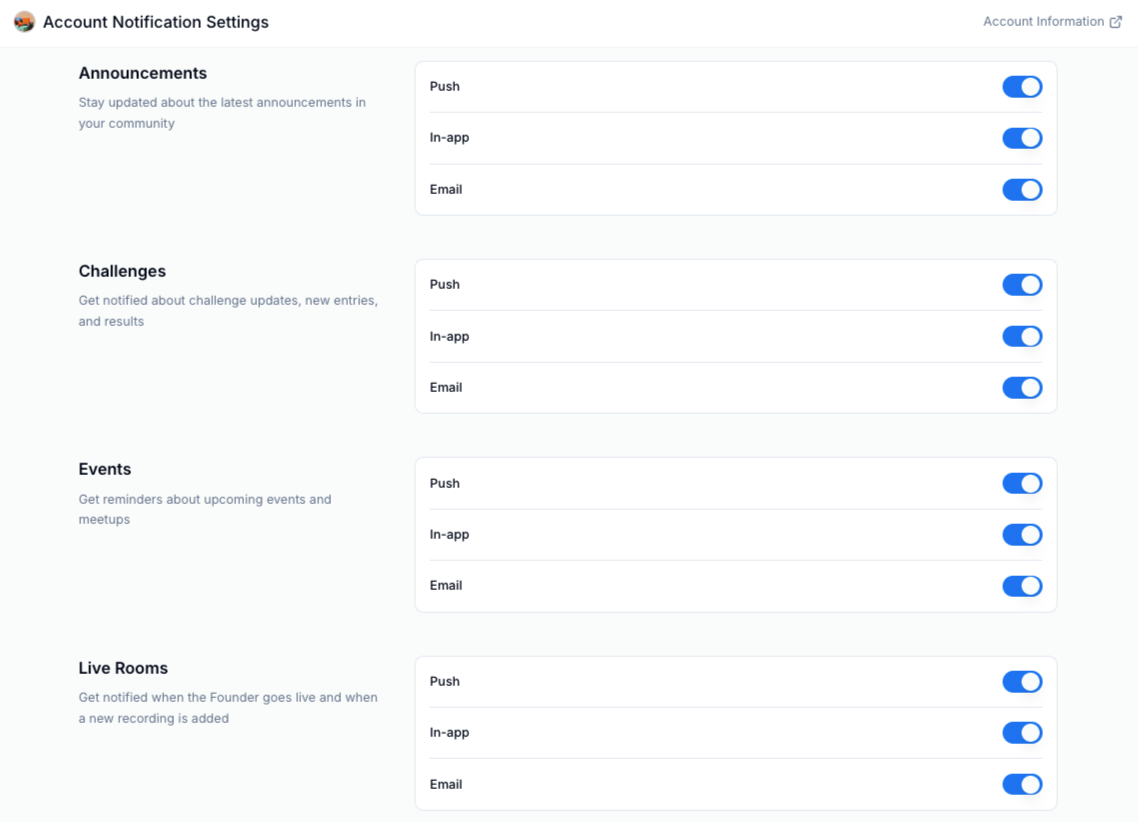
- Click Save to apply your changes.
Channel notification type & frequency
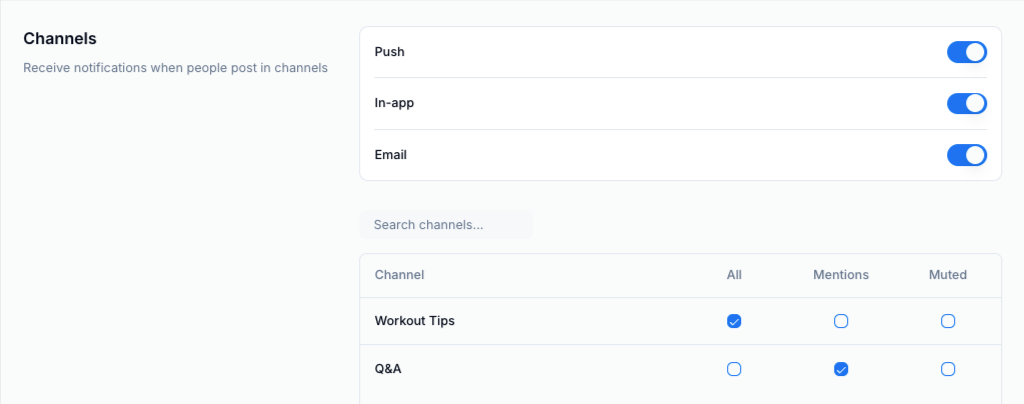
You can change how often and what type of notifications you see for each Channel by selecting the radio buttons next to each Channel name:- All — Get notified every day about all messages in a Channel, including announcements, mentions, meetups, and polls
- Mentions — Receive a notification every time your profile name is mentioned in a channel
- Muted — Opt out of all notifications for a specific Channel
Community email notifications
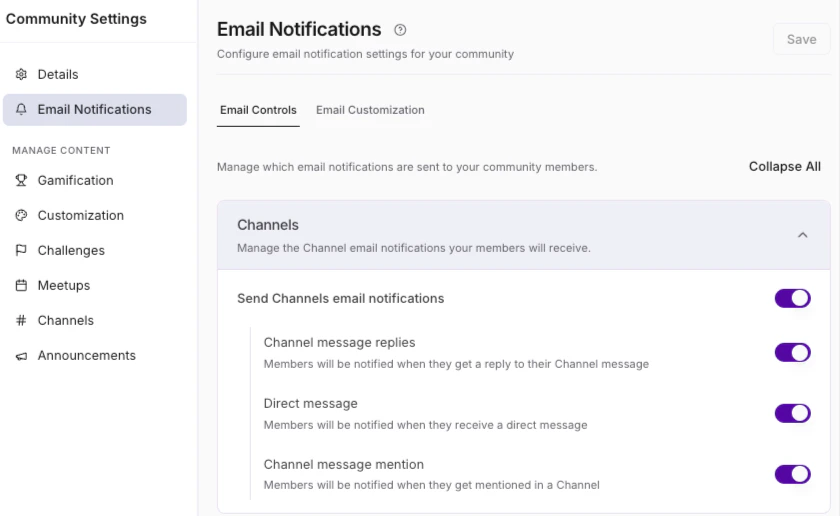
Manage which email notifications your members receive at the Community level. These settings apply to all members and override any individual preferences.To enable or disable email notification types:
- Click the ellipsis icon next to the Community cover photo, then select Community Settings.
- Select Email Notifications.
- On the Email Controls tab, click each toggle on or off as desired to enable or disable notification emails for Channels, Challenges, Meetups, Live Rooms, Announcements, and Weekly Digest.
Granular email notification settings
Use the checkbox next to each email notification setting to turn it on or off, then click Save to apply your changes.Channels
- Channel message replies — Members are notified when they get a reply to their Channel message
- Direct message — Members are notified when they receive a direct message
- Channel message mention — Members are notified when they get mentioned in a Channel
Challenges
- Challenge ends (admins) — Admins are notified when a Challenge has ended
- Comment — Members are notified for Challenge comments
- Comment mentions — Members are notified when they are mentioned in a Challenge
- Entry mentions — Members are notified when they get mentioned in a Challenge
- Hype ups — Members are notified when they get a Hype up in a Challenge
Meetups
- 1 day before — Members are notified 1 day before a Meetup is scheduled to begin
- 1 hour before — Members are notified 1 hour before a Meetup is scheduled to begin
- When it starts — Members are notified the moment a Meetup starts
- Meetup created — Members are notified when a Meetup is created
- Meetup rescheduled — Members are notified when a Meetup is rescheduled
- Meetup cancelled — Members are notified when a Meetup is cancelled
Live Rooms
- When it starts (admins) — Admins are notified the moment a Live Room starts
- Recording is available (admins) — Admins are notified when a Live Room recording is available
- Recording is available (members) — Members are notified when a Live Room recording is available
Announcements
- New global announcement — Members are notified when there is a global announcement
- New channel announcement — Members are notified when there is a Channel announcement
Weekly Digest
Enable or disable the following content in your Weekly Digest emails:- Announcements — Includes current announcements
- Challenges to complete — Includes challenges to complete
- Community stats — Includes community stats
- Popular conversations — Includes popular conversations
- Upcoming meetups — Includes upcoming meetups
Note: If the Weekly Digest is enabled, a personalized weekly digest email is sent to your members starting at 9 AM Pacific Time on Thursdays. It takes a few hours to reach all members.
Members only receive content from Access Groups they belong to, and they can unsubscribe at any time.
Members only receive content from Access Groups they belong to, and they can unsubscribe at any time.
Community email customization
You can brand your Community email notifications to match your business identity.Update branding
Select the Email Customization tab in your Email Notifications settings to update the branding and footer information that appears on your Community email notifications: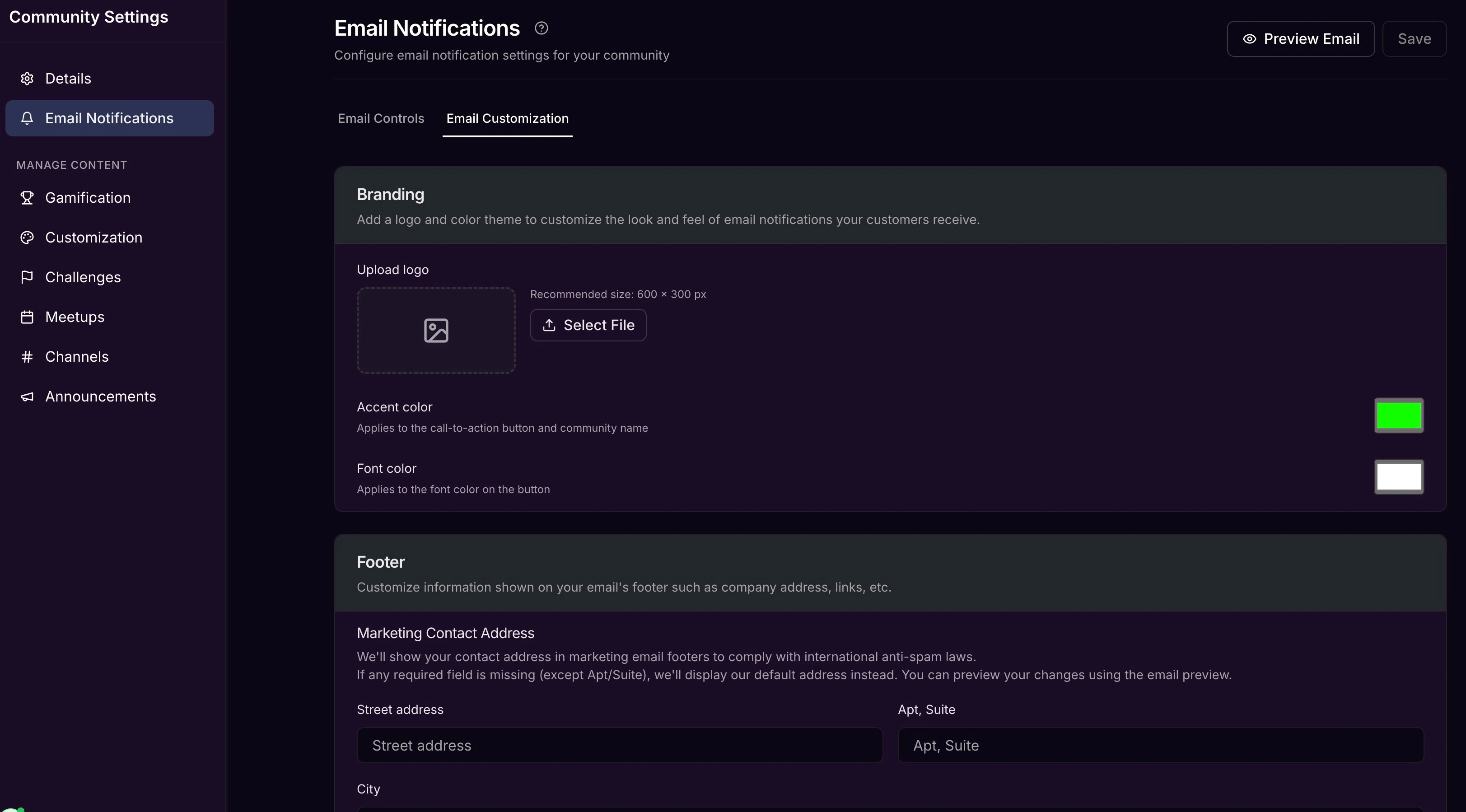
Update Footer information
Update the information shown in your email’s Footer, including your company Street address, Copyright notation, and any Display hyperlinks you would like to include (e.g., help center, support contact information, privacy policy, terms and conditions).Note: If you don’t update your marketing contact address in your Community Email Notifications settings, the default address will be Kajabi’s company address: Kajabi, LLC, 17100 Laguna Canyon Rd. #100, Irvine, CA, 92618, USA. The Marketing Contact Address located in your Marketing Settings has no impact on the Community Email Notifications.