The Community Feed page displays a global feed of all posts, giving you and your members a central place to browse activity. You can also customize Feed settings and use the right sidebar to surface Announcements, Meetups, and Challenges.
Your Community includes a Feed page displaying a global feed of all Feed posts:
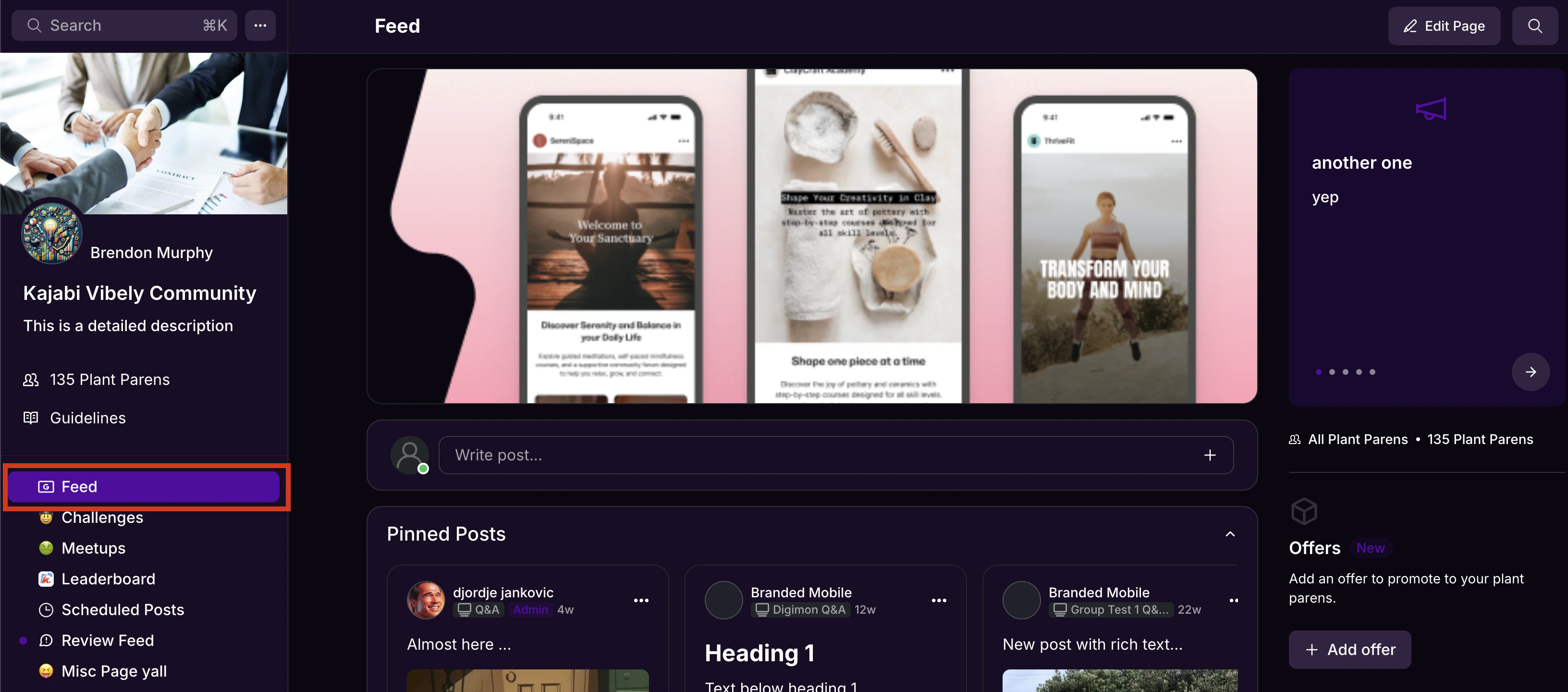
Note: Chat messages will not appear in the global feed on the Feed page.
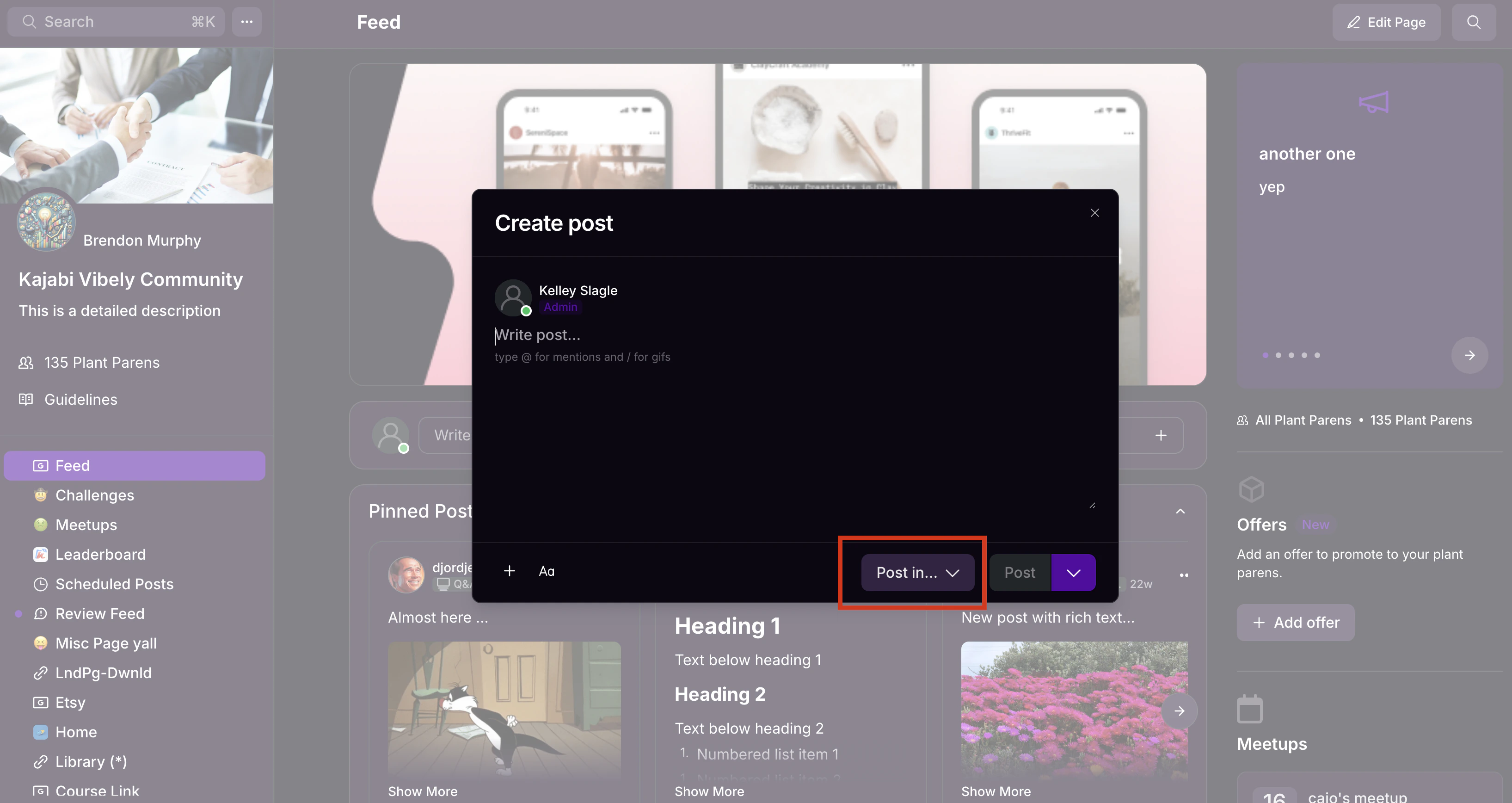 You can also choose to sort Feed posts from newest to oldest, oldest to newest, or by popularity (i.e. posts with the most recent likes and comments):
Feed page settings
To change the default appearance of the Feed page:
- Click the ellipsis icon on your cover photo, then select Community Settings.
- Select Customization.
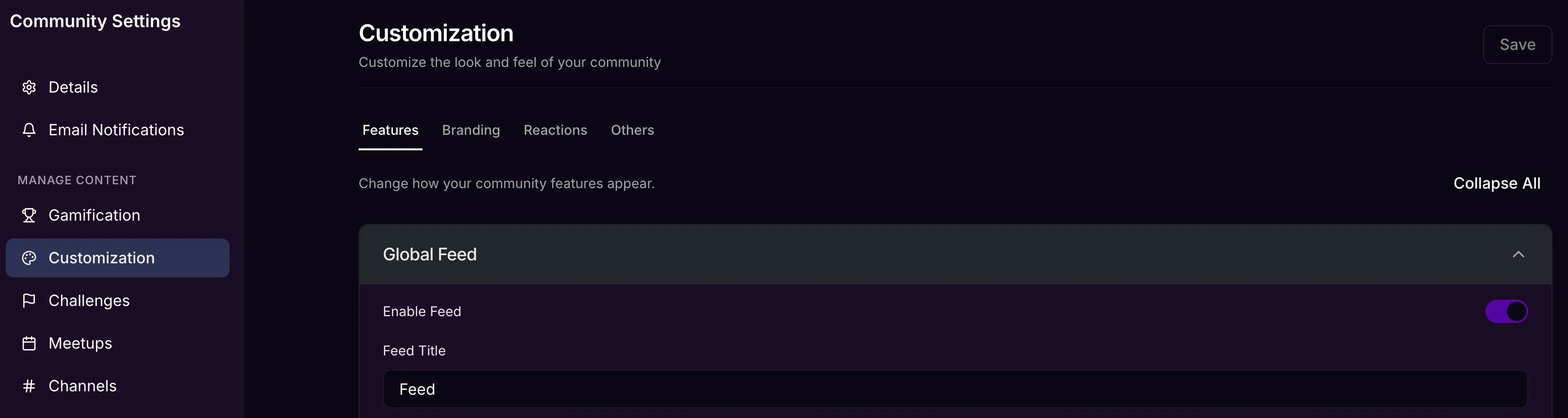
To rename the Feed page or disable it completely, select Features and under the Global Feed section, enter the desired name under Feed Title.
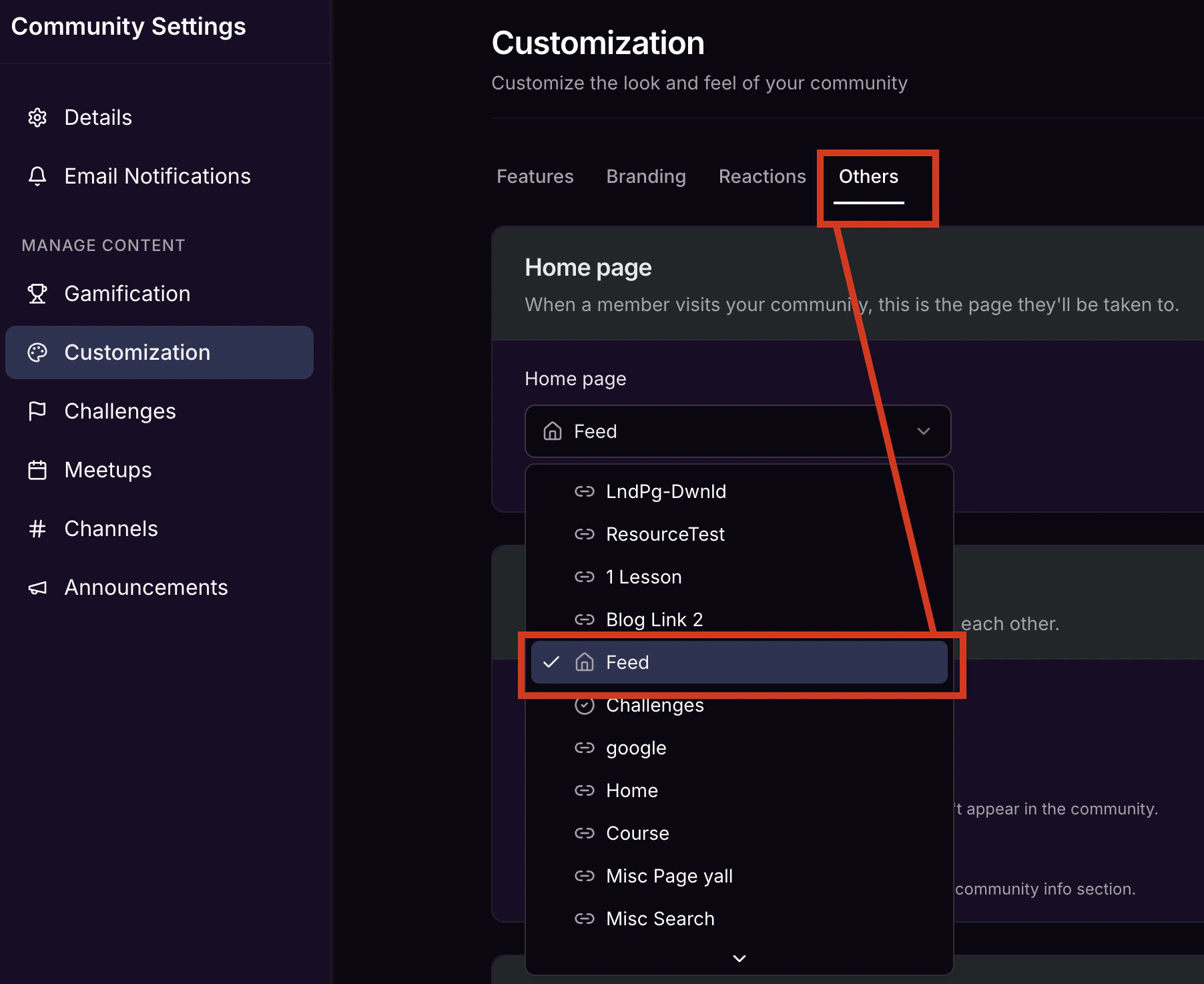
 To make your Feed you Home page (i.e. the page your members land on when they visit your Community), select **Others **and then use the dropdown under Home page to select the **Feed **option.
 The Community experience on the web app also offers a right sidebar conveniently displaying a feed of the 3 most recent:
- Announcements
- Upcoming Meetups
- Challenges to Complete
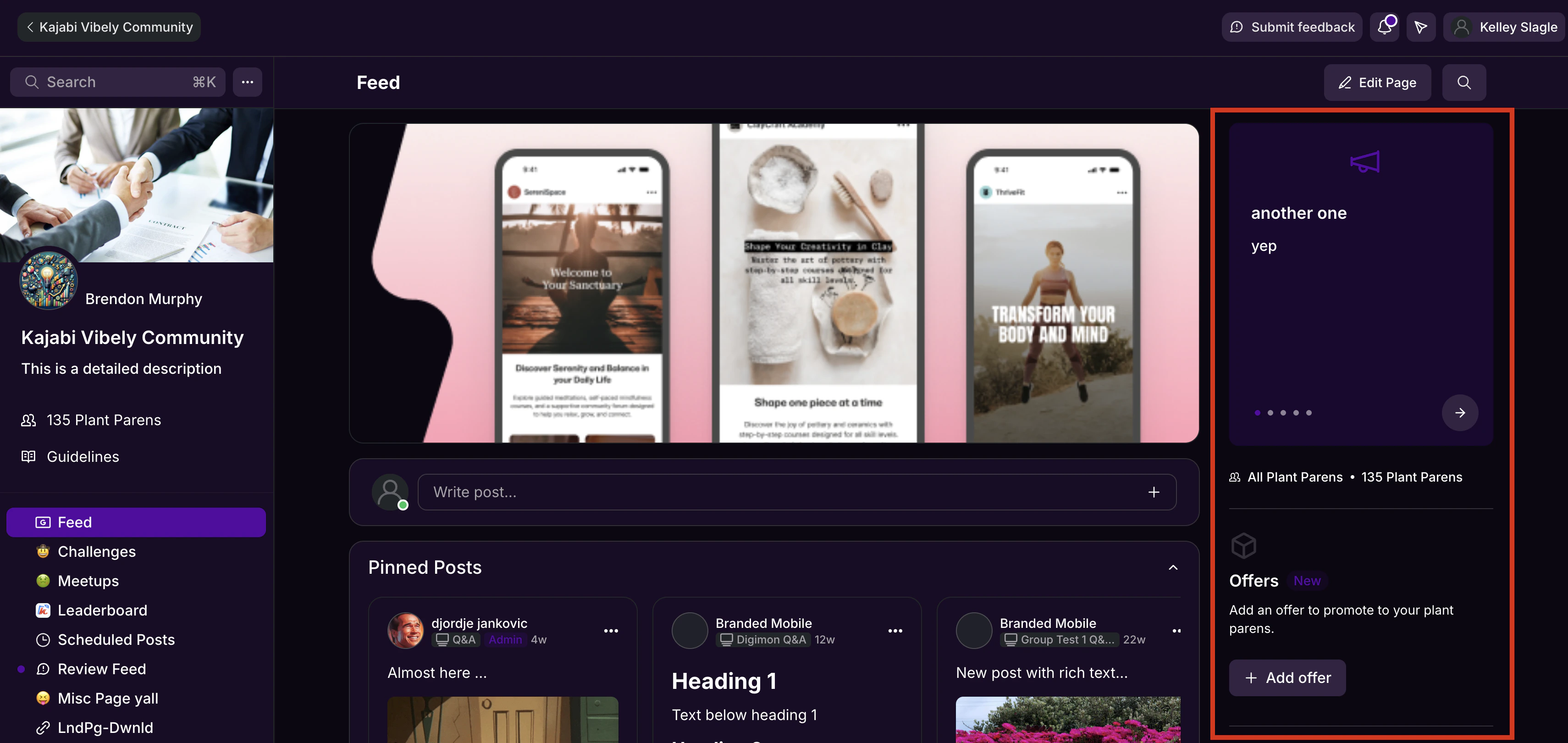 The sidebar is only viewable on device screens of at least 768px (8 inches). It won’t appear on mobile devices or other small screens.
