

Key benefits
- Review posts before publishing to prevent inappropriate content from appearing
- Hide or lock posts instantly to manage conversations in real time
- Require post approval for specific members who need closer moderation
- Track all moderation actions in a full audit log
- Assign channel-based moderators for flexible Community management
Use moderation tools in Community
Who can moderate
The level of moderation access depends on the teammate’s role:- Leader (Community owner): Full access to all moderation features
- Admin: Full access to all moderation features
- Assistant: Full access to all moderation features
- Moderator: Can only moderate content in Channels they are a member of
Review Feed
The Review Feed is the central dashboard for moderation activity. To access it:- Go to your Community.
- Click Review Feed in the left sidebar.
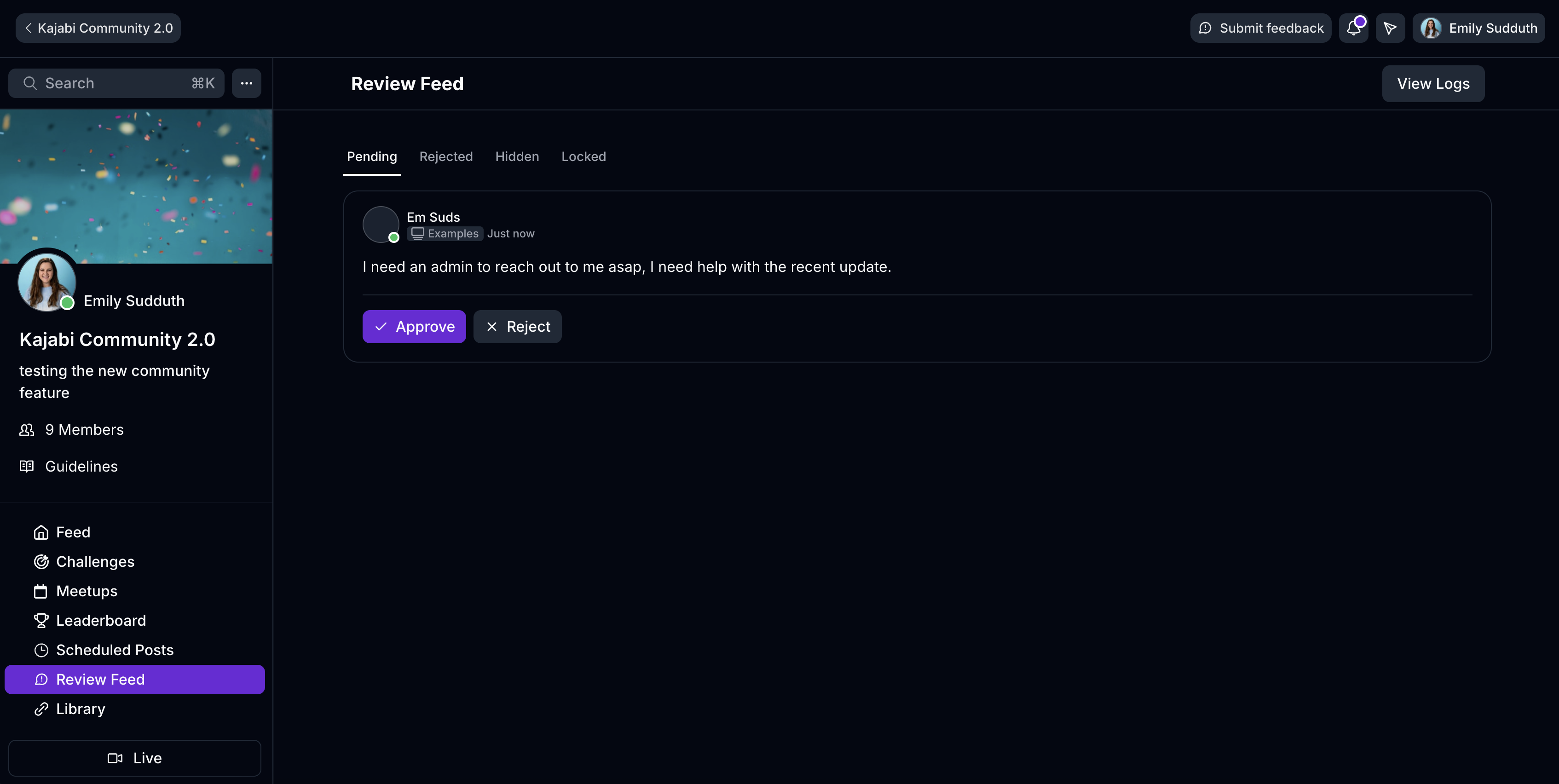
Pending
Posts waiting for review.- Click Approve to publish the post to the Feed.
- Click Reject to keep the post out of the Feed.
Rejected
Previously rejected posts.- You can still approve a rejected post if you change your decision.
Hidden
Posts manually hidden by a Moderator.- Hidden posts can be restored later.
Locked
Posts that are locked from receiving comments.Post-level moderation actions
When Moderation Tools are enabled, Moderators see additional options in the three-dot menu on posts.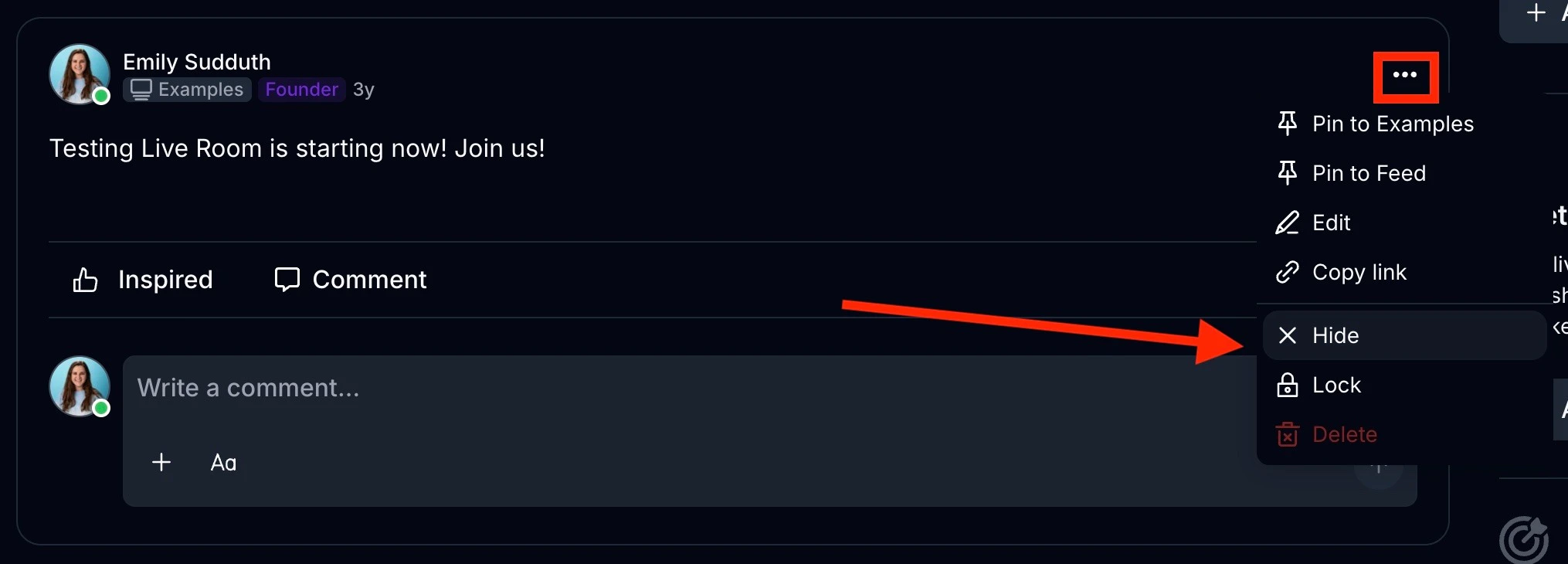
Hide a post
- Click the three-dot menu on a post.
- Select Hide.
- Confirm in the dialog box.
- Is removed from the Channel feed
- Moves to the Hidden tab in the Review Feed
- Can be restored later
Note: Hiding is reversible. Hidden posts remain accessible in the Hidden tab.
Lock a post
- Click the three-dot menu on a post.
- Select Lock.
- Remains visible in the Feed
- Prevents new comments or replies
- Keeps existing comments visible
Unlock a post
- Click the three-dot menu on a locked post.
- Select Unlock.
Require post approval for a member
You can require approval for all posts from a specific member. When enabled, their posts must be approved before appearing in the Feed. This is useful if a Member has previously posted inappropriate content.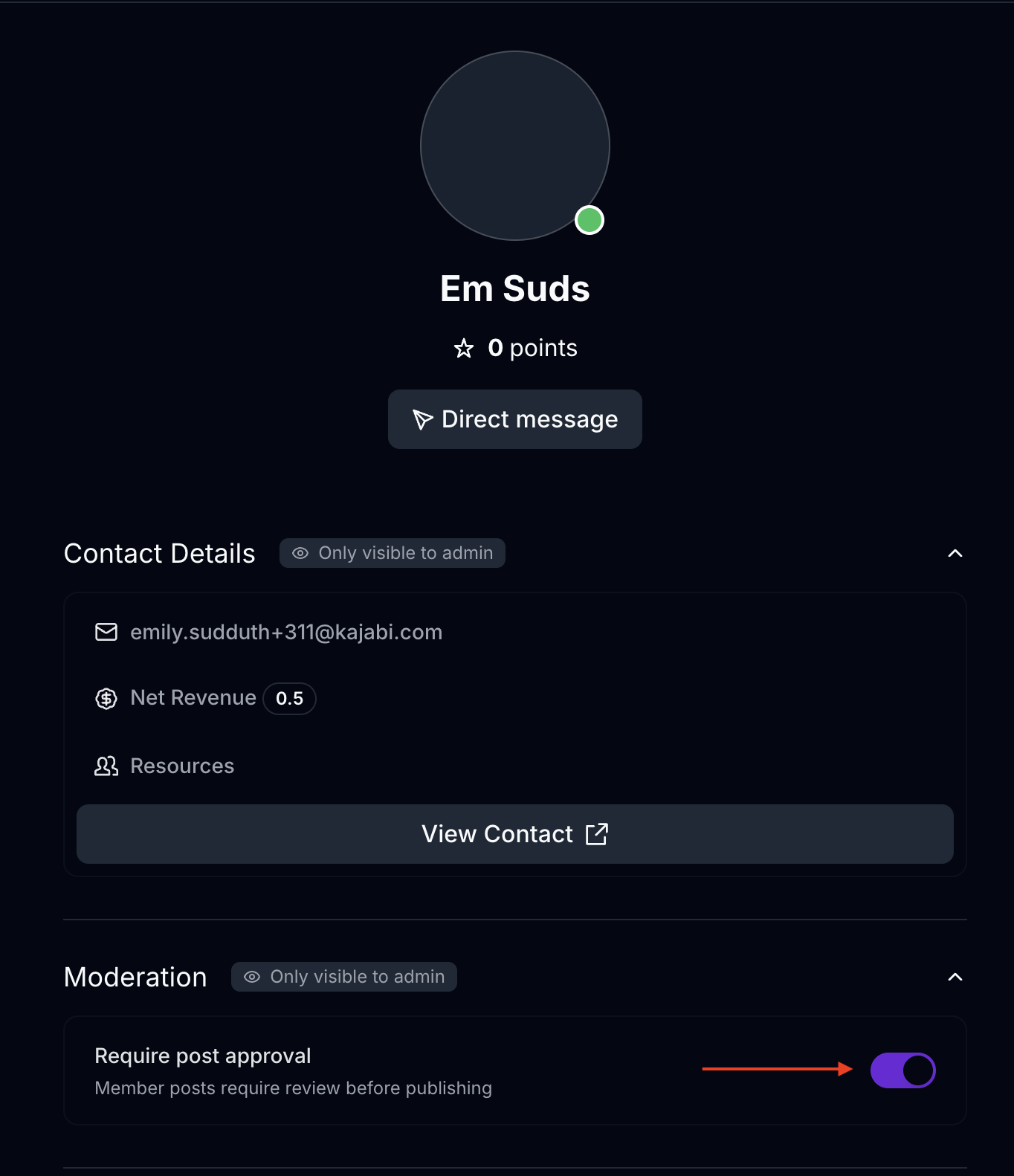
- Go to the Member’s profile.
- Open the Moderation section.
- Toggle Require post approval on.
- All posts from that Member go to the Pending tab in the Review Feed
- Posts are not visible in the Channel until approved
View moderation logs
Moderation Logs provide a complete audit trail of all moderation activity. To access logs:- Go to the Review Feed.
- Click View Logs in the header.
- Actions tracked: hide, unhide, lock, unlock, approve, reject
- Filters available: action type, date range
- Details shown: moderator name, action taken, timestamp, affected content
What members experience
When moderation tools are used, Members see the following:- Pending posts: Submitted but not visible until approved. Members do not receive a notification that their post is pending.
- Hidden posts: Disappear from the Channel feed.
- Locked posts: Remain visible, but the reply/comment input is disabled.
- Rejected posts: Do not appear in the Channel feed.