

Community Channels
A Channel in Kajabi Communities allows you to segment your customers into more refined groups. Channels can be a feed or a chat to build engaging interactions, activities, and discussions amongst your customers. Learn to create a Channel.Rearrange Channels
Organize your Channels for your Community Members by reordering how they are displayed within your Community. By reordering your Channels, you will create a Custom order.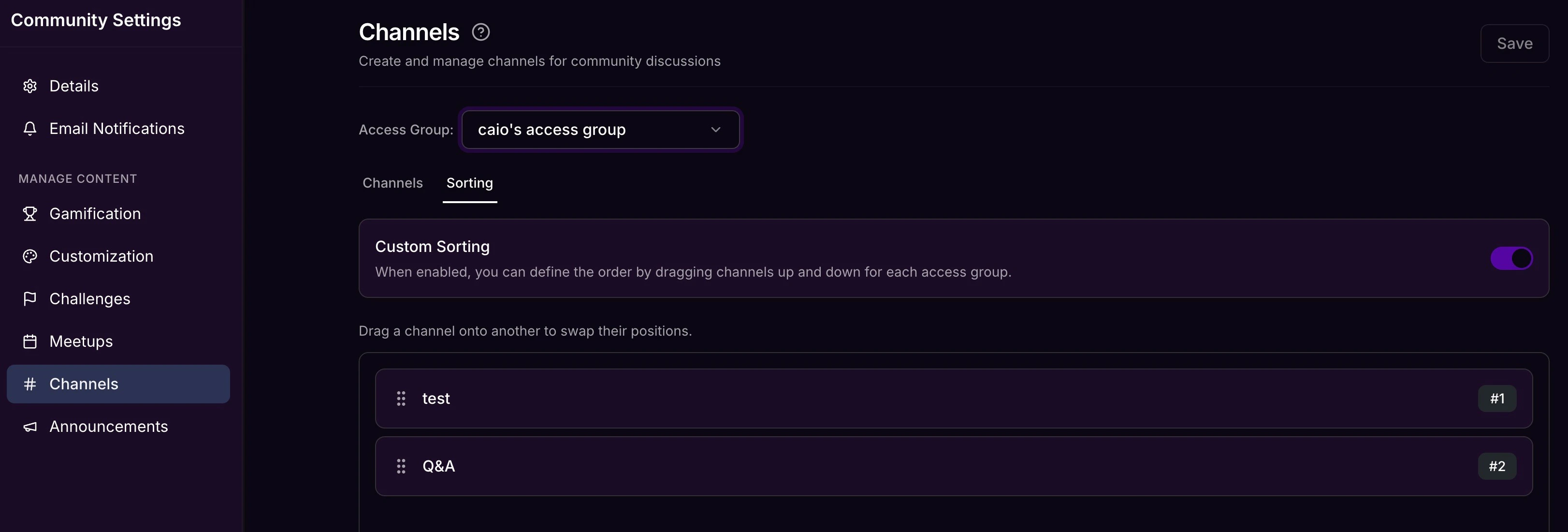
Rearrange Channels from Community Settings
- Open Products from your Kajabi Dashboard.
- Select Community.
- Click Go to your Community.
- Inside your Community, click the ellipsis icon on your cover photo, then select Community Settings.
- Navigate to Channels.
- Select the Sorting tab.
- Locate the Channel you wish to move.
- Drag and drop the Channel to your desired location.
- Repeat for all Channels you wish to rearrange.
- Be sure to click Save to keep and apply your changes.
Rearrange Channels from Community Home
- Open Products from your Kajabi Dashboard.
- Select Community.
- Click Go to your Community.
- Locate the Channel you wish to move inside the left sidebar.
- Drag and drop the Channel to your desired location.
- Repeat for all Channels you wish to rearrange.