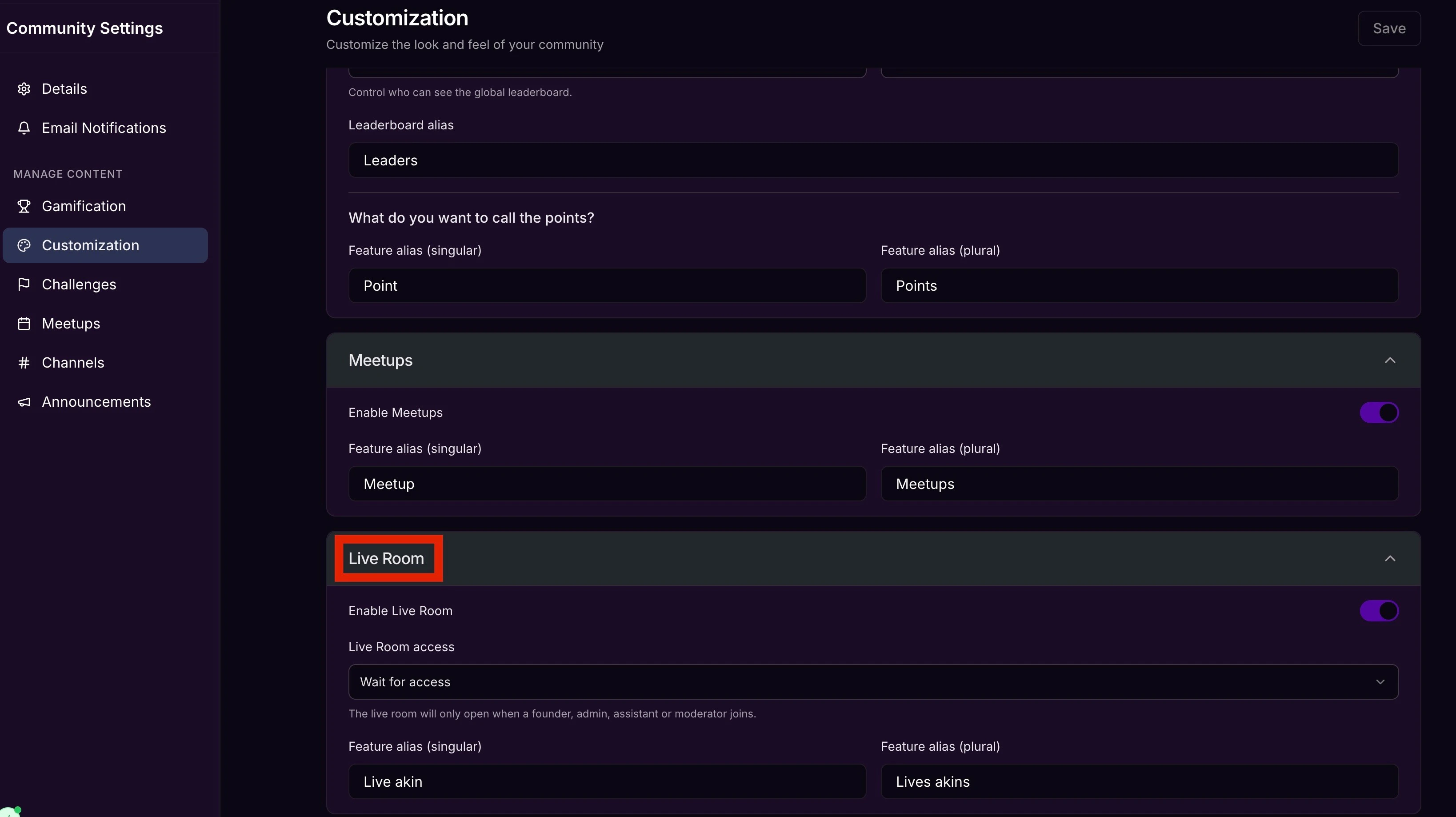
To open your Community Customization settings:
- In your Community, click the ellipsis … icon next to the cover image.
- Then, select Community Settings.
- In the left sidebar, select Customization.
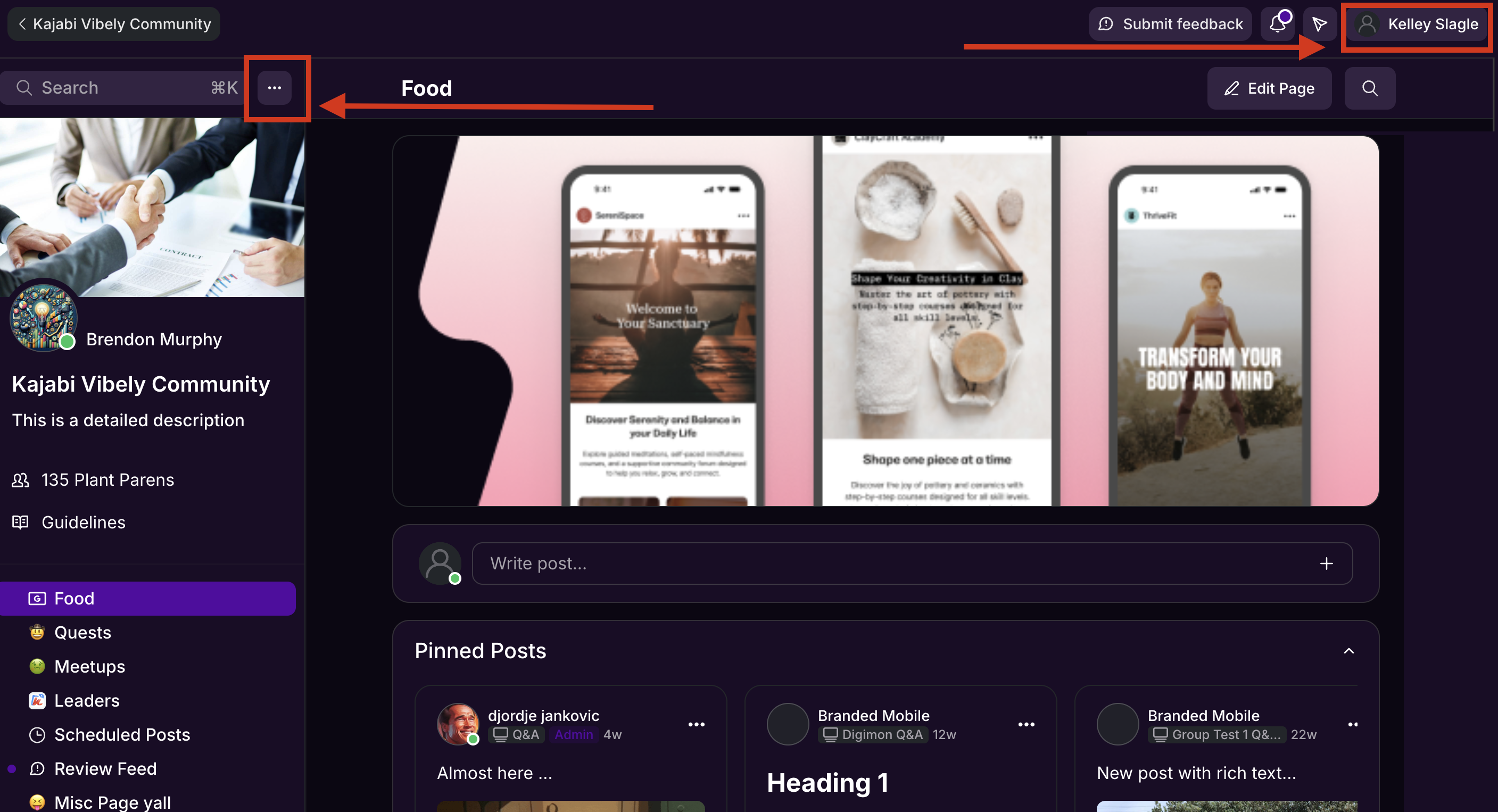
Note: You can also access Community Settings by clicking the profile icon in the top-right navigation bar.
Global Feed
The Community global Feed provides a central place to browse activity, and displays all posts from feed-type Channels you have access to.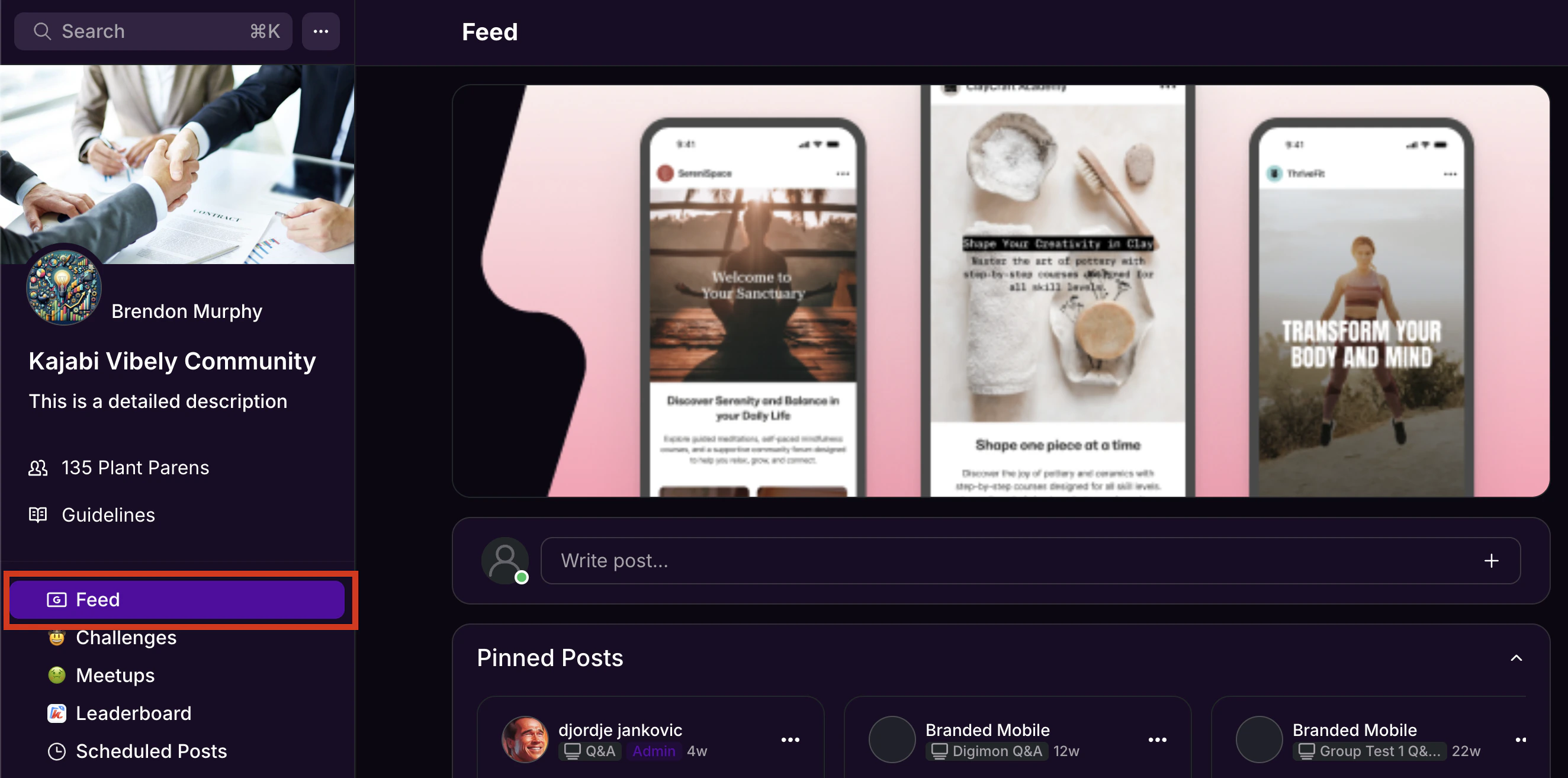
Note: Chat messages do not appear in the global feed on the Feed page.
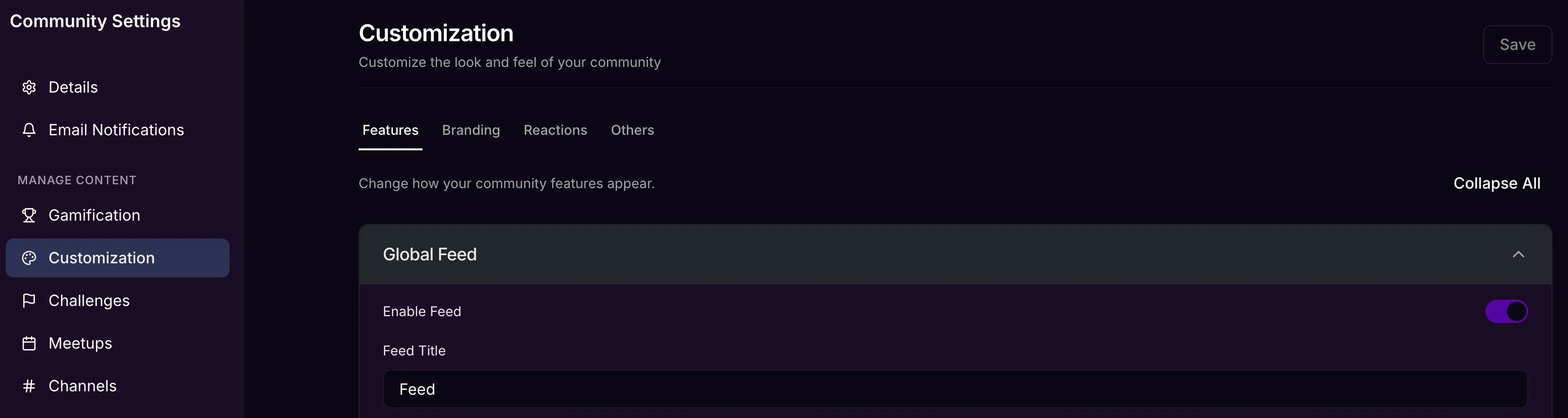
To rename or disable the global Feed:
- Click the ellipsis … icon next to the cover image, then select Community Settings.
- Select Customization.
- Select the Features tab and navigate to the global Feed section.
- Enter a desired name under Feed Title, or disable the Feed page entirely.
- Click Save to apply changes.
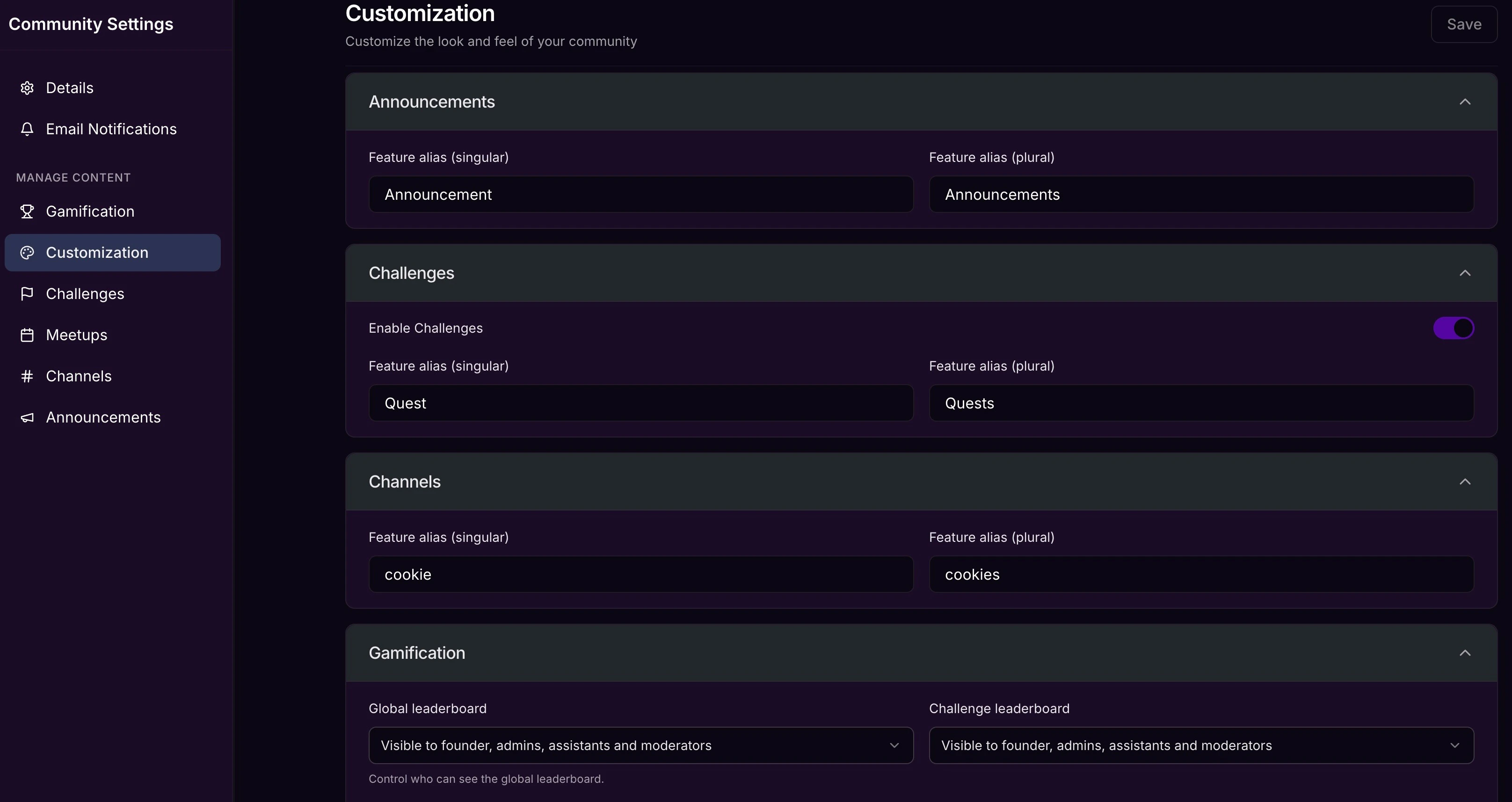
Rename and change feature aliases
Match your business brand and language with your Community by renaming key features. This helps create a more cohesive experience that resonates with your members. You may rename the following Community features:- Challenges
- Meetups
- Channels
- Live Rooms
- Announcements
- Leaderboards
Note: Renaming Community features updates feature names across the entire Kajabi app, including desktop, mobile, and notifications. Any URLs also update to reflect the name change. However, original feature names still display for Admins in Community Settings. Member-facing settings do not contain original feature names.
To rename a Community feature:
- Click the ellipsis … icon next to the cover image, then select Community Settings.
- Click Customization.
- Locate the feature you wish to rename and open the dropdown.
- Enter a Feature alias for both plural and singular.
- Click Save to apply changes.
Customize branding
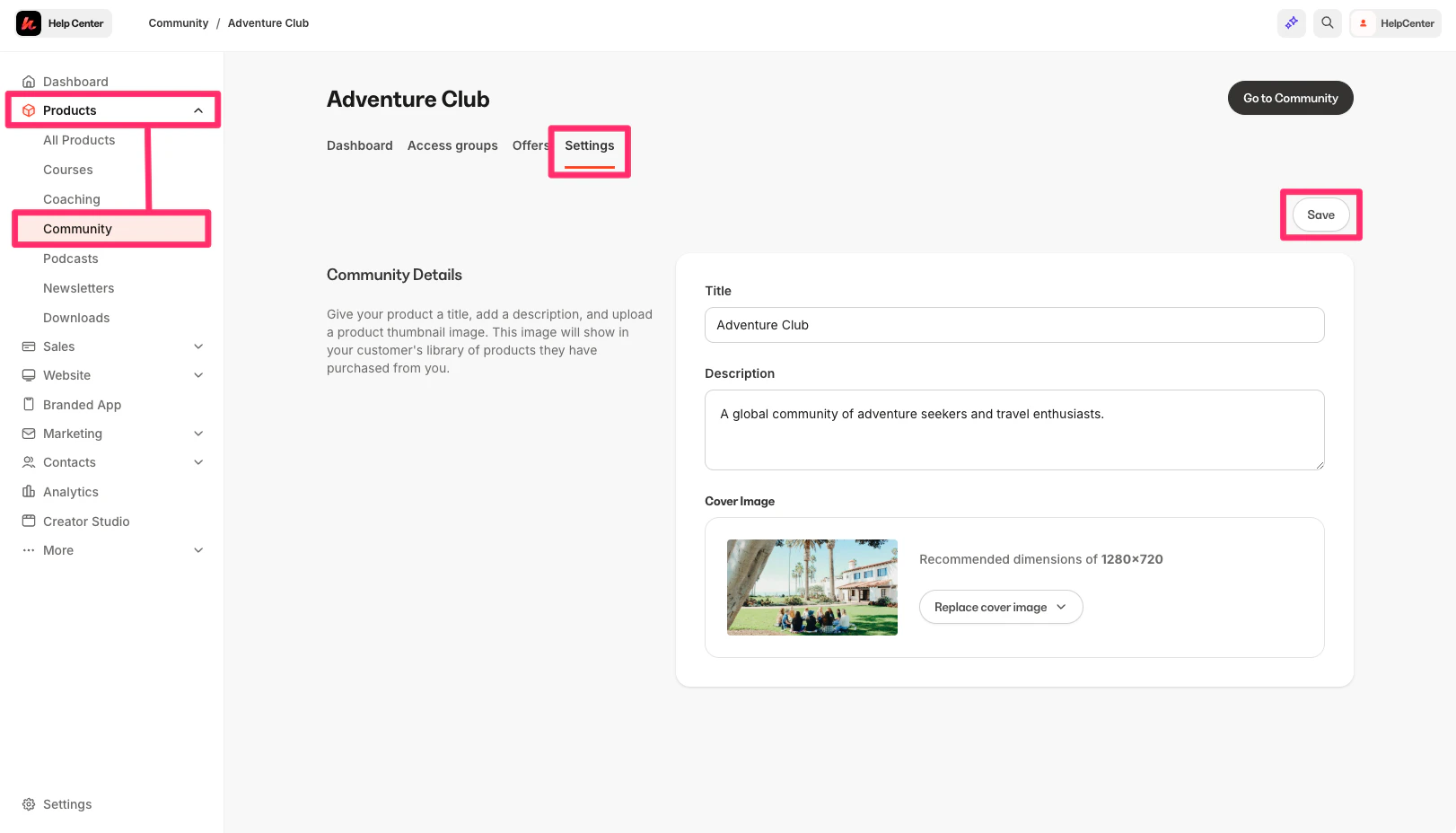
The Community Title, Description, and Cover Image are managed through the Community Product settings in the Kajabi app. These elements shape how members discover and experience a Community from the moment they arrive.To update the Community Title, Description, or Cover Image:
- Click the ellipsis … icon next to the cover image, then select Community Settings.
- Update the Title, Description, and/or Cover Image as desired.
- Click Save to apply changes.
Customize reactions
Custom reactions are labeled emojis you and your Community members can use to react to feed-style Channel posts, Comments on Posts, and Challenge entries. Customize these to match your brand’s voice and tone. A variety of emojis are available: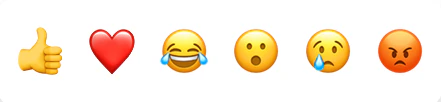
Note: Only the thumbs-up emoji can be used to react to Challenge entries. However, the custom label assigned to this emoji appears alongside it in all locations (Channel posts/comments and Challenge entries).
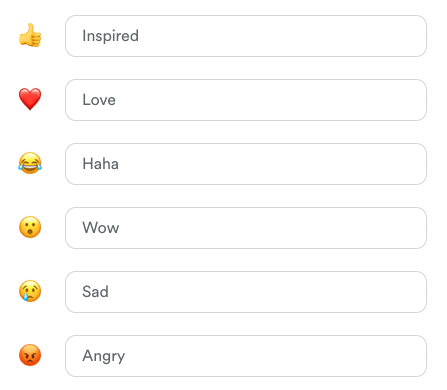
- Select Customization from the left navigation menu.
- Navigate to the Reactions tab.
- Use the text input field next to each emoji to enter a label as desired.
- Check out how your updated emoji look by scrolling your cursor over each emoji in the Preview box just below.
- Click Save.
Apply a reaction
Reactions can be applied to feed-style Channel posts, Challenge entries (thumbs-up emoji only), and comments on a Channel post.To add a reaction to a Channel post or comment using the web app:
- Navigate to the post or comment where you want to react.
- Place your cursor over the Inspired (thumbs-up) button. A small popup appears displaying your emoji choices.
- Scroll your cursor over each emoji to preview its label in a tooltip.
- Select the emoji you want to react with.
Note: If you change your mind or accidentally select the wrong reaction, place your cursor back over the reaction button. The popup menu reappears and you can choose a different emoji. Or, click the reaction button to remove your reaction.
Community Home page
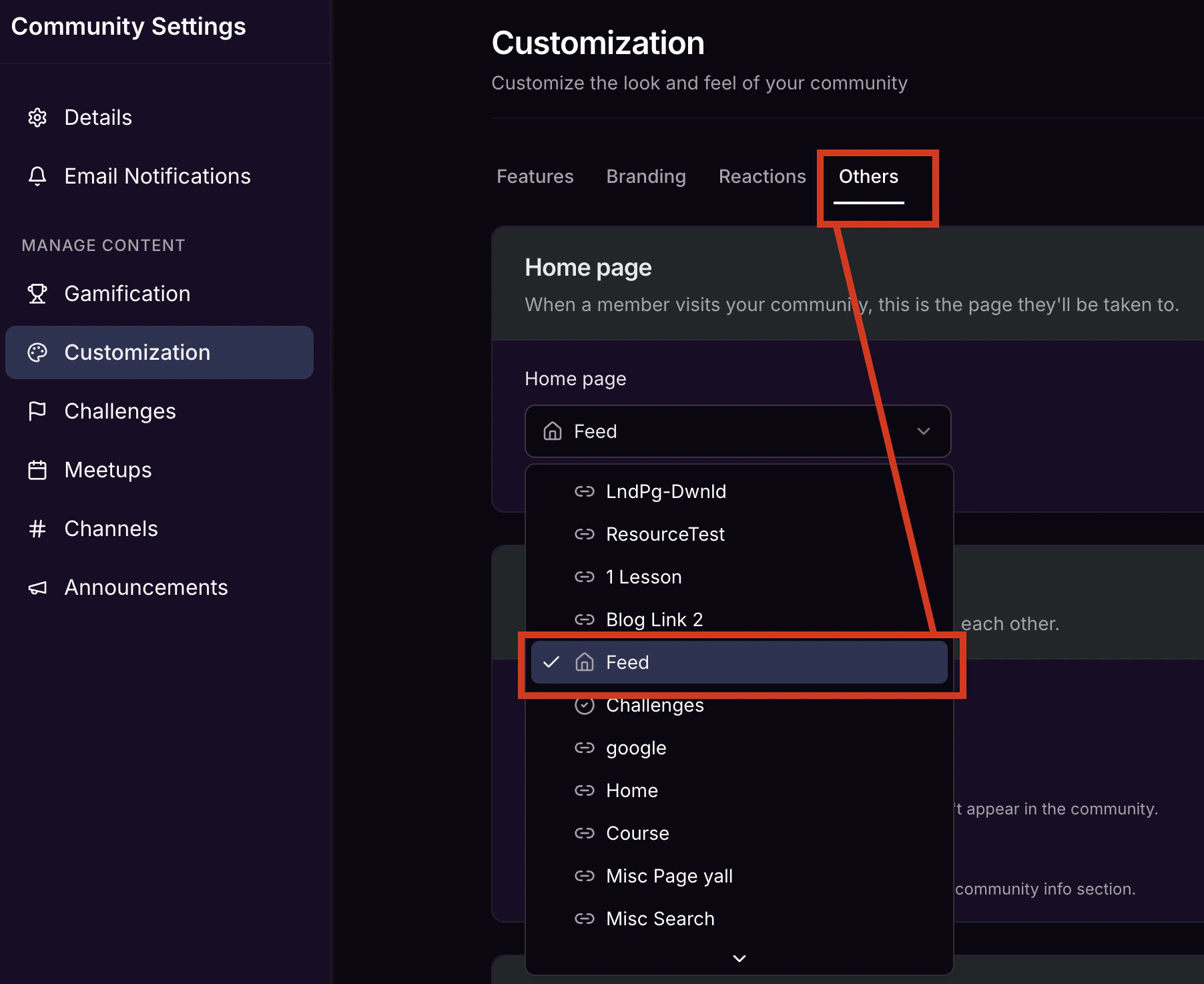
Choose which page your members land on when they visit your Community. By default, this is set to your global Feed.- Click the ellipsis … icon next to the cover image, then select Community Settings.
- Select Customization from the left navigation menu.
- Navigate to the Others tab.
- Use the dropdown under Home page to select the desired option (for example, Feed).
- Click Save.
Communication settings
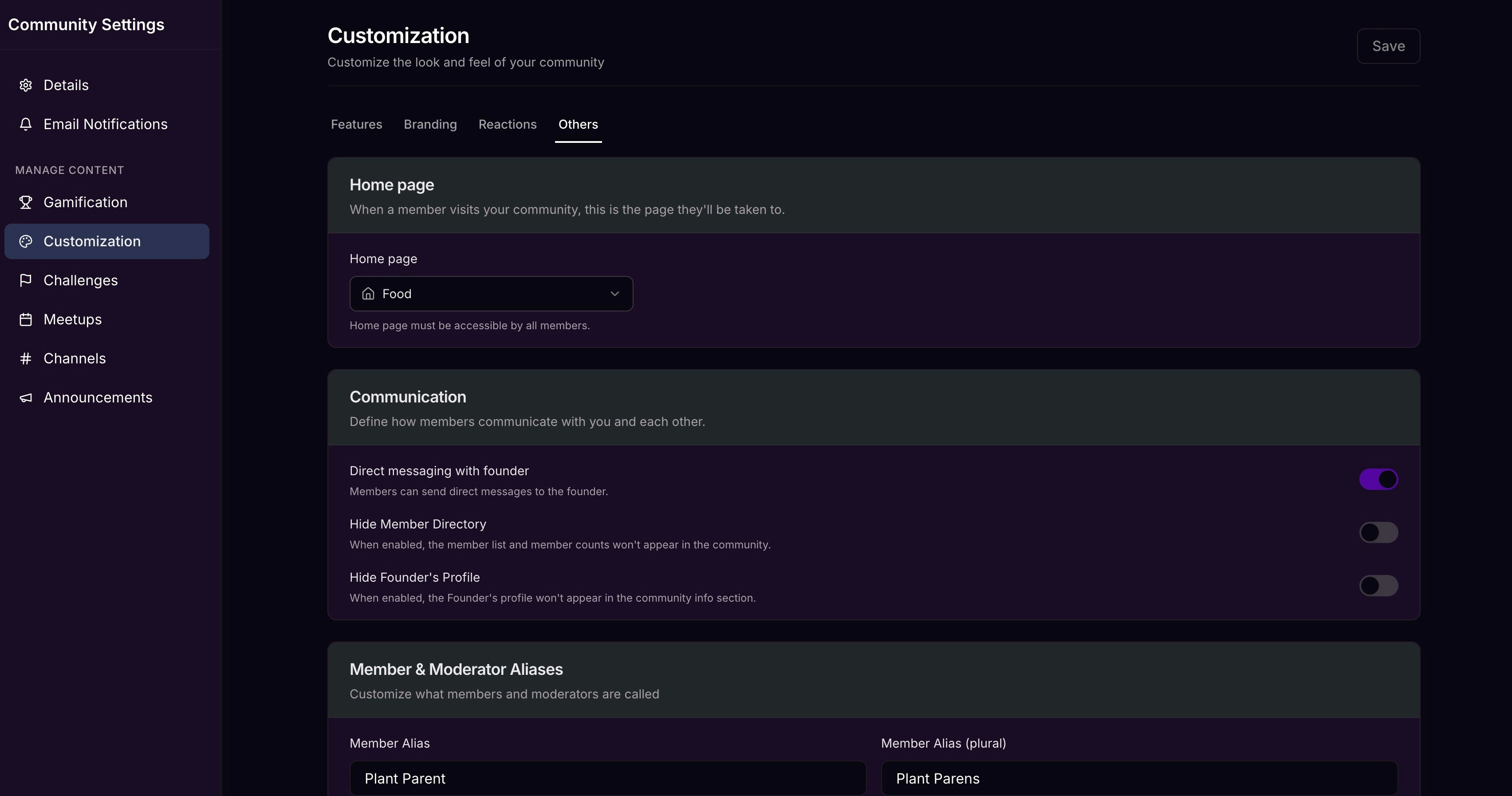
Adjust how members interact and what information is visible within your Community. These settings are found under the Others tab in Customization.Direct messaging with founder
Allow or deny Community members’ access to start direct messages with the Community Account Owner. Any existing conversations remain open.- Click the ellipsis … icon next to the Community cover photo, then select Community Settings.
- Select Customization in the left sidebar.
- Navigate to the Others tab.
- Toggle Direct messaging with founder on or off under the Communication section.
Hide Member Directory
Control whether the Member Directory is visible to your Community members.- Click the ellipsis … icon next to the Community cover photo, then select Community Settings.
- Select Customization in the left sidebar.
- Navigate to the Others tab.
- Under the Communication section, select your desired setting for Hide Member Directory.
- Click Save to apply your changes.
Hide Founder’s Profile
Choose whether to allow your Community members to view the Community leader’s name and profile photo.- Click the ellipsis … icon next to the Community cover photo, then select Community Settings.
- Select Customization in the left sidebar.
- Navigate to the Others tab.
- Under the Communication section, select your desired setting for Hide Founder’s Profile.
- Click Save to apply your changes.
Member and Moderator aliases
Under Customization, you can change how you refer to your Members and Moderators within the Community.- Click the ellipsis … icon next to the Community cover photo, then select Community Settings.
- Select Customization in the left sidebar.
- Navigate to the Others tab.
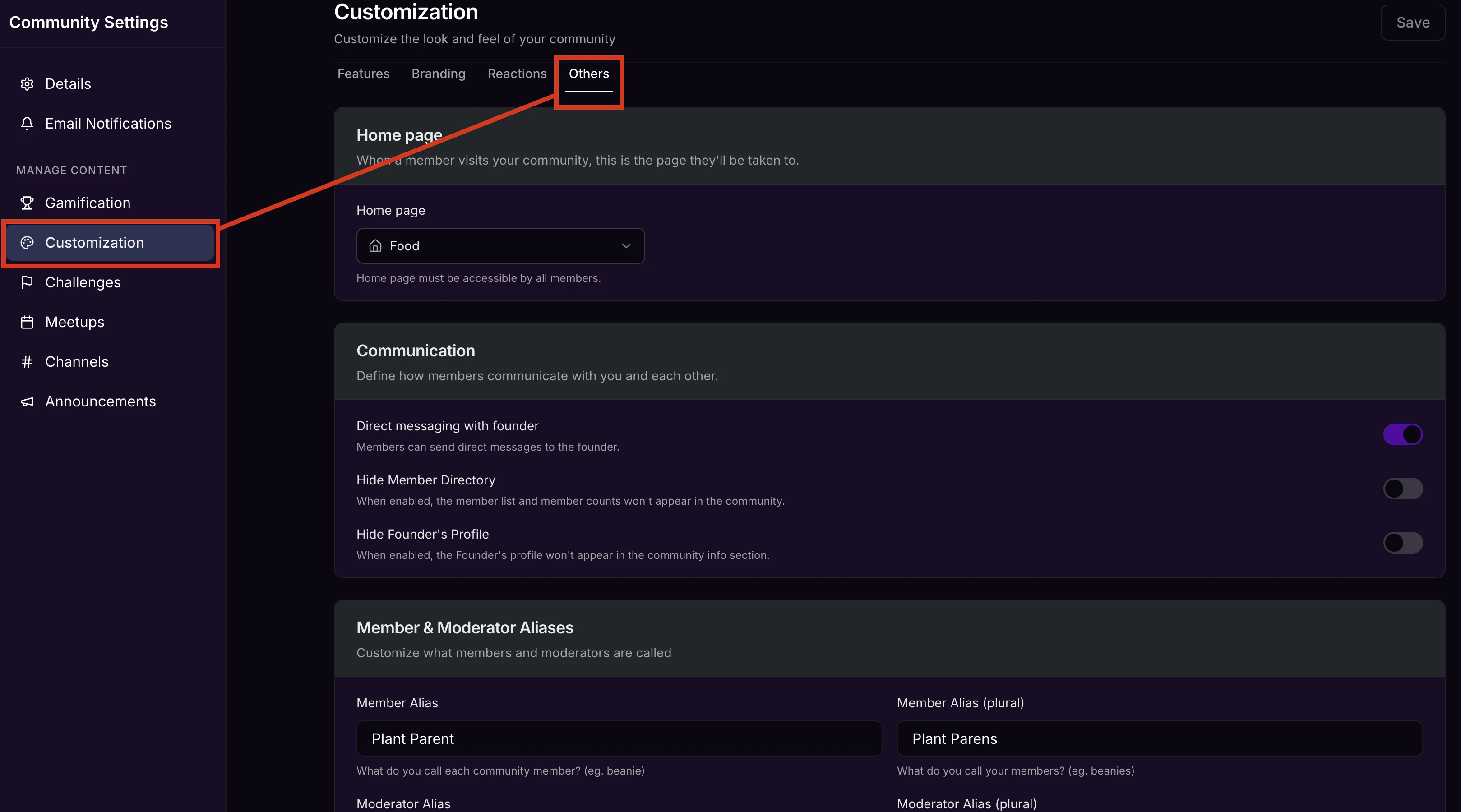
- Scroll down and update aliases as desired by overwriting the default terms.
- Click Save.
Live Room access
Configure whether the Live Room stays open even when you did not start it (Always open), or restrict it so it only opens when a Leader, Admin, or Ambassador starts it (Wait for access).- Click the ellipsis … icon next to the Community cover photo, then select Community Settings.
- Select Customization in the left sidebar.
- Select your desired Live Room access setting.
- Click Save to apply your changes.