

Enable Google Login
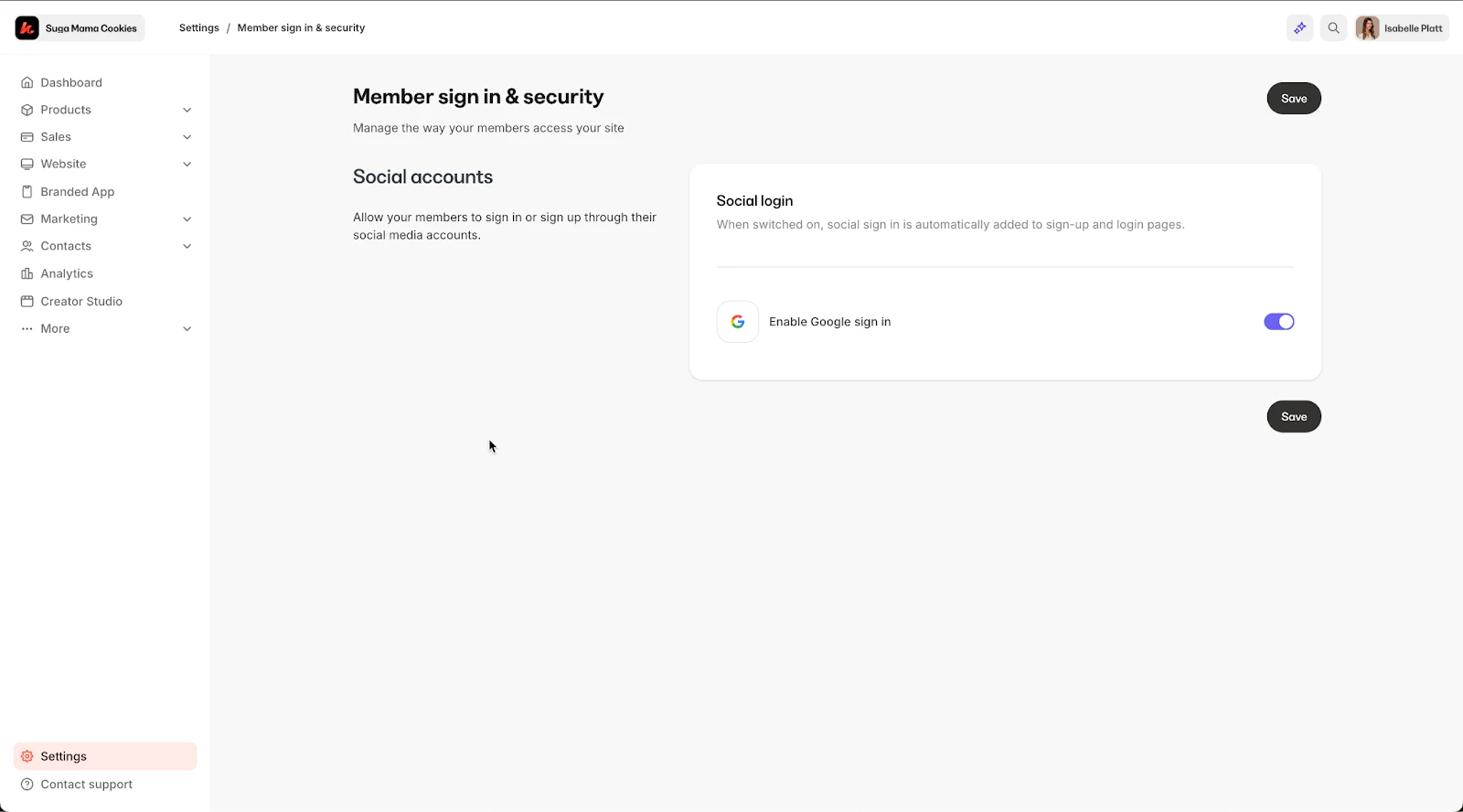
- Go to Settings in the lower left of your Kajabi dashboard.
- Click into the Member sign in & security tab.
- Toggle on Enable Google sign in
- Click Save.
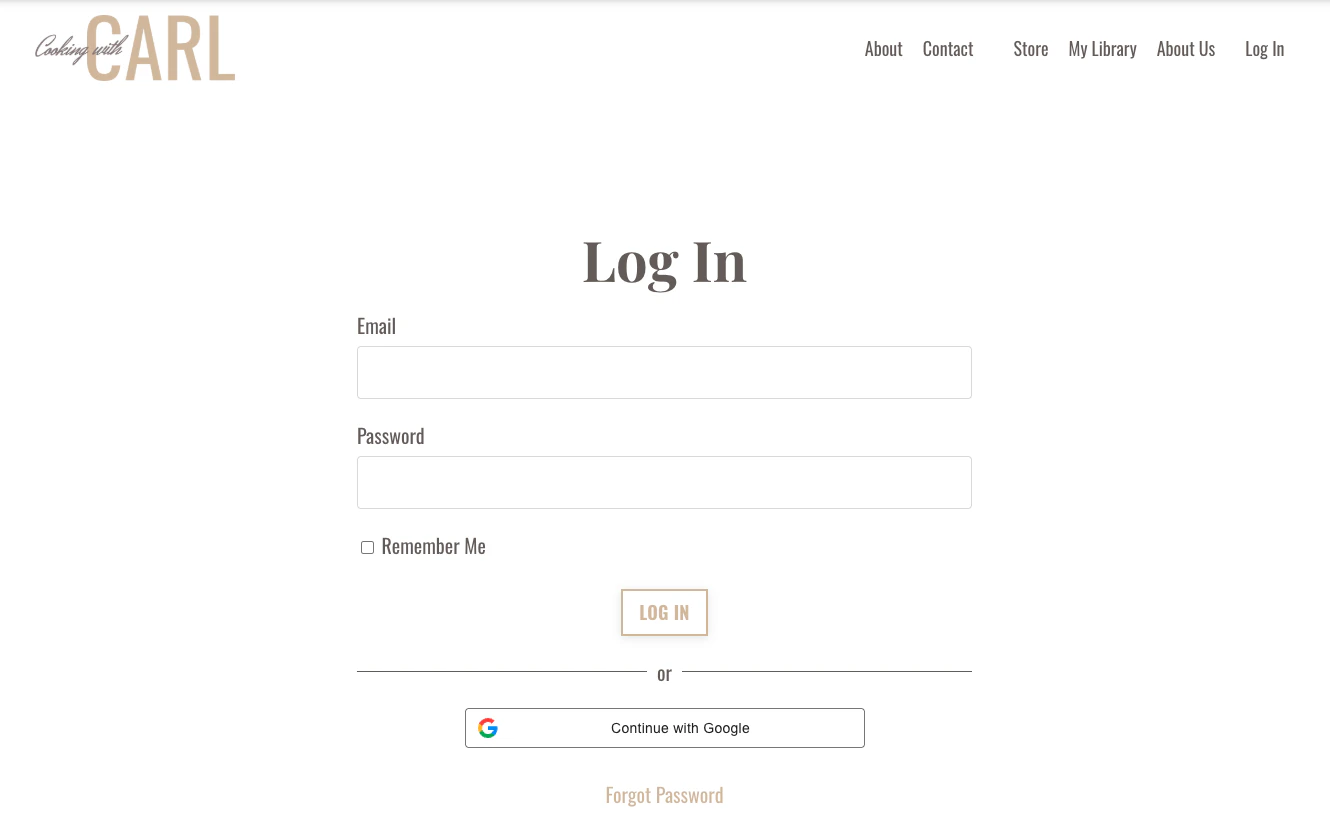
Note: If you’re using an older version of the theme, you may need to update your website theme to see the Google button. Learn how to update your template
Customize the Google Button
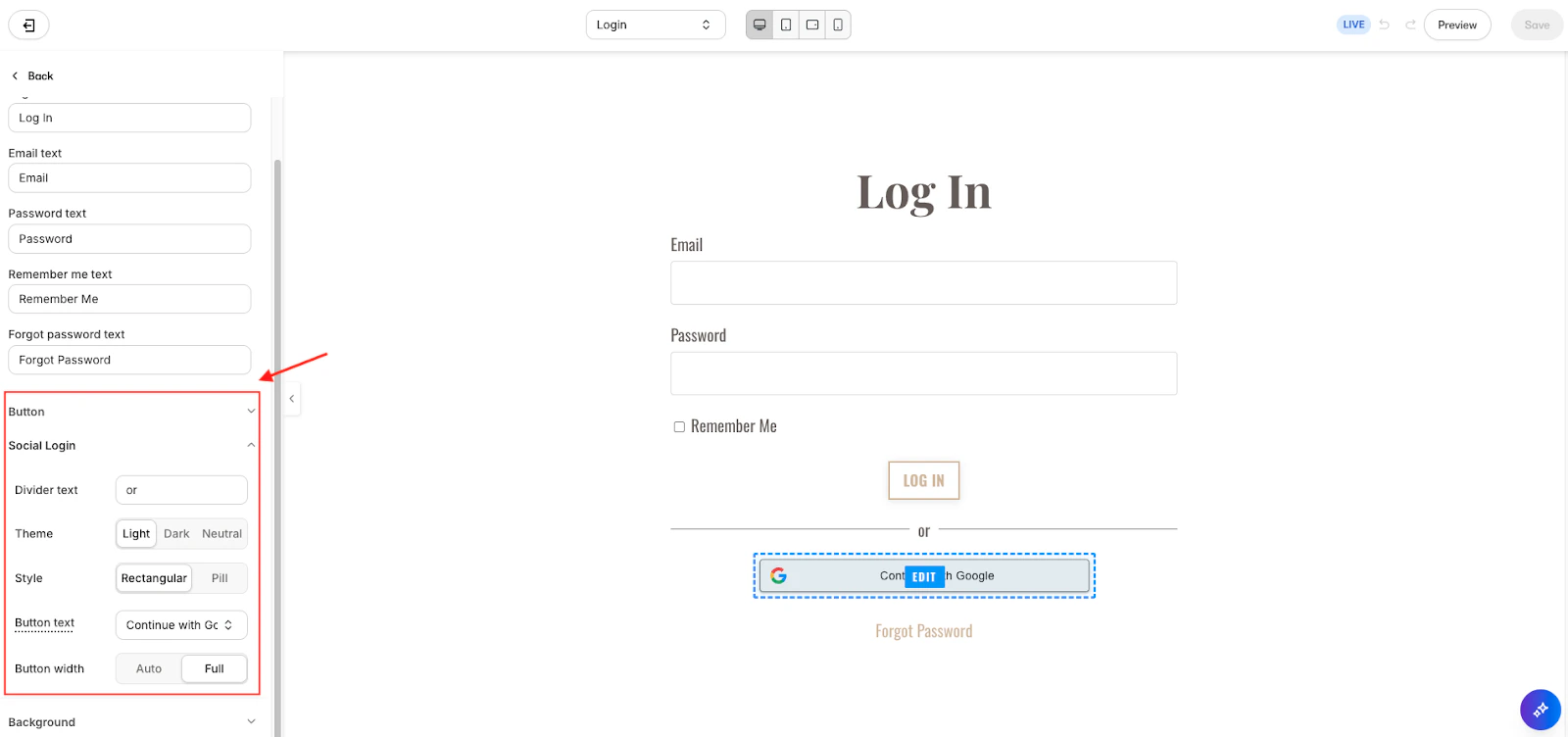
You can adjust the look of the Google login button while staying within Google’s brand guidelines. Options you can customize include:- Button color
- Shape (rounded or rectangular)
- Size
- Text
Member Login Experience
Members signing up
- A member can sign up through your purchase flow or login page.
- On the Customer Account Setup Page, they’ll see the option to Continue with Google.
- If they prefer, they can still create an account with a password.
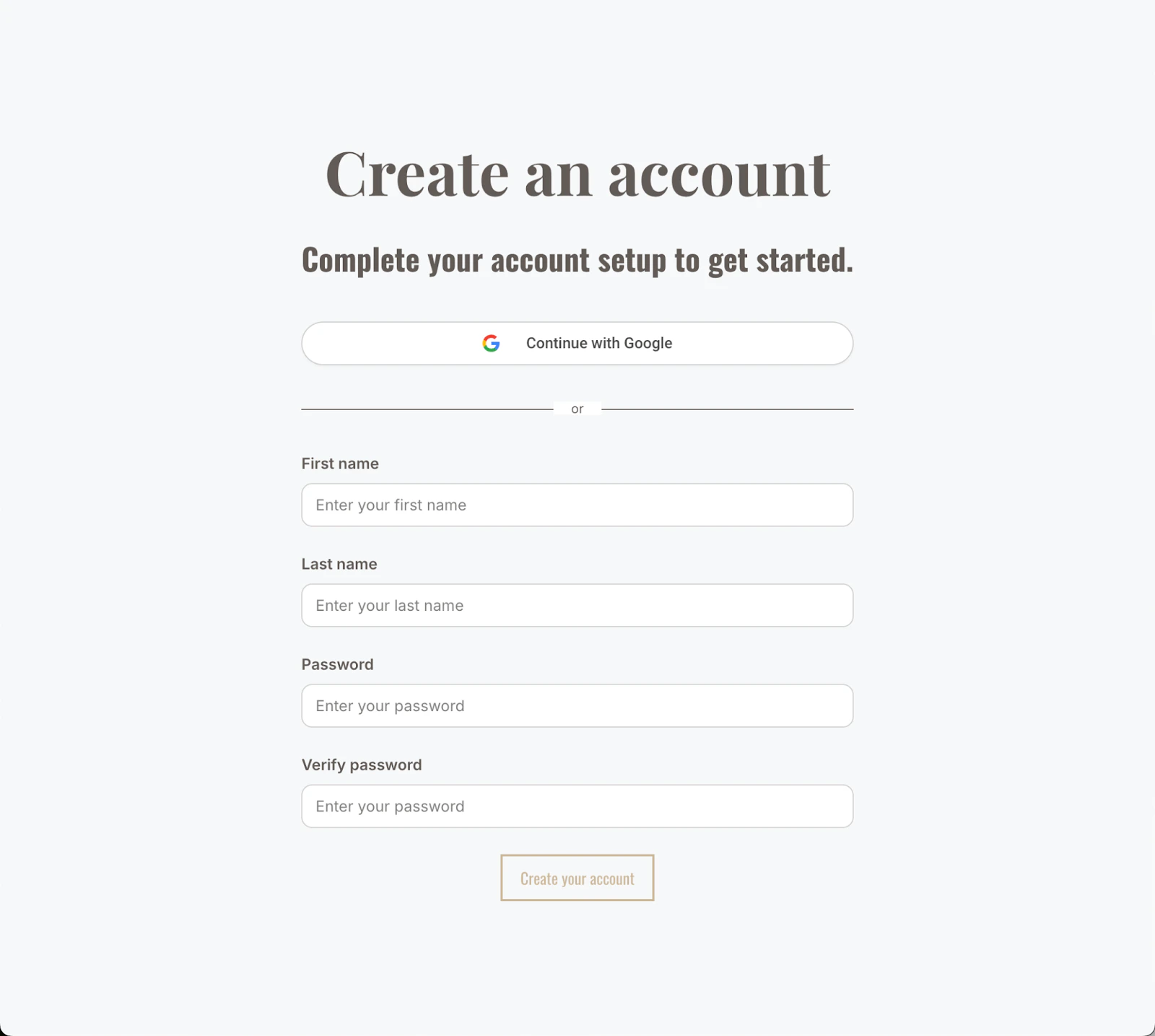
Note: The Customer Account Setup Page automatically inherits the following settings according to your website theme. Learn more about how to Customize your Website Theme.
Existing Members
If a member already has a password-based account and their email they used for account creation is different than their Google email they intend to use, they can connect it to Google by following these steps:- Log in with their existing email and password.
- Go to their Settings.
- Scroll all the way to the bottom of the Settings page and click Connect with Google, under Social Accounts.
- For security, they will be prompted to enter their password to confirm.
Additional Information
- Members can connect one Google account per login.
- If a wrong Gmail account is connected, they can disconnect it from their account settings.
- To ensure security, disconnecting requires creating or confirming a password.