

- Open your Community and click the ellipsis icon next to the cover image.
- Then, select Community Settings.
- In the left sidebar, select Customization.
- Then navigate to the Gamification section.
Titles and badges
Titles serve as community recognition and can be customized based on member activity. Some example titles might be:- Rising Contributor (500 points)
- Top Contributor (1,000 points)
- All-Star Contributor (2,000 points)
- Conditions — Members must meet engagement milestones to unlock them
- Rewards — Each title comes with at least a digital badge associated with it
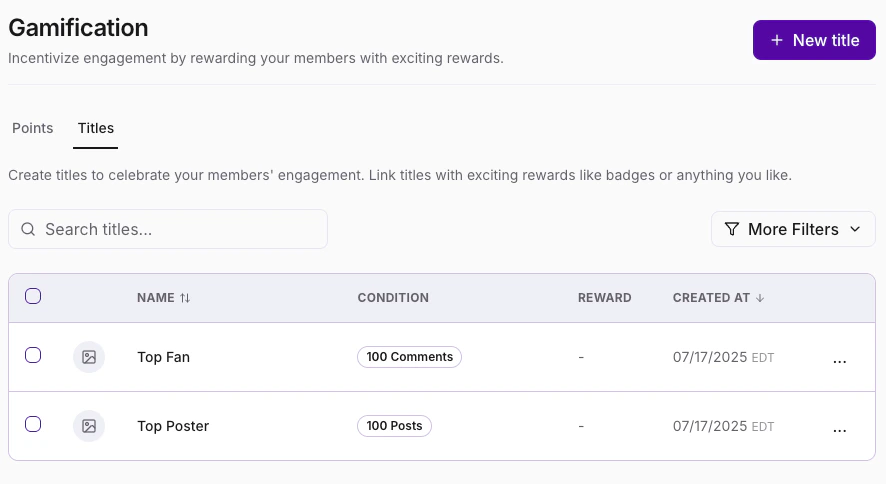
Note: If a title does not have a condition set, no one will qualify for it.
Earn badges
Badges are digital rewards tied to titles and specific achievements. Members can earn badges by completing activities such as:- Making posts or comments
- Completing courses, lessons, or quizzes
- Attending live events or meetups
- Participating in challenges
Grant badges manually
As an admin, you can grant a badge to a member manually — giving you the flexibility to celebrate members for reasons beyond automated achievements.- Click into a member’s profile within your Community. Scroll to the Titles section and click Grant Badge:
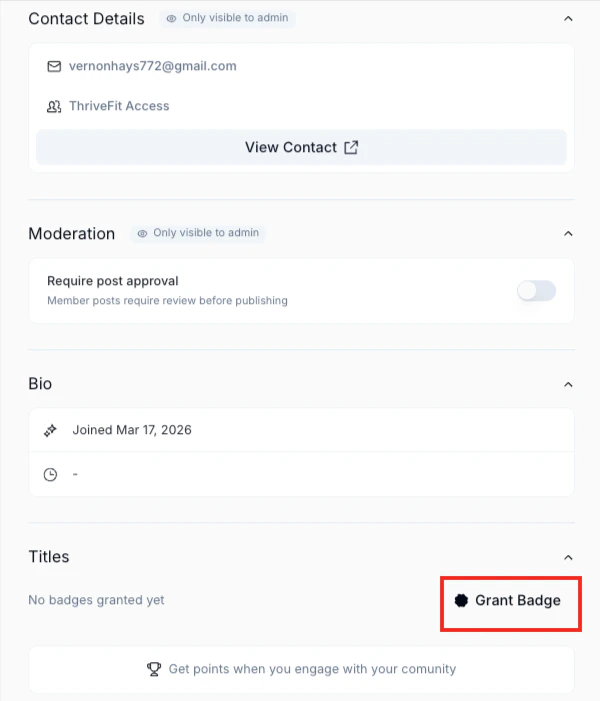
- Select the badge you want to give to the member and click Grant.
Where members see titles and badges
- Profile page — Displays earned titles, total points, and unlocked badges
- Feed (posts, comments, replies) — Shows the most recently earned title next to a member’s name
- Chat messages — Displays the latest badge for easy recognition
- Email — Members receive an email when they earn a title or badge
- Notifications — Members receive an in-app notification when they earn a title or badge
Points system
The points system tracks engagement and participation. By default, Community members earn points for various actions, but you can fully customize the point values based on your preferences.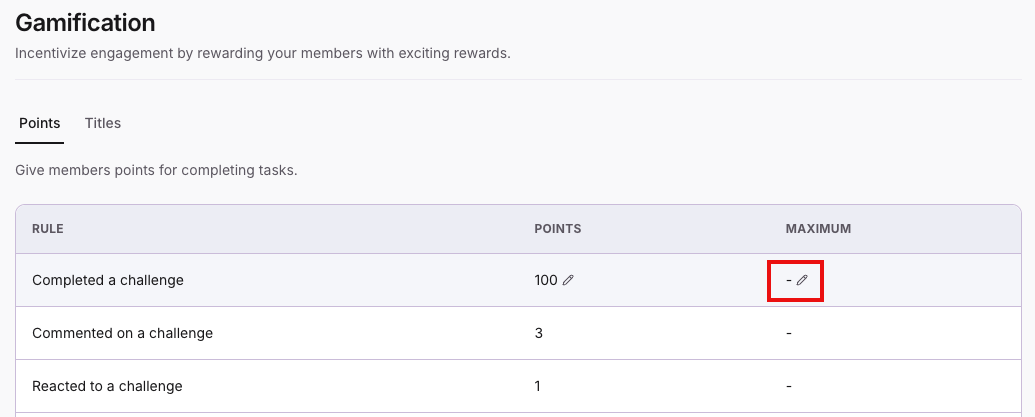
| Action | Points earned |
|---|---|
| Completing a Challenge | 100 |
| Commenting on a post | 3 |
| Reacting to another user’s post | 1 |
| Receiving a reaction on a post | 1 |
| Sending a direct message | 1 |
| Receiving a reaction on a direct message | 1 |
| Voting in a poll | 1 |
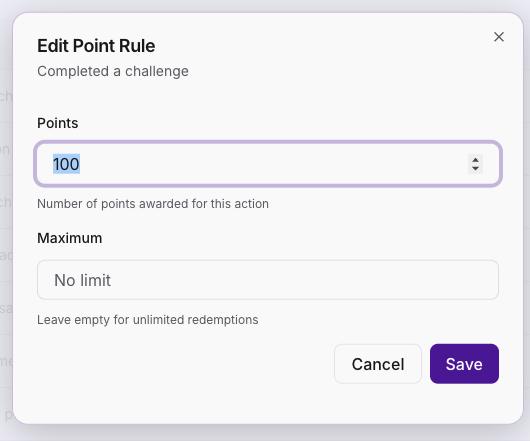
Add real-life prizes as custom fields
You can offer real-life (IRL) prizes to reward engagement, such as:- Promo codes (e.g., discounts for products or services)
- Physical merchandise (e.g., community swag, books)
- Exclusive content (e.g., special access to premium content)
Leaderboard
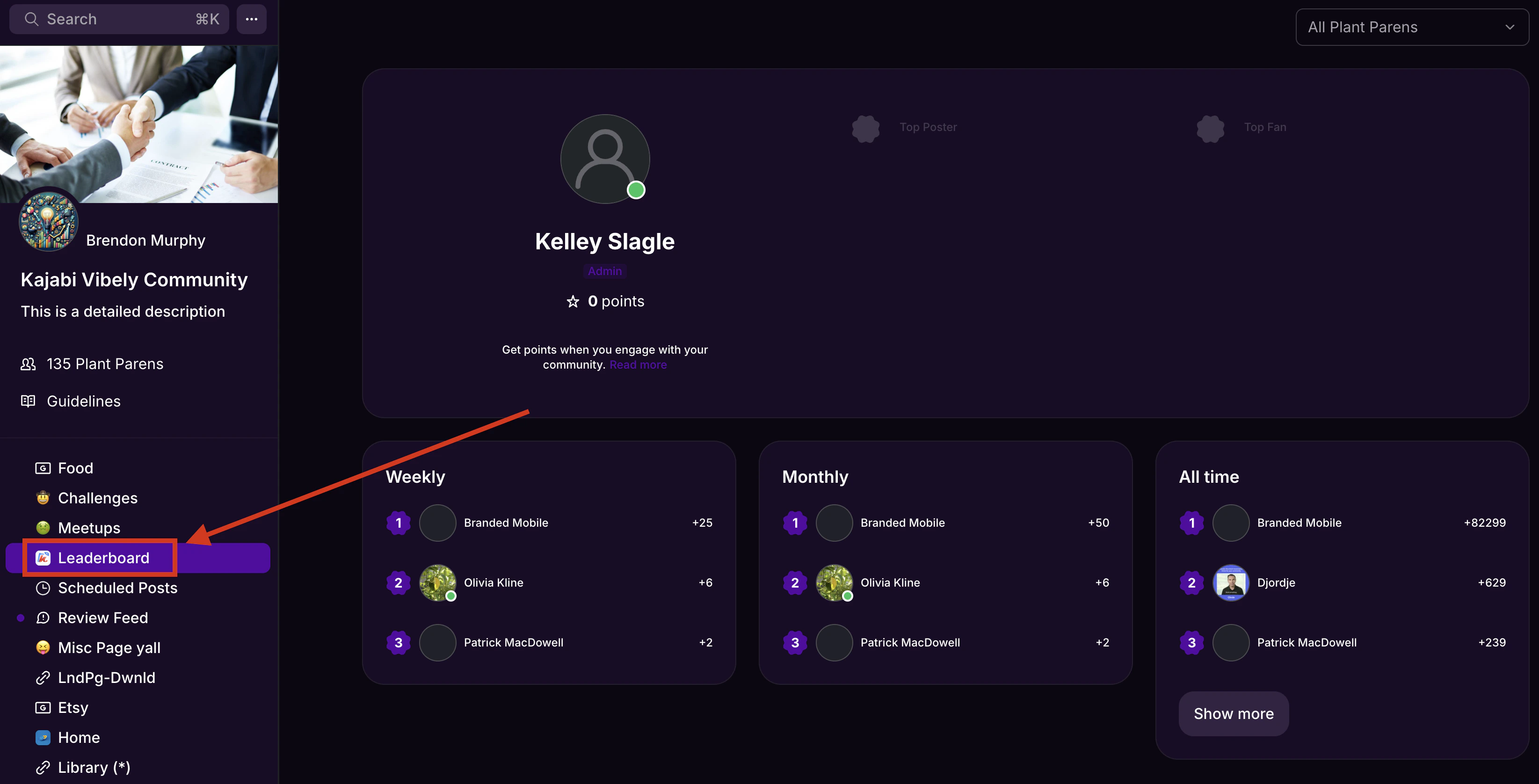
The Leaderboard ranks members based on their accumulated points and is available on mobile and web. It gives you a quick snapshot of who is most actively participating in your Community — use it to recognize top contributors, encourage engagement, and keep members motivated. The Leaderboard can display:- 7-day, 30-day, or all-time rankings
- Titles and earned badges
- Sorting based on activity level
Note: The 7-day Leaderboard resets at 8am UTC every Monday. The 30-day Leaderboard resets at 8am UTC on the first of every month.
View the Leaderboard
To view your Community Leaderboard on the web app:- Click the Leaderboard tab in the left sidebar.
- View your Community’s Weekly, Monthly, and All-time Leaderboards.
Customize the Leaderboard
You can:- Toggle the Leaderboard on or off
- Show ranking-based earned titles and badges
- Customize the Leaderboard name (e.g., “Employee of the Month”)
Disable the Leaderboard
To remove the Leaderboard from your Community:- Click the ellipsis icon next to the cover photo, then select Community Settings.
- In the left sidebar, select Customization.
- Under the Gamification section, select visibility settings for both Global leaderboard and Challenge leaderboard:
- Visible to members
- Visible to founder, admins, and moderators
- Disabled
- Click Save.