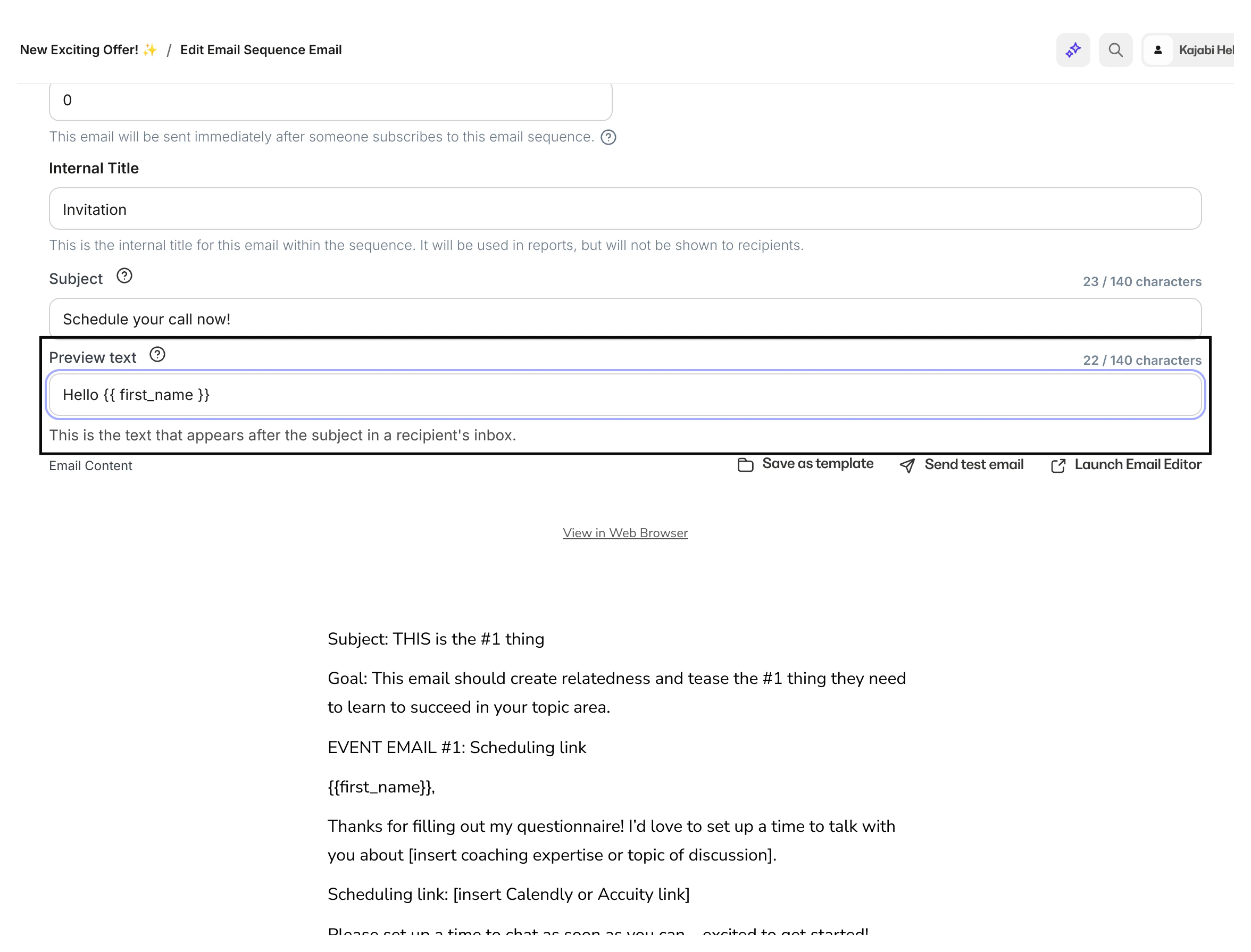
Create targeted messaging specific to the Preview Text to encourage email recipients to open your email.
Encourage your email recipients to open your email by creating targeted messaging specific to the Preview Text. Edit the Email Preview Text displayed along with your sender name and subject line in your subscriber’s email inbox.
Preview Text is a snippet of copy most commonly displayed beneath the sender name and subject line in your subscriber’s email inbox. Depending on your recipient’s email client, the Preview Text may appear next to the subject line:The goal of the Preview Text is to capture your recipient’s attention and interest, encouraging them to open your email.
Editing the Preview Text is not available with the Classic Editor. Customize your Preview Text with the Visual Editor available in your Email Campaigns.
Personalizing your emails can improve your Click to Open Rate (CTOR) while also adding personality and a human feel. Use liquid variables to pull data from your contact information and personalize the Preview Text.
Like everything else with email, support for Preview Text varies. Kajabi gives you the largest number of characters found to be displayed across email clients (140 characters), but remember, no two inboxes look the same. The number of characters displayed will vary based on your recipient’s email client.
Leaving your Preview Text blank will default the Preview Text to the recipient’s email client settings. This means your recipient’s email client may display the first few characters of Text found in the Body of the Email in place of the custom Preview Text. If you chose to include the View in Web Browser section at the top of your Email Campaign, this text may display if you choose to leave the Preview Text blank depending on your recipient’s email client.
Secondary Subject LineConsider your Preview Text like a second Subject Line in which you can utilize multiple strategies that may not be primary Subject Line ready.
Be specific
Be informative
Be transparent
KeywordsCreate your Preview Text with the character limitations of varying email clients in mind. Depending on your recipient’s email client, your Preview Text may be cut short in your recipient’s inbox. Be sure to place keywords at the beginning of the Preview Text. Crafting your Preview Text requires balance. You will want to design your Preview Text to contain the keywords at the beginning, while staying long enough to utilize all available space depending on your recipient’s email client.Get CreativeAvoid repeating your Subject Line in your Preview Text. Get creative and utilize the additional space to encourage your recipients to open your email.
Personalize your Preview Text: Use Liquid Objects to pull data from your contact’s info to personalize the Preview Text for each recipient.
Provide a brief summary: Briefly explain what your recipient can find in your email.
Include a CTA: Mention important Call to Action (CTA) buttons contained in your email.
Be honest and transparent: As always, be honest and transparent with your recipients and do not trick them into opening your emails. Your Subject Line and Preview Text should aid in helping your subscribers know what to expect when they choose to open your email.
Encourage scrolling: Highlight a feature or two to encourage your recipient to scroll through your email.