

Why Gmail clips emails
Email clients, like Gmail, have algorithms to determine how they display your email. This can mean that different email clients will display your email up to a certain size. In the case of Gmail, they are thought to “clip” or cut email messages short at 102kb. Although the exact limit may vary based on their unique algorithm, it is best practice to keep your email messages under the presumed 102kb size limit. This will ensure that your email campaigns stay well within the limits of the various email clients your recipients may be using to view your marketing emails. Most commonly, when an email is larger than the email client supports, the email client will hide the remaining email content behind a “View Full Email” or “View entire message” button at the bottom of the email:
Avoid email clipping
Minimizing your email content can be a challenging task when you have a lot of value to provide. However, this obstacle may create an opportunity for you to design an email marketing strategy that best fits your audience and boosts your sender reputation. Learn how to improve your sender reputation To minimize your email size, begin by analyzing your email content. Can you remove any extraneous imagery or styling? In email marketing, using a combination of text and images will make your emails look professional, reveal your brand, and captivate your audience. Nonetheless, too many images and text links can trigger spam flags and result in clipped emails. To optimize your email, use both text and HTML or text only. Are you focusing on the value you have to offer? Be sure to include only relevant information in your marketing email. If you find yourself needing to provide additional information, build the information into landing pages on your website. Then, include Call to Action (CTA) buttons in your email to link to your landing pages. Learn to add buttons to your email broadcasts Can you break up your email content? If you notice that your email campaign contains multiple topics that may or may not relate to the main message, break up your message into multiple email campaigns. When drafting and designing your email campaigns, breaking up your content can help:- Prevent email clipping
- Increase engagement from your recipients
- Lead to an improved sender reputation with consistent email sending
Test and inspect email size
The best way to avoid email clients, like Gmail, from clipping your emails is by testing and inspecting your email size. To test and inspect your email campaigns, send a test email to your own Gmail email address and download the message to inspect the file size.Send a preview email
First, draft and design your email campaign. Then, send a preview email to your own Gmail email address. Learn to test your email campaignsDownload the email message
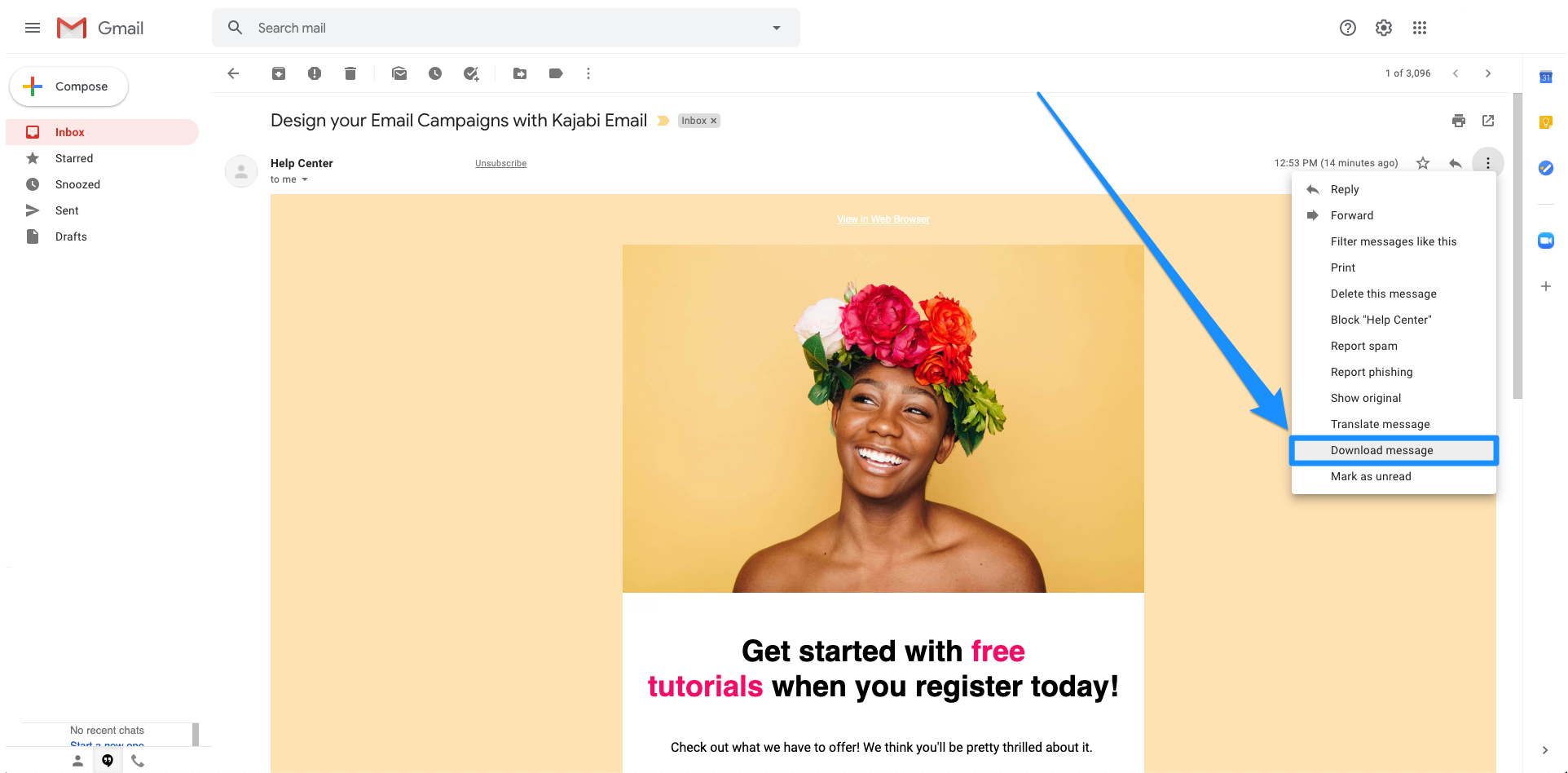
After sending and receiving your preview email in your Gmail inbox, download the email campaign:- Sign into Gmail and open your preview email.
- Navigate to the top right corner of your email and click the three vertical dots.
- Click Download message.
Inspect your email size
- Open the Downloads folder on your computer.
- Locate the downloaded email file.
- View the Size column or right-click to Get Info.