Email broadcast
Upload your logo to your Site Details to auto-generate in all of your Email Broadcasts.- Open the Settings tab from the Dashboard.
- Click Site Details.
- Scroll to the Branding section.
- Below the Logo box, click Pick File.
- Select your file and click Upload to upload your image to your site.
- Be sure to click Save to keep your changes:
Email sequence
- Open the Settings tab from the Dashboard.
- Click Marketing Settings.
- Scroll to the Company Logo section.
- Below the image box, click Select Image.
- Choose to Upload a File or Select a Recent File.
- Select your file and click Upload to upload your image to your site.
- Be sure to click Save again to keep your changes:
Note:
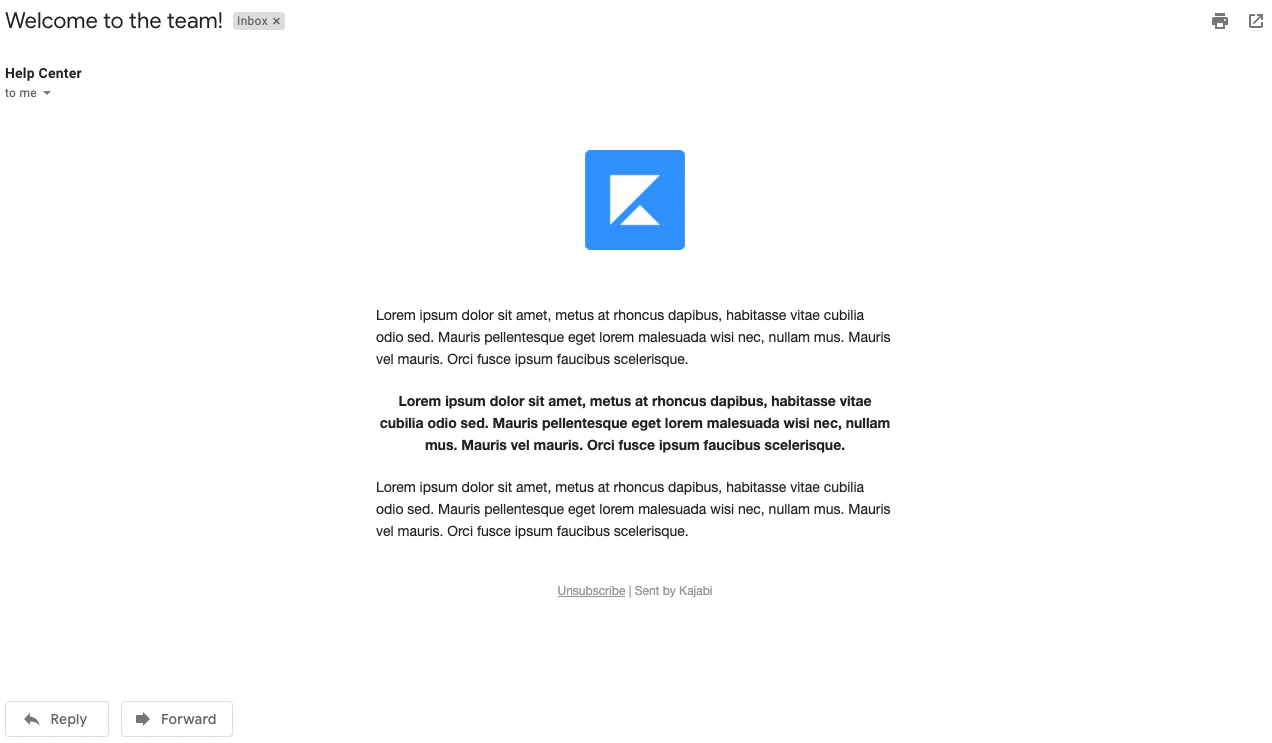
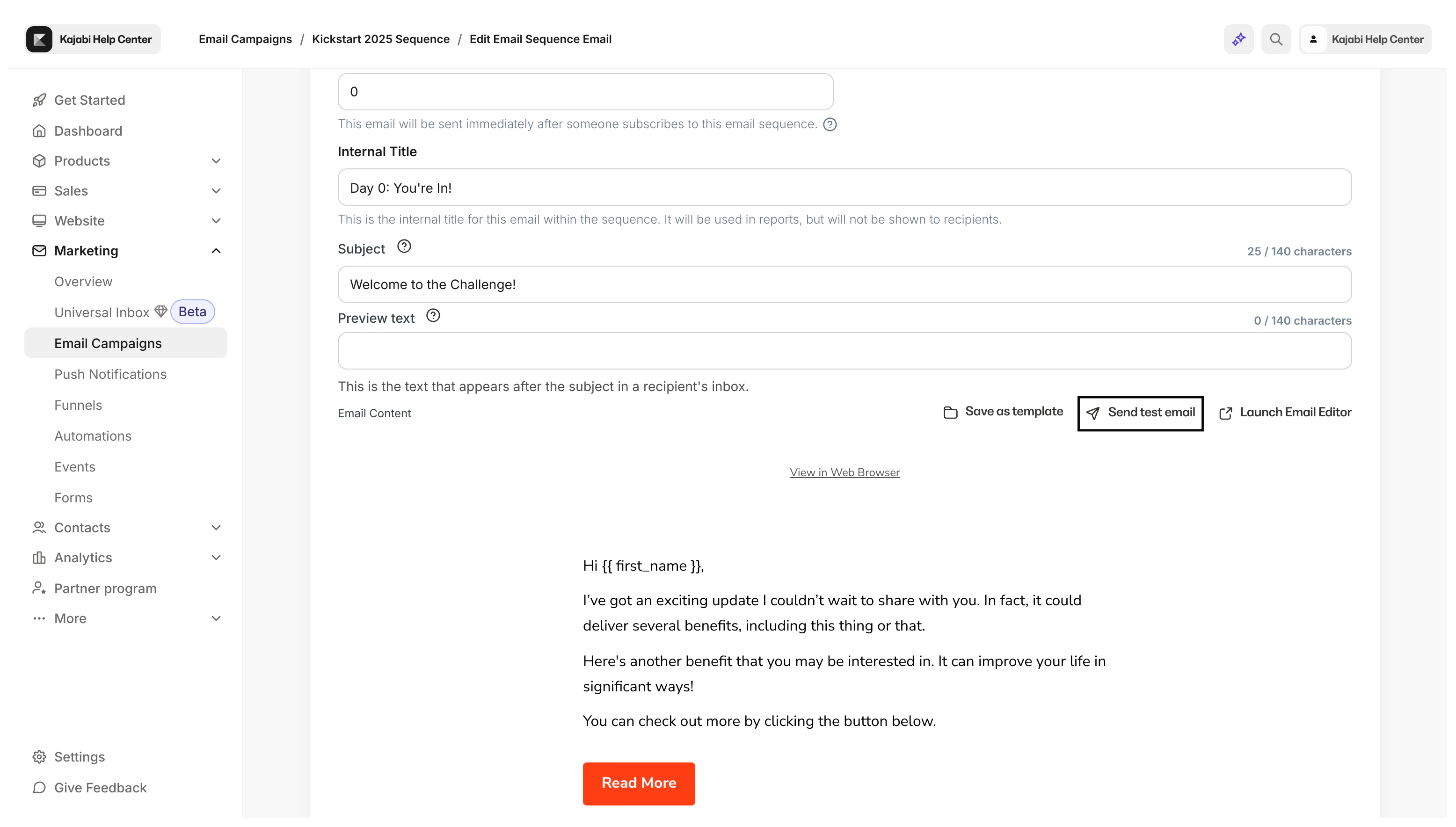
Changing your logo in Marketing Settings will impact emails scheduled to release in the future, not the emails that have already been released.When editing your Email Sequence, your logo will not be displayed. However, if you Send a Test Email you will see your logo located at the top of your email.
View from the Email Sequence Editor
View from the test email