

Kajabi Folders
Organize your email content into tidy folders with Kajabi Folders. With these custom folders, you can group your Email Campaigns tailored to your business needs to help you stay organized.Create a folder
Create a Kajabi Folder for Email Campaigns
- Open the Marketing tab from your Dashboard.
- Click Email Campaigns.
- Open the Folders tab from the Email Campaigns top menu:
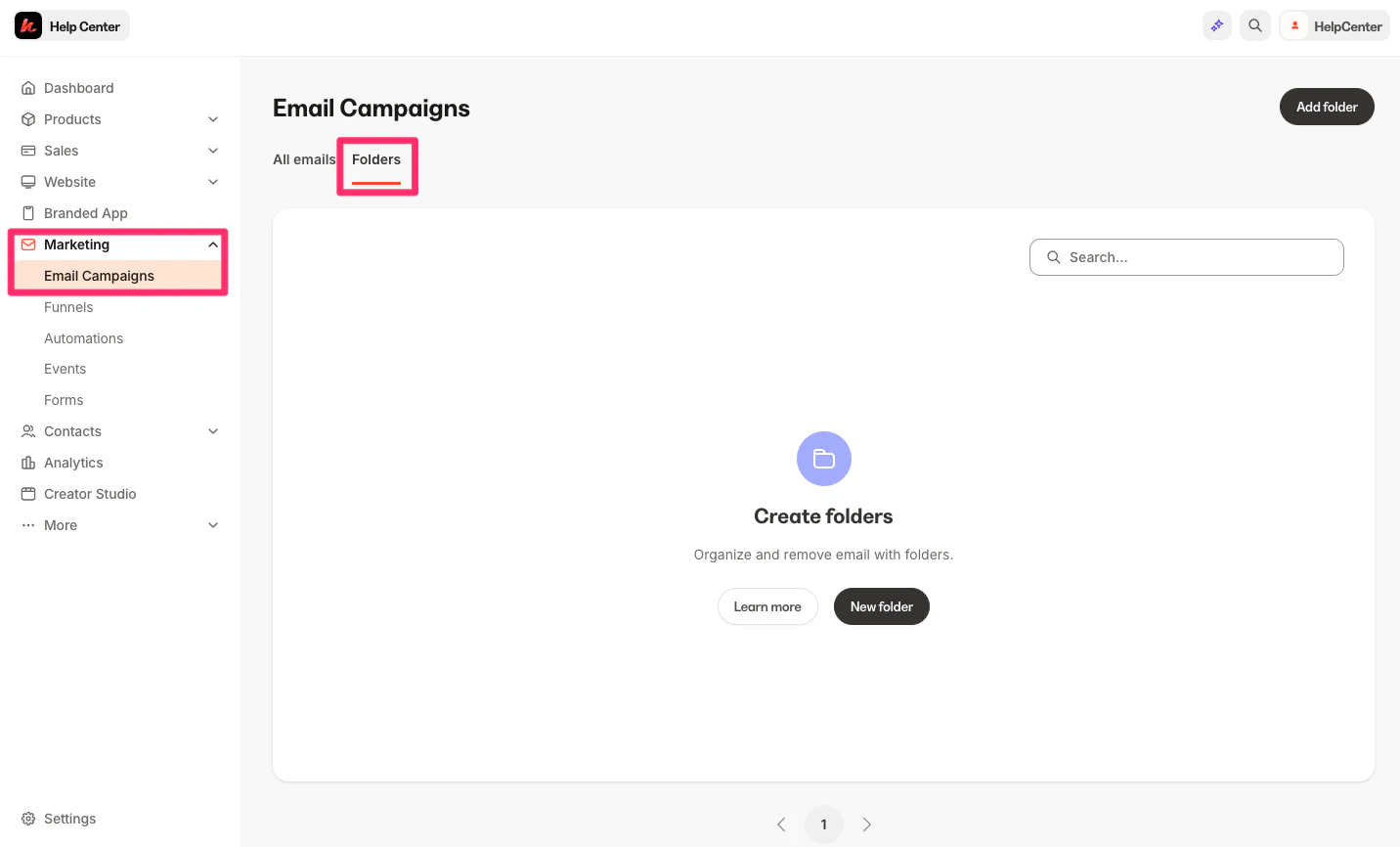
- Click New folder. If you have created a folder previously, you can select the New folder button from the top-right:
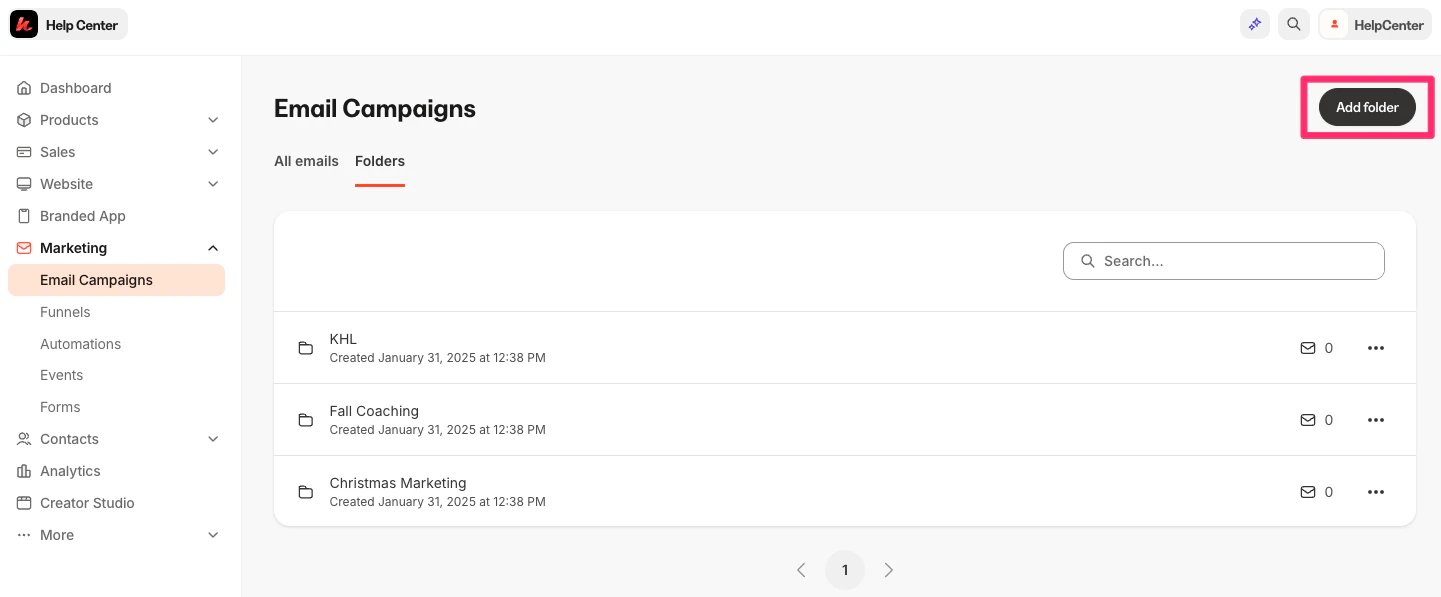
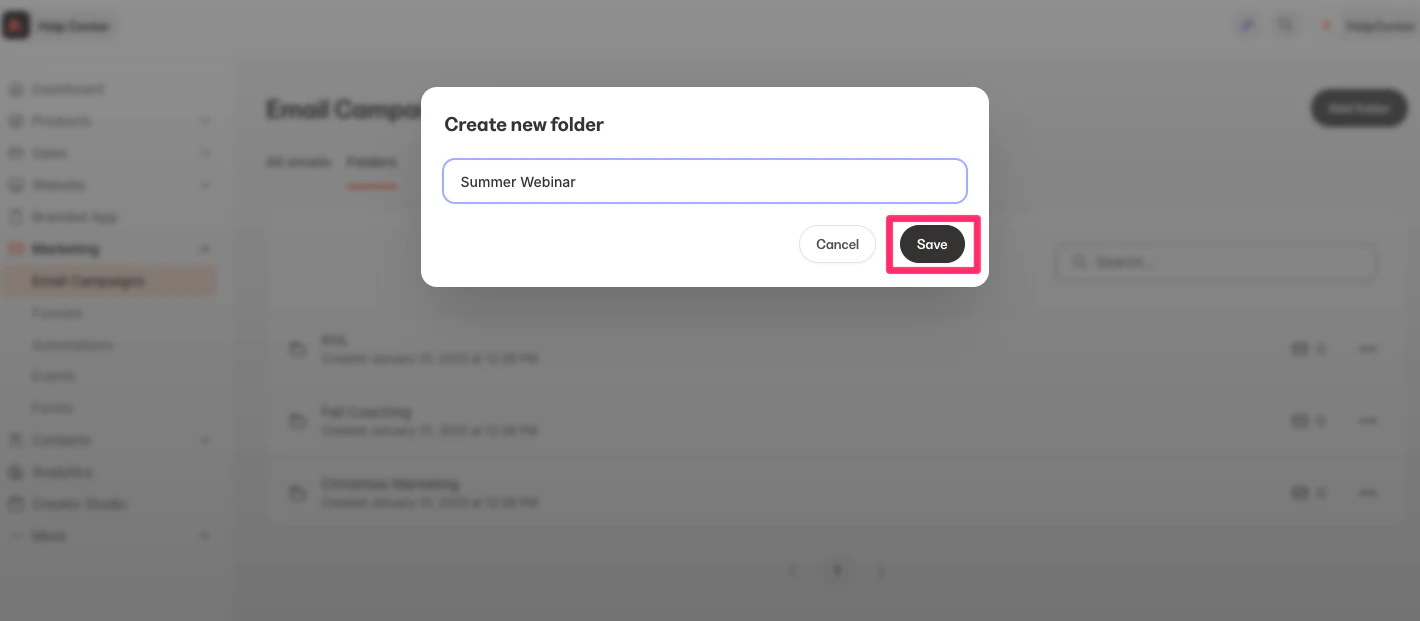
- Enter your folder title.
- Click Save to create your folder:
Manage folders
Add to folders
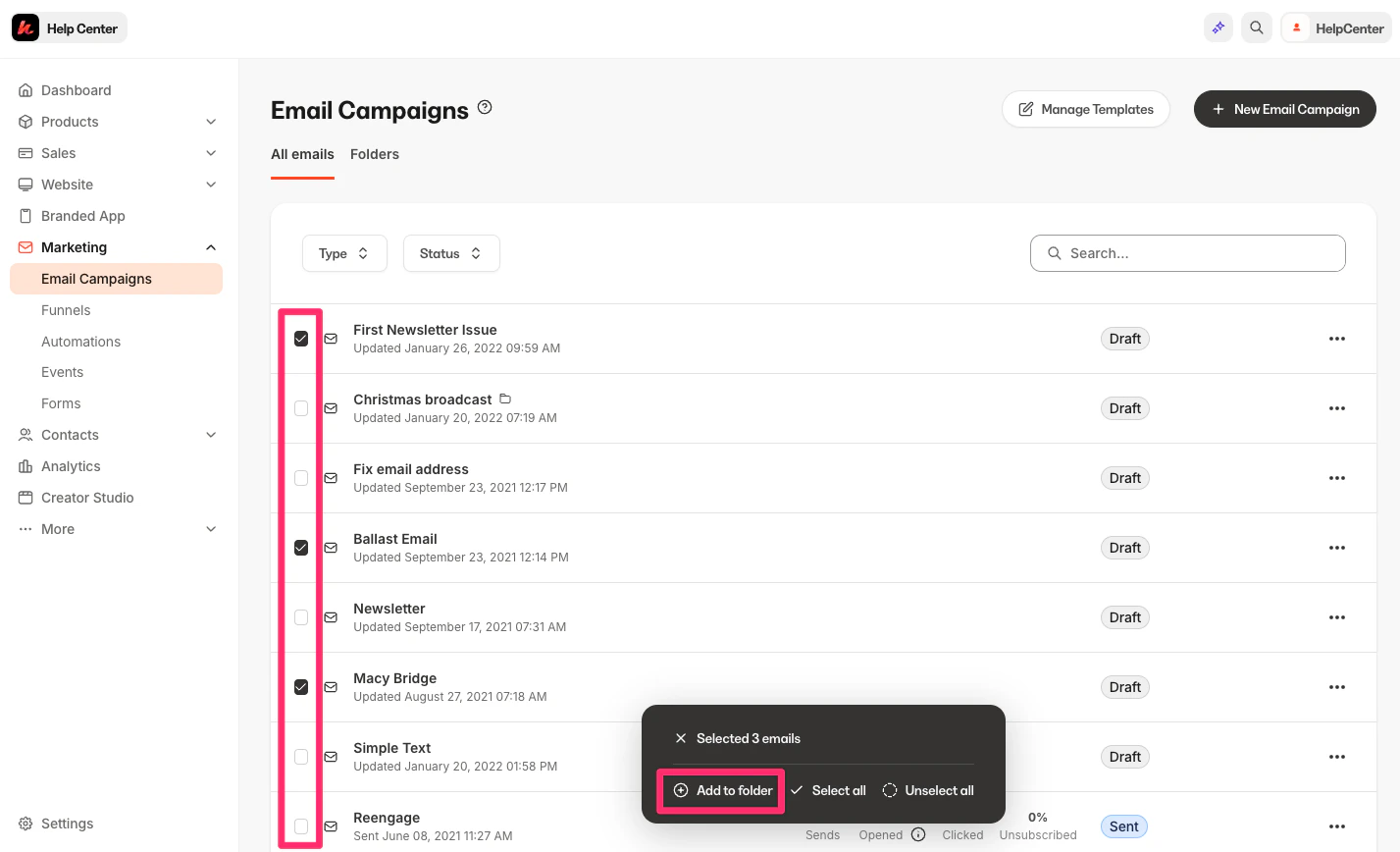
To add emails to a folder:- Navigate to the All emails tab within Email Campaigns:
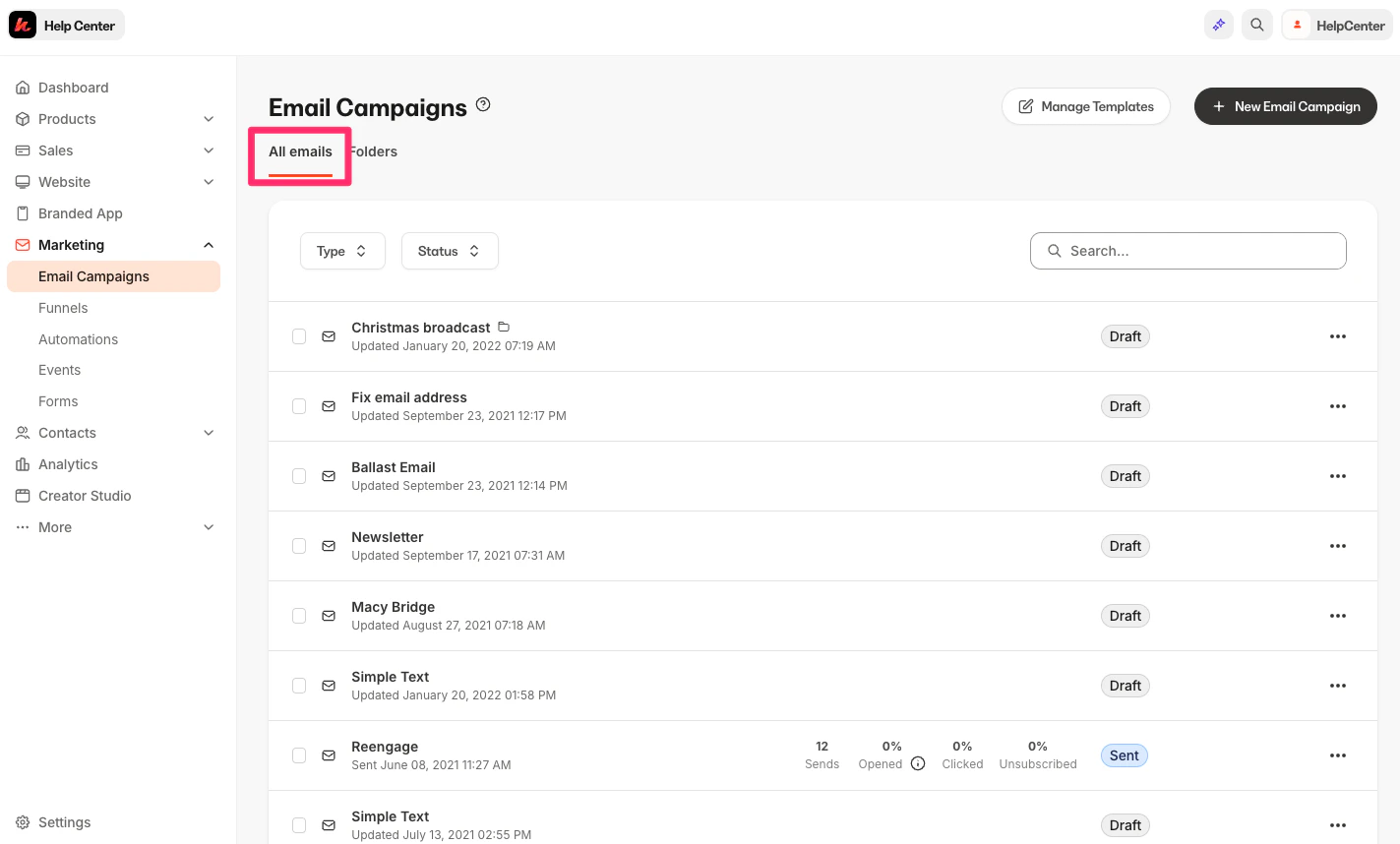
- Select the emails you want to add to your folder.
- Click Add to folder:
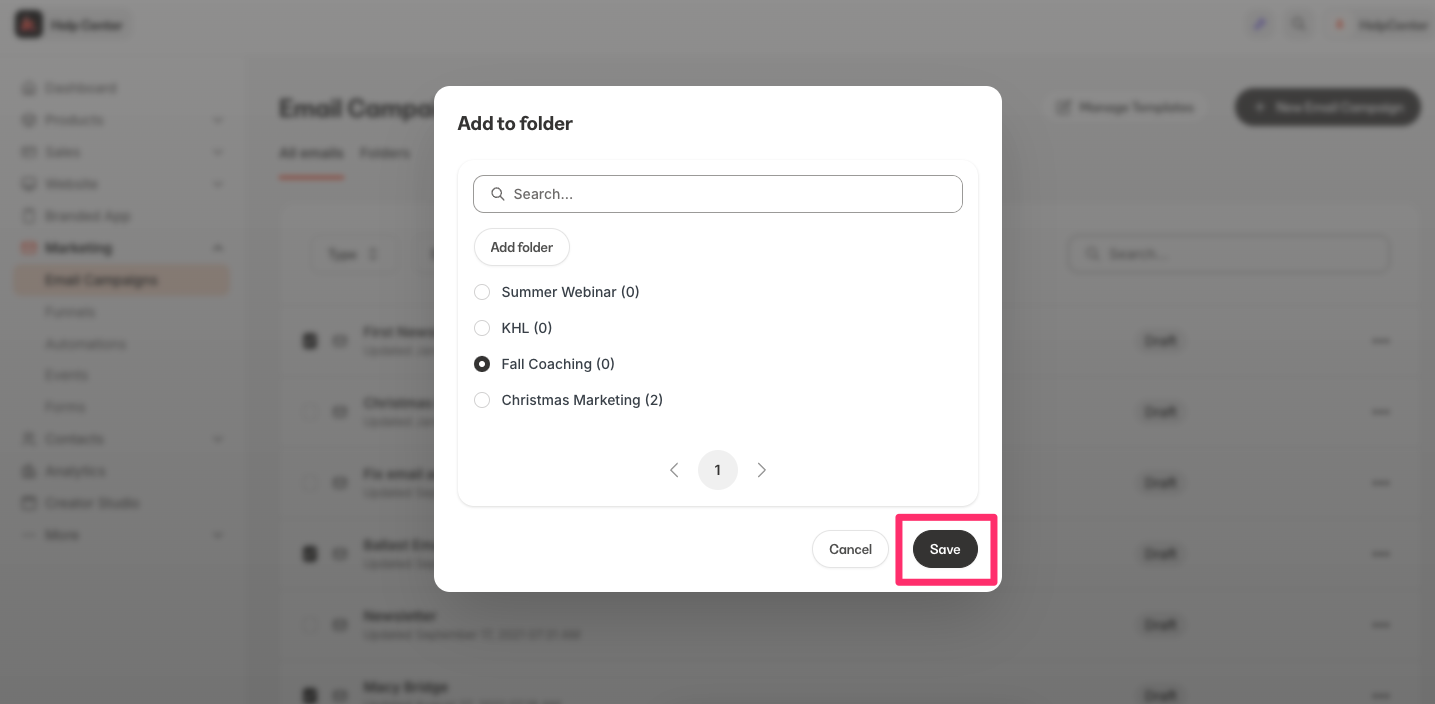
- Select your desired folder and click Save:
Remove from folders
To remove emails from a folder:- Navigate to the Folders tab within Email Campaigns:
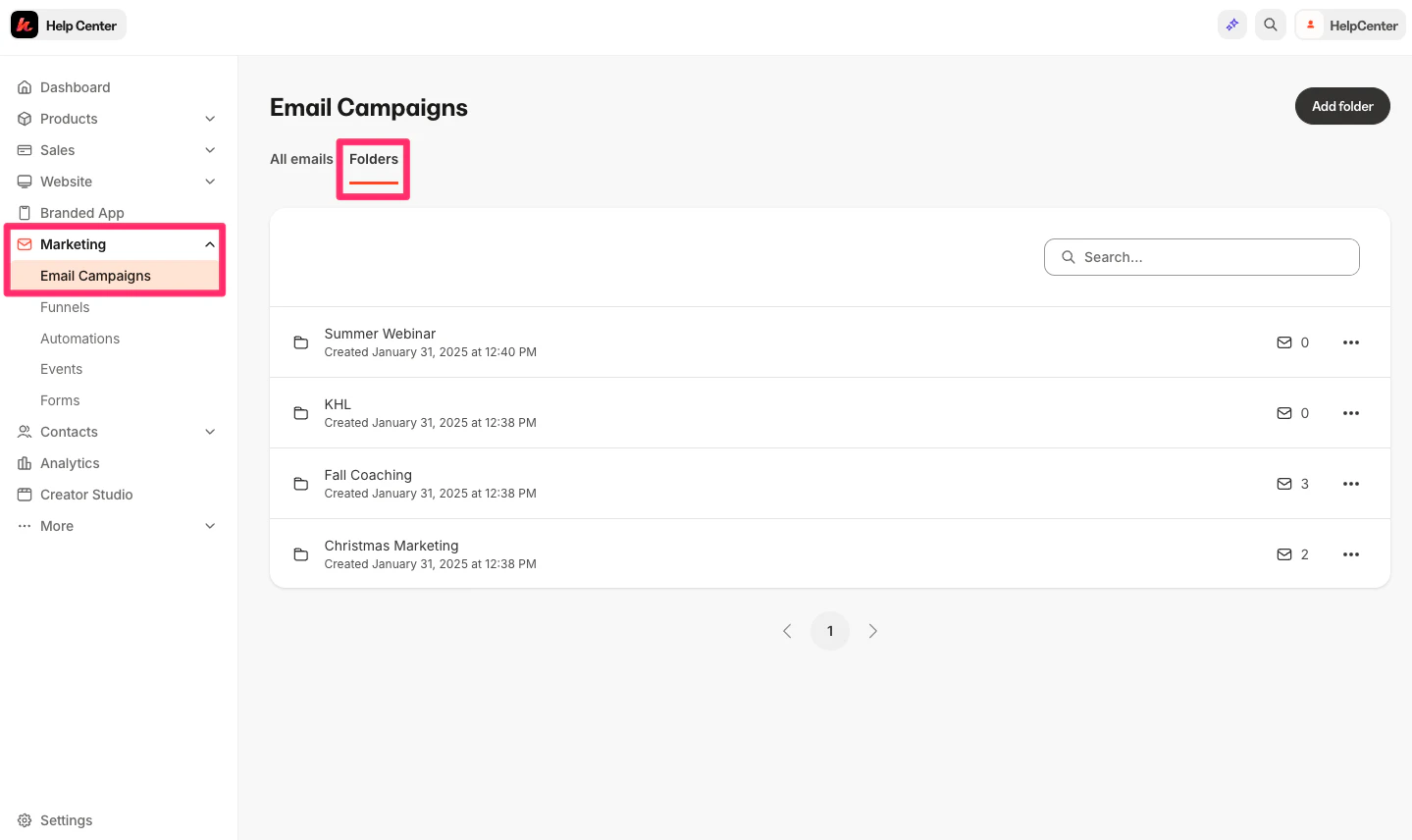
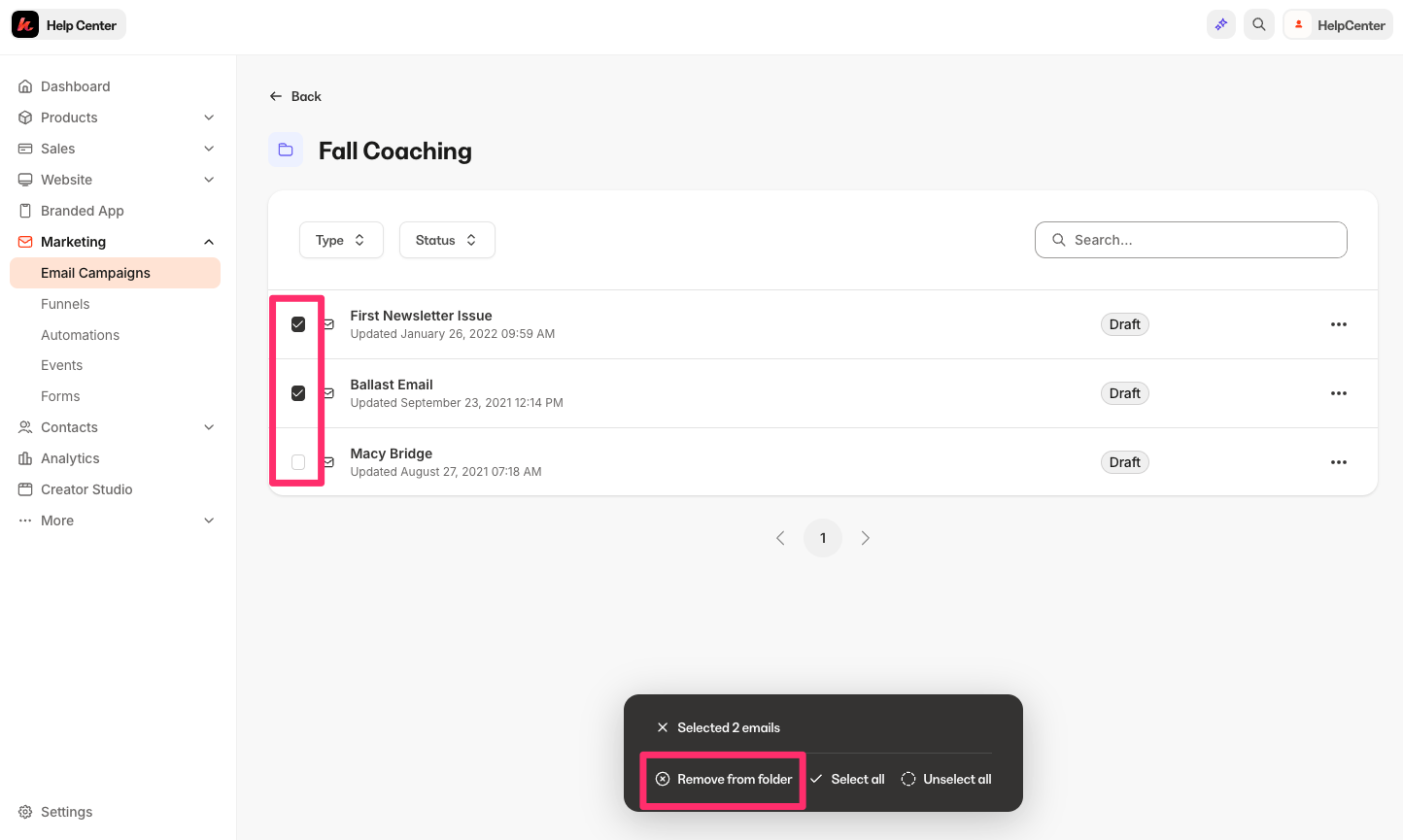
- Select the folder containing the emails you want to remove.
- Select the emails you want to remove from your folder.
- Click Remove from folder.
- Complete the prompt to confirm by clicking Remove:
Note:
Removing emails from a folder will not permanently delete your email campaigns. The emails will still be accessible through the “All emails” tab.
Rename folders
To rename folders:- Navigate to the Folders tab within Email Campaigns.
- Locate the folder you wish to rename.
- Select the
…menu. - Click Rename folder.
- Enter your new folder title.
- Click Save to keep and apply:
Delete folders
To permanently remove folders:- Navigate to the Folders tab within Email Campaigns.
- Locate the folder you wish to delete.
- Select the
…menu. - Click Delete folder.
- Click Delete to confirm removal of the folder permanently:
Note:
Permanently removing folders will not delete your email campaigns contained in the folder. The emails will still be accessible through the “All emails” tab.