

Add an avatar or logo to emails
The process for customizing your avatar/logo displayed in your recipients’ email clients will vary. With the many different email clients your recipients may use, such as Gmail, Yahoo, Microsoft, Apple Mail, and much more, every email client behaves and functions differently. Your recipient’s inbox provider or email client ultimately determines the avatar/logo displayed. By default, the avatar next to an email sender’s information will typically display as a neutral icon:
What is Gravatar?
Gravatar is a free avatar creation service recommended to display your sender image. Gravatar doesn’t actually change the avatar of your email, but is used to associate an avatar with your email address. Gravatars are only displayed for recipients with email clients (i.e., Gmail) that support Gravatar. Gravatar stands for Globally Recognized Avatar. Simply upload your image, create a profile, and with any Gravatar-enabled email client, your Gravatar image will follow. Learn more about Gravatar. Although we recommend using Gravatar to brand your sender image, there may be different tools and services available as well. The best recommendation is to research and find the tool that best fits you and your business. Do you use a Gmail account for your Reply-To email address? Learn to change your Gmail profile pictureAdd a logo with Gravatar
Create a free account with Gravatar
- If you do not have a Gravatar account, create a free account at Gravatar:
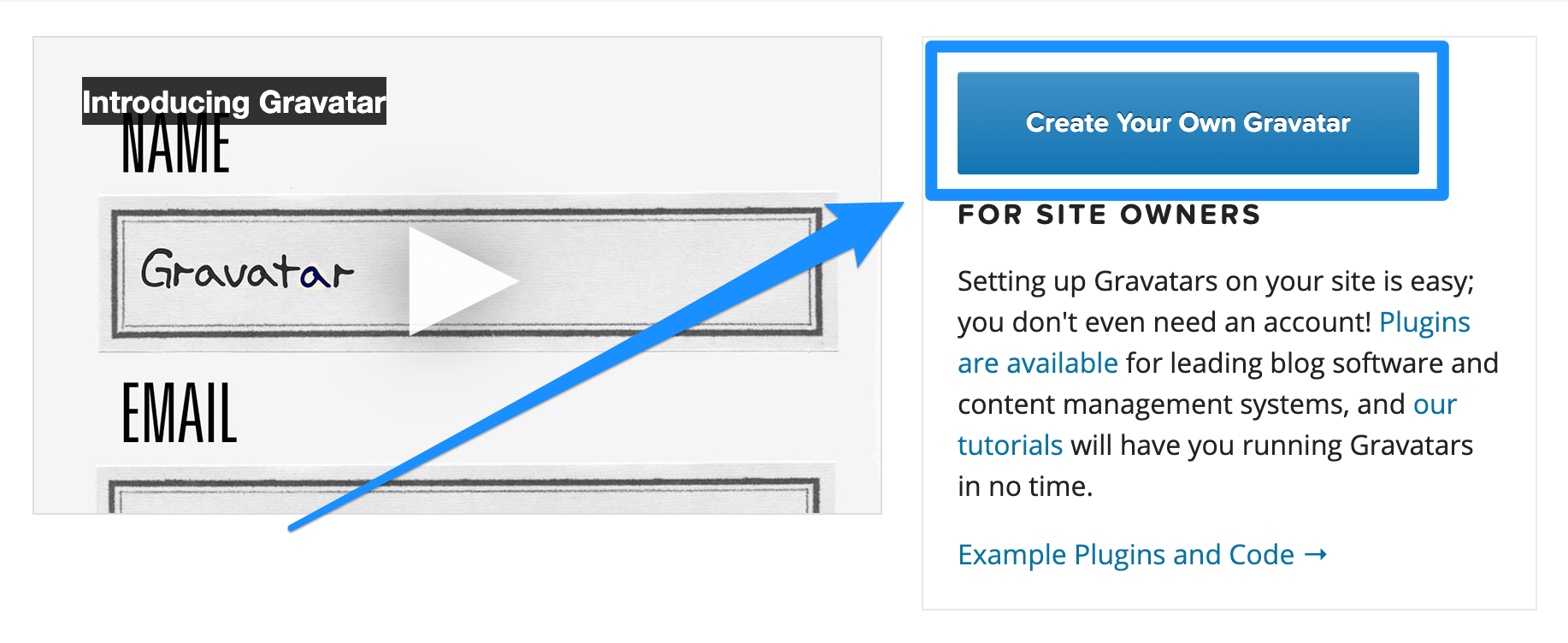
- After creating your free account and receiving your confirmation email, sign in to Gravatar to manage your Gravatars.
- Select the email address you wish to modify or add a new email address. This email address should be the email address you wish to use for your Kajabi Reply-To email address to display your Gravatar when receiving and responding to replies from your marketing email recipients.
- Click Add one by clicking here! in Gravatar.
- Click Upload new.
- Choose your file.
- Click Next.
- Crop your image or click Crop Image to move on:
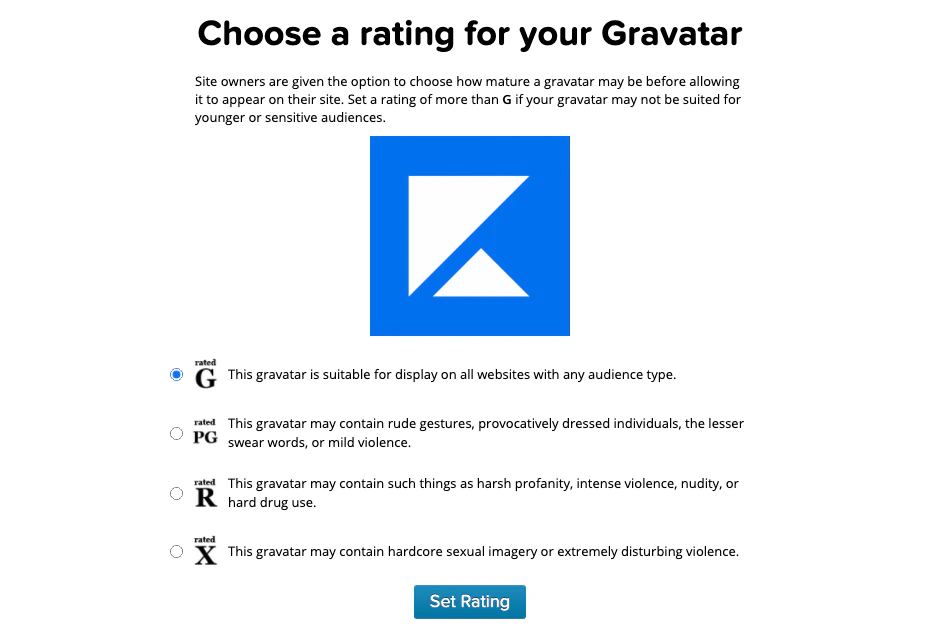
- Select the maturity rating for your Gravatar before allowing it to appear on any site.
- After selecting your rating, click Set Rating:
- After creating your Gravatar, navigate to your Kajabi account to update your Reply-To email address. Connecting your Reply-To email address will include your Gravatar when responding to replies from your contacts. We recommend changing your Reply-To email address instead of your From email address to keep the default Kajabi email address personalized to your account.
- Open Settings from the Dashboard.
- Click Marketing Settings.
- Scroll to the Email Settings section.
- Enter the email address used for your Gravatar in the Reply-To email address field: