

Why create a custom unsubscribe link?
Kajabi helps you comply with various email laws (e.g., the CAN-SPAM Act) by including a built-in unsubscribe button to every email you send with Kajabi. However, this link will unsubscribe your recipients from receiving all marketing emails in the future. If your recipients wish to unsubscribe from a specific email sequence but would like to remain subscribed to your other marketing emails, you may want to include a separate Unsubscribe link in your email sequence(s).Note:
If your contact attempts to resubscribe from an Email Sequence they have been unsubscribed from, they will not receive any emails in the Email Sequence. Our teams are actively working to resolve this issue.
Create an unsubscribe from Email Sequence link
Creating an Unsubscribe link for your Email Sequence is made simple with the power of Automations. Want to learn more about Automations? Read the Automations overviewCreate an opt-out page
Creating an Unsubscribe link in the emails of your Email Sequence requires the creation of a Page. The link to this Page will be used in your Automation and the Page will be used to communicate to your recipients that they have successfully unsubscribed from the specific email sequence but may continue to receive other marketing emails. Learn to create a custom Landing Page with Kajabi Pages. Example Opt-Out Page: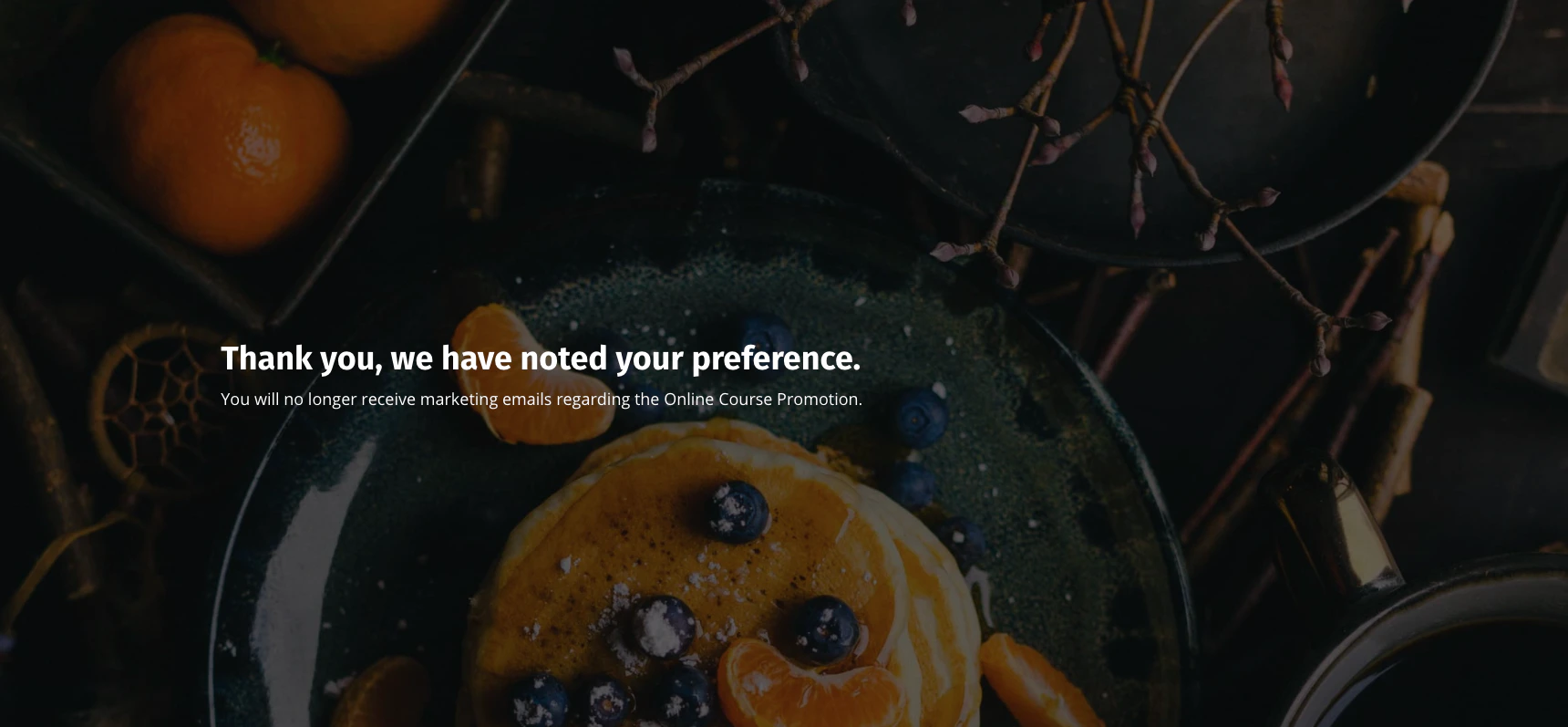
Add your page link to your emails
Now that you have created and customized your Opt-Out Page, copy and paste your Page link into each email of your Email Sequence. Learn to copy your Page URL. When adding your Opt-out Page Link to the emails of your Email Sequence, include a clear message indicating to your recipients that the link will unsubscribe them from the specific email sequence, but not from all marketing emails. For example, “Not interested in receiving emails about our upcoming Online Course Promotion? Click here to unsubscribe from the promotion.” After copying your Page URL, add your link and your message in every email of your Email Sequence:- Open the Marketing tab from the Dashboard.
- Click Email Campaigns from the sidebar.
- Select the Email Sequence you wish to edit or create one.
- Click into an existing email in your sequence or create one.
- Enter your message and highlight the text where you want to insert your link.
- Select the Insert/edit link icon.
- Paste your Page URL.
- For the Target:
- Select None if you wish the page to open in the existing window when clicked.
- Select New Window to open the Page in a new window when clicked.
- Click Ok to apply your link.
- Then, click Save to keep your changes:
Create an unsubscribe trigger with automations
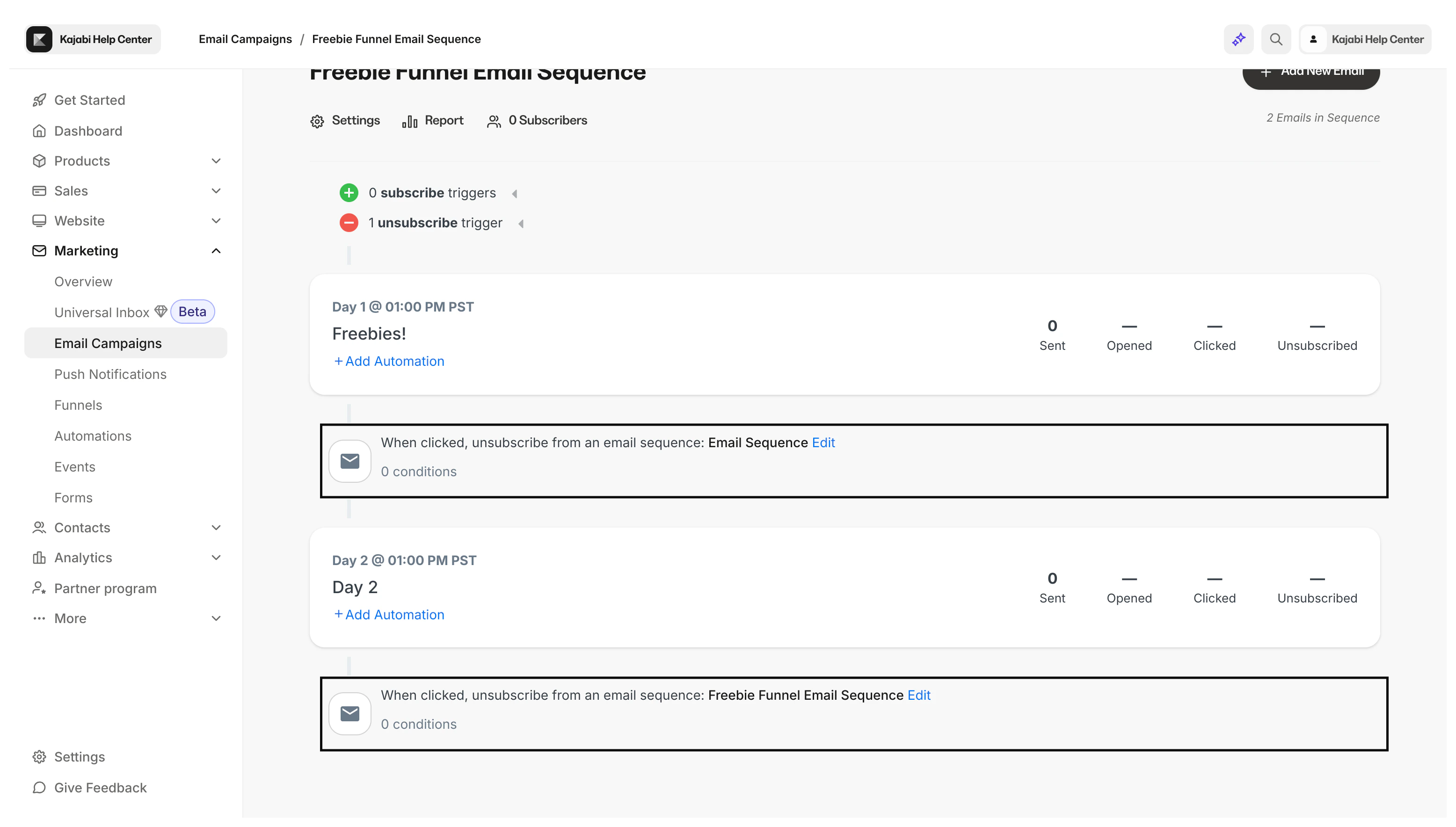
Using the power of Automations, automatically unsubscribe your recipient when they click the link in the email:- Navigate back to your Email Sequence Editor from your Email.
- Click + Add Automation for your first email in the sequence.
- Open the When dropdown menu.
- Select Email Sequence email is clicked.
- Then, in the next dropdown, select the unsubscribe link (the Opt-out Page Link).
- Open the Then dropdown menu.
- Select Unsubscribe from an email sequence.
- Then, select the email sequence to unsubscribe from when clicked.
- Click Save to apply and keep your changes:
Test your email
After setting up your unsubscribe link, test your link by:- Subscribing to the sequence just as your contacts would (e.g., with a Funnel, a Landing Page, a purchase, etc.).
- Keep a separate tab open to view your Email Sequence Subscribers:
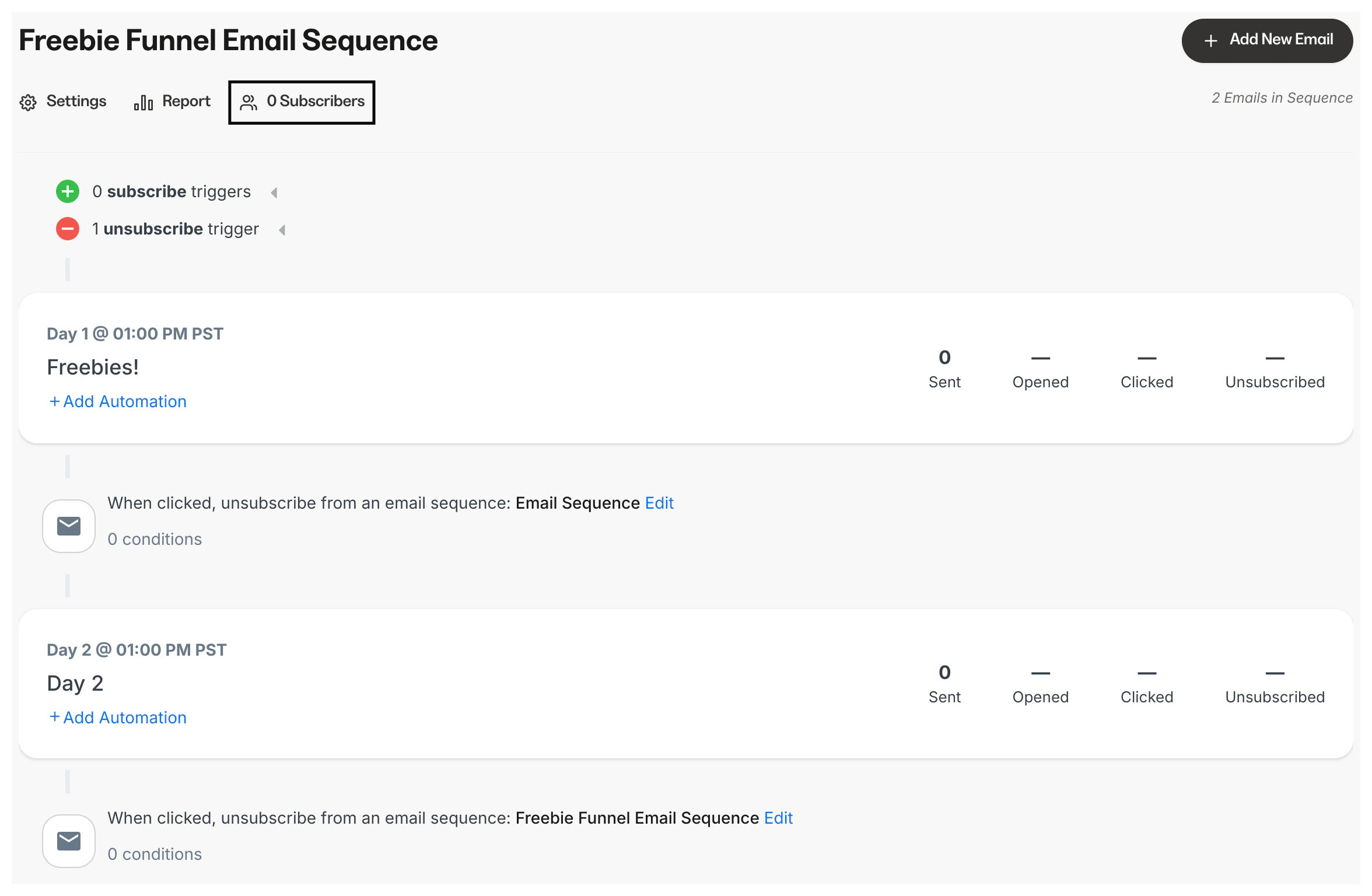
- Then, click the link in your email to unsubscribe from the sequence.
Note:
You may experience a slight delay during your test as the Automation triggers the unsubscribe.