

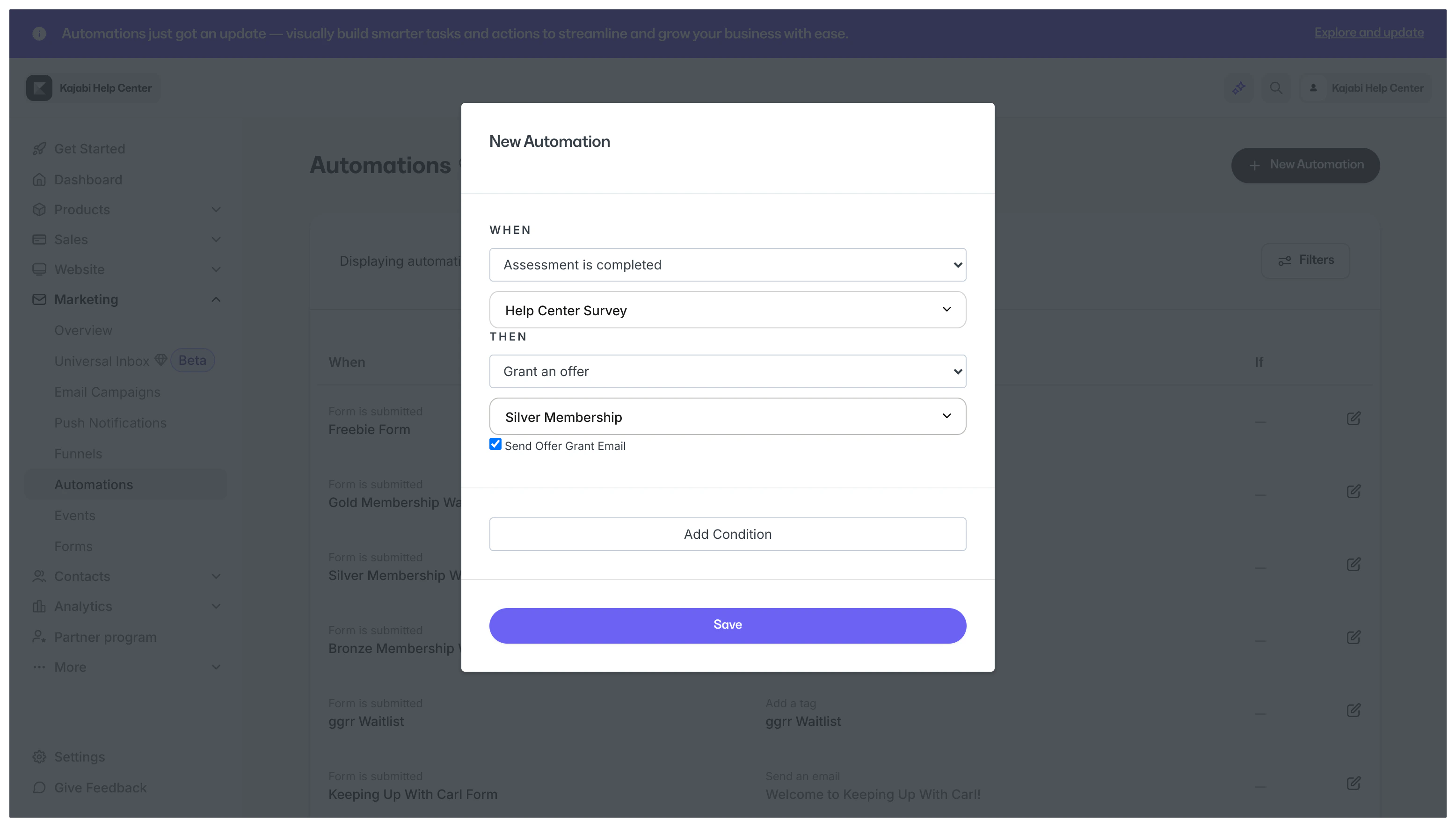
Note: If you are on the Basic Plan, you have a number of Basic Automations available to you. If you are on the Growth or Pro Plan, you may use Advanced Automations.Learn more about the difference between Basic Automations and Advanced Automations
When triggers - What starts an Automation
When components are triggers that kick off Automations. When logic specifies that an event must occur to start an action (the Then component).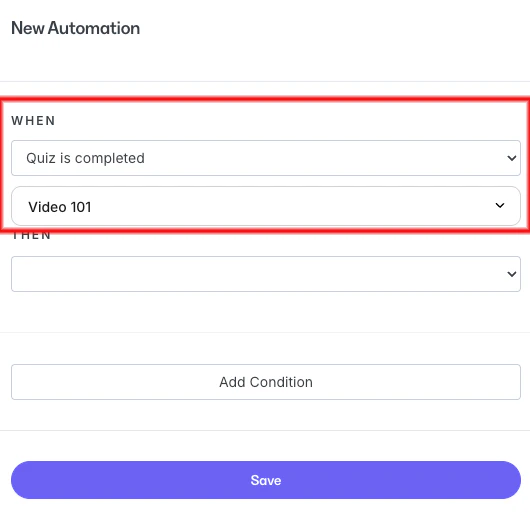
When trigger components
Offers
- Offer is purchased - Trigger an Automation after a customer purchases your specified Offer
- Offer is purchased as a gift - Trigger an Automation after a customer purchases your specified Offer as a gift. Learn how to create and manage gift Offers
- Gift is redeemed - Trigger an Automation when a customer redeems a gifted Offer
- Offer is granted - Trigger an Automation when an Offer is granted. Learn how to grant an Offer
Note: Granting an Offer is similar, but not the same as, a Free Offer purchase. If the Automation is set to start after the purchase of a Free Offer, granting that Offer does not trigger it, because a Free Offer requires the customer to go through the checkout process.
- Recurring payments cancelation initiated/completed - Trigger an Automation anytime a subscription or payment plan cancelation is initiated or completed (by you or your customer), or when all payments of a plan have been paid
Note: This trigger was previously named “Offer is deactivated.”
Assessments
- Assessment is completed - When an Assessment is completed, its final Question (when it is attached to a Lesson) or Contact information (when it is an Assessment embedded on a page) must be submitted
Certificate
- Certificate is sent - Trigger an Automation when a Certificate of Completion is sent to a Course customer
Tags
- Tag is added - Trigger an Automation when a Tag is added to a Contact (manually or by another Automation)
- Tag is removed - Trigger an Automation when a Tag is removed from a Contact (manually or by another Automation)
Email Broadcasts
- Email broadcast is opened - Trigger an Automation when a broadcast email is opened by a recipient
- Link in email broadcast is clicked - Trigger an Automation when a recipient clicks a link from the selected Email Broadcast
Note: The View in web browser and Unsubscribe buttons within an Email Broadcast are not recognized as links for the Link in email broadcast is clicked trigger.
Email Sequences
- Email sequence is completed - Trigger an Automation after the final email in your Email Sequence is sent
Email Sequence Emails
- Email sequence email is sent - Trigger an Automation when a specific email in an Email Sequence is sent to recipients
- Email sequence email is opened - Trigger an Automation when a specific email in an Email Sequence is opened by a recipient
- Email sequence email is clicked - Trigger an Automation when a recipient clicks a link in a specific email in an Email Sequence
Events
- Event is registered - Trigger an Automation when a Contact registers for a specified Event on Kajabi
Forms
- Form is submitted - Trigger an Automation to complete an action after the selected Form is submitted
Activity
Trigger an Automation based on activity:- Person has been inactive for 7 days
- Person has been inactive for 30 days
- Person has been inactive for 60 days
- Person has been inactive for 90 days
Lessons
- Lesson is completed - Trigger an Automation after a Course Lesson is marked as complete
Quizzes
Trigger Automations that kick off Then actions after a Quiz is completed or graded:- Quiz is completed
- Quiz is failed
- Quiz is passed
Social Media
Trigger an Automation after a comment is received on a Facebook or Instagram post or any comment is received on those social media accounts:- Instagram comment is received
- Any Instagram comment received
- Facebook comment received
- Any Facebook comment received
Coaching
- Coaching session completed - Trigger an Automation after a Coaching session is completed by a customer
- All coaching sessions completed - Trigger an Automation after all Coaching sessions are completed by a customer
- Coaching sessions remaining - Trigger an Automation when a specific number of Coaching sessions are remaining for a customer
- Additional coaching sessions purchased - Trigger an Automation when additional Coaching sessions are purchased by a customer
- Coaching upcoming invoice due date - Trigger an Automation to send something ahead of a Coaching customer’s invoice due date
- Coaching invoice overdue - Trigger an Automation when a customer’s Coaching invoice payment is overdue
Then actions - What an Automation does
Then components define the action to occur in response to a When event trigger.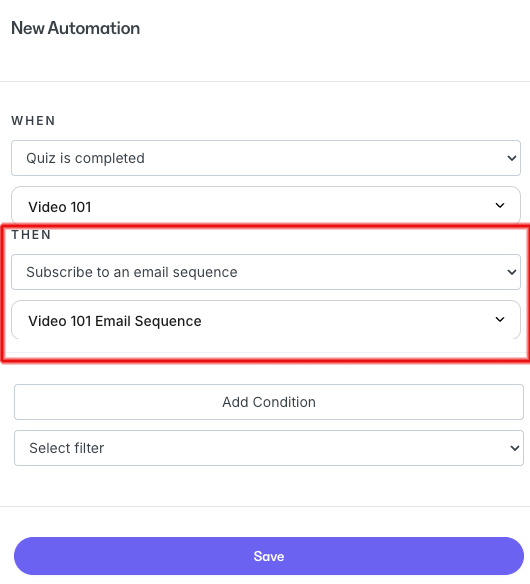
Offers
- Grant an offer - An Automation that grants a specific Offer after a triggered event occurs
- Revoke an offer - An Automation that revokes access for a specific Offer after a triggered event occurs
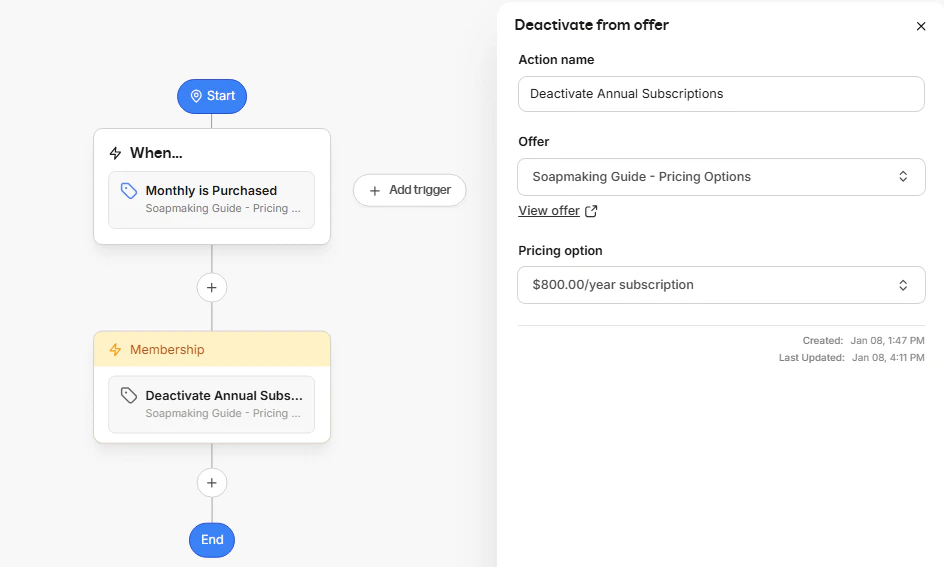
- Deactivate from offer (discontinues payment and access) - An Automation that revokes access to a specific Offer and stops future payments after a triggered event occurs
- Send an offer - An Automation that sends an Offer to specific Contacts
- Action by pricing option - An Automation that performs an action based on which Pricing option is purchased, including:
- Revoke an offer
- Deactivate from offer
Email Sequences
An Automation that subscribes or unsubscribes Contacts from a specific Email Sequence after a triggered event occurs:- Subscribe to an email sequence
- Unsubscribe from an email sequence
Events
Automations that register or deregister Contacts to or from an Event after a trigger occurs:- Register to an event
- Deregister from an event
Tags
Automations that add or remove a Tag after a triggered event occurs:- Add a tag
- Remove a tag
Emails
Send a custom, transactional email to a Contact or your team after a triggered event occurs:- Send an email
Coupons
Send a unique, single-use Coupon code with a custom email after a triggered event occurs:- Send a single-use coupon
Certificates
Send a customer a customized Certificate of Completion for a Course after a triggered event occurs:- Send a certificate
Social Media
Send a Contact an Instagram or Facebook message or reply after a triggered event occurs:- Send an Instagram direct message
- Send an Instagram reply
- Send a Facebook direct message
- Send a Facebook reply
Coaching
- Cancel coaching sessions - Cancel a single Coaching session or all upcoming Coaching sessions after a specific triggered event occurs
- Remove coaching sessions - Remove all upcoming Coaching sessions for customers with an unpaid invoice
- Send coaching invoice reminder - Send a reminder to specific customers that they have an unpaid or overdue invoice for Coaching
- Send coaching session survey - Send a survey to customers after a Coaching session concludes
- Send coaching program survey - Send a survey to customers after a Coaching program concludes
Community
- Send Community DM - Send a direct message to a specific member or a group of members of your Community after a triggered event occurs
- Add a member to a private channel - Add a member to a private channel in your Community after a triggered event occurs
- Remove a member from private channel - Remove a member from a private channel in your Community after a triggered event occurs
- Post in channel - Add a post in a specific Channel in your Community after a triggered event occurs
Only if filters - Conditional logic
Filters let you create an Automation that subscribes Contacts to an Email Sequence after they’ve completed a Quiz, and then registers them for a specific Event: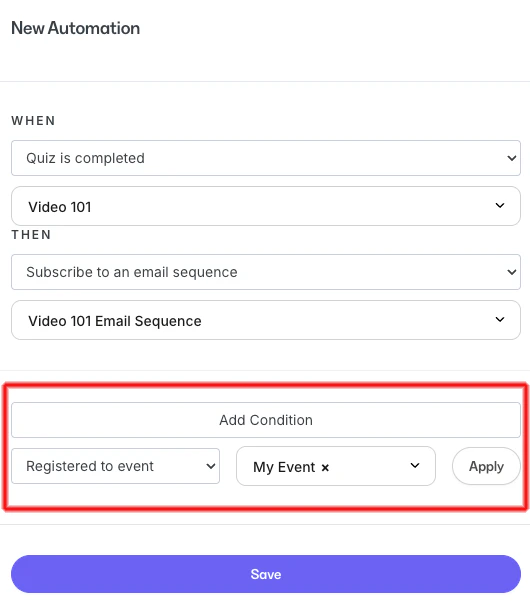
Note: The Only if filter must match the collected data. A specific value is based on “contains” rather than an “exact match.”
Contact filters
- Is subscribed - Add a condition that says the customer must be subscribed to receive your marketing emails
- Is a Customer - Add a condition that says the Contact must be a customer of your site. Learn about customers, Contacts, and subscribers
- Is hidden - Add a condition that says the Contact must be hidden in your list. Learn about hiding Contacts
- Has a hard-bounced delivery - Add a condition that says the Contact’s email address has hard-bounced. Learn about hard-bounced Contacts
- Excluded from mailing - Add a condition that says the Contact must be excluded from your mailing list for being high-risk inactive and not engaging with 25 or more emails
Contact activity filters
- Contact added in the last - Add a condition that says the Contact was added to your site during a specific time period
- Contact added before the last - Add a condition that says the Contact was added to your site before a specific time period
Customer activity filters
- Customer joined in the last - Add a condition that says the customer joined your site during a specific time period
- Customer visited a page on your site in the last - Add a condition that says the customer visited a specific page on your site during a specific time period
- Customer has not visited a page on your site in the last - Add a condition that says the customer did not visit a specific page on your site during a specific time period
Email engagement filters
- Healthy contacts (engaged 0-90 days ago) - Add a condition that says the Contact engaged with your marketing emails within the past 90 days
- Passive contacts (engaged 91-180 days ago) - Add a condition that says the Contact engaged with your marketing emails between 91 and 180 days ago
- Unengaged contacts (engaged 181-270 days ago) - Add a condition that says the Contact engaged with your marketing emails between 181 and 270 days ago
- Inactive contacts (engaged 270+ days ago) - Add a condition that says the Contact last engaged with your marketing emails more than 270 days ago
Email activity filters
- Delivered an email in last - Add a condition that says the Contact received a marketing email from your site during a specific time period
- Hasn’t been delivered an email in last - Add a condition that says the Contact did not receive a marketing email from your site during a specific time period
- Opened an email in last - Add a condition that says the Contact opened a marketing email from your site during a specific time period
- Hasn’t opened an email in last - Add a condition that says the Contact has not opened a marketing email from your site during a specific time period
- Hasn’t clicked an email in last - Add a condition that says the Contact has not clicked a link in a marketing email from your site during a specific time period
- Clicked an email in last - Add a condition that says the Contact clicked a link in a marketing email from your site during a specific time period
Form filters
- Submitted any of these form(s) - Add a condition that says the Contact has submitted a specific form or forms (multiple forms can be selected)
- Has not submitted form(s) - Add a condition that says the Contact has not submitted a specific form or forms (multiple forms can be selected)
Assessment filters
- Completed any of these assessment(s) - Add a condition that says the Contact has completed a specific assessment or assessments (multiple assessments can be selected)
- Passed any of these assessment(s) - Add a condition that says the Contact has passed a specific assessment or assessments (multiple assessments can be selected)
- Failed any of these assessment(s) - Add a condition that says the Contact has failed a specific assessment or assessments (multiple assessments can be selected)
Product filters
- Owns any of these product(s) - Add a condition that says the customer has a specific product or products (multiple products can be selected)
- Does not own product(s) - Add a condition that says the customer does not have a specific product or products (multiple products can be selected)
- Previously owned product(s) - Add a condition that says the customer used to own a specific product or products (multiple products can be selected)
Offer filters
- Has any of these offer(s) - Add a condition that says the customer must have a specific offer or offers (multiple offers can be selected)
- Does not have offer(s) - Add a condition that says the customer does not have a specific offer or offers (multiple offers can be selected)
- Previously owned offer(s) - Add a condition that says the customer used to have a specific offer or offers (multiple offers can be selected)
- Canceling offer(s) - Add a condition that says the customer has begun the cancellation process for a subscription offer (multiple offers can be selected)
Coupon filters
- Used any of these coupon code(s) - Add a condition that says the customer used a specific coupon code or codes (multiple coupon codes can be selected)
Email Broadcast filters
- Sent email broadcast - Add a condition that says the Contact was sent a specific email broadcast
- Was not sent email broadcast - Add a condition that says the Contact was not sent a specific email broadcast
- Opened email broadcast - Add a condition that says the Contact opened a specific email broadcast
- Has not opened email broadcast - Add a condition that says the Contact has not opened a specific email broadcast
- Clicked email broadcast - Add a condition that says the Contact clicked a link in a specific email broadcast
- Has not clicked email broadcast - Add a condition that says the Contact has not clicked a link in a specific email broadcast
- Email broadcast bounced - Add a condition that says the delivery of a specific email broadcast to the Contact bounced (was refused by the recipient’s email server)
- Email broadcast did not bounce - Add a condition that says the delivery of a specific email broadcast to the Contact did not bounce
- Email broadcast dropped - Add a condition that says the delivery of a specific email broadcast to the Contact was dropped (not sent due to a reason such as previous bounces or the Contact unsubscribed)
- Email broadcast was not dropped - Add a condition that says the delivery of a specific email broadcast to the Contact was not dropped
Email Sequence filters
- Subscribed to email sequence - Add a condition that says a Contact must be subscribed to a specific email sequence
- Is not subscribed to email sequence - Add a condition that says a Contact must not be subscribed to your specific email sequence
Event filters
- Registered to event - Add a condition that says a Contact must be registered for a specific event
- Is not registered to event - Add a condition that says a Contact must not be registered for a specific event
Tag filters
- Has any of these tag(s) - Add a condition that says a Contact must have any of the specified tags (multiple tags can be selected)
- Has all of these tag(s) - Add a condition that says a Contact must have all of the specified tags (multiple tags can be selected)
- Does not have tag(s) - Add a condition that says a Contact does not have any of the specified tags (multiple tags can be selected)
Default field filters
- Name contains - Add a condition that says a Contact’s Name must contain a specific value
- Email contains - Add a condition that says a Contact’s Email must contain a specific value
- Phone Number contains - Add a condition that says a Contact’s Phone Number must contain a specific value
- Address contains - Add a condition that says a Contact’s Address must contain a specific value
- Address Line 2 contains - Add a condition that says a Contact’s Address Line 2 must contain a specific value
- City contains - Add a condition that says a Contact’s City must contain a specific value
- State contains - Add a condition that says a Contact’s State must contain a specific value
- Country contains - Add a condition that says a Contact’s Country must contain a specific value
- Zip Code contains - Add a condition that says a Contact’s Zip Code must contain a specific value
- Business Number contains - Add a condition that says a Contact’s Business Number must contain a specific value