

Note: This feature is available only if you have:
- Upgraded to the visual Automation Builder
- A Growth plan or higher (Advanced Automations)
Create an Automation with multiple triggers
- From the Kajabi Dashboard, select Marketing > Automations.
- Select an existing Automation or create a new one.
- Save the first trigger. The option to add additional triggers only appears after the first trigger is saved.
- Click + Add Trigger to the right to create another trigger within your Automation.
- Add the Automation’s Then action(s).
- Click Save Trigger when you’re done.
Create an Automation with multiple flows
- From the Kajabi Dashboard, select Marketing > Automations.
- Select an existing Automation or create a new one.
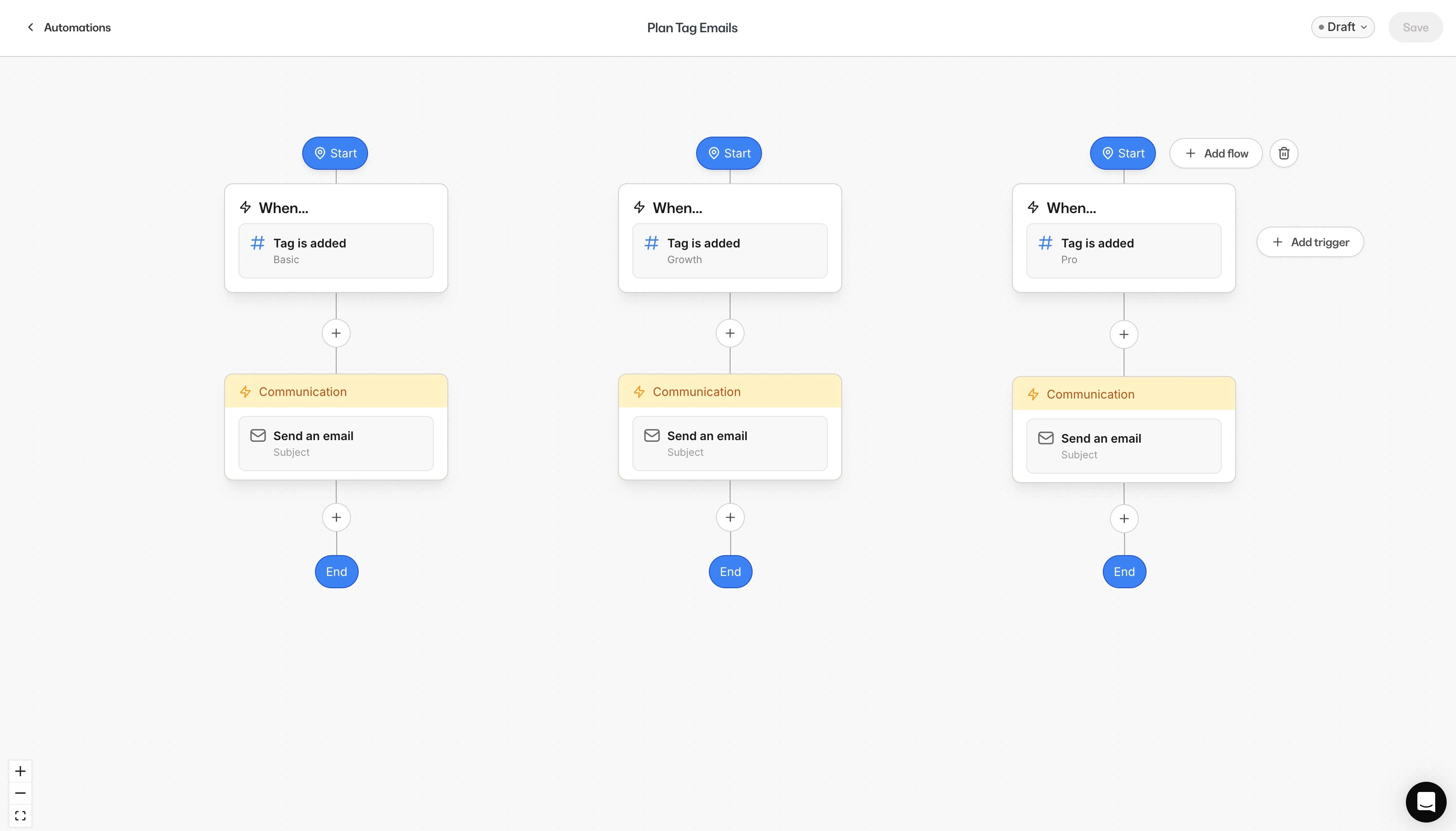
- Click the + Add flow button to add a flow to your Automation.
- The flow appears on the right, allowing you to create a separate workflow inside the same Automation.
Add branching logic and wait nodes
After defining the Then action, you can optionally add up to 5 branches to create conditional paths. You can also include wait nodes as needed throughout the Automation.Example branching use case
For users who submitted multiple forms:- Branch 1: Send Email 1 if they have a specific tag or have purchased Offer A
- Branch 2: Send Email 2 if they do not meet those conditions
